
README file from
GithubThought Navigator
中文说明: README.zh-CN.md
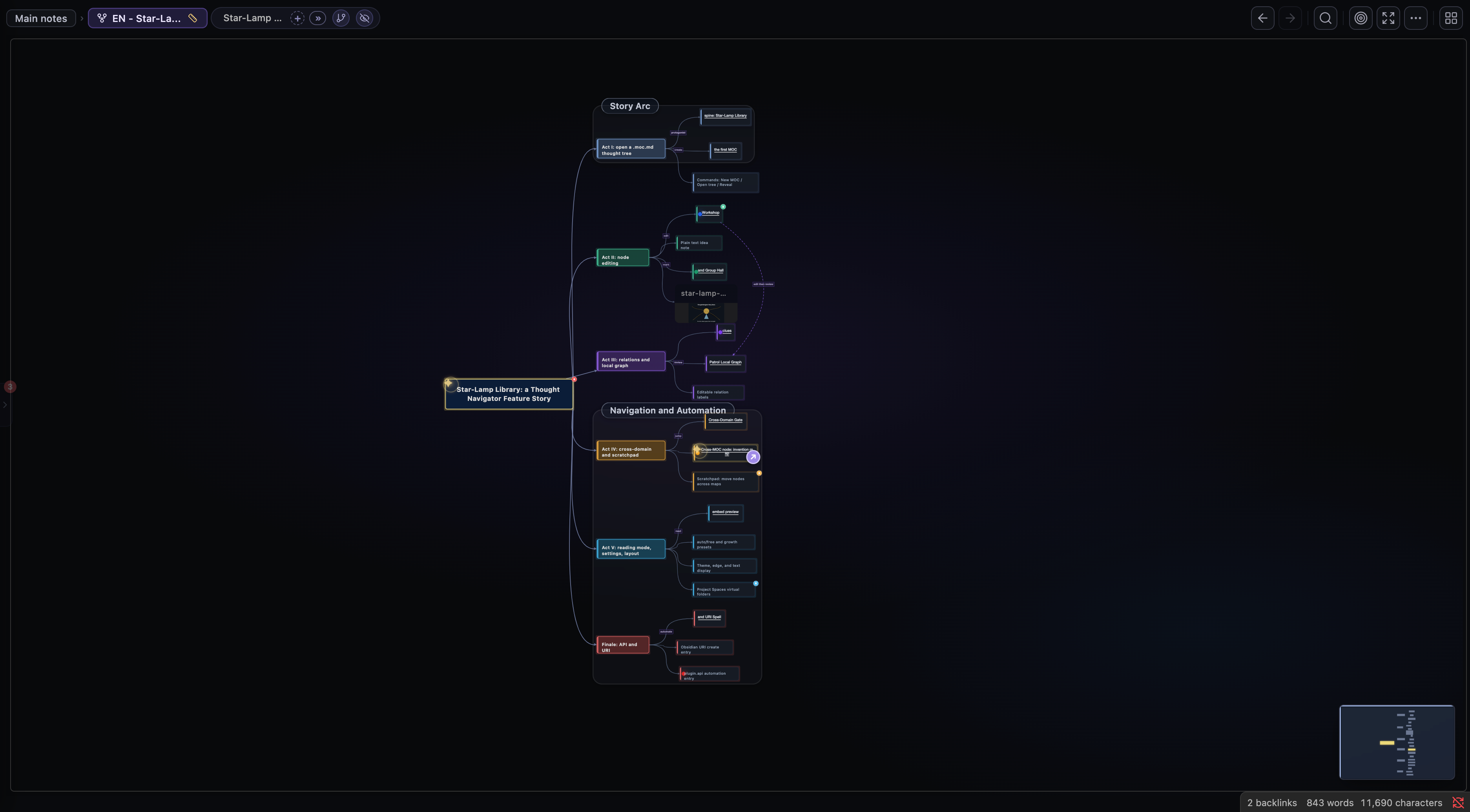
Thought Navigator is an Obsidian plugin for building visual, navigable thought trees from your notes. It is designed for Zettelkasten-style writing, MOC (Map of Content) workflows, and long-term knowledge navigation.
Note: This plugin is a complete reconstruction built on parts of the ideas and source code foundation of Zettelkasten-navigation. If you are interested, take a look at the original project. Thanks to the original author for the generous contribution.
Preview
Features
- Visual thought trees based on
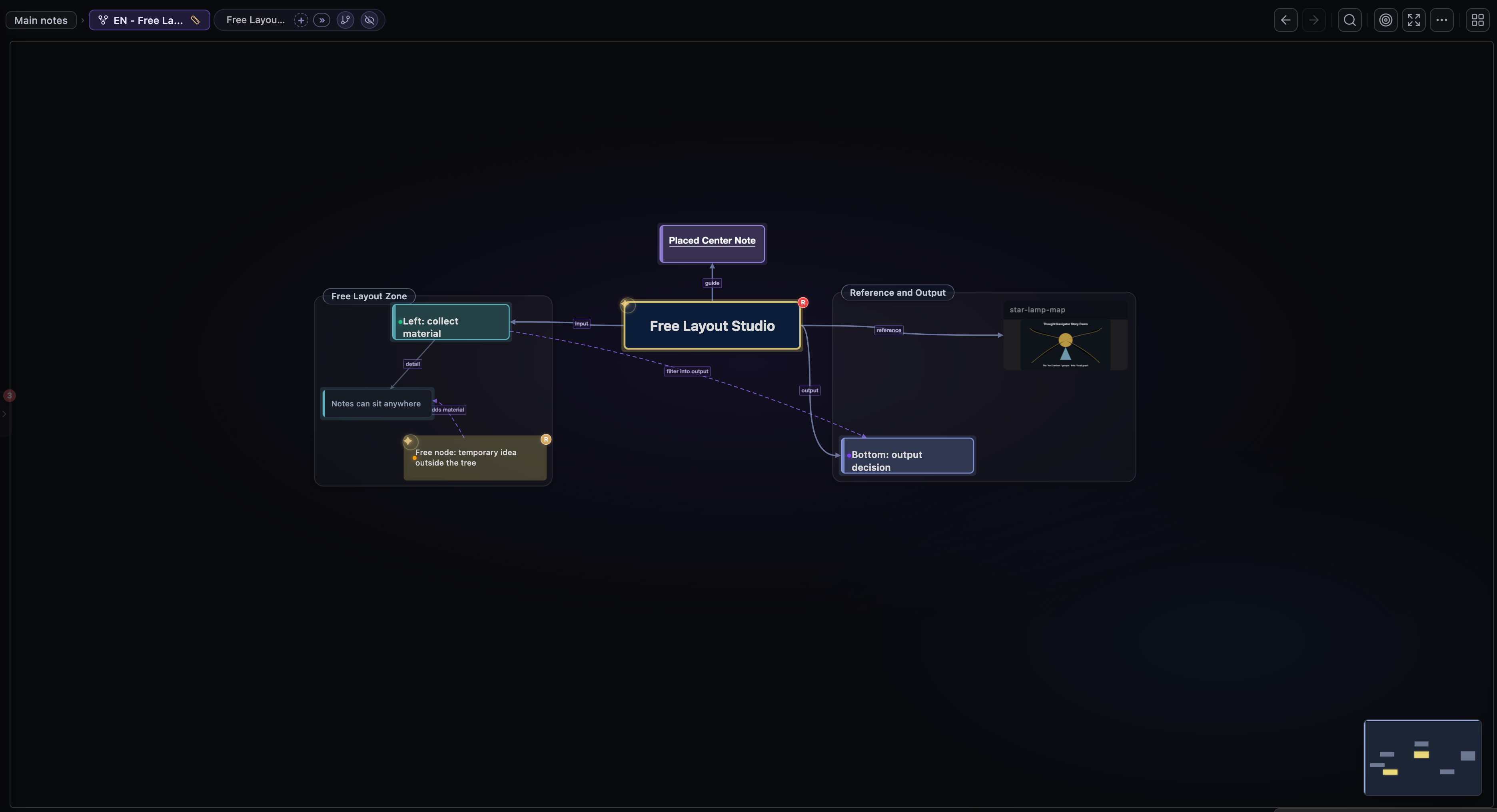
.mocfiles. - Create, edit, drag, connect, group, and color nodes directly on the graph.
- Free layout and auto layout modes for different thinking styles.
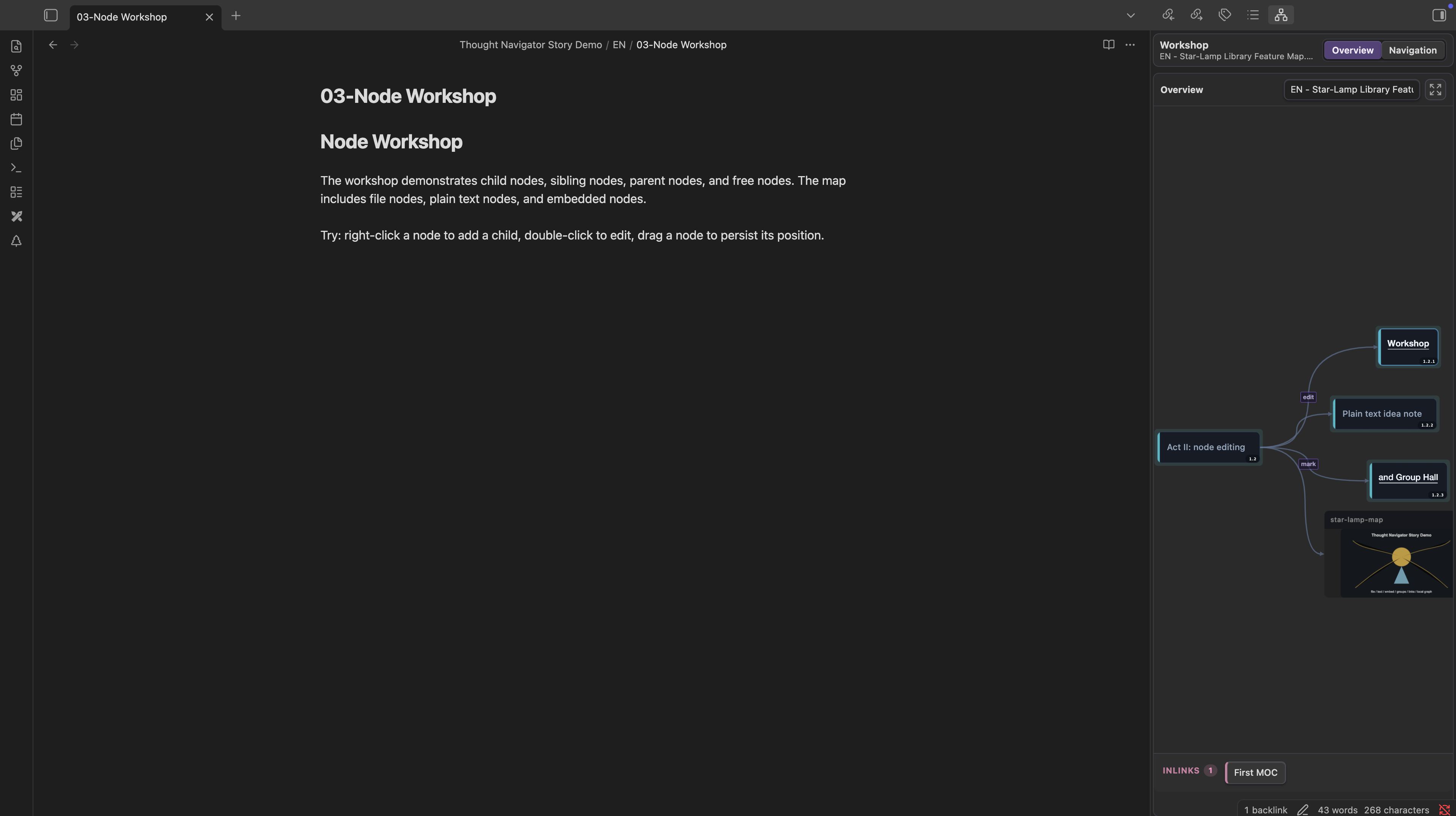
- Local graph view for parent, sibling, child, inlink, and outlink context.
- Cross-domain links between different MOC files.
- Scratchpad for copying, cutting, and moving nodes across MOCs.
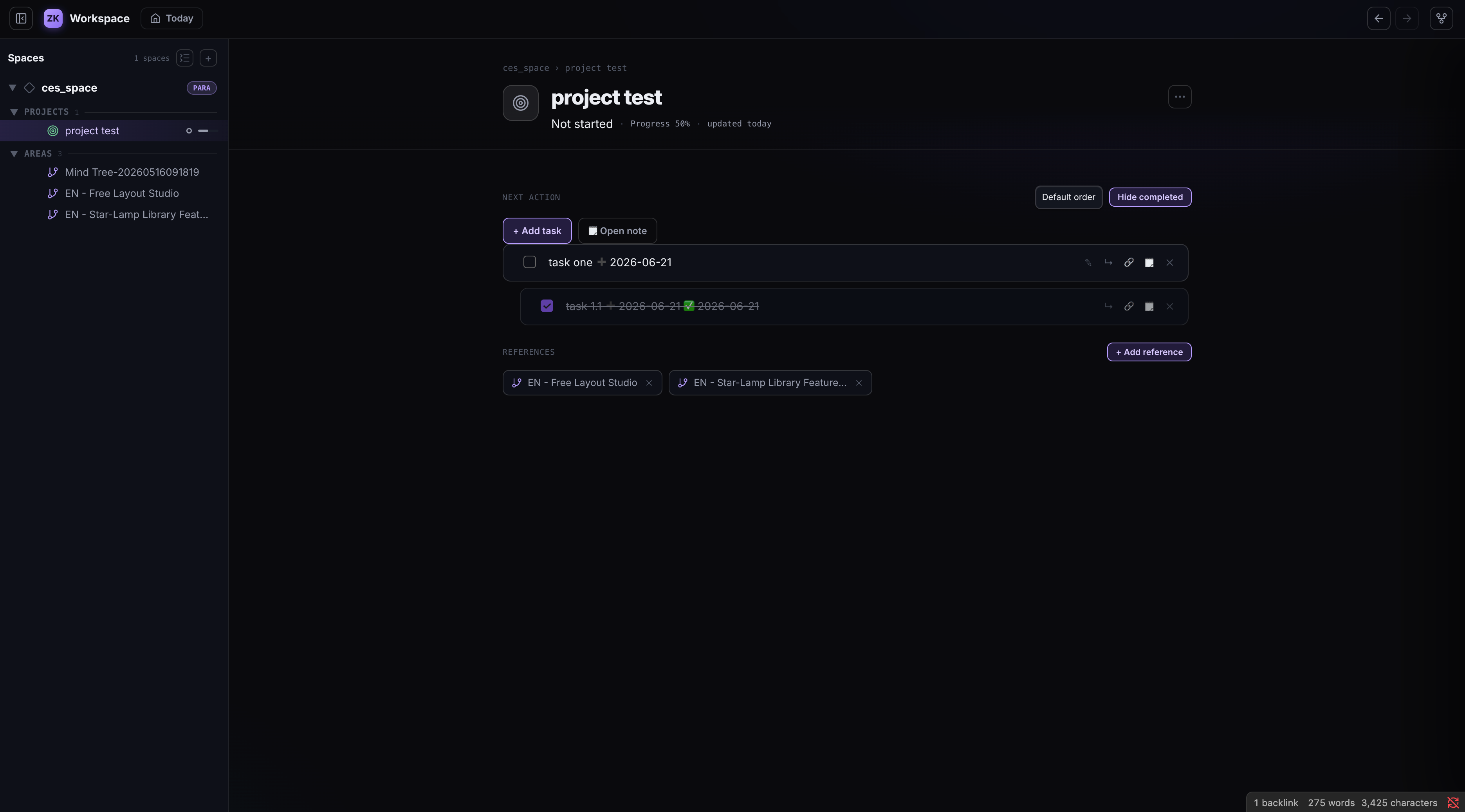
- Workspace view for organizing notes, MOCs, maps, and containers in one place.
- Search inside the tree and reveal the current note in the graph.
- Paste images directly into the graph as embedded nodes.
- MOC embed preview images in Markdown reading mode.
- Theme mode, theme style, edge style, node text, and layout settings.
- Obsidian URI and plugin API support for automation, CLI workflows, and LLM agents.
Demo
How to create node:
https://github.com/user-attachments/assets/b7aca561-151d-49c5-823c-789f417c9376
Workspace:
https://github.com/user-attachments/assets/f0e96c24-2445-43d0-b2bd-fd77a583c768
Other:
https://github.com/user-attachments/assets/5dfd1339-3dd6-4449-9d18-c35daafe46e9
Core Concepts
Thought Navigator works best with MOC files. A MOC file is a .moc file that stores a visual thought tree: nodes, relations, groups, layout state, and display metadata.
The plugin has three main views:
- Thought Tree View: the main canvas for editing and navigating a MOC.
- Local Graph View: a contextual graph for the current note, including nearby tree relations and backlinks/outlinks.
- Workspace View: a higher-level workspace for collecting notes, MOCs, maps, and folders into one navigable structure.
Quick Start
- Install and enable Thought Navigator in Obsidian.
- Run the command
New MOC file, or right-click a folder and chooseNew MOC file. - Open the generated
.mocfile. - Use the Thought Tree View to add nodes, connect notes, drag nodes, create groups, and organize your knowledge map.
- Use
Open local graphwhen you want to inspect the current note's local context.
Commands
| Command | Description |
|---|---|
Open tree graph |
Open the main thought tree view. |
Open local graph |
Open the local graph view. |
Reveal current file in tree graph |
Locate the active file in the thought tree. |
New MOC file |
Create a new .moc thought tree file. |
添加当前 MOC 到项目文件夹 |
Mount the current MOC into a workspace container. |
Typical Workflow
- Create one MOC for a topic, project, or research area.
- Build the first-level and second-level structure before adding details.
- Add new notes as nodes and connect each note to at least one existing idea.
- Use groups and colors to mark clusters, stages, or themes.
- Use cross-domain links when a node belongs to another MOC.
- Use the local graph view to review a note's surrounding context.
Node Editing
In the thought tree view, you can:
- Add child, sibling, parent, and free nodes.
- Edit node IDs and labels.
- Drag nodes and persist their positions.
- Connect nodes with directed relations.
- Edit relation labels and edge style.
- Group selected nodes.
- Rename, resize, recolor, or delete groups.
- Batch delete nodes or batch change colors.
- Copy or cut nodes to the scratchpad.
- Paste scratchpad nodes into another MOC.
- Paste images from the clipboard into the tree.
Local Graph
The local graph view can show:
- Parent, sibling, and child notes.
- Inlinks.
- Outlinks.
- Combined inlink/outlink graph.
You can configure file extension filtering, graph direction, and display behavior in the plugin settings.
Workspace
Workspace is a plugin-managed navigation layer for organizing your knowledge work without changing your vault's real folder structure. It can collect notes, MOC files, maps, and containers into a single workspace that is easier to browse than a flat file tree.
You can:
- Create containers and folders for different projects or knowledge areas.
- Mount or unmount MOCs in the workspace.
- Mix notes, MOCs, and maps in the same workspace structure.
- Keep workspace references updated when files are renamed or deleted.
Skill and CLI Support
Thought Navigator is designed to work with LLM agents and command-line driven workflows. The plugin exposes automation entry points that can create and update .moc files while Obsidian is running.
- Use
obsidian://zk-navigation?action=createto create a new MOC from scripts, launchers, or external tools. - Use
obsidian://zk-navigation?action=add-nodeto append nodes to an existing MOC. - Use the plugin API from Obsidian CLI
evalor other plugins:createMOC,addNode,addNodes,addRelations,deleteNode,deleteNodes,queryNodes, and draft-node helpers. - Use these APIs from Codex, Claude Code, or custom Obsidian skills to turn generated outlines, research plans, or wiki structures into editable thought maps.
Example URI:
obsidian://zk-navigation?action=create&name=research-map&folder=MOC&title=Research%20Map&layout=auto
Example Obsidian CLI eval:
await app.plugins.plugins["thought-navigator"].api.createMOC({
	name: "research-map",
	folderPath: "MOC",
	title: "Research Map",
	layout: "auto"
});
Settings
Recommended starting settings:
| Setting | Recommended value |
|---|---|
| Theme mode | auto |
| Theme style | modern |
| Edge style | bezier |
| Node layout style | free for manual maps, auto for structured maps |
| Show note ID in branch view | enabled |
| Text display mode | id-title |
Privacy and Data Access
Thought Navigator runs locally inside Obsidian.
- It does not collect telemetry.
- It does not send your notes or graph data to a remote server.
- It does not require an account.
- It does not display ads.
- It reads notes, links, metadata, and
.mocfiles from your vault to build graph views. - It writes
.mocfiles, plugin settings, workspace data, and generated preview or attachment files when you use the related features. - It may create, modify, or remove vault files when you explicitly use commands such as creating MOC files, editing graph nodes, pasting images, or deleting embedded files from the graph.
From Obsidian Community Plugins
After the plugin is accepted into the community plugin marketplace:
- Open Obsidian Settings.
- Go to Community plugins.
- Search for
Thought Navigator. - Install and enable the plugin.
Manual Setup
- Download the release assets:
main.jsmanifest.jsonstyles.css
- Create this folder in your vault:
.obsidian/plugins/thought-navigator/
- Put the downloaded files into that folder.
- Restart Obsidian and enable Thought Navigator.
License
PolyForm Noncommercial License 1.0.0. See LICENSE.
Commercial use is not permitted without a separate commercial license from the copyright holder. For commercial licensing, contact: [email protected].