
README file from
GithubTarget Pane
Pick a pane. Every note link you click — including the link icon on an embedded note — opens there, no matter which pane you clicked it from.
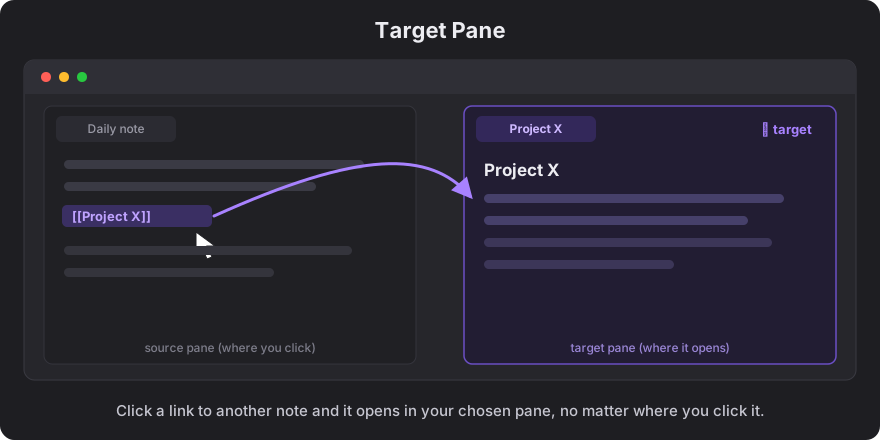
Target Pane lets you designate one pane (tab group) as the destination for note links (links that take you to a different note). Once set, clicking a [[wikilink]] to another note, a Markdown link, or the link icon on an ![[embedded note]] opens it in your chosen pane instead of hijacking the pane you're reading in. Great for a "read on the left, open references on the right" workflow.
In-page links (#heading / ^block jumps within the current note) stay where you clicked, and web/URL links are left completely alone.
Features
- Set any pane as the target with a single command; clear it just as easily.
- All note links route to the target — reading view, Live Preview, and embedded-note link icons.
- Click vs. Cmd/Ctrl-click are distinct:
- Click → opens in the target pane's currently active tab (replaces it).
- Cmd/Ctrl-click → opens as a new tab in the target pane.
- Cmd/Ctrl-Alt-click (split) and "open in new window" are left to Obsidian's natural behavior.
- In-page links stay put —
#headingand^blockjumps scroll within the pane you clicked; they don't go to the target. - Web/URL links are untouched — external links open in your browser exactly as usual.
- Status-bar indicator shows whether targeting is on or off.
- Survives restarts — your target pane is remembered across reloads and Obsidian restarts.
- Auto-off — if you close the target pane entirely, targeting turns itself off.
How it works
| You do… | …it goes to |
|---|---|
| Click a note link (to another note) | Target pane → active tab (replaced) |
| Cmd/Ctrl-click a note link | Target pane → new tab |
| Cmd/Ctrl-Alt-click a note link | Obsidian default (split) |
Click an in-page link (#heading / ^block) |
Stays in the pane you clicked |
| Click a web/URL link | Opens in your browser (unaffected) |
| Target turned off | Stock Obsidian behavior |
Usage
- Open the pane you want links to land in, and focus it.
- Run Target Pane: Set target pane to the active pane (Command Palette —
Cmd/Ctrl-P). - The status bar shows 🎯 Target pane: on. Click note links anywhere — they open in that pane.
- Run Target Pane: Clear target pane to turn it off.
Commands
| Command | Description |
|---|---|
Set target pane to the active pane |
Make the focused pane the target. |
Clear target pane |
Turn targeting off. |
Installation
From Community Plugins (once published)
- Settings → Community plugins → Browse.
- Search for Target Pane, install, and enable.
Manually
- Download
main.js,manifest.json, andstyles.cssfrom the latest release. - Copy them into
<your-vault>/.obsidian/plugins/target-pane/. - Reload Obsidian and enable Target Pane under Settings → Community plugins.
Beta (via BRAT)
Install the BRAT plugin, then add mjsharkey/obsidian_target_pane as a beta plugin.
Notes & known behavior
- Pinned tabs: when targeting is off, clicking an in-page (
#heading/^block) link inside a pinned tab can make Obsidian open it in another pane. That's native Obsidian behavior (a pinned tab refuses navigation), not this plugin. - Cmd/Ctrl-Alt-click (split) and new-window opens are intentionally left alone for now, so you keep full manual control when you want it.
Development
Requires Node.js and npm.
git clone https://github.com/mjsharkey/obsidian_target_pane.git
cd obsidian_target_pane
npm install
npm run dev      # esbuild watch — rebuilds main.js on save
To test in a real vault, symlink this repo into a vault's plugins folder and use the
Hot-Reload plugin (it auto-reloads on main.js changes because this repo has a
.git directory):
ln -s "$(pwd)" "/path/to/your/vault/.obsidian/plugins/target-pane"
Then enable both Target Pane and Hot Reload in the vault. For a production build:
npm run build # type-checks, then emits a minified main.js
Releasing (maintainer)
Releases are automated. Write notes in release-notes/<version>.md, then:
./scripts/release.sh patch # or minor / major / an explicit X.Y.Z
release.sh bumps package.json / manifest.json / versions.json, commits, pushes, and pushes a version tag. Pushing a tag matching [0-9]+.[0-9]+.[0-9]+ triggers .github/workflows/release.yml, which runs npm ci, builds, attaches main.js / manifest.json / styles.css to a new GitHub release, and signs them with build-provenance attestations. Branch / work-in-progress pushes never trigger a release — only a version tag does.
Contributing
Contributions are very welcome — this started as a focused scratch-my-own-itch plugin, and it'll get better with more eyes and use cases.
- 🐛 Found a bug? Open an issue with steps to reproduce.
- 💡 Have a feature idea? Open an issue and describe the workflow you want (e.g. how Cmd-Alt-click or new windows should behave). Real use cases drive the roadmap.
- 🔧 Want to hack on it? Fork the repo, make your change on a branch, and open a pull request. Small, focused PRs are easiest to review. Please run
npm run buildfirst so it type-checks.
No contribution is too small — docs, typo fixes, and edge-case reports all help.
License
MIT © Michael Sharkey