
README file from
GithubTag Along
Browse your vault as a folder tree built from your tags.
Works well with Loose Ends, which keeps track of the notes you haven't tagged yet, and Paper Trail, which tags your papers by reading status. See Works well with.





Folders make you choose. A summary of a book about coding goes in Books, or
in Coding, but not in both, and half the time you look in the wrong one. Tags
don't have that problem: a note can have as many as it needs. But Obsidian's
tag pane is a flat list, and it doesn't show you the notes.
Did you know Obsidian lets you
nest tags with a slash? #source/book
is a book tag inside a source tag, and #source/article sits right next to
it. Tag Along turns those nested tags into the folder tree you'd want. Every
top-level tag, like source, domain or status, becomes a tree of its own,
and a note shows up under every tag it has. So the book summary sits in
source/book and in domain/coding, and you find it wherever you look.
1 Installation
Install Tag Along in Obsidian: go to Settings → Community plugins → Browse, search for "Tag Along", then install and enable it. You can also open its page in the plugin directory.
Tag Along needs Obsidian 1.13 or later, and works on desktop and mobile.
2 Getting started
The first time it loads, Tag Along adds its pane to the left sidebar. If you close it, open it again with the ribbon icon or Tag Along: Open.
Your tags are the folders. Say you have three notes:
Meeting notes : #domain/work    #status/active
Research doc  : #domain/coding  #source/book   #status/active
Book summary  : #source/book    #status/done
Tag Along shows them like this:
domain/
  coding/   → Research doc
  work/     → Meeting notes
source/
  book/     → Book summary, Research doc
status/
  active/   → Meeting notes, Research doc
  done/     → Book summary
A note is listed in the deepest folder for each of its tags. A note tagged both
#domain and #domain/coding only shows up in domain/coding.
Now open source/book. Below its notes you'll see domain and status in
grey: these are filter folders. Open status inside it, and you see which of
your book notes are active and which are done.
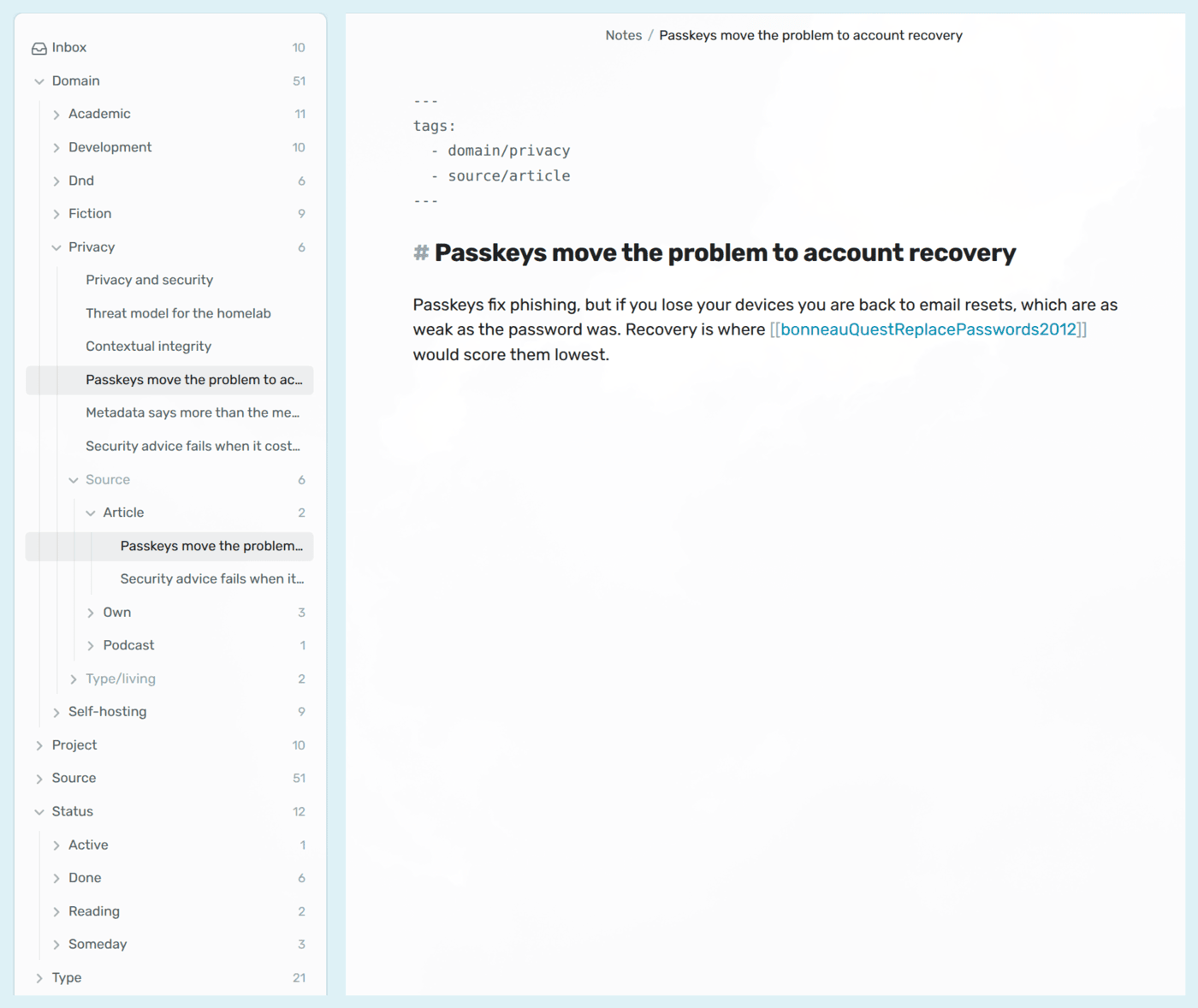
Here's the same idea in a bigger vault: the Privacy folder, narrowed down by
the Source filter folder to the notes that came from an article.

The buttons at the top of the pane change the sort order, switch compact folders and filter folders on or off, and expand or collapse all folders.
3 Safety and quality
Tag Along's folders are tags, not folders on disk. Hiding, flattening, pinning, moving or reordering a folder only changes Tag Along's own settings, never your notes. Files only change when you ask for it: when you rename, copy, move or delete a note from Tag Along, and those go through Obsidian the same way they do in the core file explorer. Section 11 lists exactly what it changes and when.
It doesn't connect to the internet and doesn't run any programs.
It's built for big vaults. A test vault of 20,000 notes, each with three to six tags, turns into a tree in about 0.16 seconds on a laptop, and only the folders you open are worked out.
Every push is tested, and every release is built in the open with a signed attestation, so you can check that the file you installed is the one that was built. Section 11.4 says how.
Table of contents
- 4 Documentation
- 5 Features
- 6 How it works
- 7 Keyboard and mouse
- 8 Commands
- 9 Settings
- 10 Works well with
- 11 Network and file disclosure
- 12 Questions or issues?
- 13 Support
- 14 License
4 Documentation
If you want to work on the plugin:
- Architecture - How the code is layered, and how a change in your vault finds its way into the tree.
- Tree model - The exact rules for every kind of folder, and what happens when they meet.
- Settings - How settings are stored, checked and upgraded from older versions.
- Compatibility - What a release may and may not change, so your settings and hotkeys keep working.
- Performance - The benchmarks, how to run them, and the current numbers.
- Development - Setup, tests, checks and releases.
5 Features
5.1 The tree
- One tree per top-level tag -
domain,sourceandstatuseach get a tree of their own, with their nested tags as folders. - A note in every folder it belongs to - A note shows up under each of its tags, in the deepest folder for each one.
- Compact folders - A folder whose only content is one sub-folder is shown
as a single entry, such as
project/website. - Note titles - Show a note's
titleproperty or first heading instead of its file name. - Note counts - See how many notes each folder holds.
- Untagged notes - Optionally listed at the top of the tree.
5.2 Narrowing down
- Filter folders - Inside a folder, your other top-level tags appear in grey below the notes. Open one to narrow the folder's notes down by that tag.
- Filter-only folders - Keep tags like
statusorpriorityout of the top of the tree, and only use them as filters. - Exclusive folders - Notes in an
inboxorarchivefolder show up there and nowhere else, until you remove the tag. - Hidden folders - Hide a tag and its sub-tags. Its notes still show up under their other tags.
- Included and excluded folders - Choose which parts of your vault the tree shows, and leave out notes with certain tags.
5.3 Arranging
- Sorting - Sort notes by name, modified or created time, and folders by name, number of notes, or most recently modified note.
- Your own order - Drag a folder to where you want it, at any level. The folders you leave alone follow the sort order.
- Pinned folders - Keep a folder at the bottom of the pane.
- Top-level folders - Move a sub-tag out of its parent and give it a top-level folder of its own.
- Flat folders - List every note below a folder in one list, without its sub-folders.
- Folder icons - Show one of Obsidian's icons in place of a folder's arrow.
5.4 Working with notes
- The menu you know - Right-click a note for the same menu as in the core file explorer, including what other plugins add.
- Several notes at once - Alt-click and Shift-click to select notes, then delete, move or drag them together.
- Drag notes out - Drop a note in another note to link to it, or anywhere else you'd drop one from the core file explorer.
- Rename in place - Press F2 to rename a note right in the tree.
- Hover previews - Hold Ctrl or Cmd and hover over a note.
- Copy tags - Right-click a folder to copy the tags that lead to it, such as
#source/book #status/active.
5.5 Finding your way
- Reveal the note you're in - Open the folders down to the current note, from the command palette or any file menu.
- Click a tag, open its folder - Optionally, clicking a tag in a note opens its folder instead of searching.
- Keyboard navigation - Move through the tree with the arrow keys, like in the core file explorer.
- Remembers what's open - Each pane remembers which folders you had open.
6 How it works
6.1 From tags to folders
Every tag becomes a folder, and every / in a tag becomes a level. The part
before the first /, like domain in domain/coding, is the top-level tag,
and each top-level tag is a tree at the top of the pane.
A note is listed in the deepest folder for each of its tags, so a note tagged
#domain and #domain/coding is listed in domain/coding only, not in
domain as well. A note with tags under three top-level tags shows up in three
trees.
Tags are matched without regard to case: #Book and #book are the same
folder. The folder is named the way the tag is spelled in the first note that
has it.
6.2 Filter folders
Filter folders are how you combine top-level tags. Inside a folder, the notes
listed directly in it are split up once more by each top-level tag you haven't
used on the way there. Open source/book, then the grey status folder, then
active, and you see the books you're actively working on.
Filter folders only narrow down the notes listed directly in a folder, because sub-folders already split up the rest. They can be chained, and Tag Along only offers one when it actually narrows something down: it has to keep at least two notes, and not all of them can have the same tag.
6.3 When folder settings meet
Most of the time each setting does one simple thing. When several apply to the same tag, this is what happens:
- Moved to the top level and hidden - Hiding a parent doesn't hide a sub-tag you moved to the top level, because it no longer lives there.
- Moved to the top level with the same name - A sub-tag moved to the top
level merges with a top-level tag of the same name.
project/readingand a plainreadingend up in onereadingfolder. - Exclusive and other tags - A note with an exclusive tag shows up only under that tag, and its other tags are ignored until the exclusive tag is gone.
- Filter-only and nothing else - A note whose only tags are filter-only has no folder to be in, so it counts as untagged.
- Flat and compact - A flat folder lists all its notes, so compacting stops there.
- Filter folders always follow the sort order. They can't be dragged, pinned or flattened.
7 Keyboard and mouse
When the Tag Along pane has focus:
| Key | Action |
|---|---|
| ↑ / ↓ | Move up or down one row |
| → | Open a folder, or go into an open one |
| ← | Close a folder, or go to its parent |
| Enter | Open the note, or open or close the folder |
| Ctrl/Cmd+Enter | Open the note in a new tab |
| F2 | Rename the note |
| Delete or Backspace | Delete the note, or all selected notes |
| Escape | Clear the selection |
| Mouse | Action |
|---|---|
| Click | Open a note, or open or close a folder |
| Ctrl/Cmd+click | Open the note in a new tab |
| Alt+click | Add a note to the selection, or take it out |
| Shift+click | Select every note between the last one and this one |
| Right-click | The note or folder menu, or the menu for the selection |
| Drag a folder | Put it in your own order, or drop it below all others to pin it |
| Drag a note | Drop it in a note to link to it, like from the file explorer. Drags all selected notes when it's one of them |
| Ctrl/Cmd+hover | Preview the note |
Delete asks for confirmation the way Obsidian's own settings say it should.
8 Commands
None of the commands has a hotkey, so you can choose your own in Settings → Hotkeys.
Tag Along: Open- Shows the tree in the left sidebar. Also available from the ribbon.Tag Along: Reveal active note- Opens the folders down to the note you have open, and highlights it. Also in the file menu as Reveal in Tag Along.Tag Along: Expand all folders- Opens every folder in the tree.Tag Along: Collapse all folders- Closes every folder in the tree.Tag Along: Toggle compact folders- The same as the button at the top of the pane.Tag Along: Toggle filter folders- The same as the button at the top of the pane.
9 Settings
Most folder settings can also be changed by right-clicking a folder. The lists in the settings are where you undo them.
Folders
| Setting | Default | |
|---|---|---|
| Compact folders | On | Show a folder and its only sub-folder as one entry. |
| Filter folders | On | Show your other top-level tags as grey folders, to narrow a folder's notes down. |
| Folder order | None | The folders you dragged into place, shown first, and the ones pinned to the bottom. Remove one to let it follow the sort order again. |
| Top-level folders | None | Sub-tags with a top-level folder of their own, merged with a folder of the same name. |
| Flat folders | None | Folders that list every note below them, from their sub-tags too, instead of showing sub-folders. |
| Exclusive folders | None | Notes with these tags, or their sub-tags, only show up in these folders. |
| Filter-only folders | None | Top-level tags without a folder of their own, that only show up as filter folders. |
| Hidden folders | None | Tags and their sub-tags without a folder. Their notes still show up under their other tags. A sub-tag moved to the top level stays visible. |
| Show untagged notes | Off | List notes without tags at the top of the tree. |
Notes
| Setting | Default | |
|---|---|---|
| Show note titles | On | Show the title property or first heading instead of the file name. |
| Show note counts | Off | Show how many notes each folder holds. |
| Open tags in Tag Along | Off | Clicking a tag in a note opens its folder instead of searching for it. Ctrl/Cmd-click still searches. |
Which notes to show
| Setting | Default | |
|---|---|---|
| Included folders | Whole vault | Only notes in these folders show up. Leave it empty for the whole vault. |
| Excluded folders | None | Notes in these folders are left out, even inside an included folder. |
| Excluded tags | None | Notes with these tags, or their sub-tags, are left out of the tree. |
10 Works well with
These plugins are by the same author. Each does one thing, and Tag Along doesn't need either of them, but they fit together nicely.
10.1 Loose Ends
Loose Ends lets you write a
note now and tag it later. You tell it which kinds of tag every note needs, like
a domain/… tag and a source/… tag, and until a note has them all, it gets
one extra tag saying it isn't filed yet.
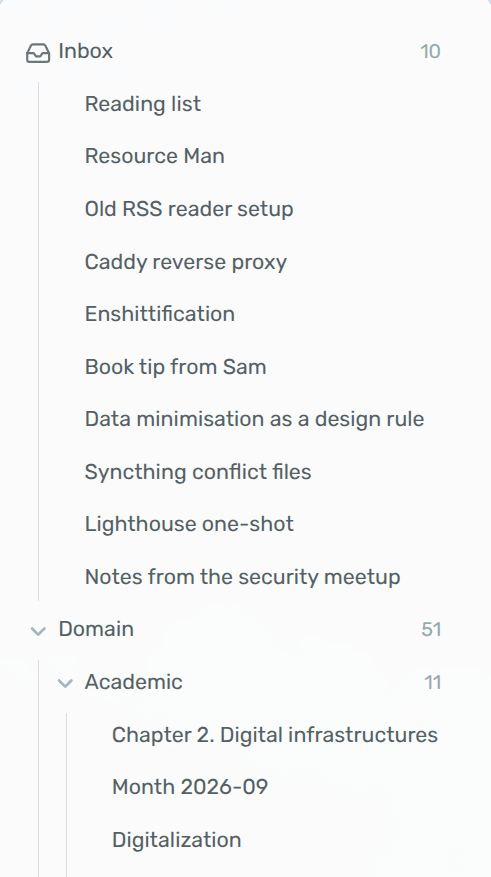
In Tag Along, domain and source are each a tree, and the extra tag is a folder
of everything still waiting. Set Loose Ends' unfiled tag to inbox, and make
inbox an exclusive folder in Tag Along: a new note then shows up in inbox
only, and moves to its proper folders the moment you've finished tagging it.
10.2 Paper Trail
Paper Trail turns your
Zotero library into a reading queue. Set its Status tag to status, and
your papers show up in Tag Along under status/queued, status/summarised and
so on. Open one, and the filter folders let you narrow it down by topic.
11 Network and file disclosure
Tag Along runs entirely on your device. It never connects to the internet and doesn't send anything anywhere.
11.1 What it reads
- Notes: The tags,
titleproperty and first heading of the Markdown notes in your vault, which it gets from Obsidian's own index of your notes.
11.2 What it changes in your notes
Only when you ask for it, and only these:
- Rename (F2, or the note menu): Changes the note's first heading and its
titleproperty, if they showed the old name, and renames the file, if it was named after the old name. A file name that isn't the title, like an ID or a citation key, stays as it is. - Make a copy: Creates a copy next to the note.
- Delete: Deletes the note through Obsidian, which asks first if your settings say so.
- Move: Through Obsidian's own move dialog, from the menu for selected notes.
- Drag: Dragging a note out of the tree hands it to Obsidian, the way the core file explorer does. Drop it in a note and Obsidian adds a link there.
Nothing else Tag Along does touches a note: hiding, flattening, pinning, moving or reordering folders only changes its settings.
11.3 What it stores
- Settings: Its own
data.jsonin the plugin folder. - Open folders: Which folders are open in each pane, saved with Obsidian's workspace layout.
- Clipboard: Copy tags puts the tags on your clipboard, only when you choose it.
11.4 How releases are built
Every push is built, linted with ESLint and the official
Obsidian ESLint plugin, tested
with Vitest, and built with Nix as well. Releases are
built by GitHub Actions from the tagged source, after the same checks and a
check that the tag is the version in manifest.json, with every action pinned
to an exact version, and come with a signed build provenance attestation, so
you can check that the file you installed is the one that was built:
gh attestation verify main.js --repo jorritvanderheide/obsidian-tag-along
12 Questions or issues?
Have a look at the FAQ first: it covers the most common surprises, like a note that doesn't show up where you expect. If something still doesn't work, or you have an idea, please open an issue. Found a security problem? Please report it privately, as described in the security policy.
The source lives on Codeberg and is mirrored to GitHub.
13 Support
Tag Along is free. If you find it useful, you can support its development on Liberapay:

14 License
Copyright © 2026 Jorrit van der Heide. Licensed under the EUPL-1.2.
Tag Along started as a fork of TagFolder by vorotamoroz. Version 2 is a rewrite that shares no code with it; releases up to 1.1.1 remain available under the MIT license.