
README file from
GithubSync Settings for Windows
An Obsidian plugin that shares settings (plugins, themes, snippets, hotkeys, etc.) across multiple vaults using profiles.
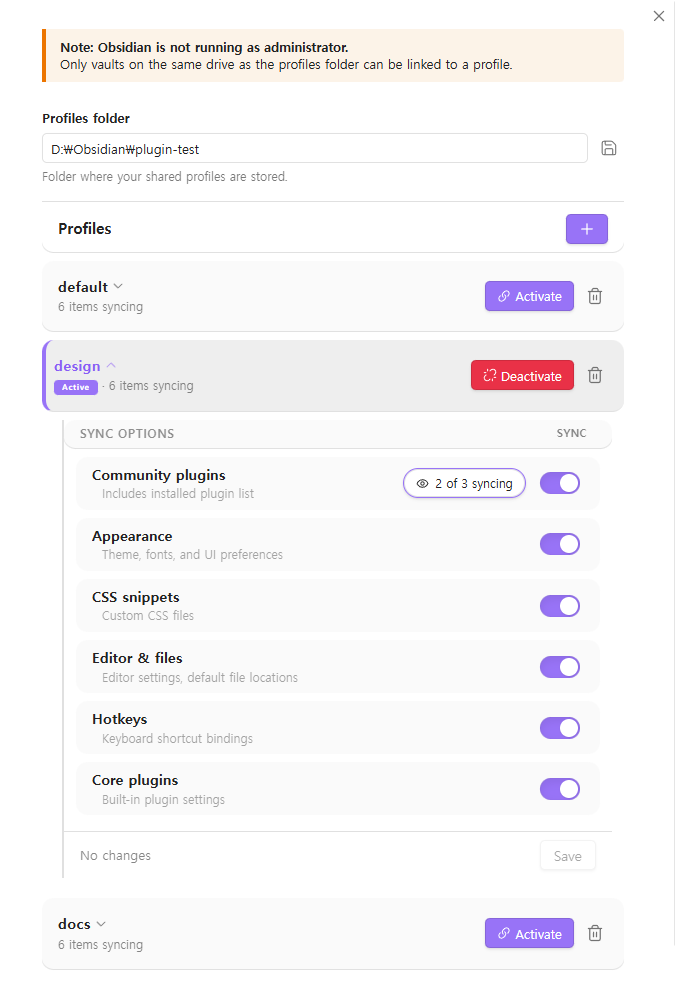
Features
- Profile management — Create named profiles (e.g.
default,work,mobile) in a central folder - One-click apply — Apply a profile to any vault with a single click
- Selective sync — Choose which settings to share per profile. Keeps workspace and graph settings local per vault
- Windows native — Built for Windows
How it works
- Set a profiles folder (e.g.
D:\Obsidian\settings\) - Create or select a profile — each profile is a subfolder containing shared settings
- Apply the profile to your vault — the plugin links your vault's settings to the profile
Multiple vaults pointing to the same profile will always stay in sync.
Shared items
| Item | Type |
|---|---|
plugins/ |
Folder |
themes/ |
Folder |
snippets/ |
Folder |
appearance.json |
File |
app.json |
File |
hotkeys.json |
File |
community-plugins.json |
File |
core-plugins.json |
File |
Local-only items (not shared)
workspace.jsonworkspace-mobile.jsongraph.json
Important notes
- Run Obsidian as Administrator for best results. This removes all drive restrictions.
- Without Administrator, only vaults on the same drive as the profiles folder can be linked.
- After applying or changing a profile, Obsidian may not pick up the new settings immediately due to caching.
- The settings tab may also show stale values until you restart.
- Restarting Obsidian will always load the latest settings.
Installation
From Obsidian Community Plugins (coming soon)
- Open Settings → Community Plugins → Browse
- Search for "Sync Settings for Windows"
- Install and enable
Manual
- Download
main.js,manifest.json, andstyles.cssfrom the latest release - Create a folder
<vault>/.obsidian/plugins/sync-settings-for-windows/ - Copy the three files into that folder
- Restart Obsidian and enable the plugin in Settings → Community Plugins
Requirements
- Windows 10 or later
- Obsidian 1.5.0+