

README file from
GithubSurfing
Introduction
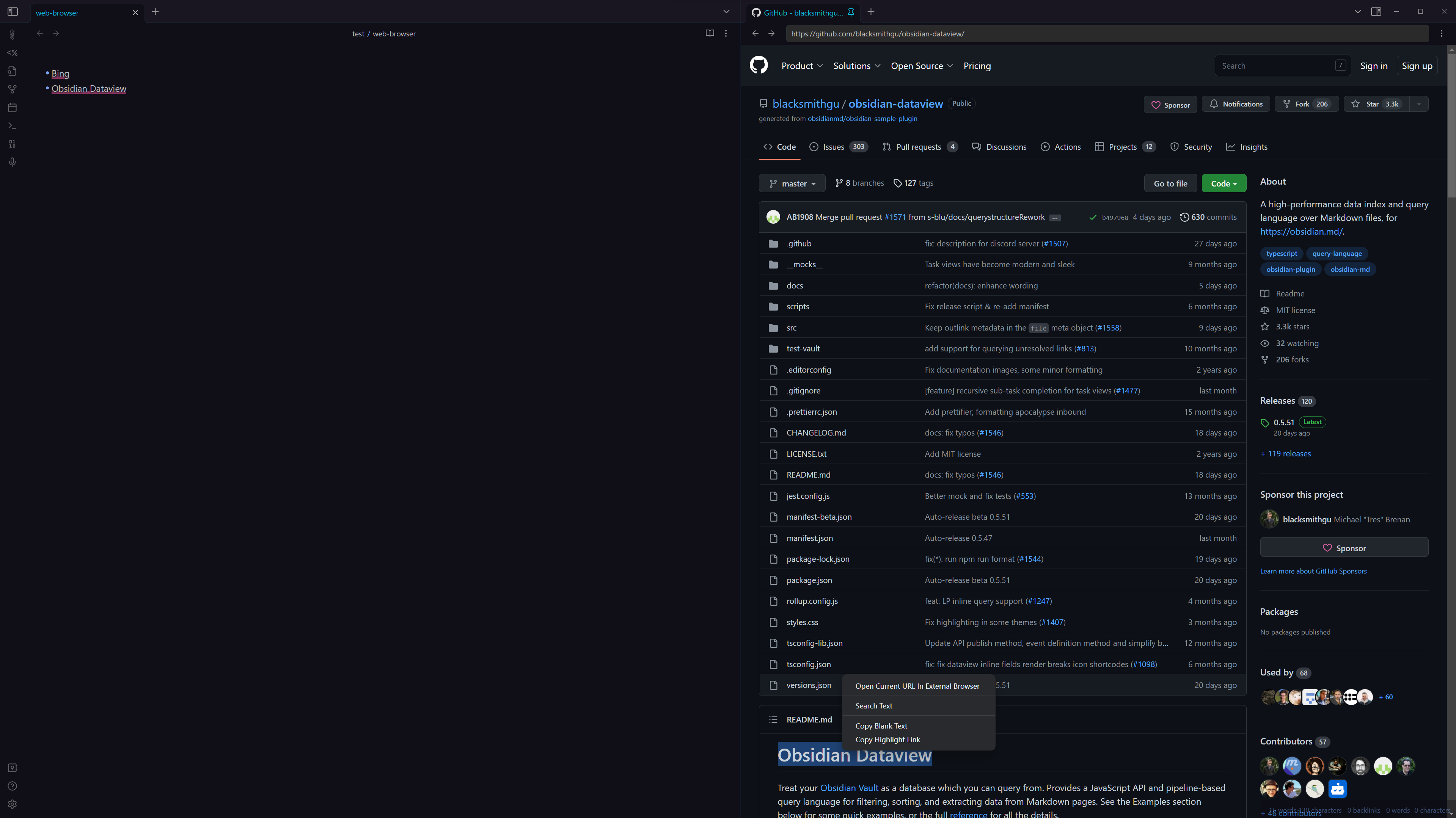
An Obsidian plugin that allows you to browse the web within Obsidian using v1.0 tabs.
The core functionality of the plugin, rendering a web view, is greatly influenced by Ellpeck's Obsidian Custom Frames plugin and this plugin wouldn't have been possible without it.
TODO
- Support extensions
- Support custom CSS
- Support custom JS
Feature
- Core Feature
- Browse arbitrary web pages: The plugin hijacks Obsidian's file, http, https protocols, enabling links to be opened directly in Obsidian, rather than in external browsers. Yes, local HTML and other resources are also supported.
- Editor web search: You can select keywords in the editor and then right-click to open them in web-browser and search using the default search engine.
- In-page web search: Again, you can right-click within a web page to use the default search engine search.
- Copy links pointing to highlights: As with the browser, you can select text and copy the links pointing to it.
- Use BookmarkLets in your browser to open the URL directly in Obsidian.
- Copy video timestamp (experimental feature: currently only bilibili is supported): right click on the text to pop up the menu to copy the timestamp, currently there are some bugs, it is known that sometimes the menu does not pop up.
- Auxiliary Feature
- Open current URL with external browser: right-click menu
- Default search engine: setting item
- Default copy highlighted template: setting item (currently only supports very simple templates), please avoid using some special characters
- Support browsing history: Jump back and forth to the page
- Clear browsing history: command panel
- All links are opened in the same panel on the right: Settings
- Toggle whether to open in the same panel on the right: command panel
- Simple dark mode: just simple
Chrome Extensions (experimental, desktop)
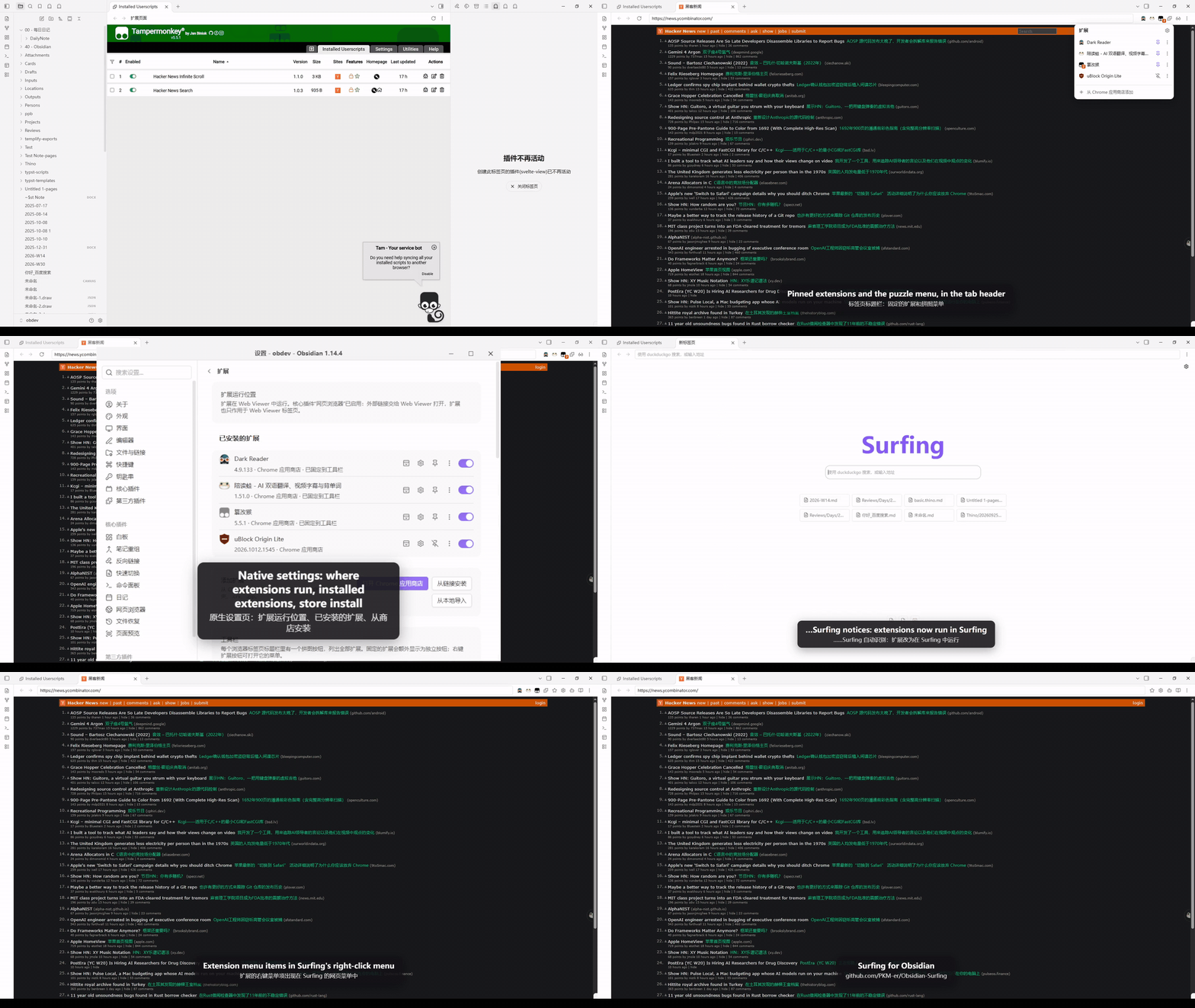
Surfing can run Chrome extensions such as Tampermonkey, uBlock Origin Lite, Dark Reader or Read Frog. This used to be the separate Chrome Extensions Bridge plugin.
- Where extensions run: while Obsidian's core Web Viewer plugin is enabled, extensions run in Web Viewer tabs, and Surfing leaves external links to Web Viewer (Surfing's own view stays available from its commands and menus). With Web Viewer disabled, extensions run in Surfing tabs. Switching the core plugin moves the extensions over automatically. Each browser has its own session, so extension data (settings, cookies) is kept separately for each.
- Install from the Chrome Web Store (open the store with the command Open Chrome Web Store, then click Install to Obsidian in the tab header), from a store link or extension ID, or from a local
.crx,.zipor unpacked folder. Manage everything in Settings → Surfing → Extensions. - Use: every browser tab header has a puzzle button listing your extensions; pinned extensions get their own button with icon and badge. Extension context menu items appear in the page's right-click menu, and manifest commands appear in the command palette, where you can bind hotkeys.
- Requirements: Obsidian installed from a 1.12.4 or later installer (Electron 39 or later). Electron is bound to the installer; on older installs Surfing works as before, without extensions. Extensions can't load while Surfing's session isolation is on.
- Coming from Chrome Extensions Bridge? Disable that plugin, then use Import in Settings → Surfing → Extensions. Extensions installed from local folders get a new extension ID, so their data starts fresh.
Browser control for AI agents (MCP, desktop)
Surfing can run a local MCP server so external AI agents (Claude Code, Codex CLI, Cursor, ...) can see and control the web pages open in Obsidian, in Surfing tabs and in the core Web Viewer, much like Claude in Chrome does for Chrome.
- Enable: Settings → Surfing → MCP → Enable MCP server. Surfing generates an access token and listens on
http://127.0.0.1:27125/mcp(the port is configurable). - Connect Claude Code:
claude mcp add --transport http surfing http://127.0.0.1:27125/mcp --header "Authorization: Bearer <token>" - Connect Codex CLI: add to
~/.codex/config.toml:
The settings page shows these snippets (and one for other clients) with copy buttons. Surfing never writes other apps' config files.[mcp_servers.surfing] url = "http://127.0.0.1:27125/mcp" http_headers = { Authorization = "Bearer <token>" } - Tools:
tabs_list,tabs_create,tabs_activate,tabs_close,navigate,read_page(elements with refs),find,get_page_text,click,type,key,scroll,form_input,screenshot,wait_for,console_messages, andjavascript(off by default). Clicks, typing and keys are real input events. - Security: the server listens on 127.0.0.1 only; every request needs the bearer token; requests that carry an
Originheader (that is, from web pages) or a foreignHostare rejected. The first time an agent reads or acts on a site, Obsidian asks you (Allow this time, Always allow, Deny) unless you chose Allow all sites. Blocked sites (example.comor*.example.com) are always refused. Running JavaScript in pages is off unless you turn it on. A tab an agent is controlling shows an Agent badge; its menu revokes that site for the session.
Usage
Use BookmarkLets Open URL
The plugin registers an Obsidain uri protocol that allows you to open eb-broswer in Obsidian using the
URL obsidian://web-open?url=<url>. Where <url> refers to the web address link.
Match bookmarklets will be able to click a bookmark in the browser to open
the current browser URL within Obsidain.
- Open the
Open URL In Obsidian Weboption in the plugin settings. - Under this option there is a link of bookmarklets, drag this link into your browser's bookmark bar. You can also click this link(will copy bookmarklets code), then create bookmarklets by yourself.
- Now you can click on the bookmark to open the current page of your browser in Obsidian.
Use Quickadd to search selection in ChatGPT in Surfing
- Create a macro based on this script: search-in-surfing
- Open ChatGPT in surfing, and select some text, then run the macro.
Installation
- Search
Surfingin the Obsidian Community Plugin marketplace. - Can be installed via the Brat plugin
- Manual installation
- Find the release page on this github page and click
- Download the latest release zip file
- Unzip it, copy the unzipped folder to the obsidian plugin folder, make sure there are main.js and manifest.json files in the folder
- Restart obsidian (do not restart also, you have to refresh plugin list), in the settings interface to enable the plugin
- Done!
Contribution
- Windily-cloud(皮皮) - Chinese translation && Features
Support
If you are enjoying this plugin then please support my work and enthusiasm by buying me a coffee on https://www.buymeacoffee.com/boninall. .