
README file from
GithubSmartPick
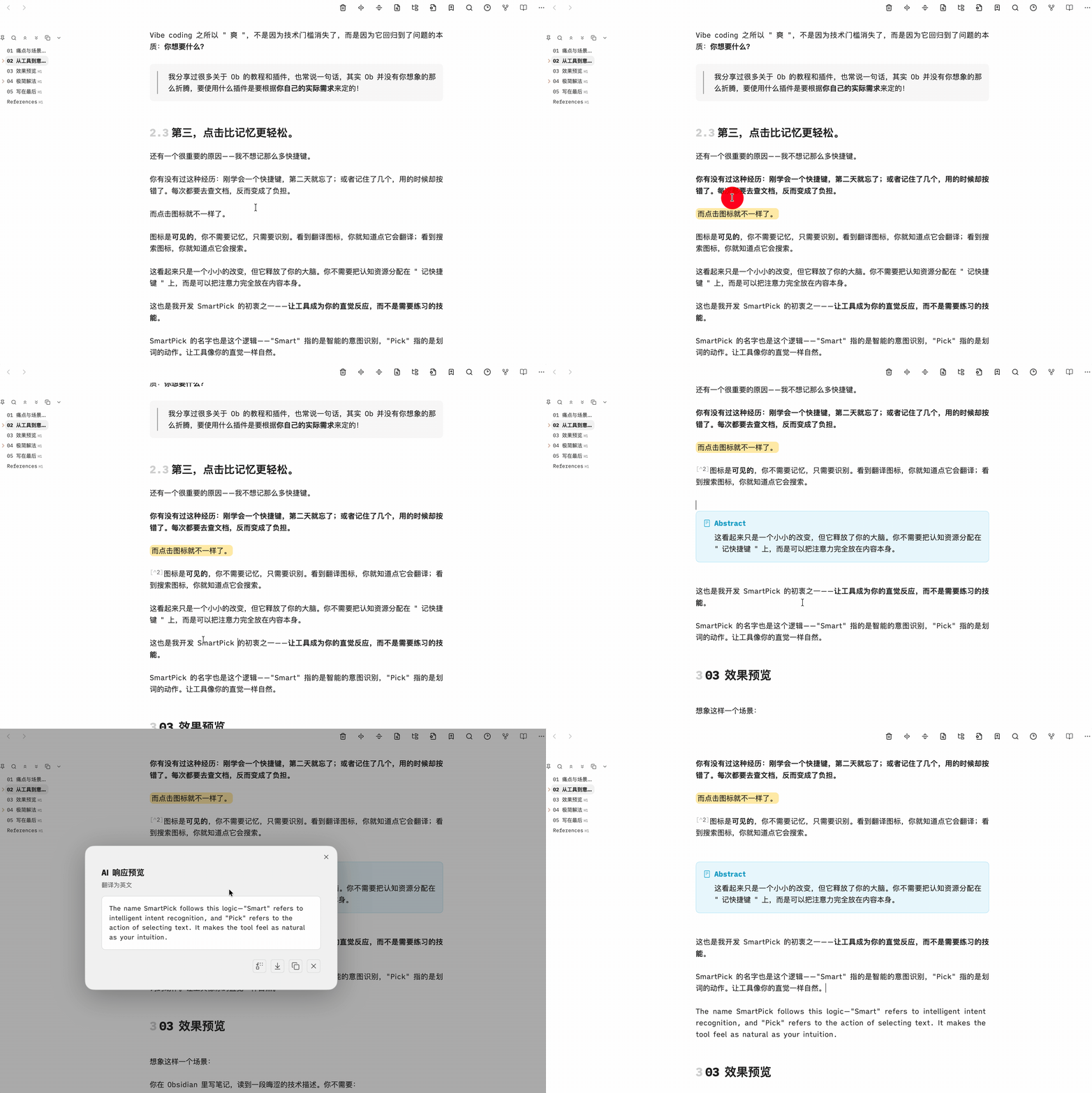
SmartPick is a smart text selection toolbar for Obsidian, designed to enhance your workflow with custom commands and powerful AI capabilities.
✨ Features
- Smart Toolbar: Automatically appears when you select text.
- AI Integration: Seamlessly connect with AI models (OpenAI, Claude, etc.) to process selected text. Summarize, translate, or explain with a single click.
- Custom Commands: Bind your favorite Obsidian commands to the toolbar.
- Shortcuts & Links: Trigger system shortcuts or open external links (Google, DeepSeek, etc.) directly.
- Group Organization: Organize your commands into groups for easier access.
- Drag & Drop Customization: Easily rearrange toolbar items using drag and drop.
- Custom Prompts: Create and manage your own prompt templates for AI commands.
- URL Scheme Support: Add and execute URL Scheme commands directly from the toolbar.
- Bilingual Support: Fully localized in English and Chinese.
- Markdown Rendering: AI responses are rendered in rich Markdown format.
🚀 Installation
Via BRAT (Beta)
- Install Obsidian42 - BRAT via Community Plugins.
- Open BRAT settings and click "Add Beta plugin".
- Enter the repository URL:
https://github.com/BCS1037/SmartPick. - Click "Add Plugin", then enable "SmartPick" in the Community Plugins list.
Manual Installation
- Download the latest release from the Releases page.
- Extract the files into your Obsidian vault's plugins folder:
.obsidian/plugins/smartpick/. - Reload Obsidian and enable the plugin in Settings.
📖 Usage
- Select Text: Highlight any text in your editor.
- Use Toolbar: Click on any icon in the floating toolbar to execute the command.
- AI Actions: Click the AI icon to start a conversation based on the selected text.
⚙️ Configuration
- Prompt Templates: Add and manage custom prompts for the AI.
- Interface Language: Switch between English and Chinese.
🤝 Contributing
Contributions are welcome! If you have any ideas or bug reports, please open an issue or submit a pull request.
📄 License
This project is licensed under the MIT License - see the LICENSE file for details.