
README file from
GithubSmart Lookup
Ask naturally. Retrieve by meaning.
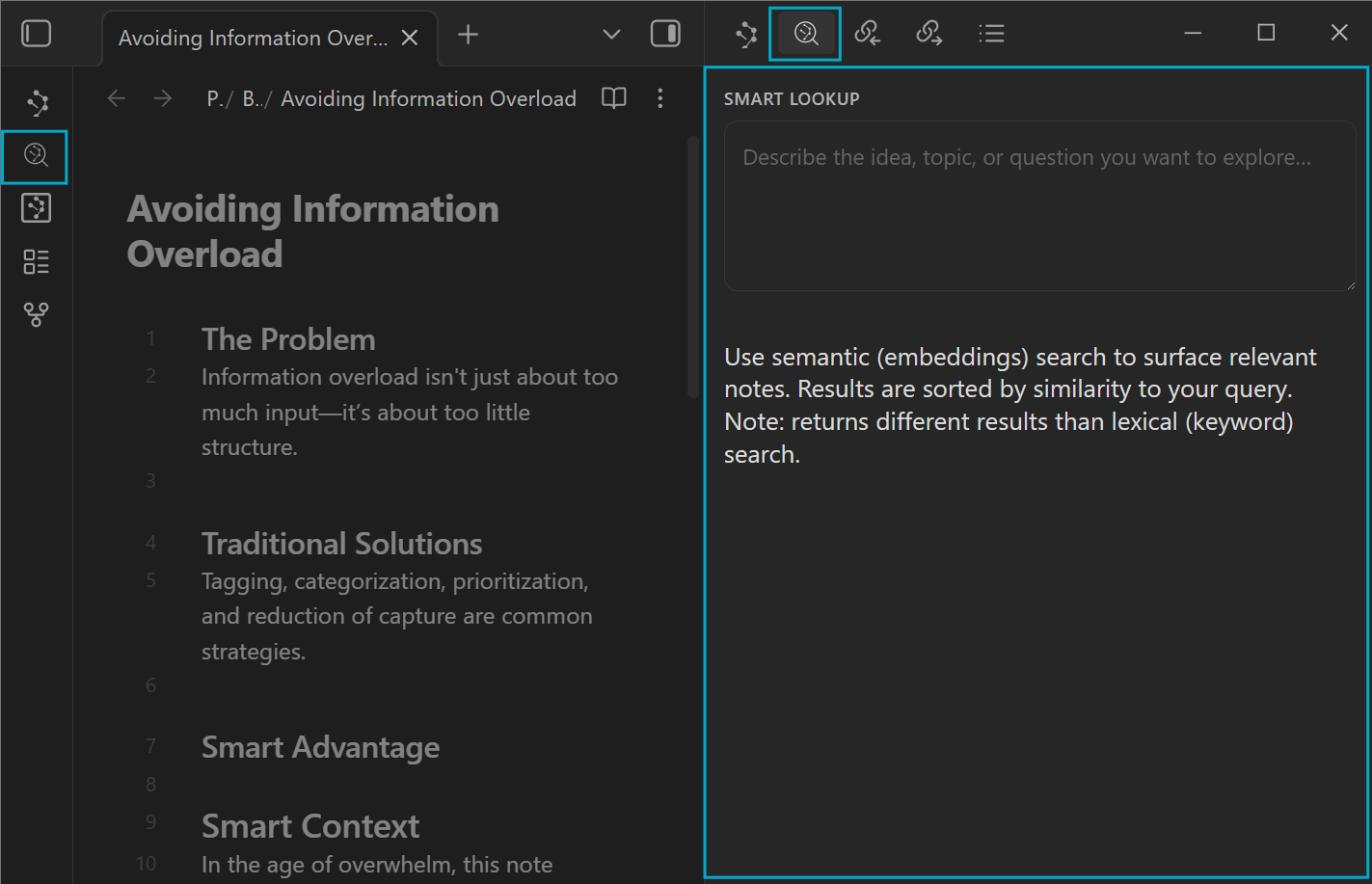
Smart Lookup is question-first semantic search for Obsidian.
Use it when you remember the idea, but not the exact phrase, file name, heading, tag, or folder where the note lives.
Current note -> Smart Connections
Question -> Smart Lookup
Exact phrase -> Obsidian search
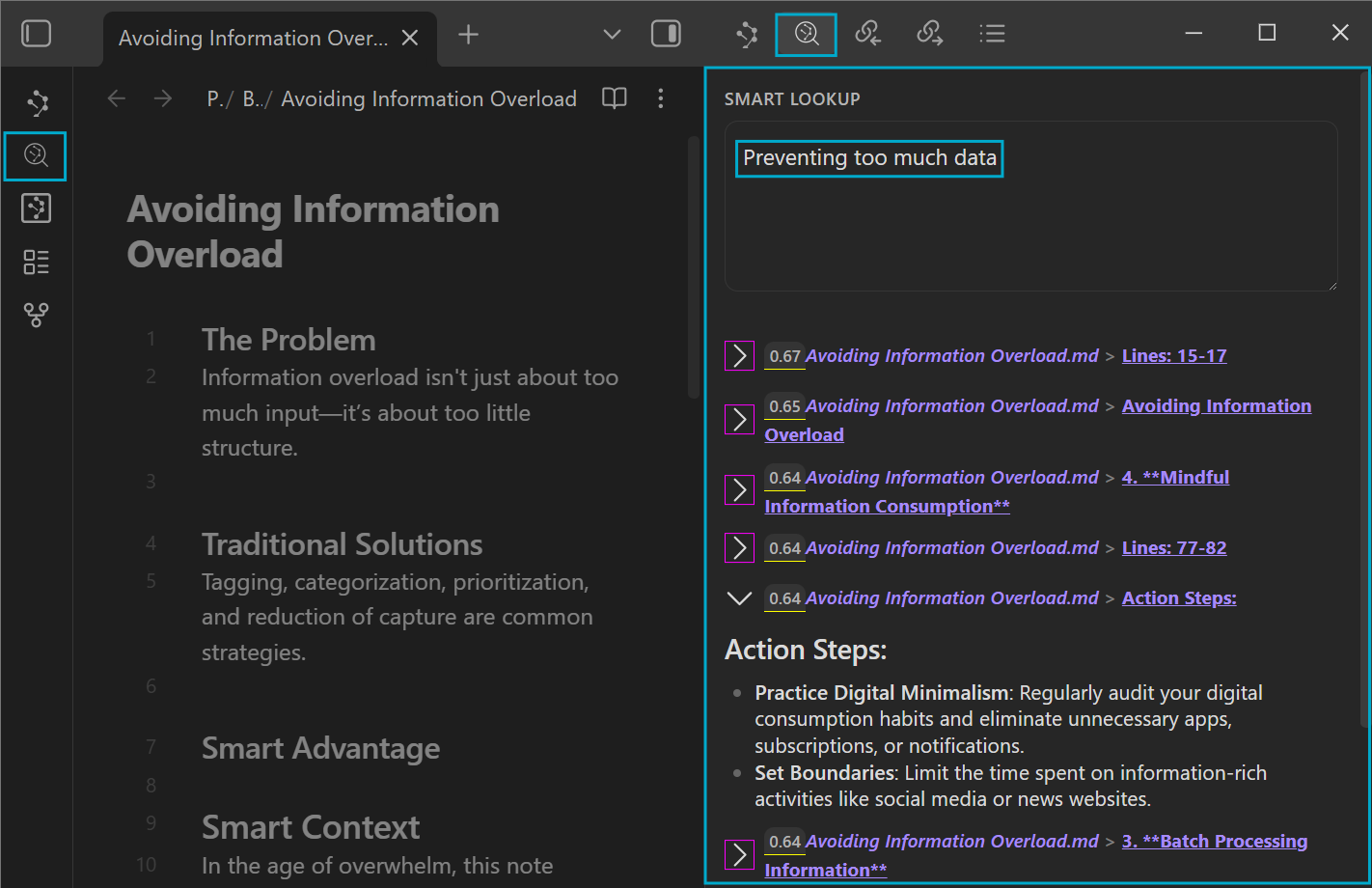
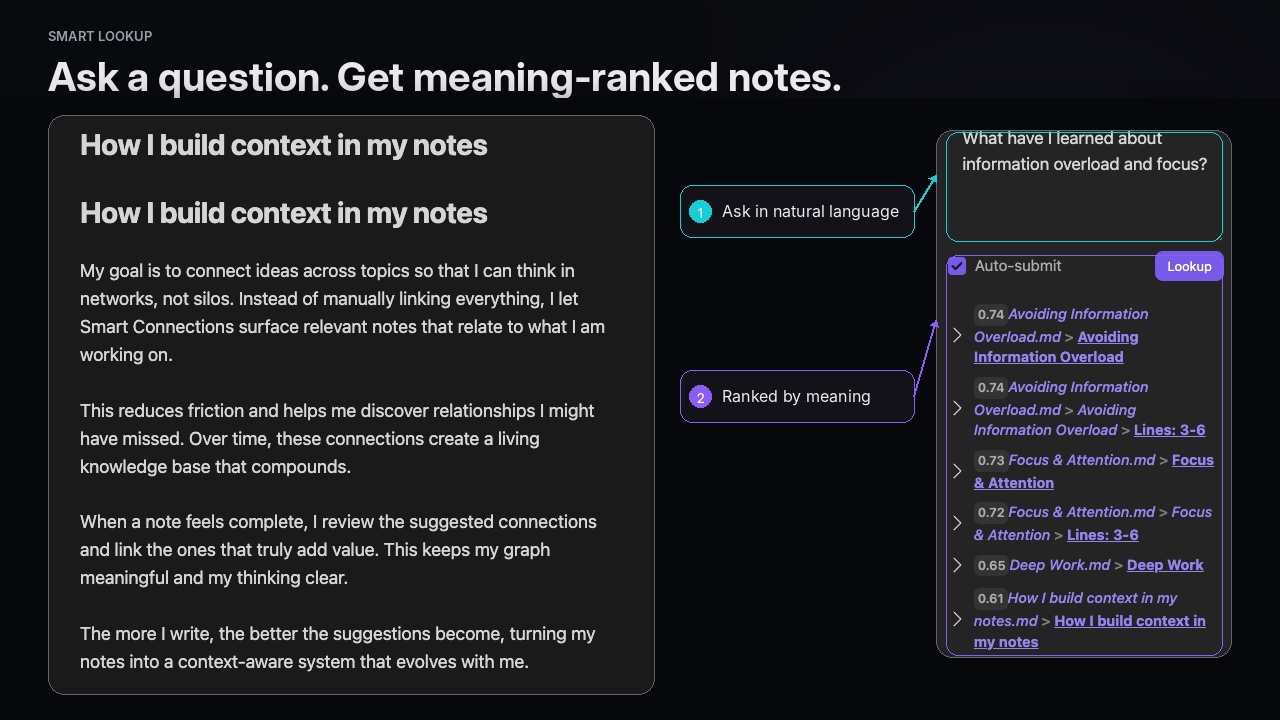
Smart Lookup helps you ask a plain-language question, scan semantic matches from your vault, expand promising results, and turn the best match into action.
What Smart Lookup does
Smart Lookup searches by meaning instead of exact word overlap.
That means a result can be useful even when it does not contain the words you typed. It also means Smart Lookup is not a replacement for exact search.
Use Smart Lookup when:
- you remember the idea, not the phrase
- your notes may use different vocabulary than your current query
- you want to recover prior thinking by asking a question
- you want a small set of candidates to preview, open, link, copy, or package as context
Use Obsidian search when:
- exact words matter
- you need a filename, heading, tag, operator, or regex
- you are looking for a literal phrase or syntax pattern
Use Smart Connections when:
- the current note is the anchor
- you want related notes while writing, reviewing, or drafting
- you want notes to surface automatically from the active note
Quick start
- Install and enable Smart Lookup in Obsidian.
- Wait for Smart Environment to import and embed your vault.
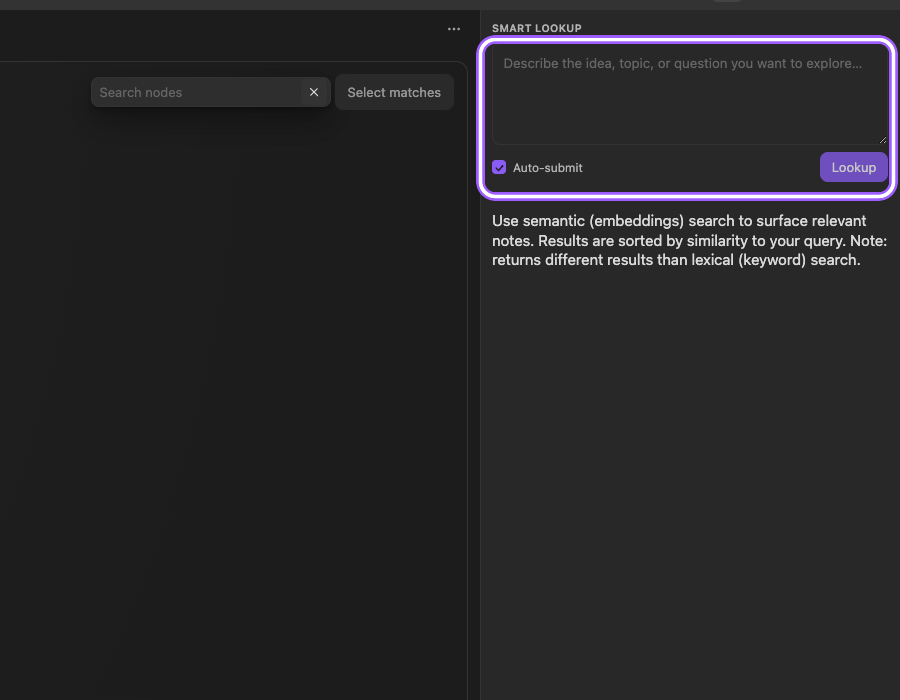
- Open Smart Lookup from the ribbon or command palette.
- Run
Open: Lookup view. - Type one plain-language query.
- Expand one or two promising results.
- Open, link, copy, or use the best match in your next workflow.
You know it worked when:
One useful result from your own vault can be verified from the preview, even when the exact words differ.
A good first query is about work you are already doing. Avoid judging Lookup with a vague demo question unless your vault has enough matching notes to make the result meaningful.
Query formula
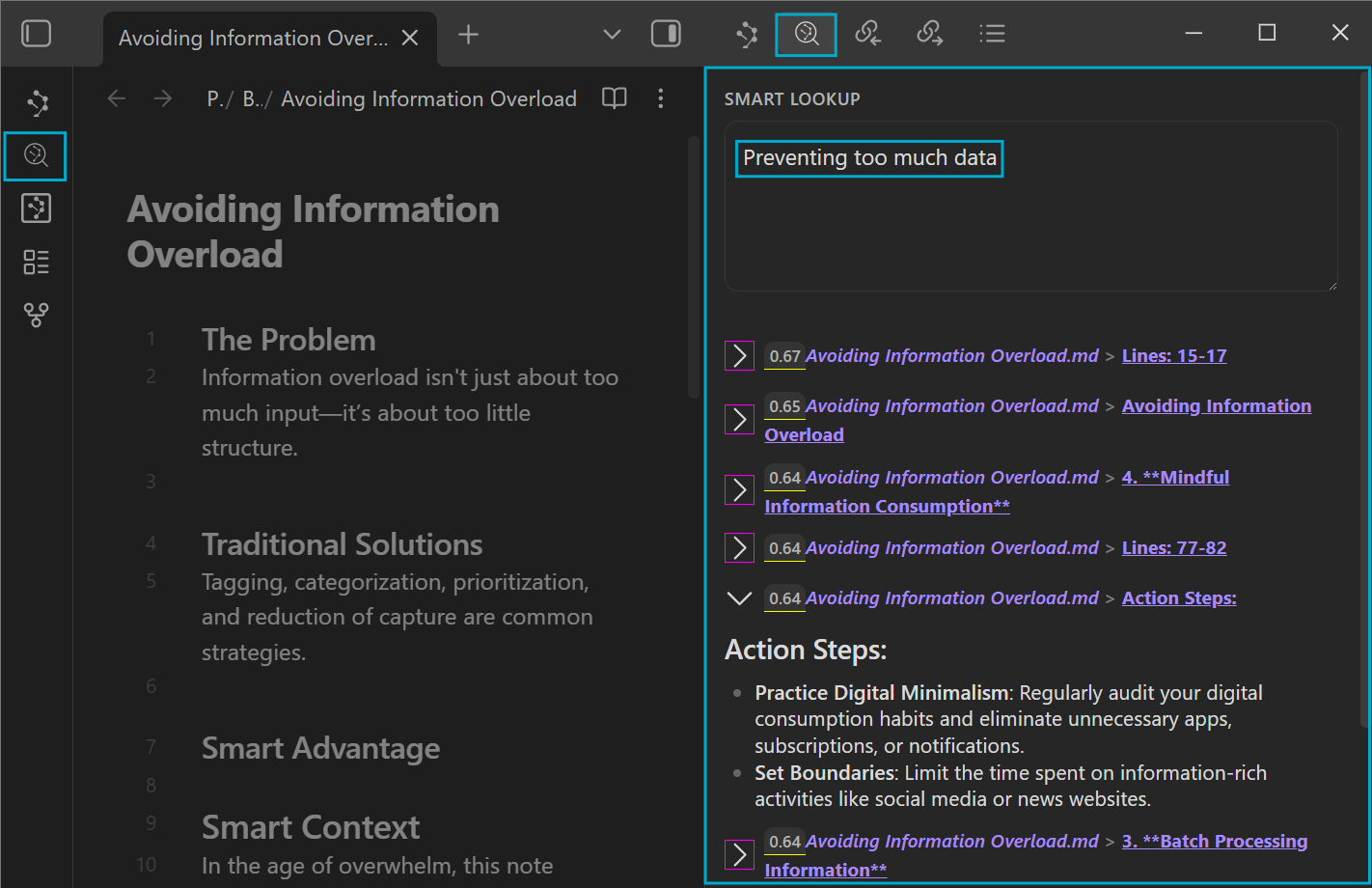
Topic + context nouns + desired output
Good Lookup queries usually include:
- the topic or problem
- one to three context nouns that name the domain
- the kind of result you want
Examples:
customer onboarding friction examples and next actions
prior decisions about Context Builder tradeoffs
notes about reducing information overload while researching
local-first AI and user control strongest arguments
Start broad enough to catch the idea. If results are too wide, add one or two constraints. If results are too narrow, remove a constraint or use a broader topic phrase.
Choose the right surface
| Need right now | Start here | Why it fits |
|---|---|---|
| Current note -> related ideas | Smart Connections | The active note is the anchor. |
| Question -> semantic search | Smart Lookup | Your query is the anchor. |
| Exact phrase -> lexical search | Obsidian search | Exact words, tags, headings, filenames, and regex are lexical jobs. |
| Reusable set -> context for AI | Smart Context | Found notes need to become a reviewable context bundle. |
| Landscape -> topic shape | Smart Graph | You need clusters, neighborhoods, or the shape of a topic. |
The most important boundary:
Current note -> Smart Connections
Question -> Smart Lookup
Exact phrase -> Obsidian search
Feature highlights
- Plain-language semantic search for your Obsidian vault
- Query box designed for questions, ideas, and topics
- Auto-submit toggle so you can pause automatic lookups and submit manually
- Ranked semantic results with scores
- Expandable result previews for review before trust
- Open results directly in Obsidian
- Drag results into notes as links
- Modifier-key hover previews through Obsidian
- Sources or blocks as result types where your Smart Environment supports them
- Shared Smart Environment indexing, exclusions, and model setup
- Not desktop-only in the manifest; mobile may show Smart Environment loading controls when needed
Reading results
Semantic results are candidates for review, not conclusions.
Use this loop:
- Scan the top results.
- Expand one or two promising matches.
- Confirm relevance from the preview.
- Open the best match when you need the full source.
- Link it, copy it, or package it with Smart Context if it should feed AI work.
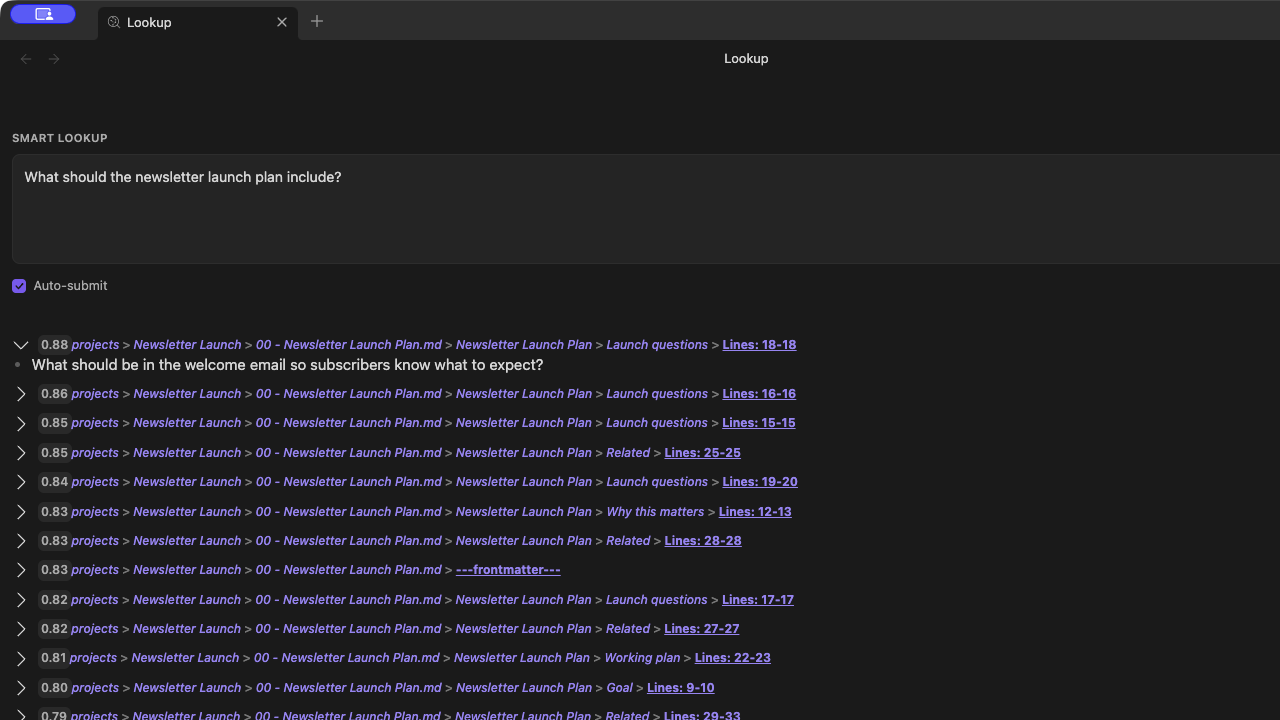
Treat score and rank as signals. They help you decide what to inspect first, but they do not prove that the top result is the right result.
When results are weak
| Symptom | Try first | Why |
|---|---|---|
| Results are too broad | Add one or two context nouns or a desired output. | Lookup needs enough intent to shape semantic retrieval. |
| Results are too narrow | Remove one constraint or use a broader topic phrase. | Over-specific queries can miss useful neighboring notes. |
| Exact phrase is missing | Use Obsidian search. | Exact matching is not the job of semantic retrieval. |
| You are starting from an active note | Use Smart Connections. | Connections is current-note-first. |
| Results are empty or stale | Check Smart Environment status and indexing readiness. | Import or embeddings may still be preparing. |
| Long notes hide useful sections | Try block results where available. | Blocks can surface a more precise section. |
Read more:
Sources vs blocks
Smart Lookup can search different result types depending on your Smart Environment and settings.
| Result type | Best when | Tradeoff |
|---|---|---|
| Sources | You want broader note discovery. | Easier to scan, but you may need to open the note to find the exact section. |
| Blocks | Long notes hide the useful section. | More precise, but can create more candidates and may require more tuning. |
Start with Sources when you are learning the workflow. Use Blocks when note-level results are too broad.
Turn found notes into AI-ready context
Retrieval is only half the workflow.
After you find a useful result, you can:
- open the note and continue manually
- drag or link it into the note you are working on
- build a reading trail
- copy the relevant note or result set into your AI tool
- use Smart Context to create a reviewable context bundle
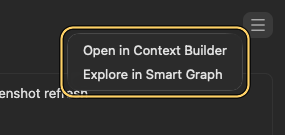
Prompt starter after packaging notes as context:
Using only the attached context, summarize the useful evidence, list the strongest next actions, and flag any missing information before recommending a plan.
Related:
Smart Lookup Core and Pro
Smart Lookup Core gives you the question-first semantic search workflow:
Ask naturally -> scan results -> expand preview -> open or link the best match
Smart Lookup Pro is the advanced track for users who need more control over ranking and retrieval behavior.
Where enabled, Smart Lookup Pro can add:
- configurable score algorithm selection
- optional post-process re-ranking
- ranking settings stored with Lookup list action settings
- Pro vector index acceleration before optional re-ranking
Core remains the shortest path to value. Pro is optional depth for specific advanced workflows.
Learn more:
Privacy and data boundary
Smart Lookup uses Smart Environment to index and search your vault by meaning.
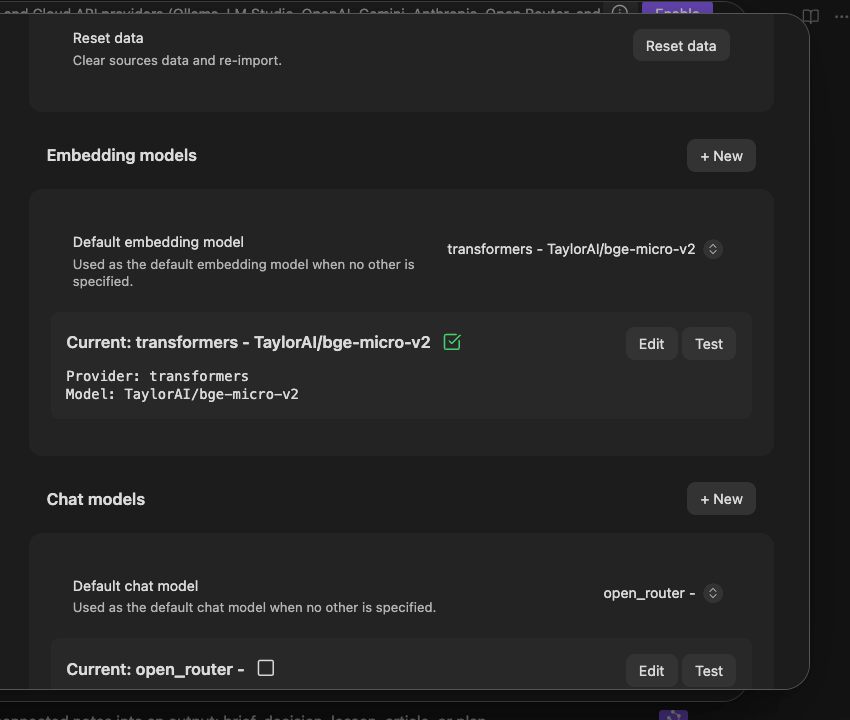
Core semantic retrieval can run in Obsidian with local embeddings. No API key is needed for the Core semantic retrieval workflow.
Your notes remain in your vault unless you explicitly copy, paste, send, or use another enabled integration that transmits content. Review context before sending it to any external AI provider or tool.
Smart Lookup is source-available under the Smart Plugins License.
Commands
| Command | Use |
|---|---|
Open: Lookup view |
Opens the Smart Lookup view. |
Search selection with Smart Lookup |
Opens Lookup with the selected editor text and runs it as the query. The same action appears when right-clicking a non-empty editor selection. |
Smart Lookup also adds a ribbon icon for opening the Lookup view.
Development notes
Smart Lookup is built on obsidian-smart-env.
The repository expects the adjacent Smart Plugins development layout used by package.json, including the shared obsidian-smart-env package.
Current package scripts include:
npm test
npm run build
npm run release
Check package.json, release notes, and the current Smart Environment version before publishing a release.
FAQ
Does Smart Lookup replace Obsidian search?
No.
Use Lookup when meaning is the anchor. Use Obsidian search when exact words, tags, headings, filenames, syntax, or regex are the anchor.
Is Lookup the same as Connections?
No.
Smart Connections answers:
What is related to the note I am looking at right now?
Smart Lookup answers:
What notes are about this question or idea?
Why did Lookup return a result without my exact words?
That is often the point.
Lookup retrieves by meaning, so it can surface notes that use different vocabulary. If you need exact wording, use Obsidian search.
Should I trust the top result?
Preview.
The top result is a candidate to inspect first, not a guarantee of truth.
What should I do after I find the note?
Open it, link it, copy it, or package it with Smart Context when it should become AI-ready context.
Does Smart Lookup work on mobile?
Smart Lookup is not marked desktop-only. On mobile, Smart Environment may defer loading and show a load/status flow before retrieval is ready.
More Smart Plugins
Smart Lookup is one piece of the Smart Plugins ecosystem.
- Smart Connections surfaces related notes from the current note.
- Smart Context packages notes as reviewable AI context.
- Smart Chat keeps AI threads attached to notes.
- Smart Graph shows the shape of a topic.
- Core Smart Plugins lists the free Core plugin path.
License
Smart Lookup uses the Smart Plugins License.
This repository is source-available. You may use, modify, and redistribute the code subject to the license terms, including restrictions on general-purpose competing Obsidian offerings.
See the license page for the plain-English summary, scenarios, FAQ, and full text: