
README file from
Github🗂️ Obsidian Settings Sidebar Organizer
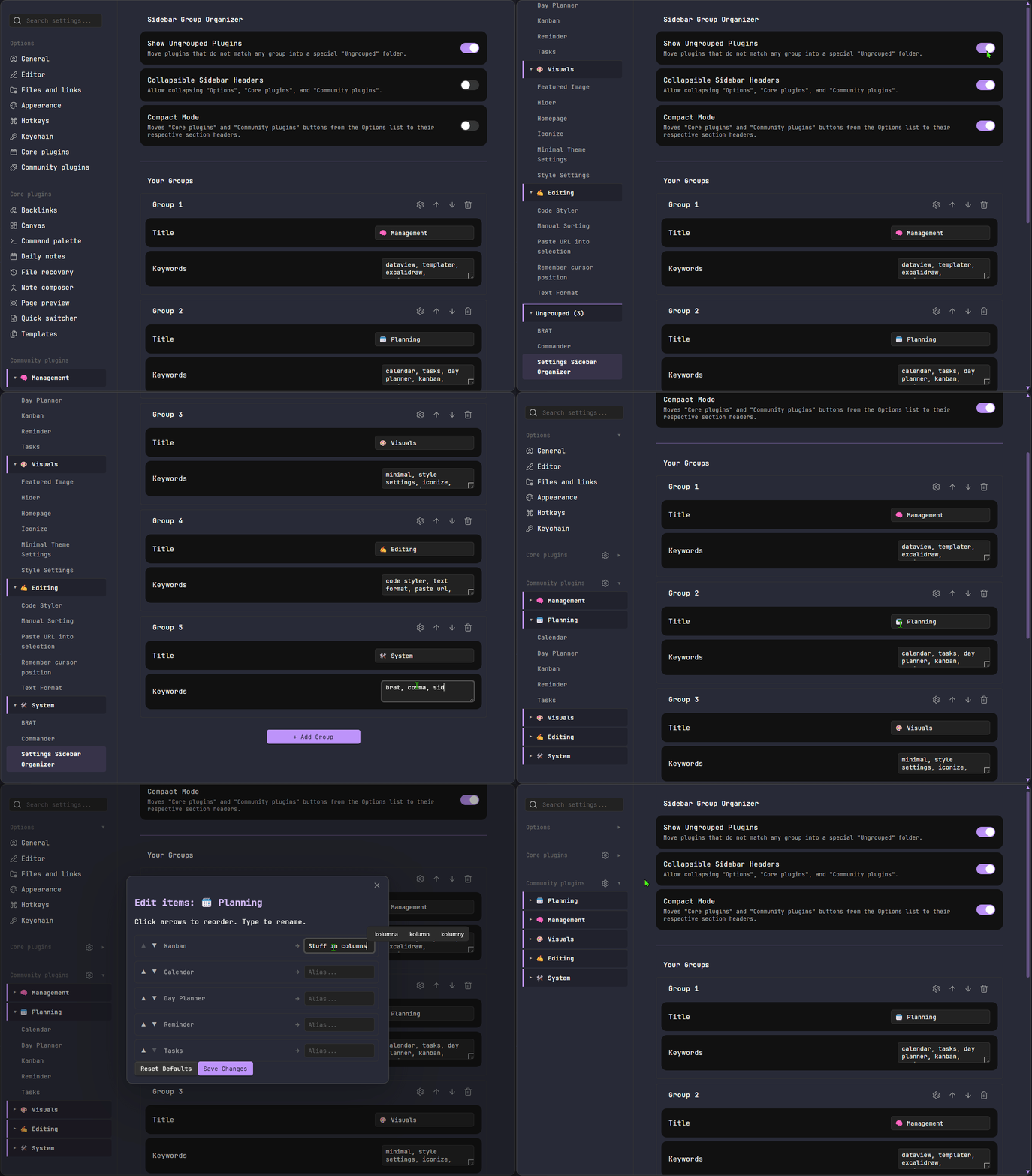
Tame your plugin list. Group Community Plugins into custom collapsible folders, rename them (alias), reorder them manually, compact the sidebar UI headers, and more...
🗿 Why?
Created because I had too many plugins and got lost in the sidebar; feedback welcome!
[!CAUTION] Experimental "DOM Hack" This plugin manipulates the Obsidian UI directly because there is no official API for the settings sidebar.
- Risk: If Obsidian updates their UI structure (CSS classes), this plugin might break or stop working until updated.
- Stability: It creates "proxy" buttons. When you click an item in a folder, it programmatically clicks the real, hidden button.
✨ Key Features
1. 📂 Grouping & Organization
- Custom Folders: Create your own categories (e.g., "Design", "Automation").
- Keyword Matching: Automatically sorts plugins into folders based on words in their names.
- "Ungrouped" Folder: Automatically catches any plugin that doesn't match your keywords so nothing gets lost (can be hidden).
2. ✏️ Aliases & Order
- Renaming (Aliasing): Rename plugins in the sidebar to save space or improve clarity.
- Manual Reordering: Use Up/Down arrows to sort plugins exactly how you want them.
3. 📉 Compact & Clean UI
- Compact Mode: Hides the large "Core plugins" and "Community plugins" tabs. It moves them to small ⚙️ icons in the section headers to improve clarity.
- Collapsible Headers: Allows you to fold the main "Options", "Core plugins", and "Community plugins" sections.
📦 Installation
Method 1: Manual (recommended)
- Download
main.js,styles.css, andmanifest.json. - Create folder
.obsidian/plugins/settings-sidebar-organizer/. - Paste files and reload Obsidian.
Method 2: BRAT
- Install BRAT from the Community Plugins store.
- Go to Settings > BRAT > Add Beta plugin.
- Paste this repo URL:
https://github.com/CyrylSz/obsidian-settings-sidebar-organizer - Click Add Plugin.
⚙️ How to use
Everything is configured via Settings > Settings Sidebar Organizer:
- Create Group: Click
+ Add Group. - Assign Plugins: Type keywords (comma-separated) in the "Keywords" box.
- Fine-tune: Click the Gear Icon (⚙️) next to a group to:
- Set an Alias (rename).
- Reorder items.