
README file from
GithubSchedule Calendar
A visual interactive calendar for Obsidian — turn your daily note schedules into a drag-and-drop timeline, just like Notion Calendar.
Features
Views
- Daily view — 24-hour timeline with full drag, resize, and edit support
- Weekly view — side-by-side 7-day overview
- Monthly view — grid calendar with event chips per day, click to jump to daily view
Interactions
- Drag to move — drag events up/down to reschedule (snaps to 15-minute intervals)
- Resize — drag the bottom or top edge of an event to adjust end or start time
- Click to edit — click any event to open a popup and edit title or time
- Delete — remove an event directly from the edit popup
- Double-click to add — double-click any empty time slot to create a new event; a ghost preview shows the time range before you confirm
- Undo — press
Cmd/Ctrl+Zto revert the last change (up to 20 steps) - Auto-sync — all changes are instantly written back to your note file
Drag tooltip
A floating HH:MM – HH:MM label follows your cursor during any drag or resize so you always know exactly where an event will land.
Tag colors
Add a #tag anywhere in an event title to apply a unique accent color. The same color appears on monthly chips and in the daily stats bar.
- 09:00 - 10:00 Morning standup #work
- 10:00 - 12:00 Deep work session #work
- 13:00 - 14:00 Lunch #life
- 18:00 - 19:00 Gym #health
Daily stats bar
The bottom of the daily view shows the total scheduled time and a per-tag breakdown.
Zoom
Use the − / + buttons in the header to scale the timeline density (0.75× / 1× / 1.5× / 2×).
Note links
If an event title contains a [[wiki link]], the edit popup shows an ↗ button to open that note directly.
Other
- Now line — red indicator showing the current time
- Configurable — section name, note folder, and default event duration are all customizable
Screenshots
| Daily | Weekly | Monthly |
|---|---|---|
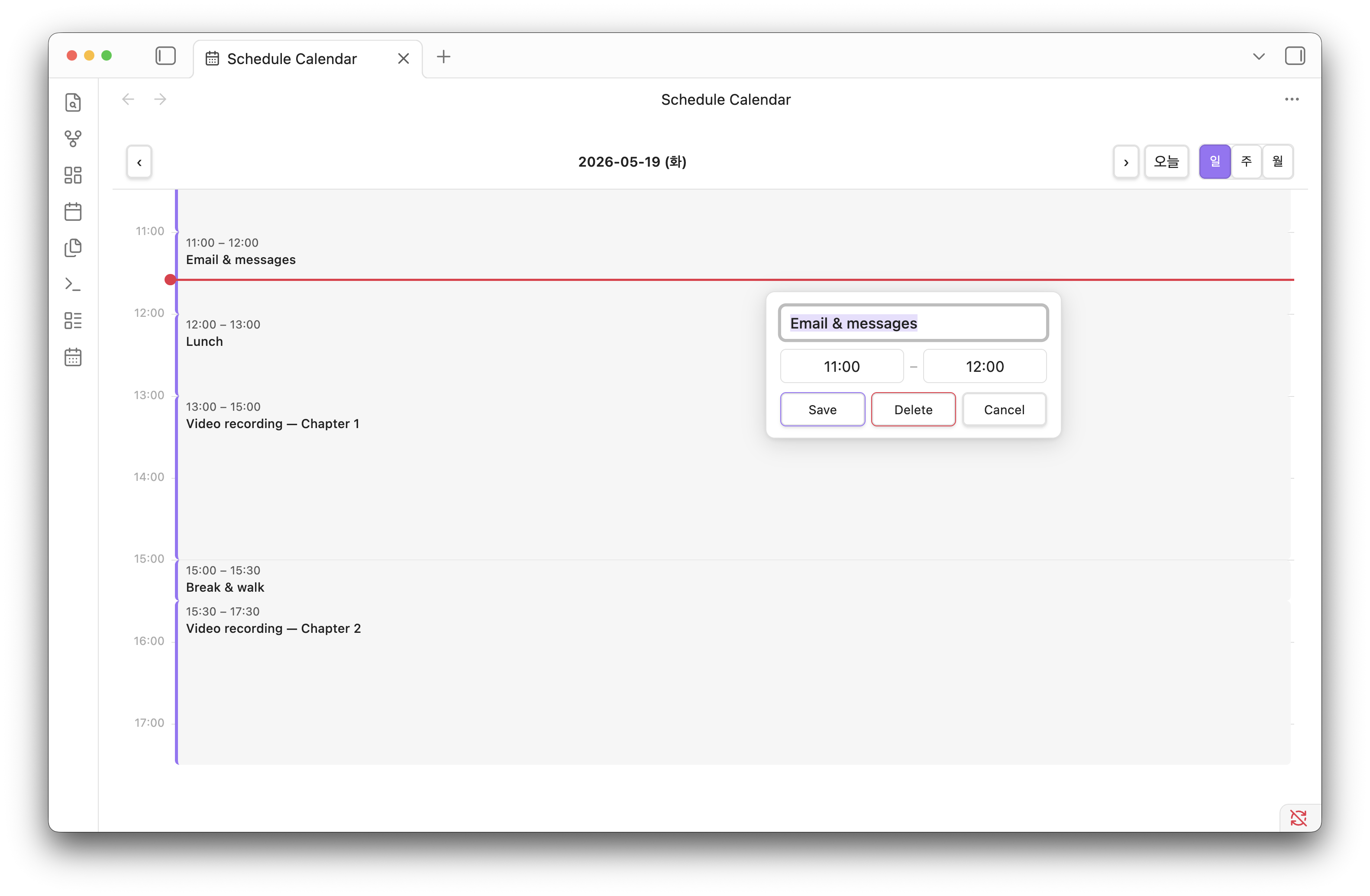 |
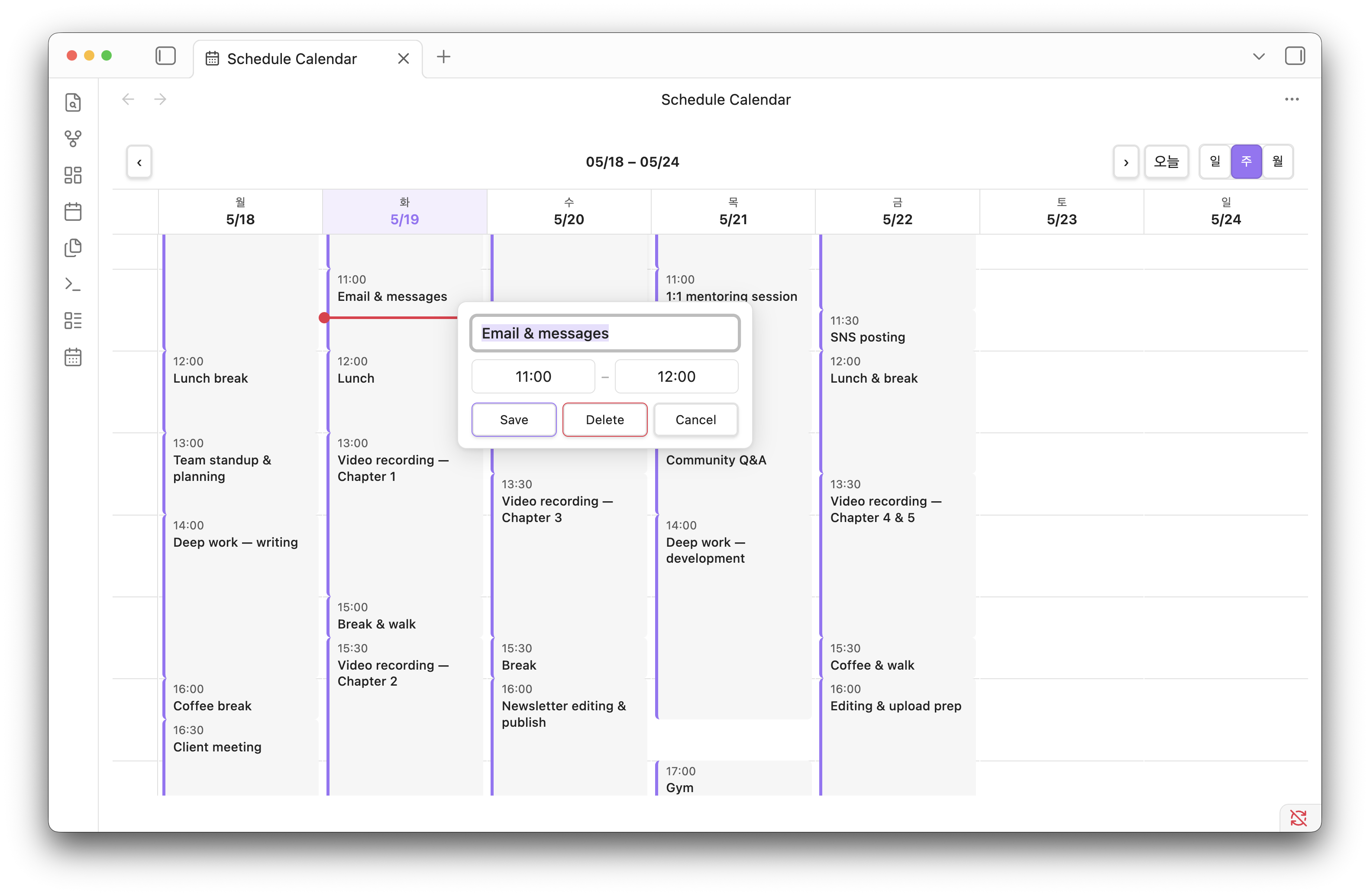 |
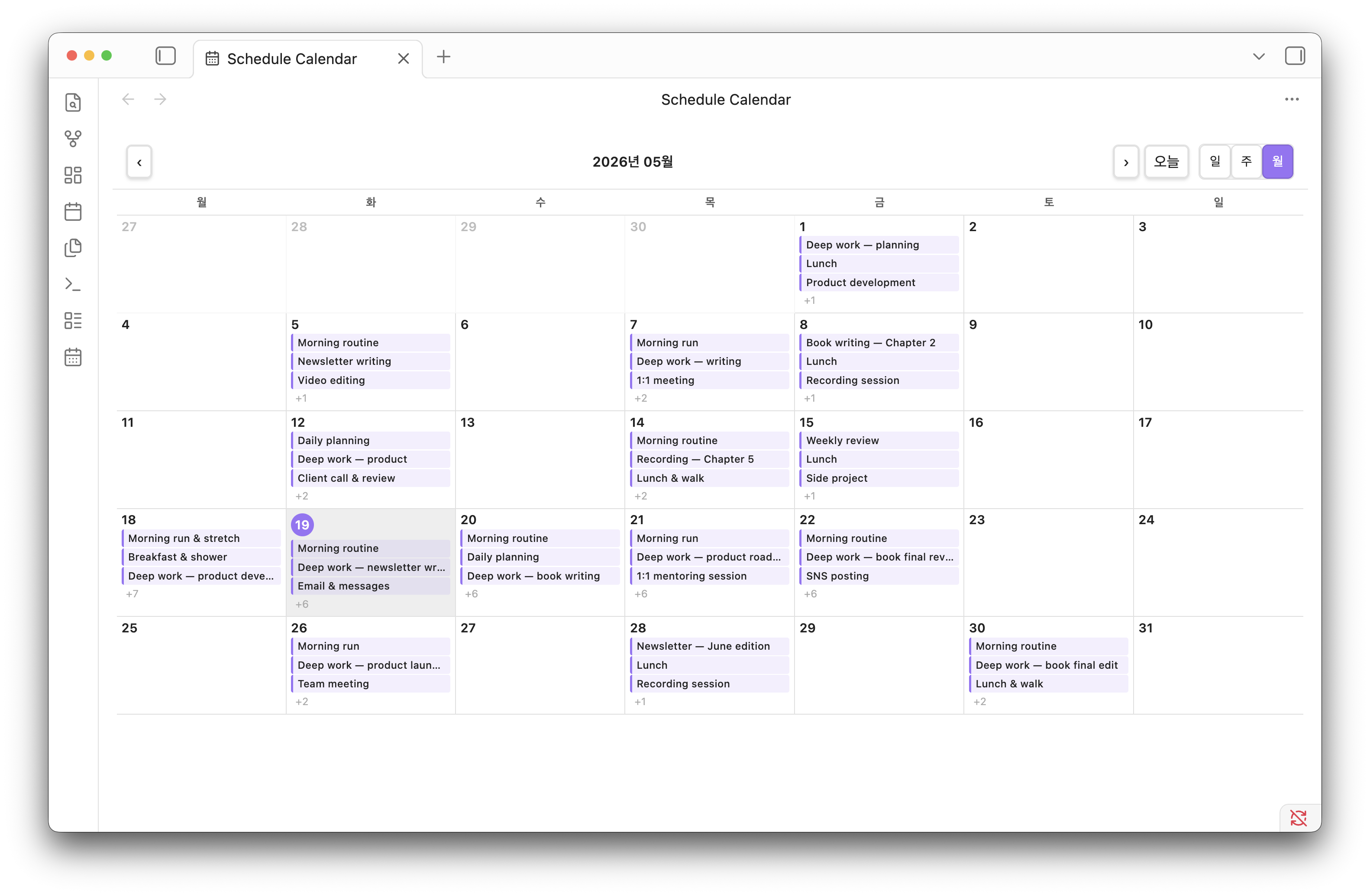 |
How It Works
Schedule Calendar reads schedule entries from your daily notes and renders them as interactive blocks on a timeline. Any changes made in the calendar are written back to the note file automatically — no separate database.
Schedule Format
Your daily note must contain a ### Schedule section with entries in this format:
### Schedule
- 09:00 - 10:00 Morning routine
- 10:00 - 13:00 Deep work #work
- 13:00 - 14:00 Lunch #life
- 14:00 - 18:00 Meetings #work
The section name (Schedule) is configurable in settings. Adding #tag is optional — events without a tag use the default accent color.
Installation
From Community Plugins (recommended)
- Open Settings → Community plugins
- Disable Restricted mode if enabled
- Click Browse and search for
Schedule Calendar - Click Install, then Enable
Manual Installation
- Download
main.js,manifest.json,styles.cssfrom the latest release - Create a folder:
<vault>/.obsidian/plugins/schedule-calendar/ - Copy the three files into that folder
- Open Obsidian → Settings → Community plugins → enable Schedule Calendar
BRAT (Beta)
- Install the BRAT plugin
- Add
seonggoos/obsidian-schedule-calendaras a beta plugin
Usage
- Click the 📅 calendar icon in the left ribbon, or
- Open the command palette and run Open Schedule Calendar
- Use the 일 / 주 / 월 (Day / Week / Month) toggle in the header to switch views
- Use ‹ › arrows to navigate, and 오늘 (Today) to jump back to today
- In weekly/monthly view, click a day to open it in daily view
- Press
Cmd/Ctrl+Zto undo the last change
Settings
Go to Settings → Schedule Calendar to configure:
| Setting | Default | Description |
|---|---|---|
| Schedule section | Schedule |
The ### heading to parse schedules from |
| Daily note folder | 30.Calendar/31.Daily/ |
Folder path where daily notes are stored |
| Default event duration | 30 min |
Default event duration when adding via double-click (15 / 30 / 60 / 90 / 120 min) |
Compatibility
- Obsidian v1.0.0+
- Works with Daily Notes core plugin
- Works with Periodic Notes plugin