
README file from
GithubQuick Date Picker
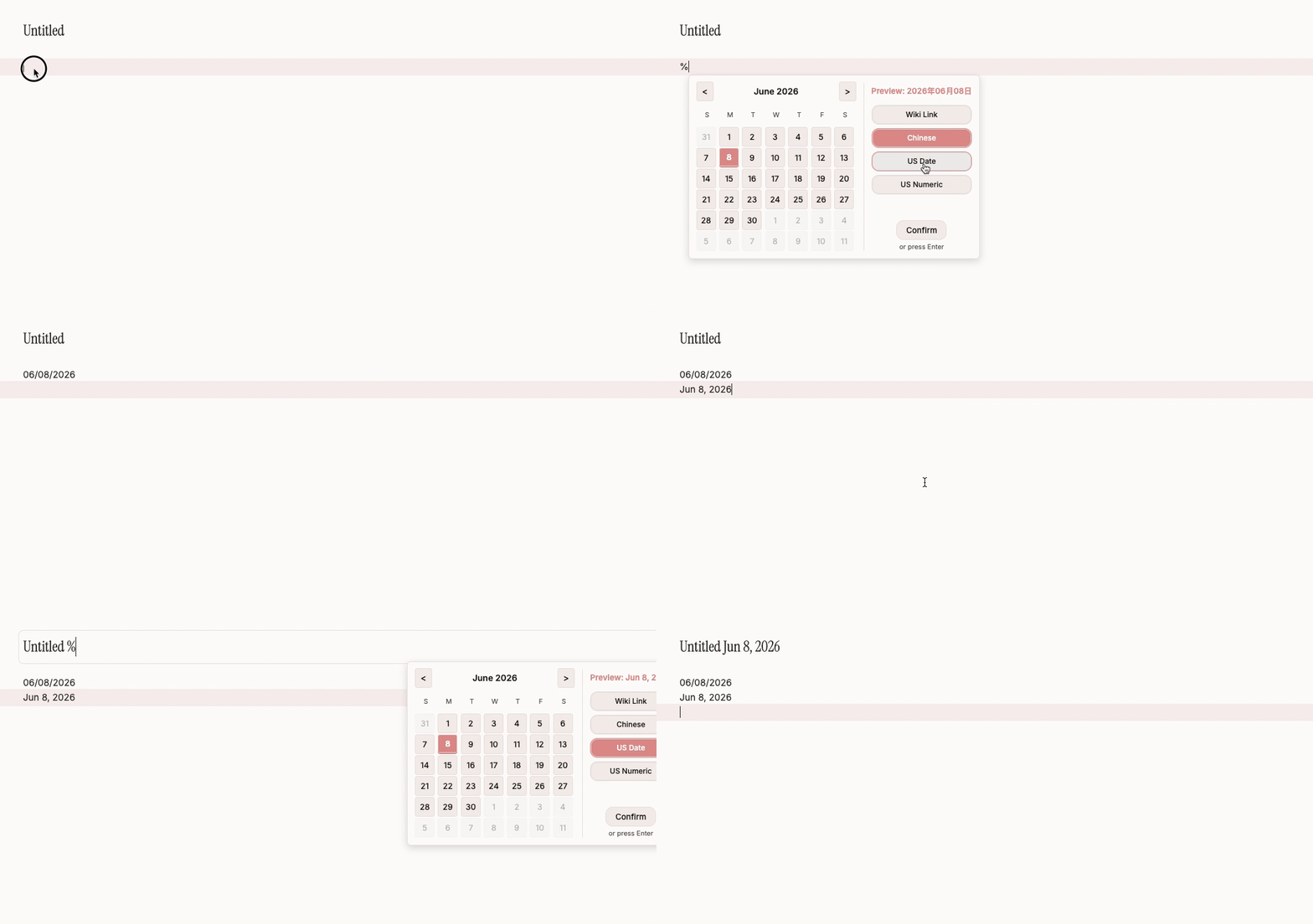
Quickly insert dates in Obsidian by typing @ (or your custom trigger character) to summon a mini calendar, pick a date, and insert with one click.
Features
- Mini Calendar Popup: A calendar pops up in real-time after typing the trigger character. Supports both mouse selection and keyboard navigation.
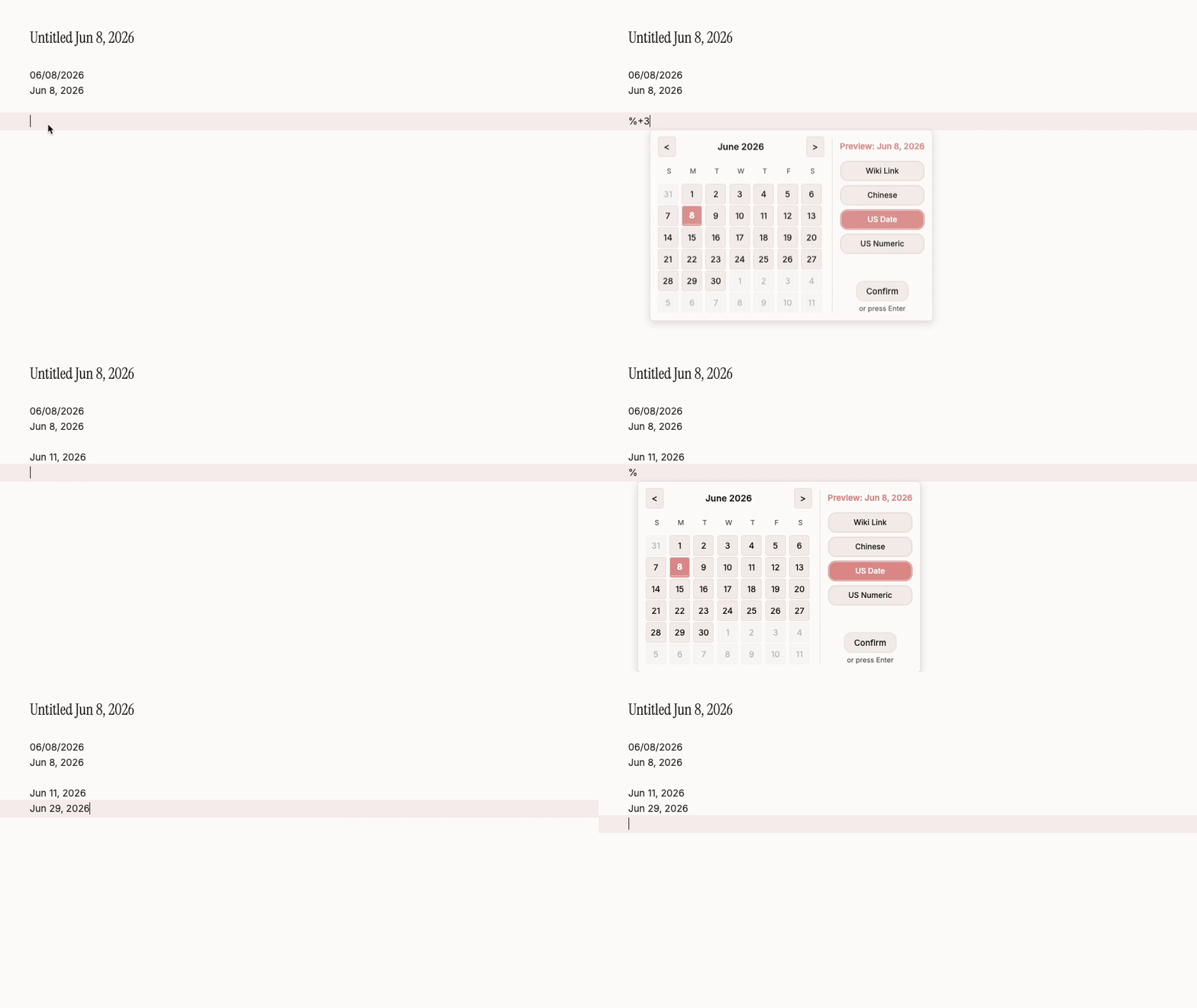
- Relative Date Shortcuts: Supports quick syntax like
@+3d,-1w,2mwithout opening the calendar. - Multiple Output Formats: Built-in formats (Standard, Wiki Link, Chinese, Compact, etc.) with customizable prefix/suffix.
- Instant Format Switching: Frequently-used format buttons appear at the bottom of the mini calendar popup, allowing quick format switching without opening Settings.
- Title Bar Support: Use the date picker in note titles (file names) as well.
- Multi-language UI: Setting panel and calendar popup automatically adapt to Obsidian's interface language (Chinese / English).
Demo
Calendar Popup
Relative Date Shortcuts
Settings Panel
Installation
From Obsidian Community Plugin Marketplace (Recommended)
- Open Obsidian, go to Settings → Community Plugins
- Turn off Safe Mode if it is still on
- Click Browse, search for "Quick Date Picker"
- Click Install, then Enable
Manual Installation
- Download the latest
main.js,manifest.json, andstyles.cssfrom Releases - Place the files into your vault's
.obsidian/plugins/quick-date-picker/directory - Restart Obsidian and enable the plugin in Settings
Usage
In Document Body
- Type
@(or your configured trigger character) in the editor - The mini calendar pops up. Choose a date via:
- Mouse: Click a date cell, then click Confirm or a format button
- Keyboard: Arrow keys to move, Enter to confirm, Escape to close
- Relative date: Type
+3d,-1w,2m,-1y, etc. to auto-convert to the corresponding date
- The formatted date text is inserted at the cursor position
In Note Title
- Click the note title to enter edit mode
- Type the trigger character to summon the calendar
- Select a date to auto-replace the trigger text
Relative Date Syntax
| Input | Meaning |
|---|---|
+3d |
3 days later |
-1w |
1 week ago |
2m |
2 months later |
-1y |
1 year ago |
Unit reference: d=day, w=week, m=month, y=year. + can be omitted.
Settings
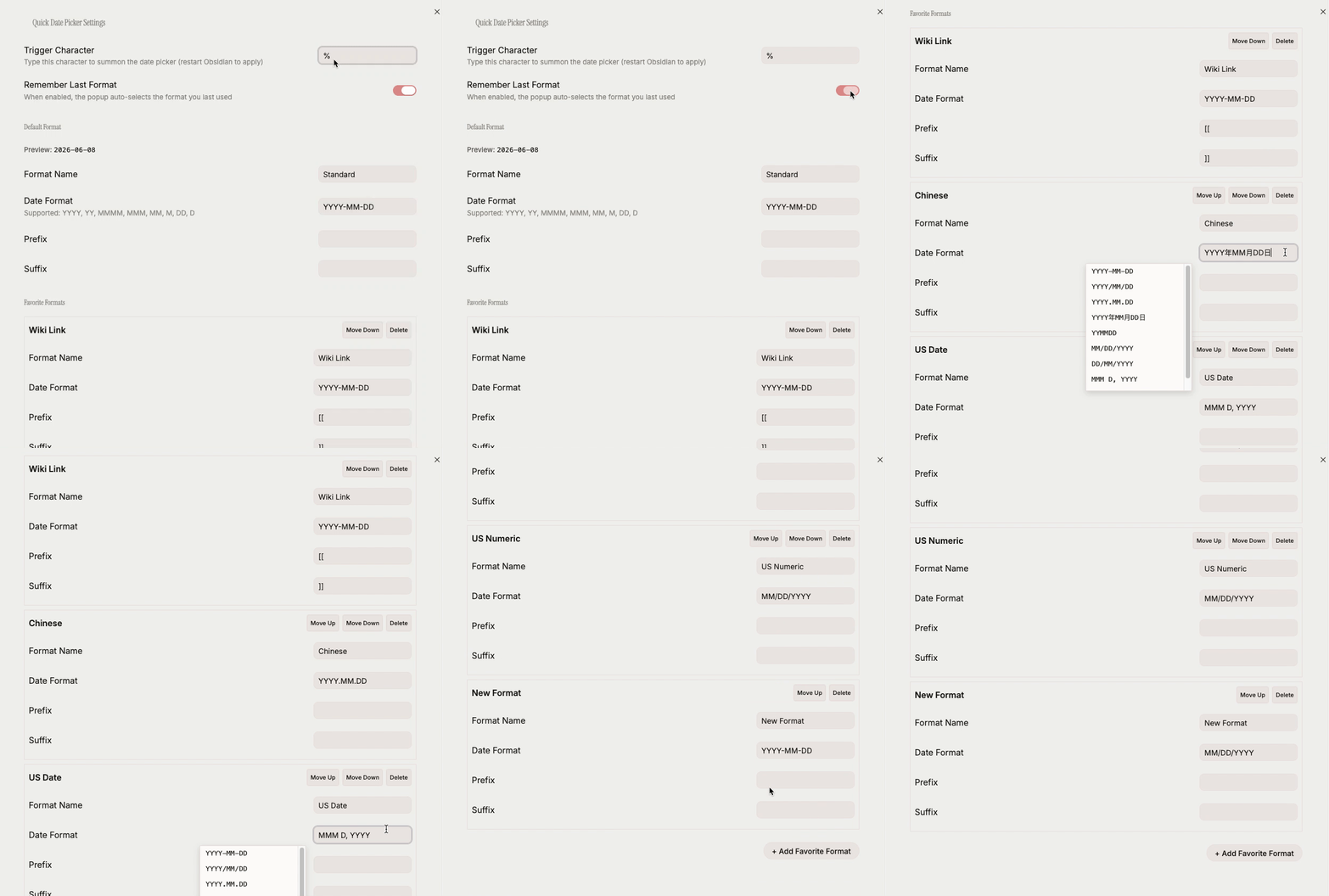
Go to Settings → Community Plugins → Quick Date Picker to configure:
- Trigger Character: Customize the character that summons the calendar (default
@) - Remember Last Format: When enabled, the popup auto-selects the format you last used
- Default Format: Set the default date output format
- Favorite Formats: Add, remove, and reorder frequently-used format templates
Format Template Syntax
Supported date tokens:
| Token | Description | Example |
|---|---|---|
YYYY |
Four-digit year | 2026 |
YY |
Two-digit year | 26 |
MMMM |
Full month name (English) | June |
MMM |
Short month name (English) | Jun |
MM |
Two-digit month | 05 |
M |
One-digit month | 5 |
DD |
Two-digit day | 23 |
D |
One-digit day | 23 |
Prefix/Suffix example: prefix [[ + YYYY-MM-DD + suffix ]] = [[2026-05-23]]
Compatibility
- Obsidian Desktop: supported
- Obsidian Mobile: supported
- Minimum Obsidian version: v0.15.0
Development
# Install dependencies
npm install

# Development mode (watch for changes)
npm run dev

# Build production bundle
npm run build

# Run tests
npm test
Support
If you encounter any issues or have feature suggestions, please open an issue on GitHub Issues.