
README file from
GithubPrivacy Screen
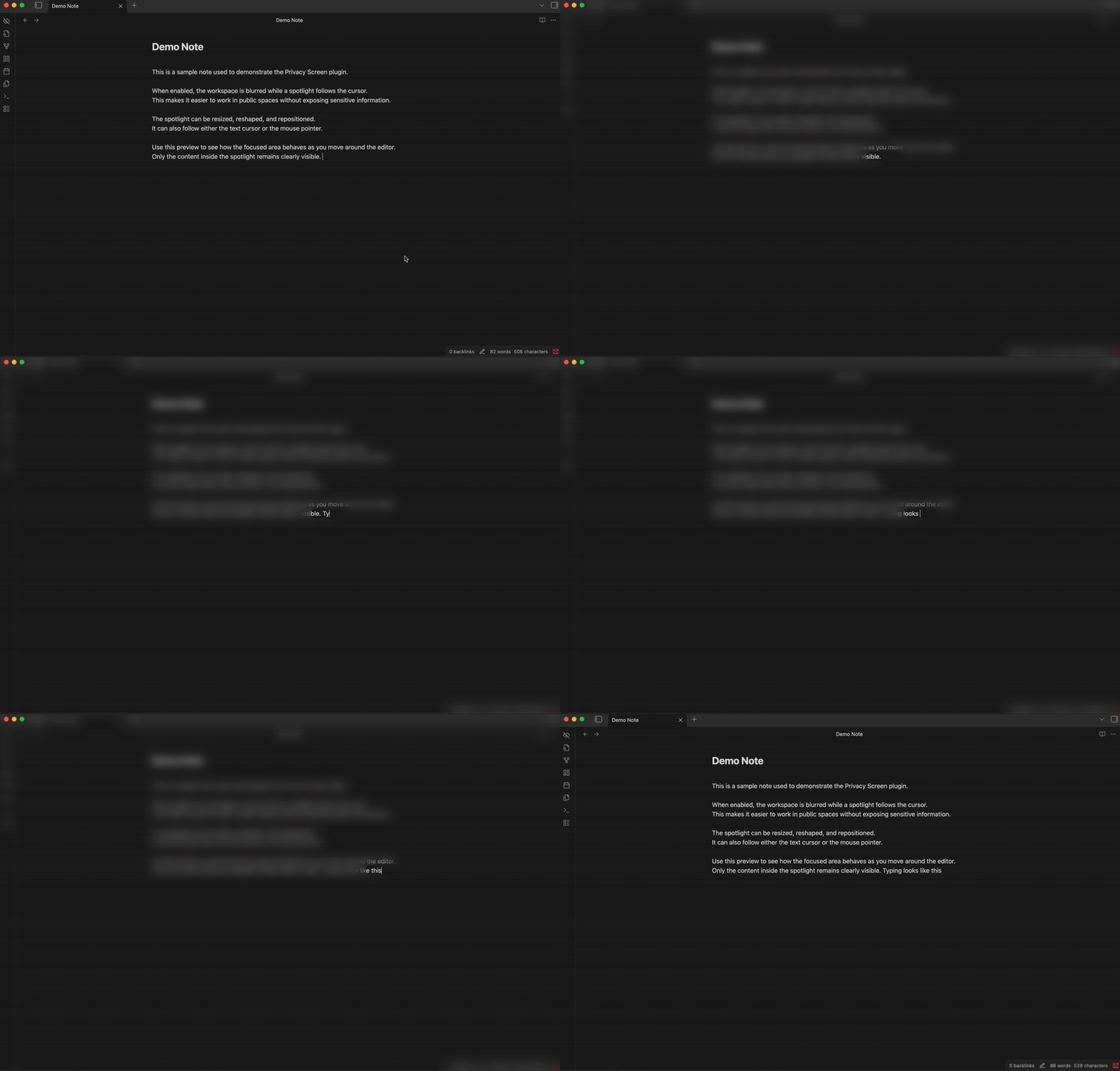
An Obsidian plugin that blurs your workspace while keeping a spotlight around your cursor, providing privacy when working in public spaces.
Features
- Blur overlay - Blurs the entire Obsidian workspace except for a configurable spotlight area around the cursor
- Spotlight shapes - Choose between circle or square (with adjustable corner roundness)
- Independent size control - Adjust spotlight width and height separately
- Horizontal offset - Shift the spotlight left or right relative to the cursor position
- Tracking modes - Follow the text cursor or mouse pointer
- State persistence - Remembers whether privacy screen was active when you close Obsidian
Installation
From Obsidian Community Plugins
- Open Obsidian Settings
- Go to Community Plugins and disable Safe Mode
- Click Browse and search for "Privacy Screen"
- Install and enable the plugin
Manual Installation
- Download
main.js,manifest.json, andstyles.cssfrom the latest release - Create a folder
privacy-screenin your vault's.obsidian/plugins/directory - Copy the downloaded files into that folder
- Reload Obsidian and enable the plugin in Settings > Community Plugins
Usage
- Click the eye-off icon in the ribbon to toggle the privacy screen
- Use the command palette (
Ctrl/Cmd + P) and search for "Toggle privacy screen"
Settings
| Setting | Description |
|---|---|
| Spotlight width | Width of the clear area in pixels |
| Spotlight height | Height of the clear area in pixels |
| Horizontal offset | Shift spotlight left (-) or right (+) relative to cursor |
| Blur intensity | How blurry the surrounding area should be |
| Feather edge | Softness of the spotlight edge |
| Spotlight shape | Circle or Square |
| Corner roundness | Roundness of square corners (only for square shape) |
| Tracking mode | Follow text cursor or mouse pointer |
Commands
All commands can be bound to hotkeys in Settings > Hotkeys:
- Toggle privacy screen
- Increase/Decrease spotlight width
- Increase/Decrease spotlight height
- Increase/Decrease blur intensity
- Increase/Decrease horizontal offset
- Toggle tracking mode (cursor/mouse)
- Reset to default settings
Acknowledgements
- Inspired by Pwritevacy