
README file from
GithubPortals for Obsidian
Portals enhances your Obsidian file navigation by letting you pin any folder or tag as a customizable tab, a Portal into your selected folder trees. Add icons to Tabs, background colors, gradients and rearrange them to suit your workflow.
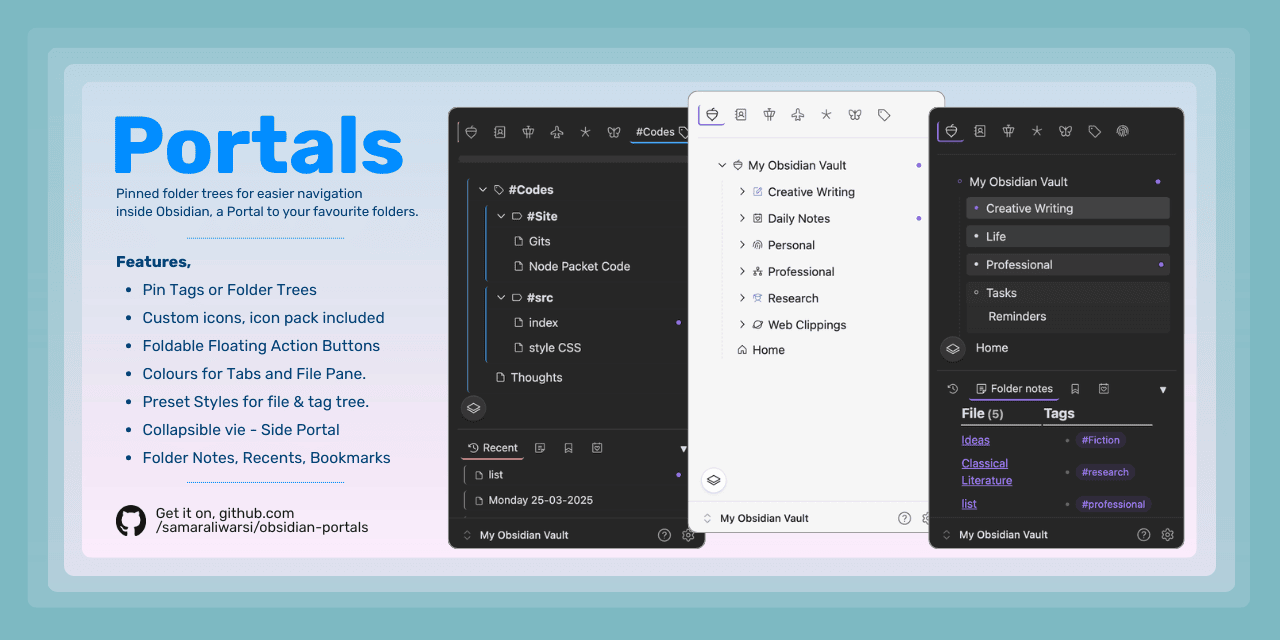
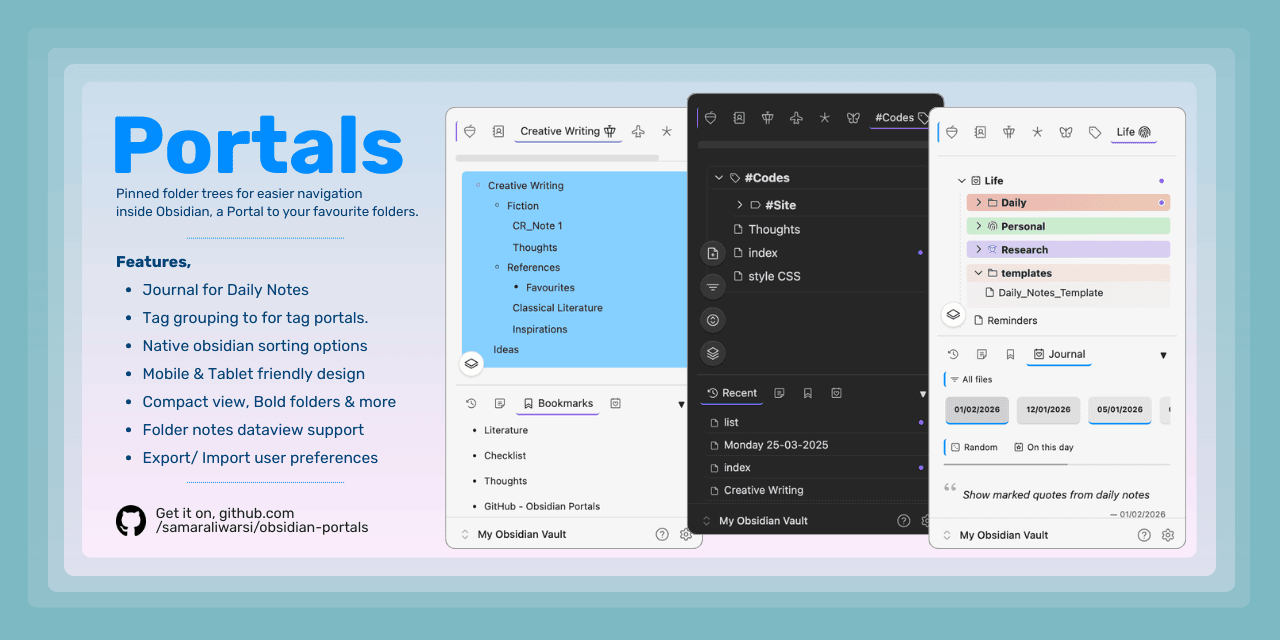
✨ Features
- Pin folders & tags as tabs at the top of the file pane.
- Stacks – group multiple tabs into collapsible stacks.
- Custom icons & colors – tabs, folders, files, tag groups.
- Six visual styles + compact tree view + bold folder names.
- Tag grouping & subtag support for tag portals.
- Multi‑select files, folders, and tags with
Alt+ClickorSwipe right. Use multi-select toolbar for actions. - Command palette to add or remove portals and configure side portals.
- Foldable floating action buttons for note/ folder creation, tag grouping, collapse and sort.
- Quick-add buttons for folders, tags to quickly create new items in target items.
- Custom display names for tabs, stacks.
- Side Portal - A modular, collapsible, resizable view containing, Bookmarks, Recent Files, Context notes, Hidden, Properties and Journal.
- Context Notes - an expansion to the older Folder notes feature. Context notes apply to folder as well as tags.
- Recents - Shows recent files list from across the vault.
- Bookmarks - Shows bookmarked files, folders or web links.
- Journal - A viewing and marking tool for Daily Notes with a quote display feature.
- Hidden - Place to show files, tags and folders hidden from the main view.
- Properties - A viewing tool for markdown files, based on their properties.
- Trash - A trash explorer for notes and folders based on Obsidian's
.trashfolder at vault root.
- Drag & drop reordering for portal tabs and stacks (desktop).
- Mobile friendly – Responsive design that works on small screens. Tested on Android (more platforms coming).
- Export/Import settings – Backup your tab configuration or transfer it to another vault using json files from
Settings.
For a full featured guide, checkout Portals guide
[!Note]
- Please make sure to backup your data file after a full setup of your preferences, color & icon choices. You can backup by copying the file
.obsidian/plugins/portals/data.jsonto safe location. You can also export the same viaSettingsand later import it. Make sure to backup before any plugin updates for safety measure.- For best results,
- On mobile: Works best with Baseline Theme right now as the theme renders vault on the top side. On other themes, turn off floating navigation in settings, i.e. Settings > Appearance > Floating Navigation.
- On desktop, you may need to turn off vault hiding if your theme hides the vault selector on the lower side.
⚙️ Installation
Using BRAT (Beta Reviewers Auto-update Tester)
- Install the BRAT plugin from the Obsidian community plugins (if you haven’t already).
- Open BRAT settings and click Add Beta plugin.
- Enter the repository URL:
https://github.com/samaraliwarsi/obsidian-portals. - Click Add Plugin – BRAT will download and enable the latest release.
Manual installation
- Download the latest release from the releases page.
- Extract the files into your vault’s
.obsidian/plugins/portals/folder. - Enable the plugin in Obsidian settings.
🚀 Quick start
- First installation - use Ribbon menu or command palette to enable Portals view.
- Add portal tabs using settings or command palette.
- Add existing portals to stacks.
- Drag tabs left/right to reorder.
- Add Side Portals using settings, command palette .
- Side Portal can be turned off for mobile devices.
- Customise tags, stacks and folders.
For detailed walkthroughs and tips, read the Portals Guide.
⚙️ Settings Overview
- Explorer settings (styles, colors, compact tree, etc.)
- Side Portal (enable/disable, choose tabs)
- Context Notes (enable, tag notes folder, highlights)
- Journal (folder, date format, delimiter, quote indicators)
- Properties (current value display, filtered count)
- Stacks (icon accent, auto‑collapse, count display)
- Portal Tabs (pin vault, add/remove, customize)
See the Portals Guide for every setting and its description.
🧑💻 Development
Clone the repository, install dependencies, and build:
git clone https://github.com/samaraliwarsi/obsidian-portals.git

cd obsidian-portals

npm install

npm run build
The built main.js and styles.css will be in the root folder. Copy them into your test vault’s .obsidian/plugins/portals/ directory.
📝 License
This project is licensed under the MIT License. See the LICENSE file for details.