
README file from
GithubObsidian PlantUML Integrator
An Obsidian plugin that renders PlantUML diagrams and is ready for Community Plugins publication.
Features
- Render PlantUML code blocks (
plantuml,puml) in Markdown preview. - Render
.pumlembedded files. - Cache include dependency trees and auto re-render when included files are modified.
- Right-click each rendered diagram to clear cache and re-render only that diagram.
- Select rendering mode: remote server endpoint or local PlantUML server.
Code block rendering image

Render Modes
Server mode (default)
Uses a remote PlantUML-compatible HTTP endpoint (e.g. kroki.io).
Configure PlantUML server URL in settings (default: https://kroki.io/plantuml/svg).
Local jar mode
Runs a local PlantUML PicoWeb server and sends requests to it.
This mode does not invoke java directly from the plugin; you must start the server yourself.
Why? Due to platform security constraints, Obsidian plugins cannot spawn external processes. Instead, the plugin communicates with a running PlantUML server via HTTP.
Starting the local server:
java -jar "<path-to-plantuml.jar>" -picoweb
The server listens on port 8080 by default.
Start the local server automatically at user login:
You can register the PlantUML PicoWeb command as a per-user startup entry so it is launched when you sign in.
Windows (HKCU Run):
$runKey = 'Registry::HKEY_CURRENT_USER\Software\Microsoft\Windows\CurrentVersion\Run'
$javaCommand = 'javaw.exe'
$javaExe = (Get-Command $javaCommand -ErrorAction SilentlyContinue | Select-Object -First 1 -ExpandProperty Source)
if (-not $javaExe) { $javaExe = $javaCommand }
$jarPath = 'C:\path\to\plantuml.jar'
$command = '"' + $javaExe + '" -jar "' + $jarPath + '" -picoweb'
New-Item -Path $runKey -Force | Out-Null
Set-ItemProperty -Path $runKey -Name 'PlantUML PicoWeb' -Value $command
macOS (LaunchAgent):
mkdir -p ~/Library/LaunchAgents
cat > ~/Library/LaunchAgents/com.user.plantuml.picoweb.plist <<'EOF'
<?xml version="1.0" encoding="UTF-8"?>
<!DOCTYPE plist PUBLIC "-//Apple//DTD PLIST 1.0//EN" "http://www.apple.com/DTDs/PropertyList-1.0.dtd">
<plist version="1.0">
   <dict>
      <key>Label</key>
      <string>com.user.plantuml.picoweb</string>
      <key>ProgramArguments</key>
      <array>
         <string>/usr/bin/java</string>
         <string>-jar</string>
         <string>/path/to/plantuml.jar</string>
         <string>-picoweb</string>
      </array>
      <key>RunAtLoad</key>
      <true/>
      <key>KeepAlive</key>
      <true/>
   </dict>
</plist>
EOF
launchctl load ~/Library/LaunchAgents/com.user.plantuml.picoweb.plist
Linux (systemd user service):
mkdir -p ~/.config/systemd/user
cat > ~/.config/systemd/user/plantuml-picoweb.service <<'EOF'
[Unit]
Description=PlantUML PicoWeb server

[Service]
ExecStart=/usr/bin/java -jar /path/to/plantuml.jar -picoweb
Restart=on-failure

[Install]
WantedBy=default.target
EOF
systemctl --user daemon-reload
systemctl --user enable --now plantuml-picoweb.service
Check whether the login startup registration is active:
Windows:
(Get-ItemProperty -Path 'Registry::HKEY_CURRENT_USER\Software\Microsoft\Windows\CurrentVersion\Run' -Name 'PlantUML PicoWeb').'PlantUML PicoWeb'
macOS:
launchctl list | grep com.user.plantuml.picoweb
Linux:
systemctl --user status plantuml-picoweb.service
Remove the login startup registration:
Windows:
Remove-ItemProperty -Path 'Registry::HKEY_CURRENT_USER\Software\Microsoft\Windows\CurrentVersion\Run' -Name 'PlantUML PicoWeb'
macOS:
launchctl unload ~/Library/LaunchAgents/com.user.plantuml.picoweb.plist
rm ~/Library/LaunchAgents/com.user.plantuml.picoweb.plist
Linux:
systemctl --user disable --now plantuml-picoweb.service
rm ~/.config/systemd/user/plantuml-picoweb.service
systemctl --user daemon-reload
Replace the Java executable and JAR path with values that match your environment.
Plugin settings:
Settings screen image
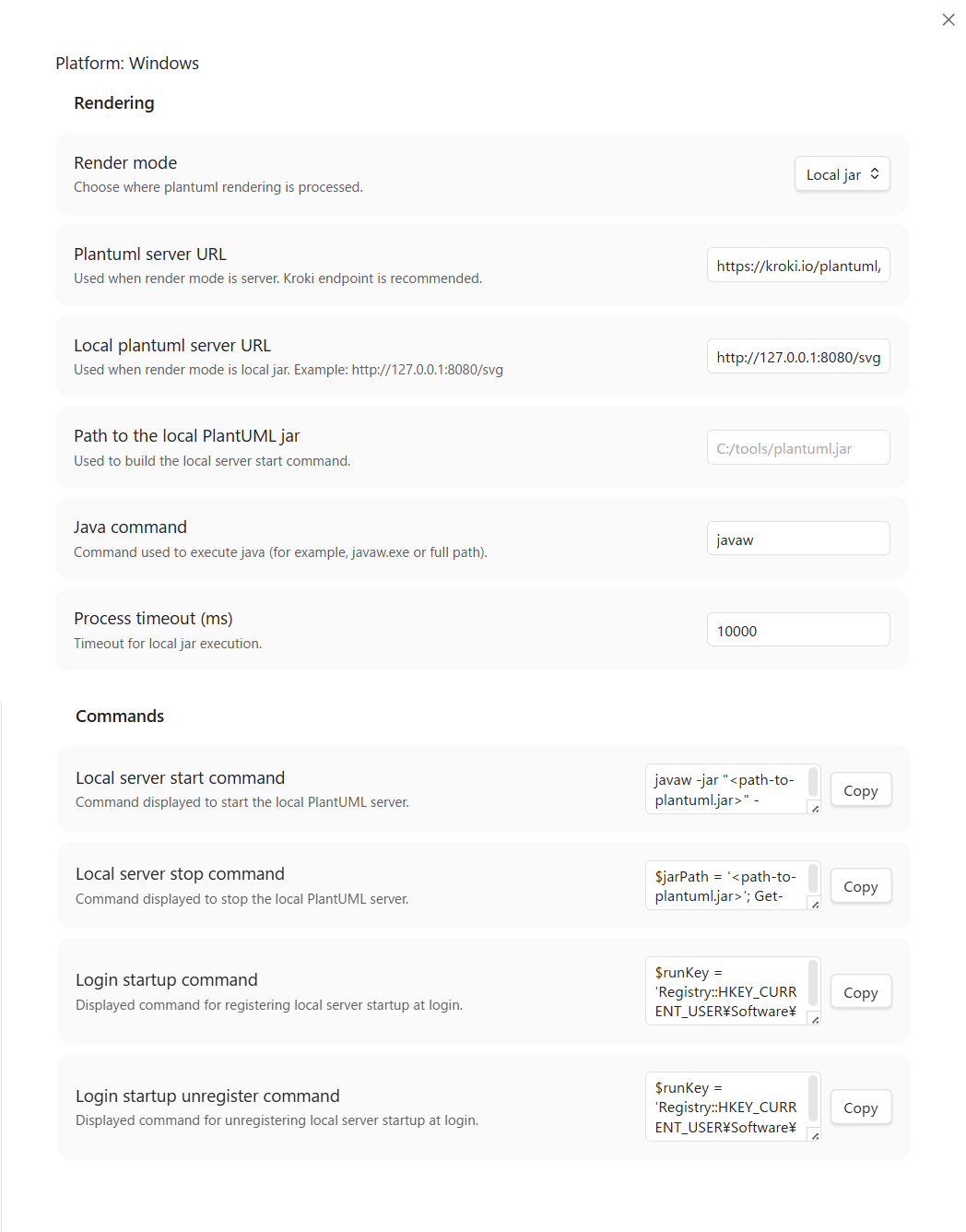
| Setting | Description | Default |
|---|---|---|
| Render mode | Choose where plantuml rendering is processed. | Server |
| Plantuml server URL | Used when render mode is server. Kroki endpoint is recommended. | https://kroki.io/plantuml/svg |
| Local plantuml server URL | Used when render mode is local JAR. Example: http://127.0.0.1:8080/svg |
http://127.0.0.1:8080/svg |
| Path to the local plantuml jar | Used to build the local server start command. | (empty) |
| Java command | Command used to execute java (for example, javaw.exe or full path). | javaw.exe |
| Process timeout (ms) | Timeout for local jar execution. | 10000 |
| Local server start command | Copy this command to start the local plantuml server. | Auto-generated from Java command and Path to the local plantuml jar |
| Local server stop command | Copy this command to stop the local plantuml server. | Platform-specific auto-generated value |
| Login startup command | Displayed command for registering local server startup at login. | Platform-specific auto-generated value |
| Login startup unregister command | Displayed command for unregistering local server startup at login. | Platform-specific auto-generated value |
Convenience feature: Right-click any rendered diagram and select Copy local server start command to copy the javaw.exe -jar ... command to the clipboard.
If the server is not running, the plugin shows the start command in the error message.
Build
-
Install dependencies:
npm install -
Build:
npm run build
Development
Watch mode:
npm run dev
Copy manifest.json, main.js, and styles.css to your Obsidian vault plugin folder.
Lint
Run lint checks:
npm run lint
Run lint checks with auto-fix:
npm run lint:fix
npm run lint:fix only applies ESLint auto-fixes and does not update version files.
Community Plugin Release
- Verify
manifest.jsonfields:id,name,author,description, andversion. - Run
npm run lint:fix. - Run
npm run lint. - Run
npm run version:patchfor fix releases. This command updatespackage.json,package-lock.json,manifest.json, andversions.jsontogether. - Run
npm run buildto generatemain.js. - Create a GitHub Release with the same tag as the
manifest.jsonversion (for example,0.1.0). - Attach the following 3 files as release assets:
manifest.jsonmain.jsstyles.css
- Submit a registration PR to the Obsidian community plugin list repository.
GitHub Actions (Release ZIP)
- Workflow file:
.github/workflows/release-zip.yml - Trigger (manual):
workflow_dispatch - Trigger (automatic):
release.published - Output ZIP:
${id}-${version}.zipcontainingmanifest.json,main.js,styles.css, andversions.json - Output destination: uploaded as a workflow artifact
- Release behavior: automatically attached to the GitHub Release when triggered by release publish
Version Bump Checklist
- Run
npm run version:patch - Verify the updated version in
manifest.jsonandversions.json npm run build- Create a git tag and GitHub Release
Support the Project
If you find this plugin helpful, consider sponsoring the project:
