
README file from
GithubPinned Tabs Customizer



Resize pinned tabs and customize their icons with emojis, symbols, or Obsidian icons based on file names, folders, patterns, or tags.
Features
Custom icons for pinned tabs
- Assign custom icons to pinned tabs for instant recognition
- Comprehensive icon picker with emojis, Obsidian icons, and custom text
- Recent icons section for quick access
- Supports emojis, symbols, and native Obsidian Lucide icons

Folder-based rules
- Apply an icon to ALL files in a folder
- Includes subfolders automatically
- Perfect for project folders, areas, or categories
Frontmatter detection
- Set icon per-file using frontmatter property
- Highest priority - overrides all other rules
- Customizable property name (default:
pinned-icon)
---
pinned-icon: 🏠
---
Advanced pattern matching
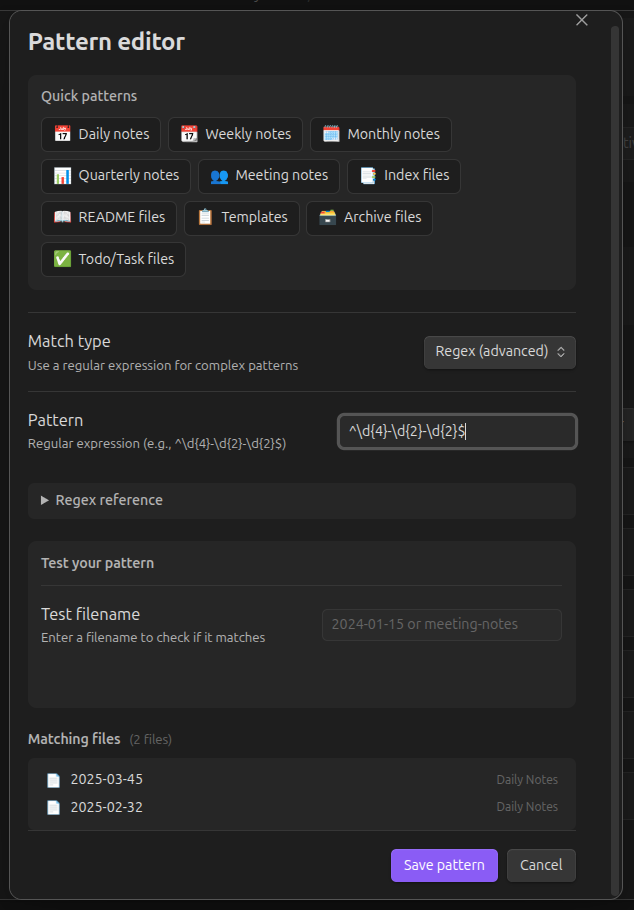
- Create patterns to match multiple files at once
- Perfect for daily notes, weekly notes, meeting notes, etc.
- Simple modes for all skill levels:
- Simple: Build patterns without regex (starts with, ends with, contains)
- Presets: 10+ ready-to-use patterns (daily notes, weekly notes, templates, etc.)
- Advanced: Write custom regex with built-in reference guide
- Live testing shows which files match your pattern
- Real-time preview of matching files
Tag-based rules
- Assign icons based on frontmatter or inline tags
- Perfect for flexible, content-based categorization
- Supports both
tags: [project]and#projectformats
Conflict detection
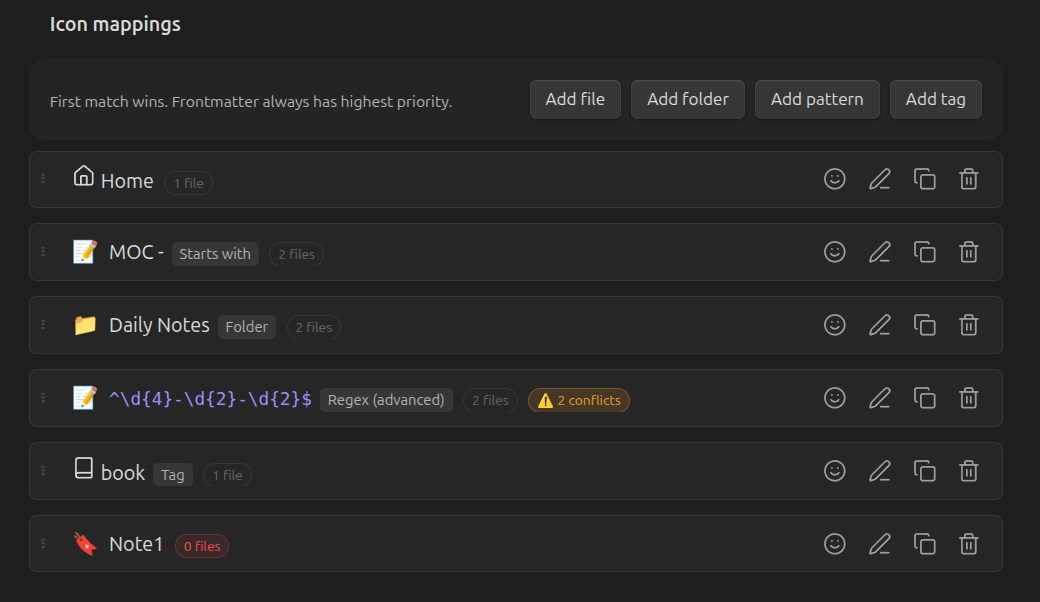
- Visual warnings when multiple rules match the same file
- Shows which files are affected and which rule wins
- Quick action to reorder rules and resolve conflicts
Adjustable pinned tab width
- Shrink pinned tabs toggle: Enable/disable width shrinking
- Customize pinned tab widths (40-200 pixels) when enabled
- Disable to keep normal tab width (only icon changes)
- Reset button to restore default width
Installation
From community plugins
- Open Settings → Community plugins
- Search for "Pinned Tabs Customizer"
- Install and enable the plugin
Manual installation
- Download the latest release from the GitHub Releases page
- Extract to your vault's
.obsidian/plugins/pinned-tabs-customizerfolder - Enable the plugin in Settings → Community plugins
Using BRAT
- Install BRAT plugin
- Open BRAT settings
- Add the following URL:
https://github.com/diegomarzaa/obsidian-pinned-tabs-customizer - Select the latest version
- Click "Add Plugin"
- Enable the plugin in Settings → Community plugins
Usage
Quick icon assignment
- Right-click any file and select "Set pinned tab icon"
- Select an icon from the picker (emoji, Obsidian icon, or custom text)
- The mapping is automatically created
Settings
Navigate to Settings → Pinned Tabs Customizer to:
- Shrink pinned tabs: Toggle width shrinking
- Pinned tab width: Set the width when shrinking is enabled (40-200 pixels)
- Show default icon: Toggle whether unmapped tabs show an icon
- Default icon: Set a fallback icon (leave empty for native pin icon)
- Read icon from frontmatter: Enable/disable and customize the property name
- Add file: Map a specific file to an icon
- Add folder: Apply icon to all files in a folder
- Add pattern: Create pattern rules (starts with, contains, regex, etc.)
- Add tag: Assign icon to all files with a specific tag
- Reorder mappings: Drag and drop to change priority (first match wins)
Priority order
- Frontmatter (highest) -
pinned-icon: 🏠in file - Mappings - In order (first match wins)
- Default icon (if enabled)
Commands
Access from command palette (Ctrl+P / Cmd+P):
- Set icon for current file - Set icon for the active note
- Set icon for a file - Search and set icon for any file
- Set icon for a folder - Assign icon to a folder
- Add pattern rule - Create a new pattern mapping
- Add tag rule - Create a tag-based mapping
Examples
| Type | Pattern | Matches |
|---|---|---|
| Folder | Projects/ |
All files in Projects folder |
| Exact | Home |
File named "Home" |
| Starts with | Meeting |
Meeting notes, Meeting agenda, etc. |
| Contains | archive |
archive-2024, project-archive, etc. |
| Regex | ^\d{4}-\d{2}-\d{2}$ |
Daily notes (2024-01-15) |
| Regex | ^\d{4}-W\d{2}$ |
Weekly notes (2024-W03) |
| Tag | project |
All files tagged with #project |
Contributing
Contributions are welcome! Visit the GitHub repository to:
- Report bugs
- Suggest features
- Submit pull requests
License
This project is licensed under the MIT License.
Acknowledgments
- Inspired by nicosomb shrink-pinned-tabs plugin and community discussions on tab customization