
README file from
GithubOwen Editor
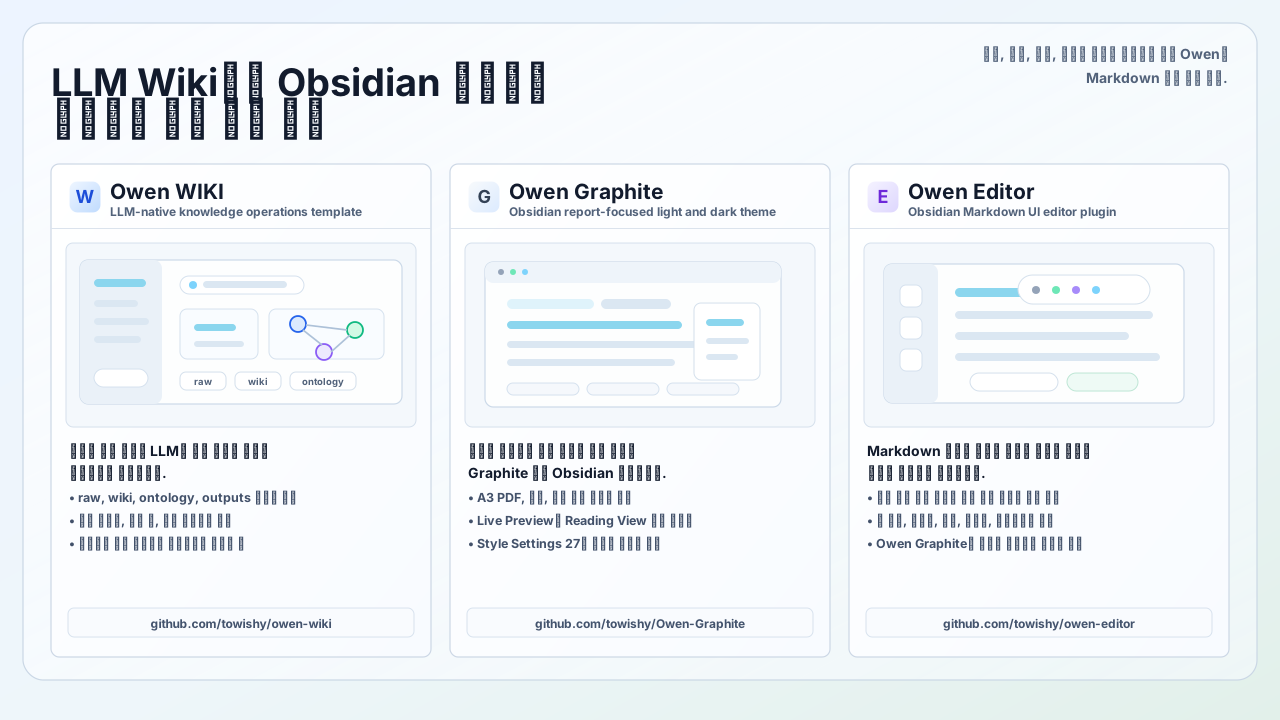
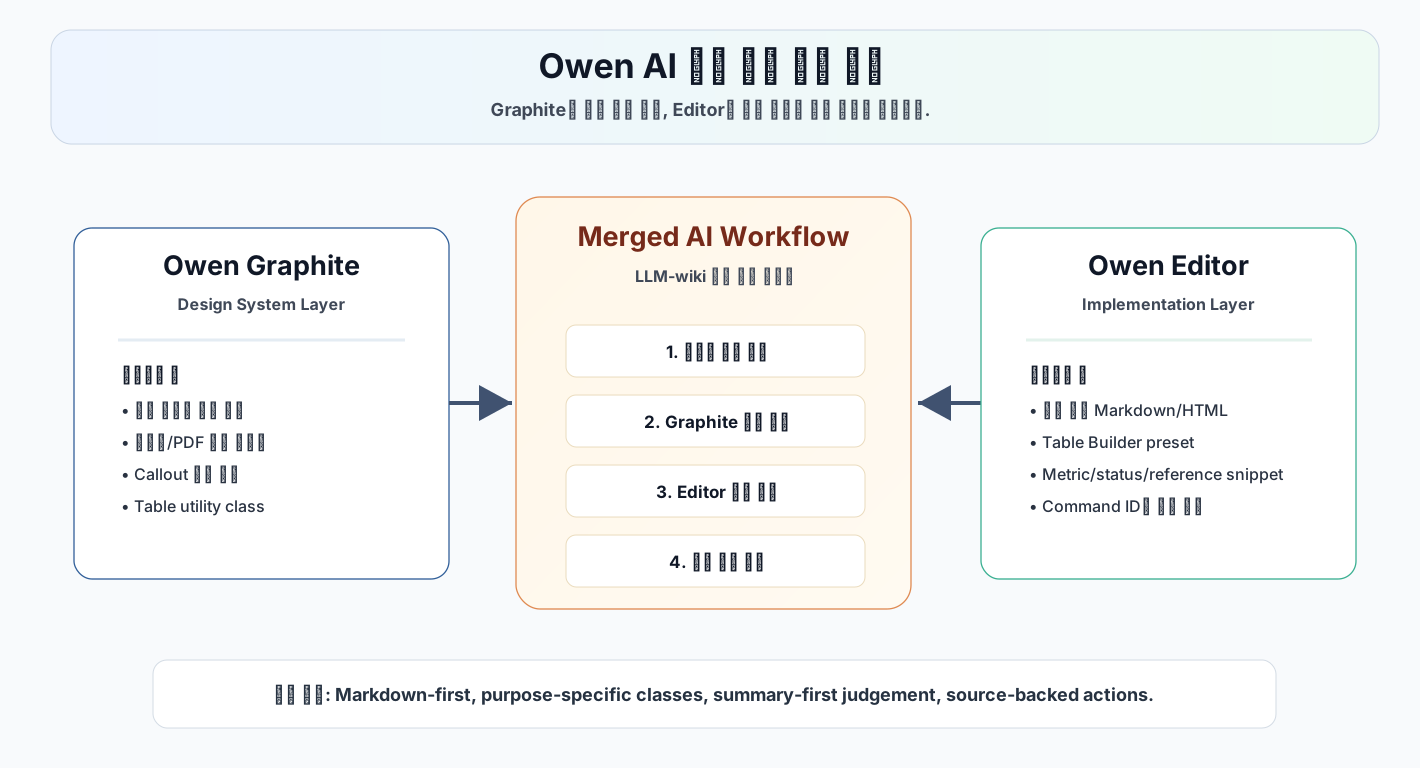




Owen Editor는 Obsidian에서 Markdown 편집을 빠르게 처리하기 위한 커뮤니티 플러그인입니다. 글쓰기, 리서치, 보고서 작성, 표 변환, Owen Graphite 테마용 문서 조각 삽입을 하나의 가벼운 편집 툴바로 묶습니다.
최신 업데이트
v0.6.21
- 툴바 버튼의 resting 상태를 CodePen liquid glass 참고 스타일에 맞춰 더 투명하게 정리했습니다.
- 하단 툴바 툴팁, 즐겨찾기 설정, 모바일 선택 문맥, table builder 흐름을 개선했습니다.
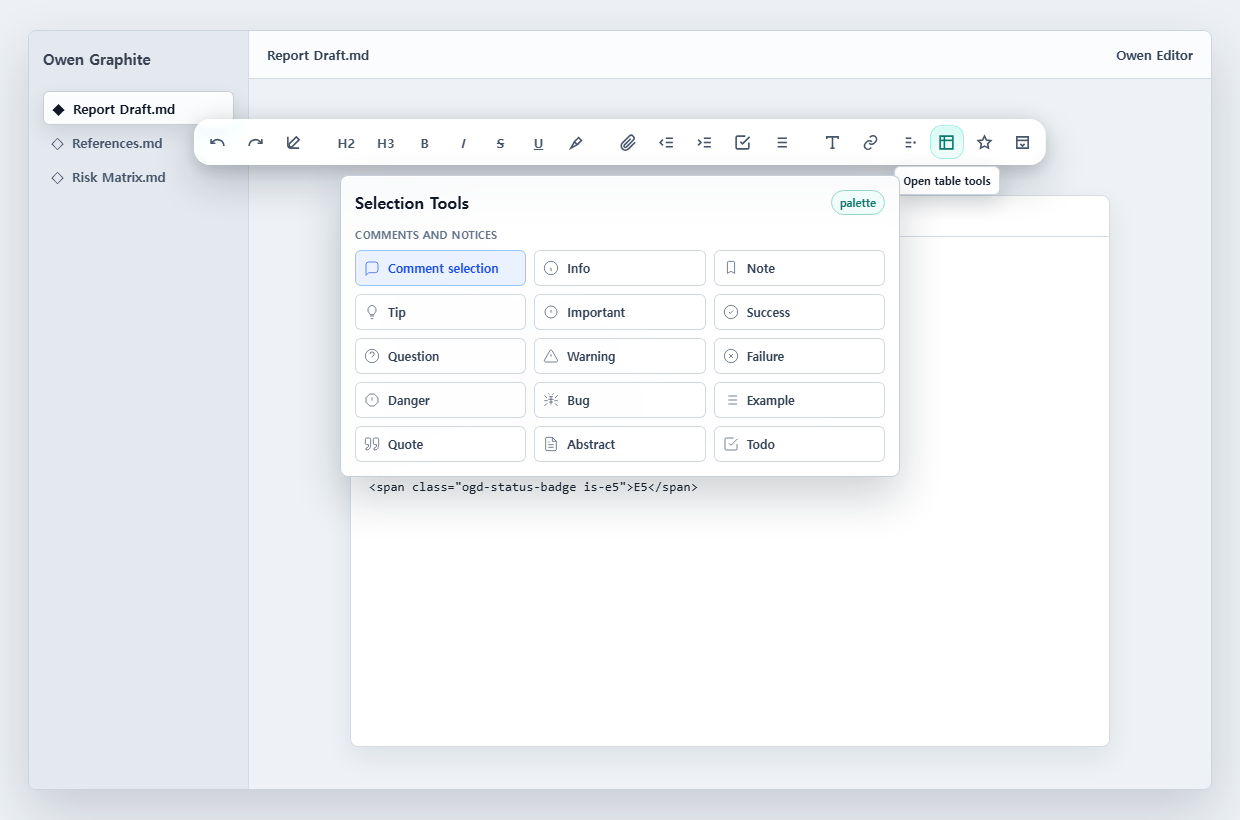
- README 메인 UI preview와 palette overflow 샘플 이미지를 최신 UI 기준으로 갱신했습니다.
v0.6.20
- README 첫 번째 소개 이미지를 실제 UI/UX 흐름을 보여주는 밝은 모던 목업 스타일로 교체했습니다.
v0.6.19
- 중앙/기본 툴바 아이콘에 마우스를 올렸을 때 툴팁이 두 번째 줄 favorite 아이콘 뒤로 깔리지 않도록 레이어 순서를 보정했습니다.
v0.6.18
- README를 한국어 기준으로 다시 작성했습니다.
- Obsidian 커뮤니티 플러그인 리뷰 기준에 맞춰 UI 문구를 sentence case로 정리했습니다.
- SVG 필터의 정적 스타일을
element.style직접 할당 대신 CSS 클래스로 옮겼습니다. - Obsidian popout 창 호환성을 위해 문서 접근을
activeDocument기준으로 정리했습니다. eslint-plugin-obsidianmd기반의 로컬 검증 스크립트npm run lint:obsidian을 추가했습니다.- 저장된 설정 데이터가 예상과 다른 형태여도 기본 설정으로 안전하게 복구하도록 보강했습니다.
- Windows 환경에
zip실행 파일이 없어도 릴리즈 zip을 만들 수 있도록Compress-Archivefallback을 추가했습니다.
v0.6.17
- command palette에 방향키 이동과 Enter 실행을 추가했습니다.
- 선택 툴바 위치 계산을
requestAnimationFrame으로 묶어 스크롤과 선택 변경 중 layout 작업을 줄였습니다. - CI workflow와 Obsidian vault 동기화 스크립트를 추가했습니다.
- README 릴리즈 badge가 manifest 버전과 맞는지 release check에서 검사합니다.
v0.6.16
- 플로팅 툴바와 선택 미니 툴바의 액체 유리 스타일을 SVG 렌즈 필터, 하이라이트, 라이트/다크 레이어 중심으로 개선했습니다.
설치
커뮤니티 플러그인 등록이 완료되면 Obsidian의 Community plugins 브라우저에서 Owen Editor를 검색해 설치할 수 있습니다.
수동 zip 설치
주의: GitHub의
Source code (zip)을 받지 마세요. 이 파일은 소스코드 아카이브라서 Obsidian 플러그인 실행에 필요한main.js가 들어 있지 않습니다. GitHub 릴리스 페이지의 Assets 섹션에서owen-editor.zip을 다운로드해야 합니다.
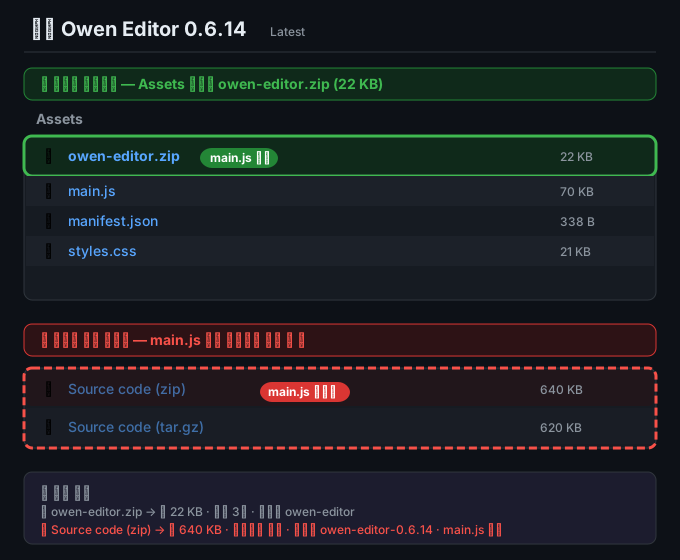
- owen-editor.zip 다운로드를 엽니다.
- 압축을 풀어
owen-editor폴더를 만듭니다. - Obsidian 볼트의
.obsidian/plugins/폴더를 엽니다. owen-editor폴더를.obsidian/plugins/안으로 복사합니다.- 아래 파일 3개가
owen-editor폴더 바로 아래에 있는지 확인합니다.
.obsidian/plugins/owen-editor/main.js
.obsidian/plugins/owen-editor/manifest.json
.obsidian/plugins/owen-editor/styles.css
zip 파일을 .obsidian/plugins/ 안에 그대로 두면 플러그인이 로드되지 않습니다. .obsidian/plugins/owen-editor/owen-editor/main.js처럼 폴더가 한 단계 더 중첩된 구조도 피해야 합니다.
Obsidian을 다시 시작하거나 플러그인을 다시 로드한 뒤 Owen Editor를 활성화하세요.
주요 기능
- Markdown 편집용 플로팅 글래스 툴바
- 선택한 텍스트 근처에 나타나는 선택 미니 툴바
- 선택 영역, Markdown 표, 코드 블록, Graphite 보고서 문맥에 맞춰 바뀌는 context-aware 툴바
- 위/아래 위치 전환, 접기 모드, 밀도 설정, 모바일 compact 모드
- minimal, writer, report, full, custom 툴바 preset
- 자주 쓰는 명령을 툴바에 고정하는 favorite 기능과 favorite preset
- 실행한 명령을 다시 찾기 쉬운 recent commands
- 굵게, 기울임, 취소선, 밑줄, 하이라이트, 제목, 들여쓰기, 목록, 체크박스, 실행 취소, 다시 실행
- 링크, wiki link, embed, attachment, image, footnote 삽입
- callout, frontmatter, Mermaid block, 코드 블록, 인용, 정렬 도우미
- Markdown 표와 Owen Graphite HTML 표를 만드는 table builder
- CSV, TSV, Markdown 표 선택 영역을 Markdown 표 또는 Graphite HTML 표로 변환
- executive summary, comparison report, risk review, meeting review 문서 template
- frontmatter, wide table, risk table, numeric table, risk matrix, reference list, status badge, kbd, blur, Graphite callout snippet
- A3/PDF 문서에 맞춘 source note, metric row, decision matrix snippet
- 한국어와 영어 검색 alias를 지원하는 command palette
사용 방법
Obsidian에서 Markdown 노트를 열면 설정에 따라 플로팅 툴바가 편집 영역에 표시됩니다. 왼쪽의 기본 편집 버튼으로 자주 쓰는 Markdown 서식을 적용하고, 오른쪽의 카테고리 버튼으로 기능별 palette를 엽니다.
| 카테고리 | 제공 기능 |
|---|---|
| Selection | 텍스트 서식, 주석, callout, 인용, 코드 블록, 선택 영역 감싸기 |
| Links | Markdown link, wiki link, embed, attachment, image, footnote |
| Blocks | 구분선, frontmatter, Mermaid block, 정렬, 문서 block |
| Tables | Markdown 표, table builder, Graphite 표 preset |
| Owen graphite | Graphite 보고서, 표, callout, badge, blur, keyboard, reference helper |
| All commands | Owen Editor 전체 명령 palette |
Obsidian 기본 command palette에서도 Owen Editor 명령을 사용할 수 있습니다. Owen Editor palette 검색은 table, 표, 링크, highlight, 강조, graphite, 보고서 같은 영어와 한국어 키워드를 함께 처리합니다.
전체 명령 palette에서 별 버튼을 누르면 자주 쓰는 명령을 플로팅 툴바에 고정할 수 있습니다. 설정 탭에서는 favorite 순서를 바꾸거나 preset을 적용할 수 있습니다.
텍스트를 선택하면 선택 미니 툴바가 나타납니다. 굵게, 기울임, 하이라이트, 링크, Graphite kbd, Graphite blur처럼 선택 영역에 바로 적용하는 명령을 빠르게 실행할 수 있습니다. 미니 툴바는 현재 Markdown pane 안에 머물며, 위쪽 공간이 부족하면 선택 영역 아래로 이동합니다.
표가 필요하면 Tables palette에서 table builder를 엽니다. 행/열 수를 직접 지정하거나 CSV/TSV 데이터를 붙여넣어 표를 만들 수 있고, 삽입 전 Markdown 또는 HTML 결과를 미리 확인할 수 있습니다.
Owen Graphite 테마 안내
기본 Markdown 편집 명령은 어떤 Obsidian 테마에서도 동작합니다. 다만 wide-table, risk-table, ogd-status-badge, ogd-reference-list 같은 Owen Graphite 전용 class가 들어간 snippet은 Owen Graphite 테마가 활성화되어 있을 때 의도한 스타일로 표시됩니다.
Owen Graphite 테마가 없어도 삽입되는 Markdown과 HTML은 읽을 수 있는 형태로 남습니다. 테마 전용 시각 효과만 적용되지 않습니다.
AI 작성 가이드
LLM-wiki나 AI 문서 작성 워크플로에서 Owen Editor와 Owen Graphite 출력 규칙을 맞추려면 docs/llm-wiki-owen-editor-ai-guide.md를 사용하세요. 이 문서는 명령과 Markdown 문법, Graphite class, 보고서 frontmatter, callout, 표 preset, 재사용 가능한 prompt 지침을 연결합니다.
Palette 레이아웃 샘플
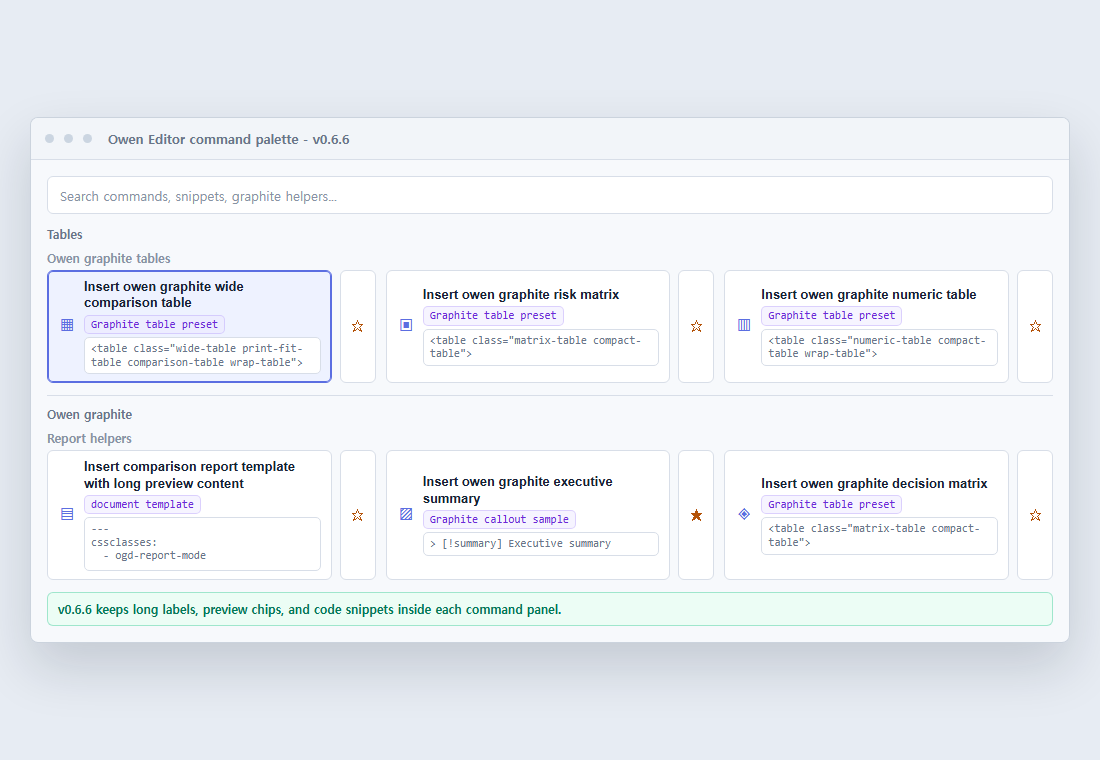
v0.6.6 이후 command palette는 긴 명령 이름, preview chip, code snippet이 좁은 레이아웃에서도 카드 밖으로 넘치지 않도록 정리되어 있습니다.
설정
- Show floating glass toolbar: 가로 편집 툴바를 표시합니다.
- Show selection mini toolbar: 선택한 텍스트 근처에 미니 툴바를 표시합니다.
- Show status bar button: 상태바에서 editor palette를 빠르게 열 수 있게 합니다.
- Toolbar position: 툴바를 편집기 위쪽 또는 아래쪽에 배치합니다.
- Toolbar preset: minimal, writer, report, full, custom 레이아웃을 적용합니다.
- Toolbar density: compact, balanced, comfortable, custom 밀도를 적용합니다.
- Start with toolbar collapsed: 시작 시 툴바를 한 개 버튼으로 접어 둡니다.
- Toolbar scale: 플로팅 툴바와 선택 미니 툴바 크기를 80%에서 110% 사이로 조정합니다.
- Favorite row display: favorite 행을 항상 표시, hover/focus 시 표시, 숨김 중에서 선택합니다.
- Compact toolbar on mobile: 모바일에서 버튼 크기를 줄이고 줄바꿈을 허용합니다.
- Context-aware toolbar: 선택 영역, 표, 코드 블록, 보고서 문맥에 맞춰 명령 그룹을 바꿉니다.
- Command feedback: 명령 실행 후 툴바 버튼을 짧게 강조합니다.
- Prefer owen graphite HTML tables: 지원되는 표 preset에서 Graphite class가 들어간 HTML 표를 우선 삽입합니다.
- Warn when owen graphite is not active: Graphite 전용 snippet 사용 시 테마가 비활성 상태이면 한 번 안내합니다.
- Favorite presets: writer, research, report, table-heavy favorite 구성을 적용합니다.
- Add favorite command: 드롭다운에서 툴바에 고정할 명령을 추가합니다.
- Favorite order: 고정된 명령을 위아래로 이동하거나 제거합니다.
- Settings JSON: 툴바 설정을 내보내고 다른 볼트나 기기로 가져옵니다.
개발
npm install
npm run lint:obsidian
npm run build
npm run docs:screenshot
npm run release:check
npm run release:preflight
Windows PowerShell에서 npm.ps1 실행 정책에 막히면 npm.cmd run build처럼 npm.cmd를 사용하세요.
개발 중 자동 rebuild가 필요하면 아래 명령을 사용합니다.
npm run dev
릴리즈 절차
릴리즈 전에는 다음 항목을 확인합니다.
CHANGELOG.md의Unreleased내용을 새 버전 섹션으로 옮깁니다.package.json,package-lock.json,manifest.json,versions.json의 버전을 맞춥니다.- 편집 명령, 문서 template, Graphite snippet, table helper가 바뀌면 docs/llm-wiki-owen-editor-ai-guide.md를 함께 검토합니다.
npm run lint:obsidian으로 Obsidian 커뮤니티 리뷰 기준을 미리 점검합니다.npm run release:preflight로 build, release check, diff check, zip asset 생성을 검증합니다.- changelog와 asset이 준비된 뒤에만
npm run release:create를 실행합니다.
npm run release:check는 버전 정렬, release asset, license, README preview image, 현재 manifest 버전의 changelog 항목을 확인합니다.