
README file from
GithubOrrery
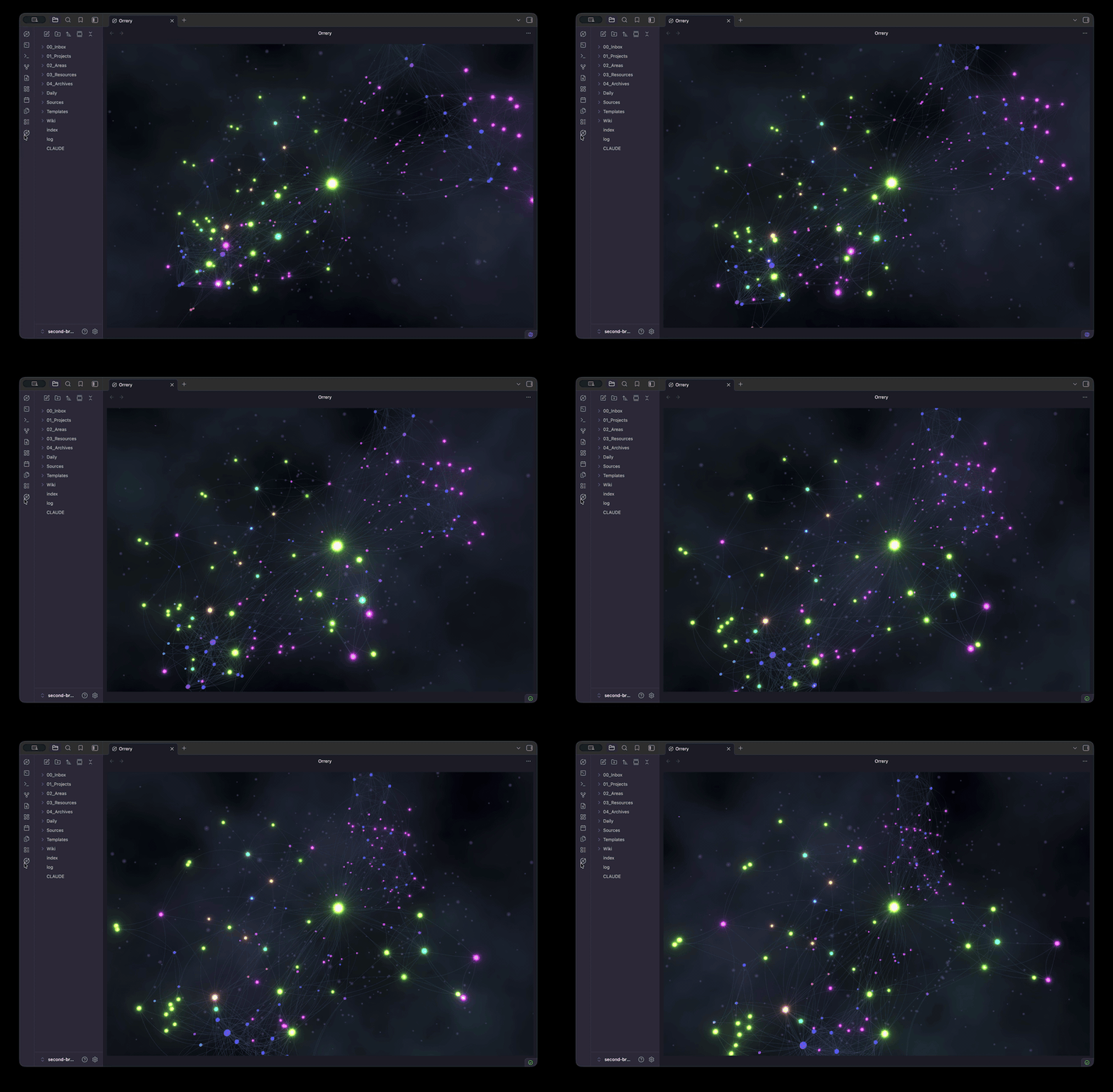
Orrery turns your Obsidian vault into a slowly rotating 3D galaxy. Every note is a glowing star, every link is a thread between them, and the whole thing drifts through space over a nebula and a field of stars. The name comes from the old mechanical models of the solar system, the ones with planets circling on brass arms.
It is mostly here to look incredible, but it is also a genuinely nice way to see the shape of your vault: which notes are hubs, how your folders cluster together, and what is floating off on its own.
The bigger and more connected your vault is, the better it looks. More notes mean more stars, more links pull those stars into tighter clusters, and more folders bring more color into the mix. A small vault looks calm and tidy. A large, heavily linked one looks like a real galaxy.
Using it
Click the orbit icon in the left ribbon, or open the command palette and run "Open orrery". The graph fills the pane and starts turning on its own.
While it is open:
- Drag to spin it yourself.
- Scroll to zoom in and out.
- Hover a star to light up its neighbors and dim everything else.
- Click a star to open that note.
Embedding it in a note
You can drop a live orrery straight into any note with a code block:
```orrery
height: 420
folder: Projects
```
Both lines are optional. height is the height in pixels (default 360). folder limits it to a single top-level folder. The embed cleans itself up when you close the note.
Settings
These all live under Settings, in the Orrery tab. Reopen the view after changing one.
- Show folder filter bar. Off by default, which keeps the view clean and full. Turn it on to get a row of folder buttons across the top so you can focus the graph on one folder at a time.
- Color nodes by. How nodes get their colors. "Subfolder" gives you more colors and finer detail. "Top-level folder" gives you fewer, broader groups. Either way the color comes from where a note lives.
- Rotation speed. How fast it spins. Set it to 0 to stop the rotation entirely.
- Bloom strength. How strongly the bright nodes glow. Turn it up for more bloom, down for a cleaner look.
- Node size. Makes every star bigger or smaller.
- Initial zoom. How far back the camera starts. Drop it below 1 to pull back and fit a big vault in frame, raise it above 1 to start closer in. You can always scroll to adjust once it loads.
- Background color. The color behind the graph.
- Nebula, Starfield, Core haze. Toggle each backdrop layer on or off. Turn them all off for a plain dark background.
- Exclude folders. A comma separated list of top-level folders to leave out, handy for something like Templates.
- Color overrides. Pin specific folders to specific colors, one per line, like
Projects: #8aff80.
Nodes are sized and brightened by how many links they have, so your most connected notes naturally become the big, bright cores near the center.
Development
npm install
npm run dev     # watch build
npm run build   # type-check and production bundle
npm test        # unit tests
The renderer under src/orrery/ has no Obsidian imports, so it can be reused outside Obsidian.
Also by me
Completely unrelated to graphs, but the main thing I build is parry, a mobile AI messaging app. Take a look if you're curious what I do when I'm not tricking out my vault.
License
MIT