
README file from
GithubObsidian DrawDB
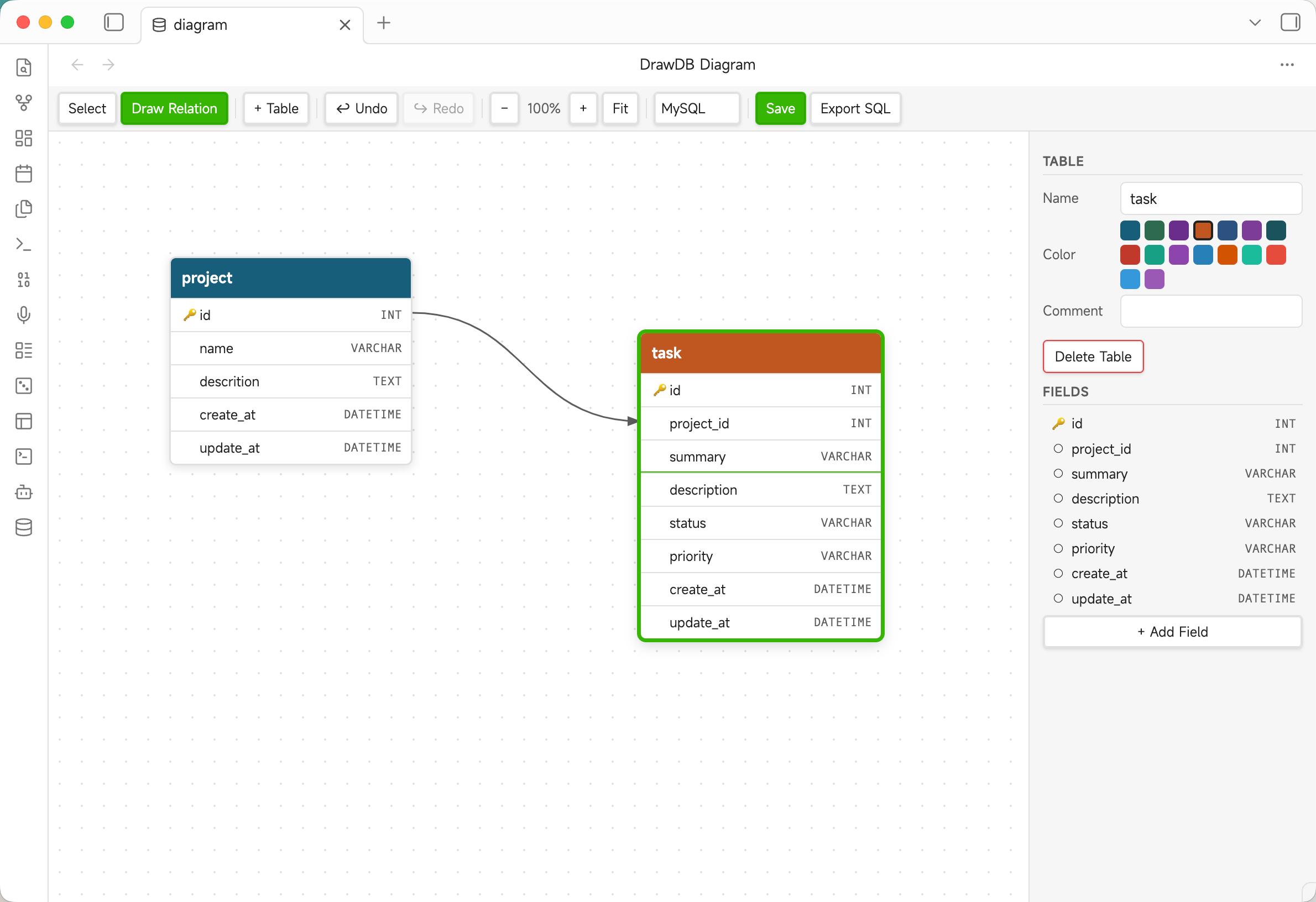
A visual database diagram editor (ER diagrams) for Obsidian, powered by drawdb.
Create, edit, and export relational database schemas directly inside your vault using .drawdb files — fully compatible with the drawdb JSON format.
Features
- Visual ER diagram editor — drag-and-drop tables on an infinite canvas
- Table & field management — add/edit/delete tables and fields with types, constraints, and comments
- Relationships — draw foreign key relationships between fields with configurable cardinality and ON UPDATE/DELETE behavior
- Multi-database support — MySQL, PostgreSQL, SQLite, MSSQL, MariaDB field types
- Export SQL — generate
CREATE TABLE+ALTER TABLE FOREIGN KEYstatements - Undo / Redo — full history with Ctrl+Z / Ctrl+Shift+Z
- Pan & zoom — mouse wheel zoom, middle-button / Space+drag pan, Fit-to-screen
- drawdb compatible —
.drawdbfiles use the same JSON format as drawdb.io, so diagrams can be opened and edited in either tool - Light & dark theme — adapts to your Obsidian theme automatically
Usage
Create a new diagram
- Click the database icon in the left ribbon, or
- Run the command DrawDB: New diagram from the command palette
A new diagram.drawdb file is created in your vault root and opened in the editor.
Open an existing .drawdb file
Click any .drawdb file in the file explorer — it opens automatically in the DrawDB editor.
Editing
| Action | How |
|---|---|
| Add a table | Click + Table in the toolbar, or double-click an empty area on the canvas |
| Move a table | Drag the colored header |
| Select a table | Click the header; properties appear in the right panel |
| Edit a field | Click a field row in the right panel to expand its properties |
| Add a field | Click + Add Field in the right panel |
| Delete a table | Select it, then click Delete Table in the right panel, or press Delete |
| Draw a relationship | Switch to Draw Relation mode, click a source field, then click a target field |
| Delete a relationship | Click the line on the canvas to select it, then click Delete Relationship, or press Delete |
| Pan the canvas | Hold Space and drag, or use the middle mouse button |
| Zoom | Scroll the mouse wheel (zooms toward cursor) |
| Fit all tables | Click Fit in the toolbar |
| Save | Click Save or press Ctrl+S (Cmd+S on Mac) |
| Undo / Redo | Ctrl+Z / Ctrl+Shift+Z |
| Export SQL | Click Export SQL — downloads schema.sql |
Installation
Manual install (development / testing)
- Build the plugin:
npm install npm run build - Copy
main.js,manifest.json, andstyles.cssto:<YourVault>/.obsidian/plugins/obsidian-drawdb/ - In Obsidian: Settings → Community plugins → Reload plugins, then enable DrawDB.
Community plugin store
Coming soon — once submitted to the Obsidian community plugin list.
File format
.drawdb files are plain JSON and fully compatible with the drawdb.io web app. Example:
{
  "database": "MySQL",
  "tables": [
    {
      "id": 1,
      "name": "users",
      "x": 80,
      "y": 60,
      "color": "#175e7a",
      "comment": "",
      "fields": [
        {
          "id": 2,
          "name": "id",
          "type": "INT",
          "primary": true,
          "unique": true,
          "notnull": true,
          "autoincrement": true,
          "default": "",
          "size": "",
          "comment": "",
          "check": "",
          "values": []
        }
      ],
      "indices": []
    }
  ],
  "references": [],
  "notes": [],
  "areas": []
}
Settings
Settings → DrawDB
| Setting | Description |
|---|---|
| Default database type | Database type assigned to newly created diagrams (MySQL, PostgreSQL, SQLite, MSSQL, MariaDB) |
Development
# Install dependencies
npm install

# Watch mode (auto-recompile on save)
npm run dev

# Production build
npm run build

# Lint
npm run lint
Requirements: Node.js 18+, npm.
License
Acknowledgements
- drawdb-io/drawdb — the original open-source ER diagram editor this plugin is based on
- obsidianmd/obsidian-sample-plugin — plugin template