
README file from
Github


NotePack for Obsidian
Todo collation with team management — an Obsidian plugin port of notepack-cli.
What It Does
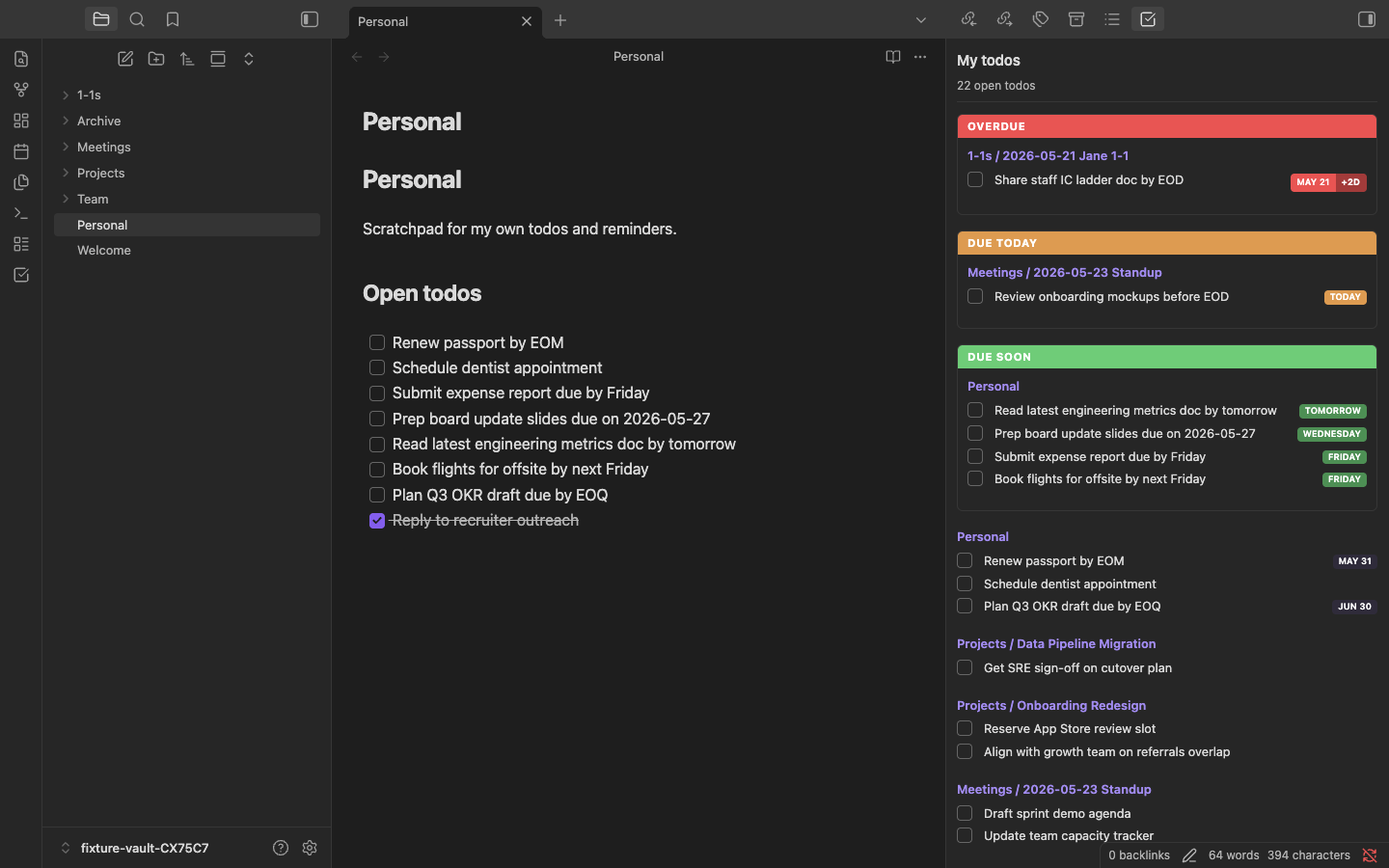
NotePack scans your vault's markdown files for unchecked todos (- [ ]), assigns them to people via @mention syntax, and provides organized sidebar views. It's designed for people managers and project leads who take notes in markdown and need to track who owes what.
Todo Assignment
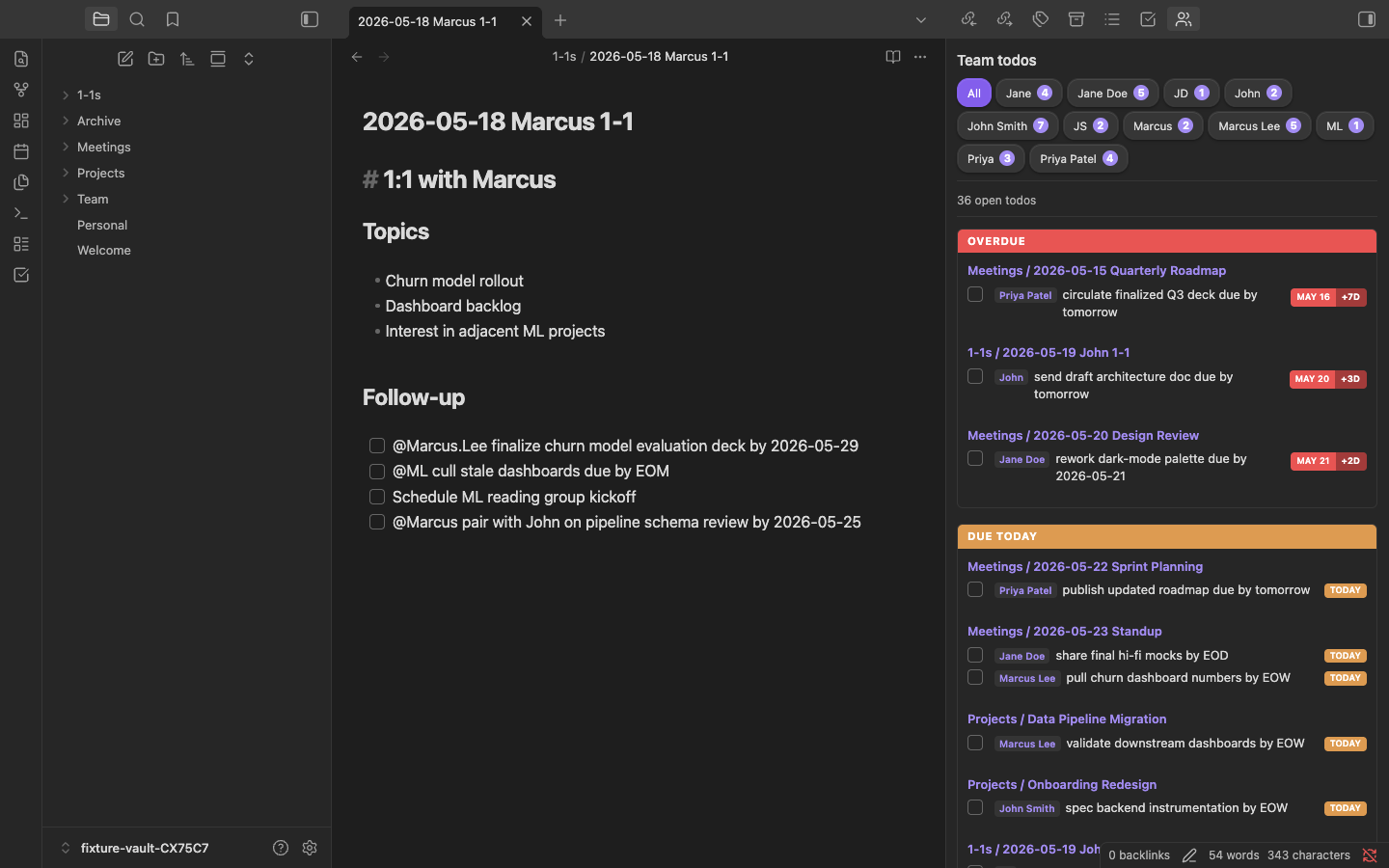
Any unchecked todo without an @mention is assigned to you:
- [ ] Follow up on budget review
Prefix with @Name to assign to a team member:
- [ ] @Jane.Doe to write the project plan
- [ ] @John send updated timeline
Due Dates
NotePack parses due dates directly from todo text. Any todo containing a recognizable due date expression will display a color-coded badge and be surfaced at the top of the sidebar views in Overdue and Due Soon sections.
Supported patterns
Wrap a date expression with a trigger phrase:
- [ ] Submit expense report due by Friday
- [ ] @Jane.Doe review PR due on March 15
- [ ] Send invoice by EOD Monday
- [ ] Close sprint by EOM
Trigger phrases: due by, due on, due at, due before, due, by, before
| Date format | Example |
|---|---|
| ISO date | 2026-03-15 |
| US date | 3/15, 3/15/2026 |
| Named month | March 15, Mar 15, 2026 |
| Relative | today, tomorrow |
| Weekday | Friday — nearest upcoming occurrence |
| Next weekday | next Monday — that weekday in the following calendar week |
| EOD | EOD — end of day at the configured hour |
| EOD compound | EOD Monday, EOD March 15, EOD tomorrow |
| EOW | EOW, end of week — last day of the configured work week at 23:59 |
| EOM | EOM, end of month — last day of the month at 23:59 |
| EOQ | EOQ, end of quarter — last day of the quarter at 23:59 |
| EOY | EOY, end of year — December 31 at 23:59 |
Relative date context
Relative expressions (tomorrow, EOW, by Friday, etc.) are resolved against the file's date when the filename starts with a date prefix (e.g. 2026-03-05 Standup.md). This means a todo that said "by tomorrow" in a two-week-old note is correctly flagged as overdue rather than due tomorrow. Files without a date prefix fall back to today as the reference.
Urgency sections
The My todos and Team todos views sort due todos to the top:
- Overdue (red) — due date has passed, or EOD time has passed today
- Due soon (orange) — due today or within the next 7 days
- Todos with no due date, or a due date beyond 7 days, appear in the regular grouped section below with a color-coded badge indicating the date
Team Management
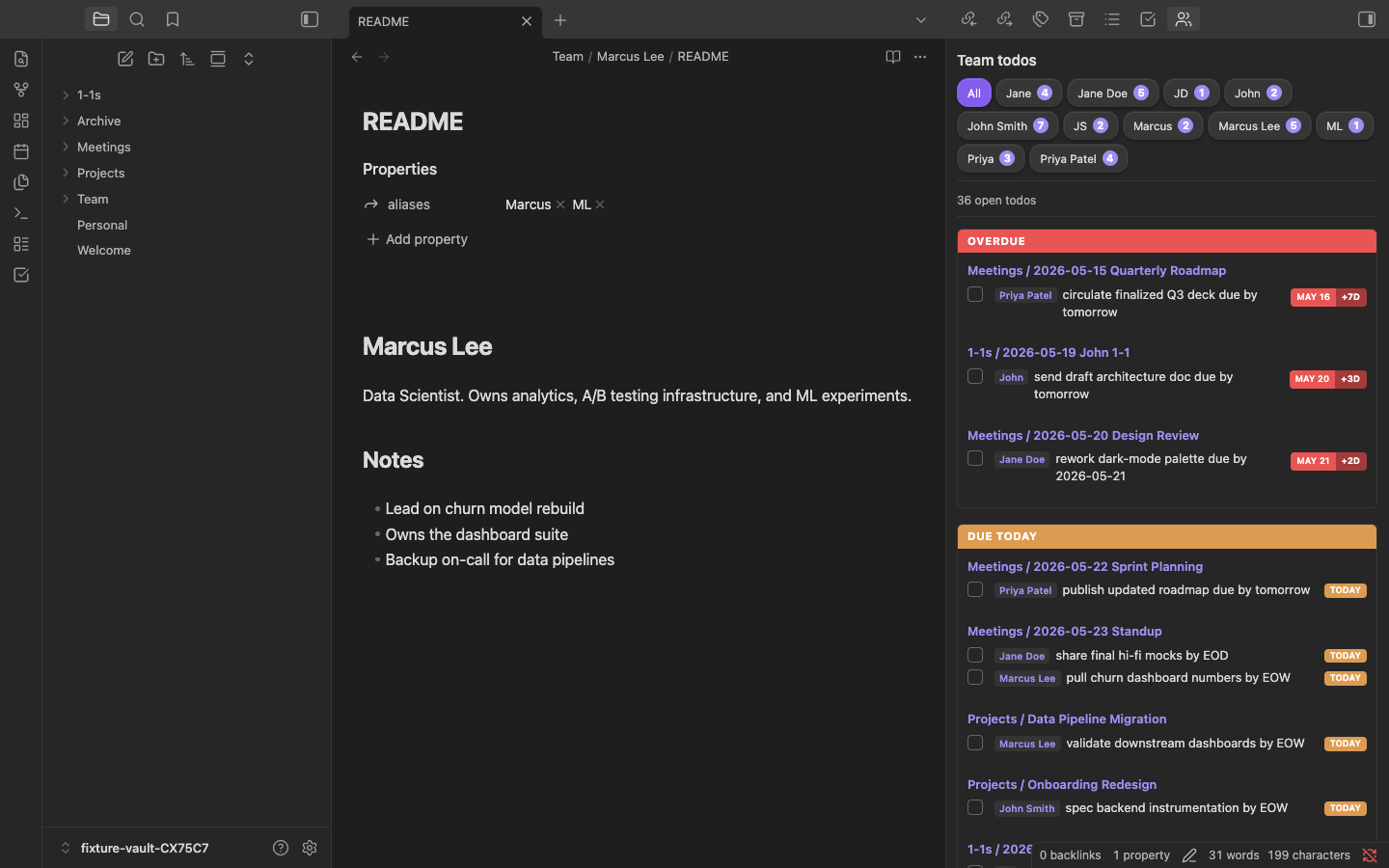
Create a Team folder (configurable) with subfolders for each team member. Each member folder should have a README.md with optional front-matter:
Team/
  Jane Doe/
    README.md
  Johnathan Doe/
    README.md
In each member's README.md, define aliases so they can be @mentioned in different ways:
---
aliases:
  - Jane
  - JD
---
NotePack automatically creates a firstname.lastname alias for every member (e.g., @Jane.Doe).
Commands
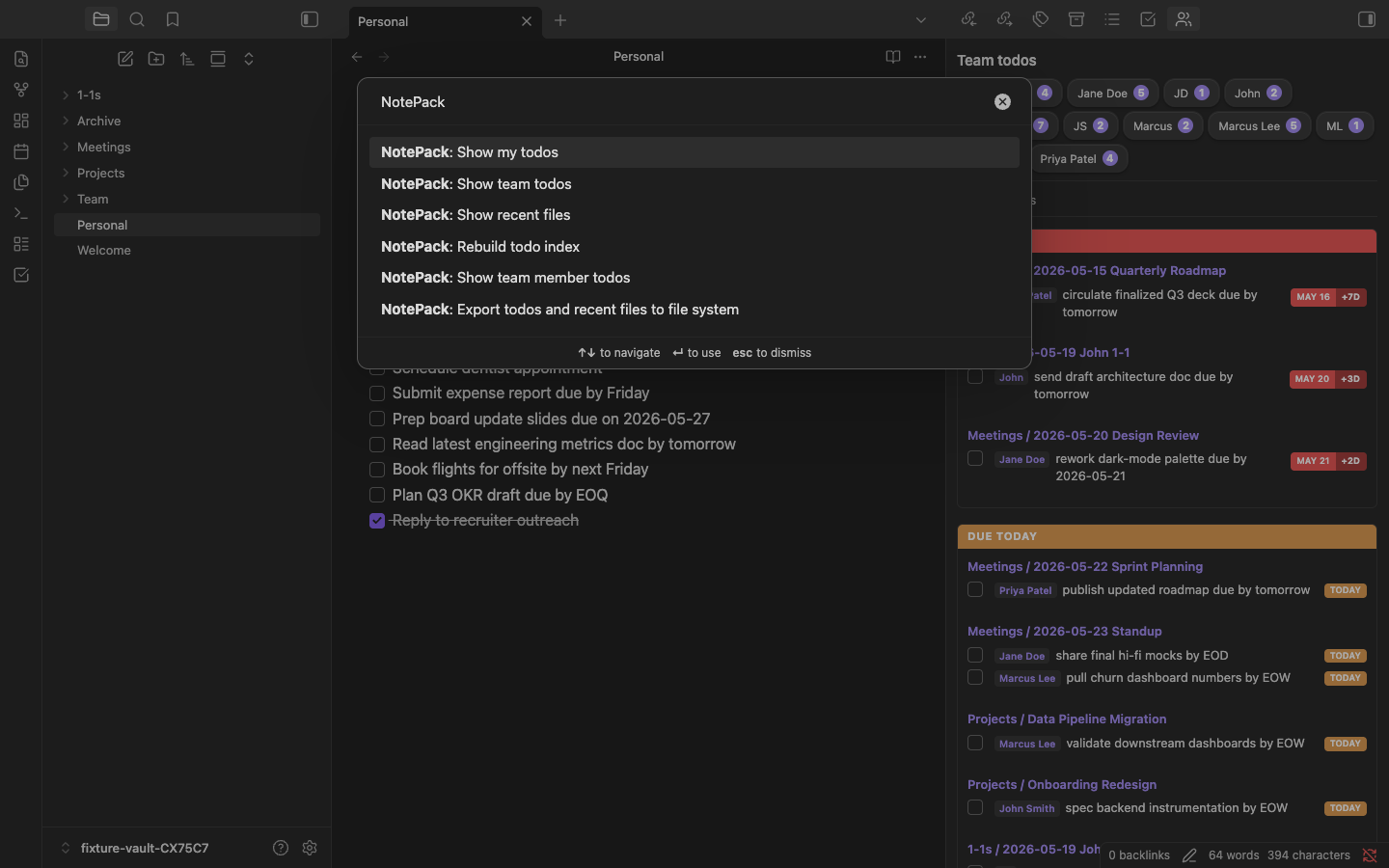
Open the command palette (Ctrl/Cmd + P) and search for "NotePack":
| Command | Description |
|---|---|
| Show my todos | Opens a sidebar view with all your unassigned todos |
| Show team todos | Opens a sidebar view showing all team-assigned todos with member filtering |
| Show team member todos | Fuzzy-search a team member, then show their todos |
| Show recent files | Opens a sidebar view of recently modified files |
| Export todos and recent files to file system | Writes todo snapshots into README.md files and recent files into the root README.md |
| Rebuild todo index | Force a full re-index of all files |
Sidebar Views
The three sidebar views (My todos, Team todos, Recent files) are live — they update automatically as you edit files. You can:
- Click a group heading to navigate to the source file
- Check off a todo directly from the sidebar (it updates the source file)
- Filter team todos by member using the button row
Export Command
The export command writes a point-in-time snapshot of todos into README.md files, similar to how the original CLI's notepack update worked. This is useful if you sync your notes via git and want rendered README views on GitHub/GitLab. The export:
- Writes your todos to the vault root
README.md - Writes each team member's todos to their
Team/<Name>/README.md - Writes folder-scoped todos to any
README.mdfound in subdirectories - Writes recently modified files to the root
README.md
Settings
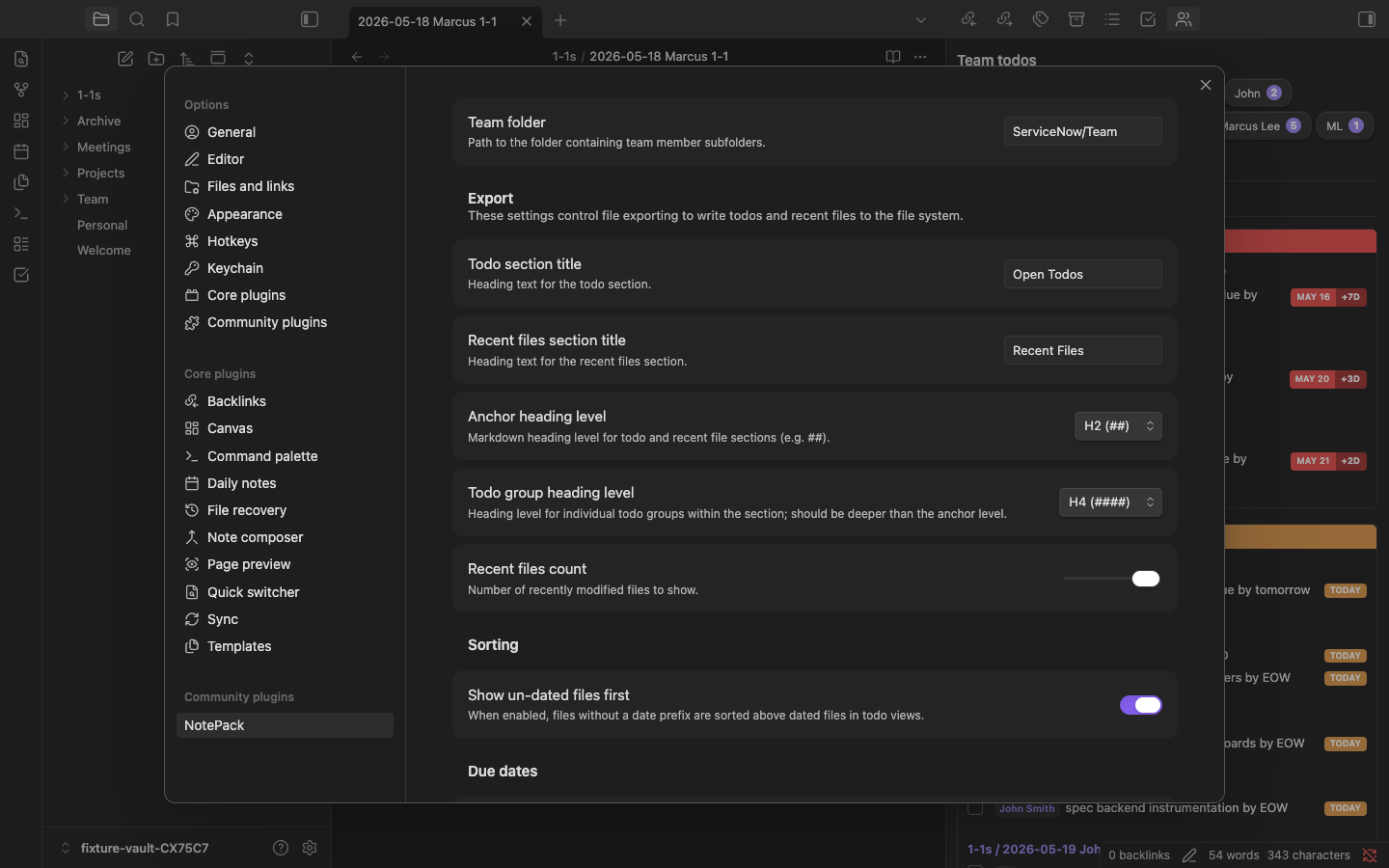
Configure via Settings → NotePack:
- Team folder: Path to the folder containing team member subfolders
- Todo section title: Heading text for the todo section (default: "Open todos")
- Recent files section title: Heading text for the recent files section (default: "Recent files")
- Anchor heading level: Markdown heading level for todo and recent file sections (default:
##) - Todo group heading level: Heading level for individual todo groups within the section (default:
####) - Recent files count: Number of recently modified files to show
- Show un-dated files first: When enabled, files without a date prefix are sorted above dated files in todo views (default: off)
- End of day: The time at which end of day due dates are considered overdue (default: 5:00 PM)
- End of week: The last day of the work week for end of week due dates (default: Saturday)
File Conventions
NotePack works with any file organization, but it works best if you:
- Prefix note filenames with dates:
2024-01-15 Sprint Planning.md - Keep a consistent note structure with a
## Follow-upsection for todos - Use
@Nameat the start of todos for assignment - Use
due by <date>orby <date>in todo text to set a due date - Add
excludeTodos: trueto front-matter in files you want skipped
Architecture (vs. CLI)
The original notepack-cli re-reads every file on every change. This plugin uses Obsidian's metadataCache for incremental indexing — only the changed file is re-processed. The in-memory index makes view rendering instant regardless of vault size.
| CLI | Plugin |
|---|---|
fs.readdirSync / fs.readFileSync |
app.vault API |
chokidar.watch |
app.vault.on('modify') / metadataCache.on('changed') |
front-matter npm package |
metadataCache.getFileCache().frontmatter |
| Full O(n) rescan on every change | O(1) incremental update per file |
child_process.exec('find ...') |
app.vault.getMarkdownFiles() |
| Console output | Sidebar leaf views |
README.md live-writing |
On-demand export command |
Development
pnpm install
pnpm run dev    # Watch mode (esbuild)
pnpm run build  # Production build
Copy main.js, manifest.json, and styles.css into your vault's .obsidian/plugins/notepack/ folder. Alternatively, symlink the entire project to the .obsidian/plugins folder to take advantage of hot reloading in Obsidian with the hot-reload plugin.
Releasing
This project uses dev as the main branch and synchronizes main via a fast-forward merge when doing a release.
Workflow
- Work out of branches for any feature or fix
- Prefix feature branches with
feature/and fixes withmaint/ - Create a PR with the branch work against
dev - Squash merge the PR when all checks have passed
Cut a new release
When dev is ready for a new release run pnpm version with the appropriate semver increase. You must run this command from the dev branch and the dev branch must not have any outstanding changes or be out of sync with origin/dev. If anything is out of order, you will be prompted to fix before being allowed to proceed.
Running the version script will automatically make sure tests and build succeed, synchronize changes between dev and master, cut a new tag and push to origin/dev. From there the release GitHub Action will take over and create a Release.
License
MIT — see LICENSE.