
README file from
GithubObsidian Note Type
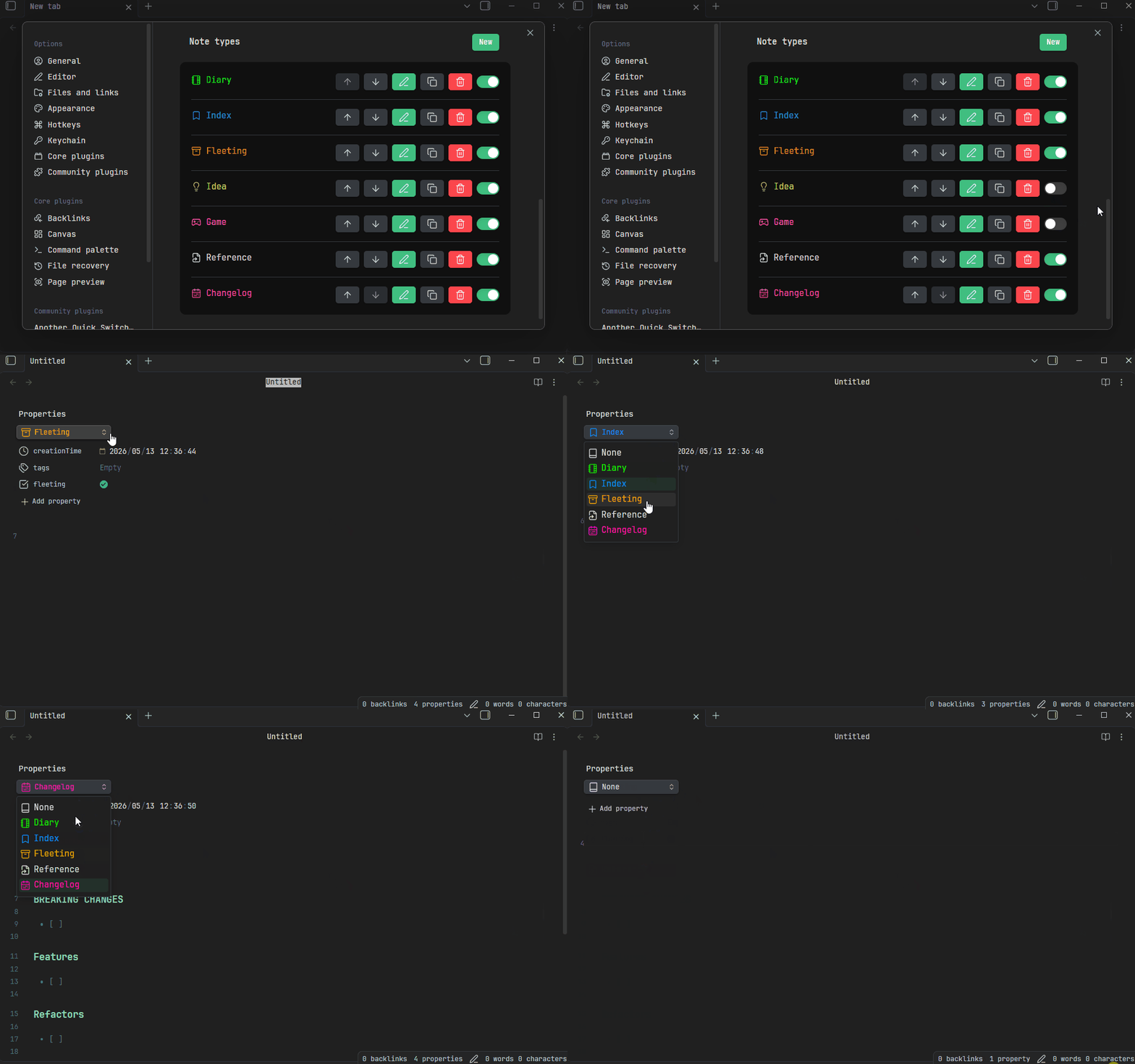
Features
- Adds a Note Type dropdown in the Properties editor to change the current note's type.
- Switching a note type populates properties and content from a template (supports built-in syntax and Templater).
- Default note type: automatically apply a note type to new files.
This plugin is heavily inspired by the latest update of Octarine (v0.42). Essentially, it just changes the Templater/QuickAdd template-filling workflow (Run command -> Choose template) into a dropdown-based switcher, but in my personal opinion, it greatly improves the user experience. Huge thanks to Octarine for the idea!
Getting Started
- Install the plugin.
- Add your Note Types (see configuration details below).
- Open any note — use the dropdown at the top of the Properties editor to switch note types.
How It Works
The plugin does not introduce new note syntax, just binds a configurable property key (default: noteType) to represent the note type. A dropdown is displayed in the Properties editor listing all predefined note types. When a type is selected, the corresponding template is formatted and applied, both properties (frontmatter) and body content are populated.
Configuration
Base Settings
| Setting | Description |
|---|---|
| Property key | The frontmatter property key used to identify the note type (default: noteType). |
| Hide note type property | When enabled, the raw property input is hidden — only the styled dropdown is shown. |
Note Types
Define your note types here. Each note type has the following options:
| Field | Description |
|---|---|
| Key | Unique identifier written to the configured property key. |
| Name | Display name shown in the dropdown. |
| Icon | Icon from Lucide displayed alongside the name. |
| Color | Color applied to the icon and name in the dropdown. |
| Template | Path to the template file used when this note type is selected. |
| Formatter | The engine used to process the template (see below). |
Formatters
Default (Built-in)
Uses {{ variable }} or {{ date:format }} syntax with variable. The following variables are available:
- now / date: Alias for
moment().format(). see: https://momentjs.com/docs{{ now }} // default: YYYY-MM-DD hh:mm:ss {{ now:YYYY-MM-DD }} - ctime / mtime: create time / modify time of current note
{{ ctime }} // default: YYYY-MM-DD hh:mm:ss {{ mtime:YYYY-MM-DD }} - name / ext / fullname: name of current note.
{{ fullname }} // foo.md
{{ name }} // name
{{ ext }} // md
Templater
More complex templates can be implemented using the Templater plugin, see: Templater document
Overwrite Behavior
When a note already has content, you can control how templates are applied. If Show conflict modal is enabled, you will be prompted to choose the behavior each time a conflict occurs. Otherwise, the default settings are used.
Property Behavior
| Option | Description |
|---|---|
| Replace | Replace all properties with the template's properties. |
| Keep | Keep existing properties, skip conflicting ones from the template. |
| Overwrite | Keep existing properties, but overwrite those that conflict with the template. |
Content Behavior
| Option | Description |
|---|---|
| Replace | Replace with the template's content. |
| Keep | Preserve the existing note content (do not replace). |
Default Note Type
| Setting | Description |
|---|---|
| Enable default note type | When a file without a note type is opened, automatically assign the default note type and apply its template. |
| Default note type | The note type to use as the default. |
| Empty note only | Only apply the note type to empty files. |