
README file from
GithubNote Image Gallery
🎬 Demo
1、Enable via Command Palette
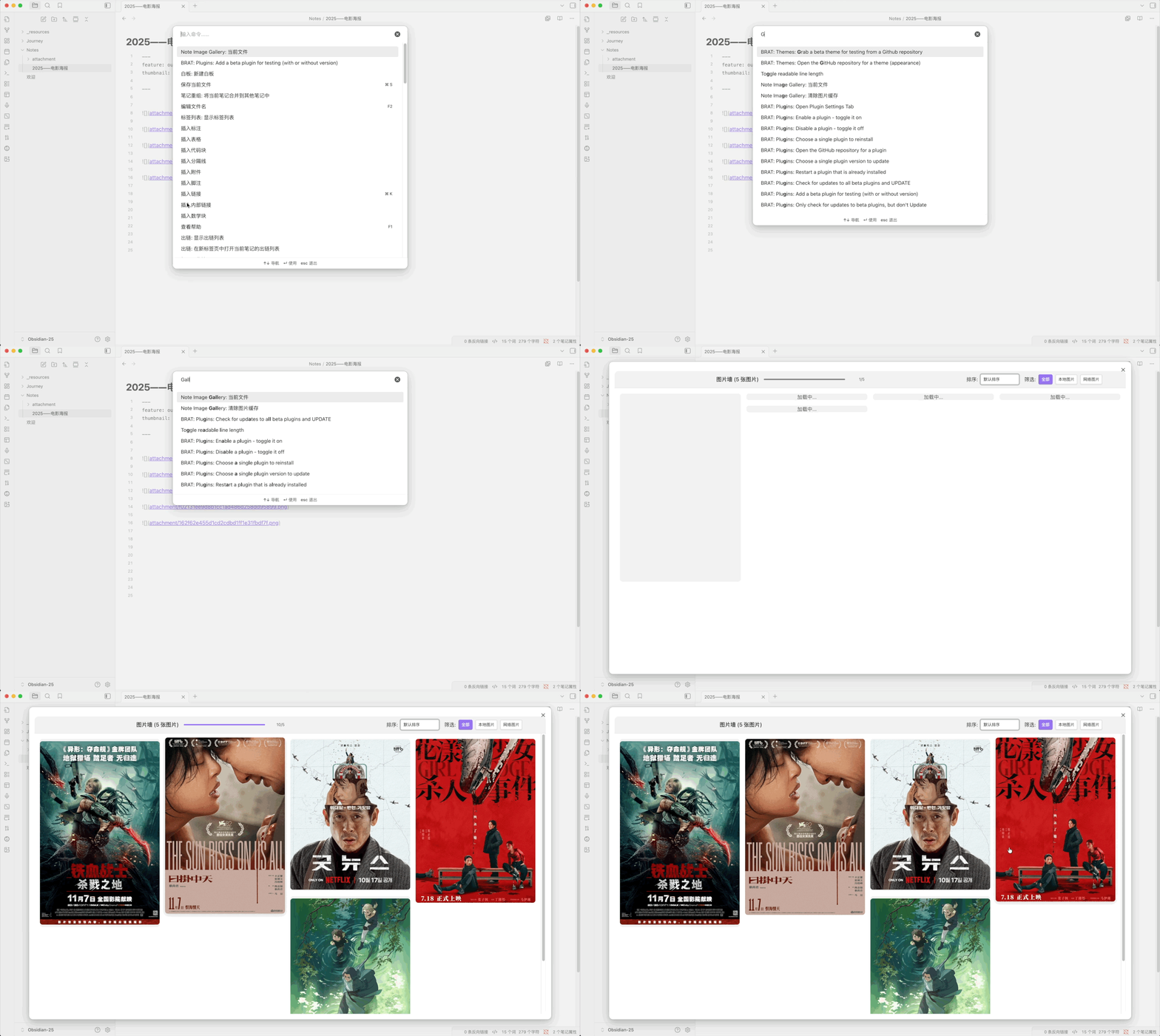
2、Enable via Commander Plugin
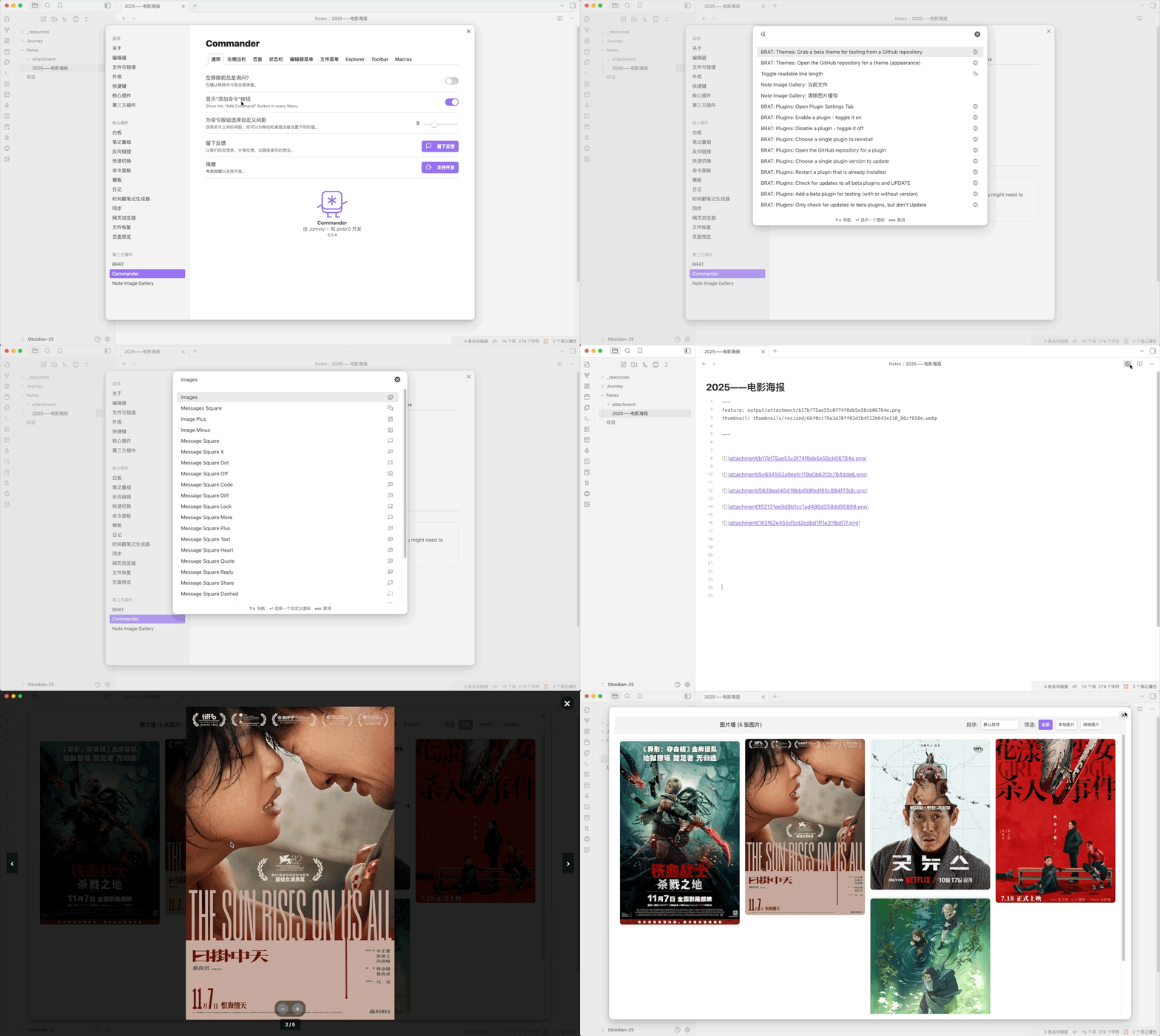
✨ Features
- 📸 Gallery View: Display all images from your note in an elegant waterfall/masonry layout
- 🖼️ Image Support:
- Local images (vault attachments)
- Remote images (HTTP/HTTPS URLs)
- Special handling for Weibo images (微博图片)
- 🎨 Interactive UI:
- Click any image to open lightbox view with navigation
- Arrow keys for quick navigation
- Zoom in/out with mouse wheel or keyboard
- Context menu for copying and downloading images
- 🔍 Filter & Sort:
- Filter images by type (All / Local / Remote)
- Sort by size or default order
- ⚡ Performance:
- Lazy loading for improved performance
- Virtual scrolling for large image collections
- Smart image queue with priority management
- Concurrent loading with configurable limits
- 💾 Smart Caching:
- File-based caching system for remote images
- Configurable cache size and expiration
- LFU+LRU hybrid cache eviction algorithm
- Automatic cache cleanup and management
- 🌍 Internationalization:
- Auto-detects Obsidian language settings
- Full support for English and Chinese (Simplified)
- Easy to extend for more languages
- 📱 Cross-Platform: Works on desktop and mobile devices
📦 Installation
From Obsidian Community Plugins (Recommended)
- Open Obsidian Settings
- Navigate to Community Plugins and disable Safe Mode
- Click Browse and search for "Note Image Gallery"
- Click Install, then Enable
Manual Installation
- Download the latest release from the Releases page
- Extract the files to your vault's plugins folder:
<vault>/.obsidian/plugins/note-image-gallery/ - Reload Obsidian
- Enable the plugin in Settings → Community Plugins
🚀 Usage
Opening the Gallery
There are three ways to open the image gallery:
- Command Palette: Press
Ctrl/Cmd + Pand search for "Open Current Note Image Gallery" - Ribbon Icon: Click the image gallery icon in the left sidebar
- Hotkey: Assign a custom hotkey in Settings → Hotkeys
Gallery Navigation
- Click any image to view it in full-screen lightbox mode
- Arrow Keys (← →) to navigate between images
- Mouse Wheel or +/- keys to zoom in/out
- ESC or click outside to close lightbox
- Right-click on any image for context menu options:
- Copy image to clipboard
- Download image
Filtering and Sorting
- Use the filter buttons at the top to show:
- All images
- Local images only
- Remote images only
- Use the sort dropdown to order images by:
- Default order (as they appear in the note)
- Size (large to small)
- Size (small to large)
⚙️ Settings
Access plugin settings via Settings → Note Image Gallery
Cache Settings
| Setting | Description | Default |
|---|---|---|
| Enable Image Cache | Cache remote images to speed up loading | Enabled |
| Cache Validity Period | Maximum cache age in days (1-60) | 7 days |
| Maximum Cache Size | Maximum cache size in MB (10-300) | 100 MB |
Cache Management
- Refresh Cache Status: Recalculate current cache size
- Clear All Cache: Delete all cached images
Developer Settings
| Setting | Description | Default |
|---|---|---|
| Debug Mode | Enable detailed console logging | Disabled |
🎯 Performance Tips
- Enable Caching: Keep image caching enabled for faster loading of remote images
- Adjust Cache Size: Increase cache size if you work with many remote images
- Regular Cleanup: Clear cache periodically if storage space is limited
- Image Optimization: Use optimized image formats (WebP, JPEG) for better performance
🛠️ Development
Building the Plugin
# Install dependencies
npm install

# Build for development (with watch mode)
npm run dev

# Build for production
npm run build

# Run TypeScript type checking
npm run build
Project Structure
obsidian-note-image-gallery/
├── src/
│   ├── main.ts                 # Plugin entry point
│   ├── settings.ts              # Settings tab and configuration
│   ├── service/
│   │   ├── current-note-image-gallery-service.ts  # Main gallery service
│   │   ├── image-cache-service.ts                 # Cache management
│   │   ├── image-extractor-service.ts             # Extract images from markdown
│   │   └── obsidian-image-loader.ts               # Image loading utilities
│   └── utils/
│       ├── log-utils.ts         # Logging system
│       ├── retry-handler.ts     # Retry logic
│       └── resource-manager.ts  # Resource cleanup
├── styles.css                   # Plugin styles
└── manifest.json                # Plugin manifest
Technologies Used
- TypeScript: Type-safe development
- Obsidian API: Plugin framework
- CSS Grid: Waterfall layout
- IntersectionObserver: Lazy loading
- File System API: Cache management
🤝 Contributing
Contributions are welcome! Here's how you can help:
- Report Bugs: Open an issue with detailed reproduction steps
- Suggest Features: Share your ideas in the issues section
- Submit Pull Requests:
- Fork the repository
- Create a feature branch (
git checkout -b feature/amazing-feature) - Commit your changes (
git commit -m 'Add amazing feature') - Push to the branch (
git push origin feature/amazing-feature) - Open a Pull Request
Development Guidelines
- Follow existing code style
- Add comments for complex logic
- Test on both desktop and mobile
- Update README for new features
📝 License
This project is licensed under the GNU General Public License v3.0 - see the LICENSE file for details.
🙏 Acknowledgments
- Thanks to the Obsidian team for the excellent plugin API
- Inspired by various image gallery plugins in the community
- Special thanks to all contributors and users
📧 Support
- Issues: GitHub Issues
- Discussions: GitHub Discussions
- Author: @Lemon695
🔄 Changelog
See RELEASES for a list of changes in each version.