
README file from
GithubNarrative Canvas
English
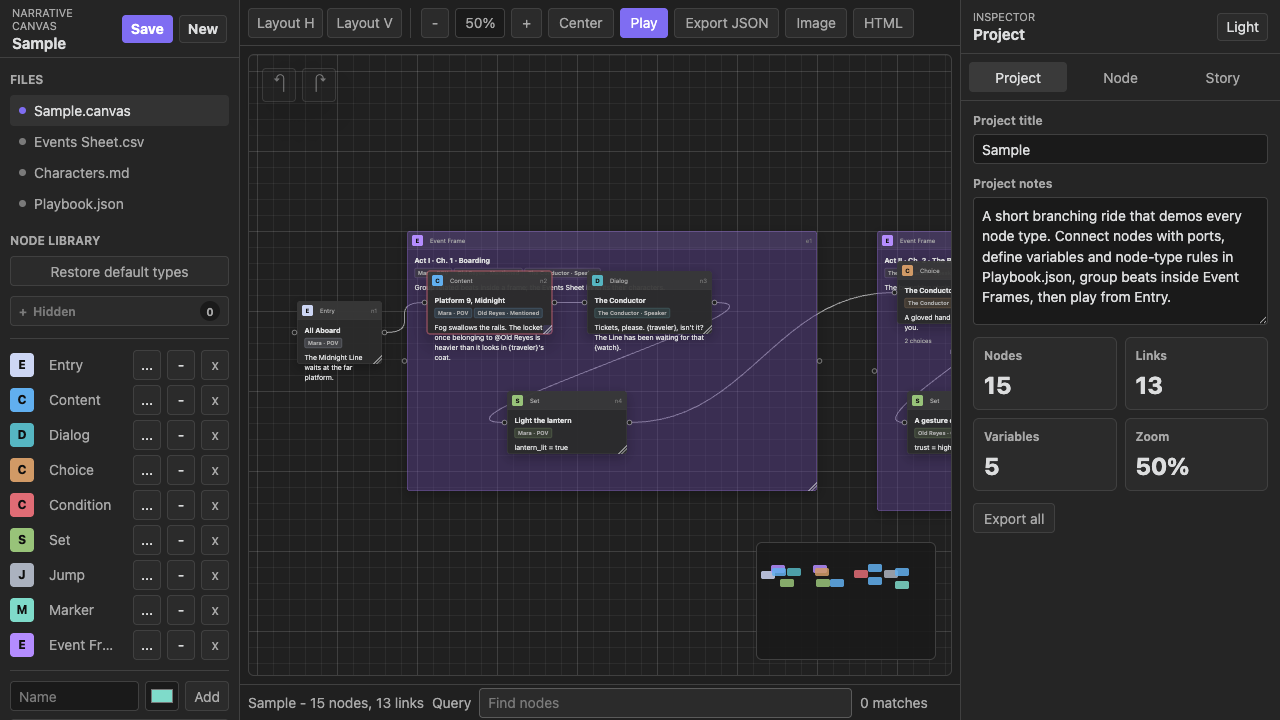
Narrative Canvas is a visual writing and planning workspace for complex stories. It helps you break a narrative into scenes, choices, conditions, variables, event frames, and character references, then connect them into a playable flow.
It is best used for organizing ideas, checking branching logic, preparing pitches, and demonstrating how a story or questline works. It is not meant to replace prose drafting tools. Write the actual manuscript, script, or dialogue polish in your usual editor; use Narrative Canvas to keep the structure understandable.
Safety Notes
Playbook.jsonis declarative. It can format Play output, define choice buttons, read simple conditions, and write variables. It does not run arbitrary JavaScript.- Hide keeps Events Sheet data. Delete removes a column from the schema and clears matching values from Event Frame nodes.
- Deleted nodes are archived outside the runtime path so accidental deletion is less destructive, but you should still save versions of important work.
- Browser Save writes to browser local storage. Obsidian Save writes the current
.ncanvasproject file in your vault.
Web App
Open index.html directly or use:
https://ringeringeraja33.github.io/NarrativeCanvas/
The web app is useful for quick planning and demos. Use Export JSON, Image, HTML, Characters.md, Events Sheet.csv, or Playbook.json when you need portable files.
Obsidian Plugin
For manual installation, copy the plugin files into:
.obsidian/plugins/narrative-canvas/
Then reload Obsidian and enable Narrative Canvas in Community plugins.
The plugin stores projects as .ncanvas files. New project files use a configurable template. The default is:
{{project title}}-{{YYYY-MM-DD HHmmss}}.ncanvas
The file name and the project title are independent after the file is created. Editing the project title does not rename the .ncanvas file, and renaming the file does not change the project title. The left Files entry is a fixed workspace label, Narrative.canvas, not the saved project file name. Plugin settings include the vault-relative save folder and the new-file name template.
Main Workflow
- Open
Narrative.canvas. - Add nodes from the Node Library.
- Connect an output port to an input port.
- Use frames to group related nodes. Use Event Frames when the group should appear in Events Sheet.
- Select a node and edit it in the Inspector.
- Use Story to inspect the reachable flow from Entry.
- Click Play to run the current narrative route.
- Save or export when the structure is ready to share.
Undo and Redo are floating buttons in the upper-left of the canvas. The minimap floats in the lower-right; click it to move the main canvas.
Node Types
- Entry starts the playable path.
- Content holds narration or scene text.
- Dialog is a character line. A Dialog title matching a character name is treated as Speaker.
- Choice shows one Play button per choice line.
- Condition reads a variable condition such as
trust == high. - Set writes a variable value.
- Jump marks a route transition or named destination. It does not teleport on its own; connect it to the next node you want the graph to visit.
- Marker is a planning note.
- Frame groups nodes visually.
- Event Frame groups story beats and becomes a row in Events Sheet.
All default node types are editable templates. You can rename, hide, delete, restore, recolor, and change their fields.
Canvas Operations
- Drag nodes by their header.
- Resize nodes from the lower-right handle.
- Click an output port, then an input port, to connect nodes.
- Double-click blank canvas to cancel a pending connection.
- Right-click a link to reconnect or delete it.
- Use
Layout HorLayout Vfor automatic layout. - Drag Story rows to change story order or move nodes into and out of frames.
- Story
Focusselects the node, opens the Node inspector, centers it on canvas, and uses 50% zoom.
Events Sheet
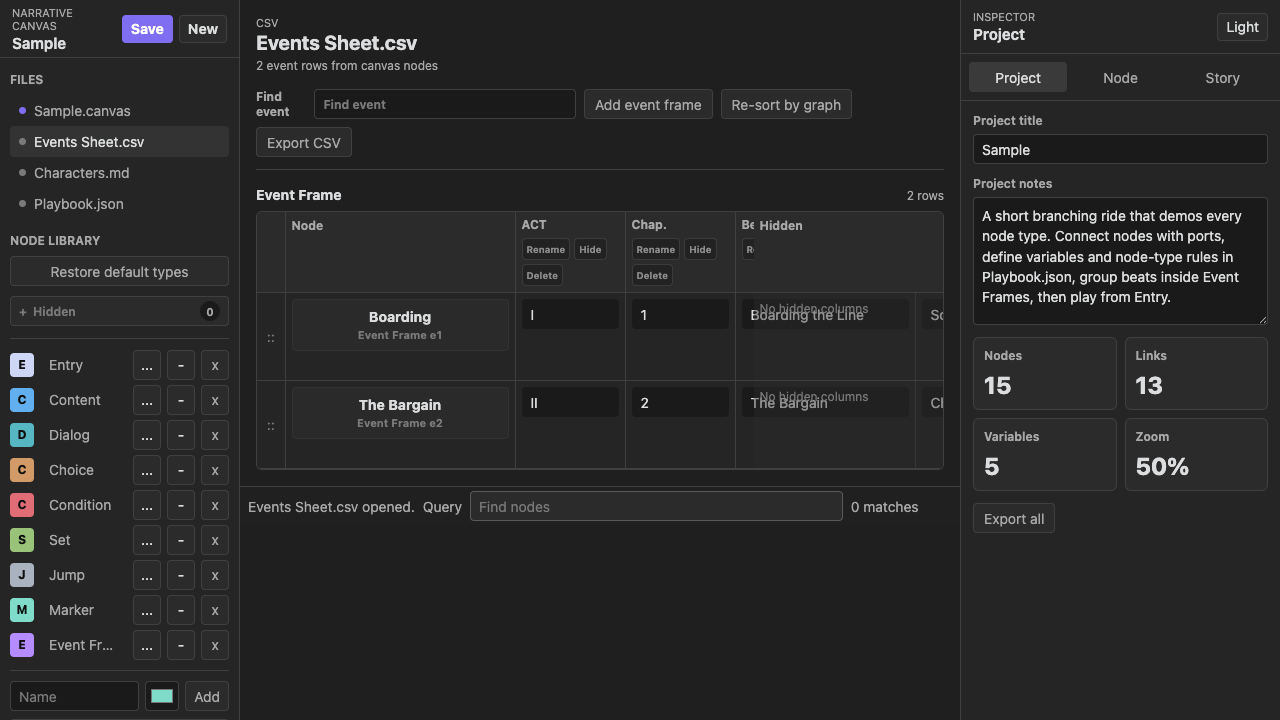
Only Event Frame nodes appear in Events Sheet. Different Event Frame types are grouped into separate tables.
You can rename, hide, or delete columns. Hidden columns appear in the sticky Hidden column at the right edge of each table so they can be restored. Deleted schema fields are removed from Event Frame type definitions and matching values are cleared from existing Event Frame nodes.
Re-sort by graph clears manual row ordering and sorts event rows by the current canvas graph.
Characters
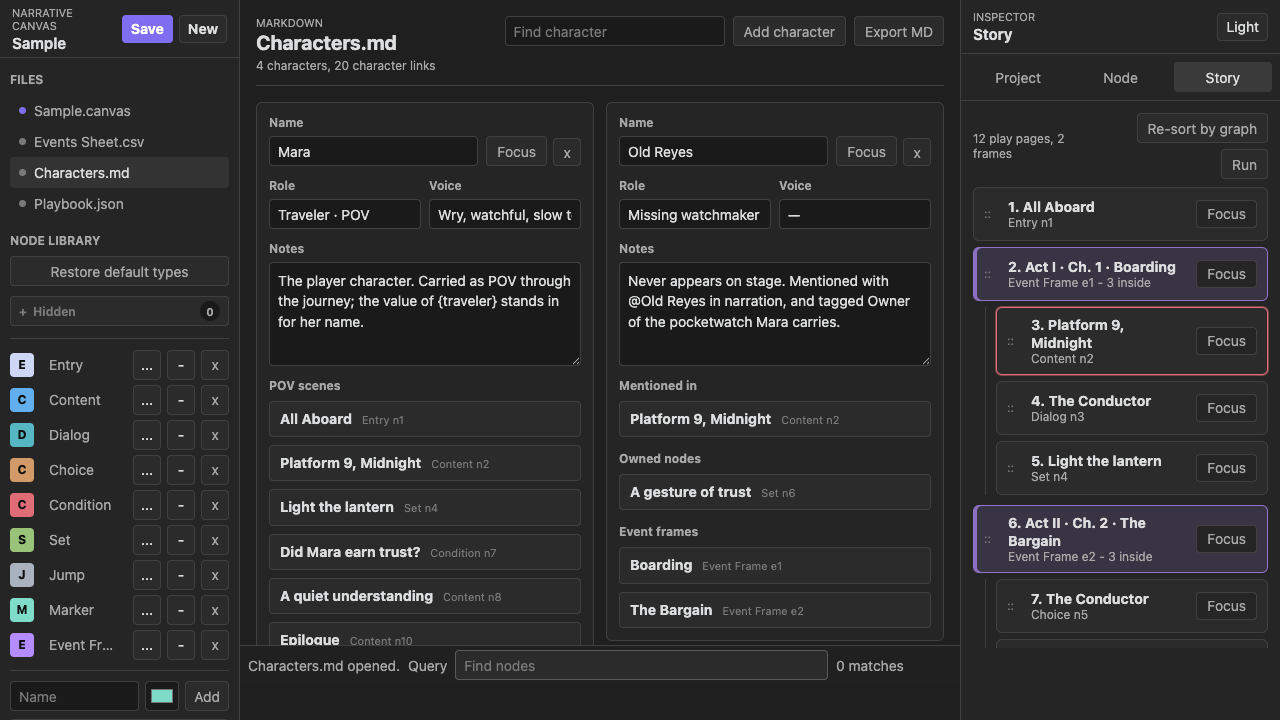
Characters can be linked to nodes with Cast chips:
POVSpeakerPresentMentionedTargetOwner
You can also type @Character Name inside node text to create a natural reference. Character pages list backlinks by story order, including speaker scenes, present scenes, mentions, owned nodes, and event frames.
Use Character focus to highlight related nodes without drawing a web of lines across the canvas.
Playbook
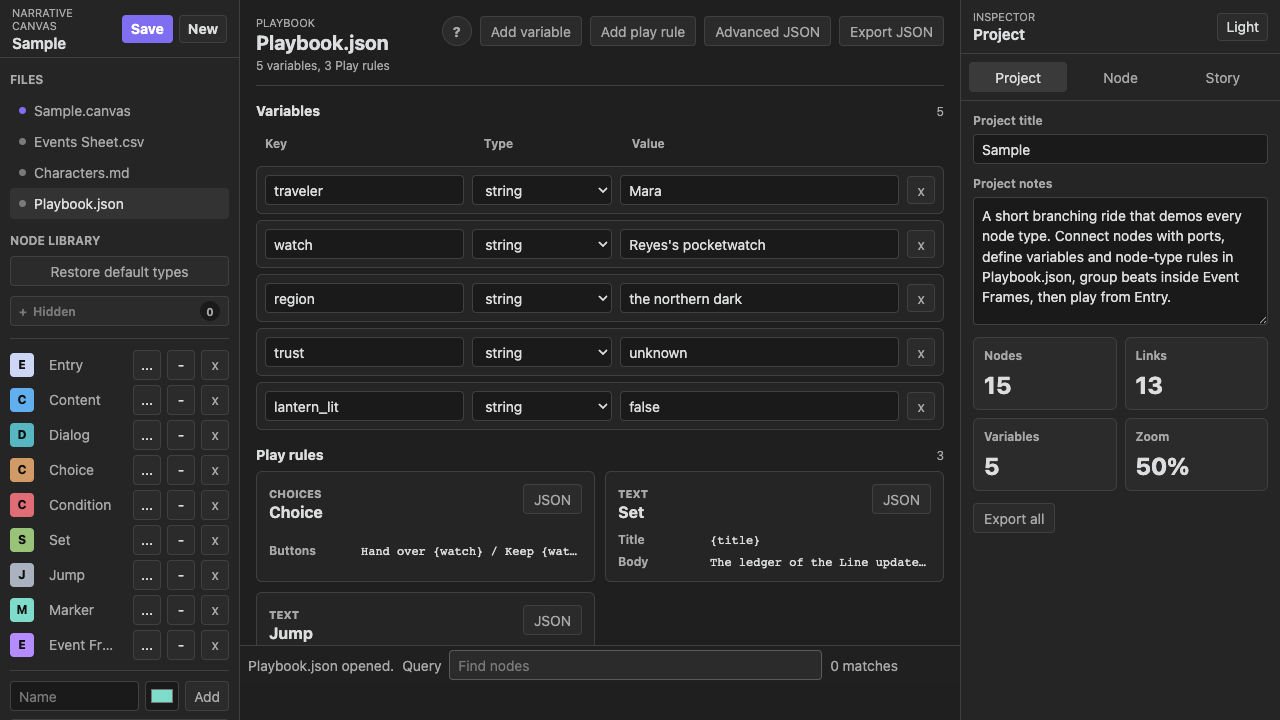
Think of Playbook.json this way:
Node Library decides which fields a node type has. Node Inspector fills those fields. Playbook decides how Play reads those fields.
It is not a prose editor or a JavaScript runner. It is a rule table for Play preview.
An example
You want a choice: hand over the watch, raise trust, otherwise continue on another route.
Playbook:
{
  "variables": {
    "trust": "unknown",
    "watch": "Reyes's pocketwatch"
  },
  "nodeTypes": {
    "Choice": {
      "title": "{title}",
      "body": "{body}",
      "choices": "choices"
    },
    "Set": {
      "body": "{variable} = {value}",
      "set": {
        "key": "variable",
        "value": "value"
      }
    },
    "Condition": {
      "body": "{condition}",
      "condition": "condition"
    }
  }
}
Fill the nodes this way:
Choice node choices:
Hand over {watch}
Keep {watch} hidden
Set node:
variable: trust
value: high
Condition node:
condition: trust == high
Result: Play shows buttons with variable replacement, Set changes the variable, and Condition follows different links based on that variable.
中文
Narrative Canvas 是一个用于复杂叙事写作与设计的节点式工作区。它可以把剧情段落、角色对白、选择分支、条件判断、变量变化、跳转、角色和笔记整理成可连接、可预览的互动流程。它适用于游戏、互动小说、分支剧本、任务链和其他非线性叙事结构。
更推荐把它用于整理思路、检查分支、准备展示和说明复杂叙事结构。正文、对白润色、剧本定稿仍建议放在你常用的写作工具里完成。
安全提醒
Playbook.json是声明式配置。它可以控制 Play 的标题、正文、选项按钮、简单条件和变量写入;它不会执行任意 JavaScript。- Hide 只隐藏 Events Sheet 的列,保留数据。Delete 会从 schema 移除列,并清掉 Event Frame 节点里对应字段的值。
- 删除节点后,相关内容会被放到运行路径之外的归档数据里,误删风险会低一些。重要项目仍建议保留版本。
- 网页端 Save 存到浏览器本地缓存。Obsidian 端 Save 写入当前 vault 里的
.ncanvas项目文件。
网页
可以直接打开 index.html,也可以访问:
https://ringeringeraja33.github.io/NarrativeCanvas/
网页应用适合快速规划和演示。需要带走文件时,可以使用 Export JSON、Image、HTML、Characters.md、Events Sheet.csv 或 Playbook.json。
Obsidian 插件
手动安装时,把插件文件复制到:
.obsidian/plugins/narrative-canvas/
然后重新加载 Obsidian,在 Community plugins 里启用 Narrative Canvas。
插件会把项目保存成 .ncanvas 文件。新项目文件名使用可配置模板,默认是:
{{project title}}-{{YYYY-MM-DD HHmmss}}.ncanvas
文件创建之后,文件名和 project title 互不影响。修改 project title 不会改 .ncanvas 文件名,重命名文件也不会改项目标题。左侧 Files 里的 Narrative.canvas 是固定白板入口名,不是保存出来的项目文件名。插件设置里可以配置保存路径、新建文件名模板。
基本流程
- 打开
Narrative.canvas。 - 从 Node Library 添加节点。
- 从一个节点的输出端口连到另一个节点的输入端口。
- 用 Frame 归组节点。需要进入 Events Sheet 的内容使用 Event Frame。
- 选中节点,在右侧 Inspector 编辑。
- 在 Story 里查看从 Entry 可到达的故事顺序。
- 点击 Play 预览当前叙事路线。
- 结构整理好后保存或导出。
节点类型
- Entry 是 Play 的起点。
- Content 用来写叙述或场景文字。
- Dialog 是角色台词。Dialog 标题和角色名一致时,会被识别为 Speaker。
- Choice 会把每一行 choice 变成 Play 里的一个按钮。
- Condition 读取简单条件,例如
trust == high。 - Set 写入变量值。
- Jump 用来标记路线转场或目标位置。它不会自动传送流程,需要把它连到下一个要访问的节点。
- Marker 是规划备注。
- Frame 用来视觉分组。
- Event Frame 用来归组故事节拍,并在 Events Sheet 里生成一行。
示例里的所有 node type 都是默认模板,可以重命名、隐藏、删除、恢复、改颜色,也可以调整字段。
Canvas 操作
- 拖动节点头部可以移动节点。
- 从右下角手柄可以调整节点大小。
- 点击输出端口,再点击输入端口,可以建立连线。
- 连线过程中双击空白画布,可以取消待建立的连线。
- 右键已有连线,可以选择重连或删除。
Layout H和Layout V可以自动横排或竖排。- 在 Story 里拖动条目,可以改变故事顺序,或把节点移入、移出某个 frame。
- Story 里的
Focus会选中节点,打开 Node inspector,把节点以 50% 缩放居中到 canvas。
Events Sheet
只有 Event Frame 节点会进入 Events Sheet。用户自定义出多种 Event Frame 类型时,不同类型会分成不同表格。
列可以重命名、隐藏或删除。隐藏的列会集中显示在每张表右侧固定的 Hidden 列里,方便恢复。删除 schema 字段时,会从 Event Frame 类型定义里移除该字段,并清掉已有 Event Frame 节点上的对应值。
Re-sort by graph 会清掉手动行顺序,按当前 canvas 连线关系重新排序。
Characters
角色可以通过 Cast chips 关联到节点:
POVSpeakerPresentMentionedTargetOwner
也可以在节点正文里输入 @角色名 创建自然引用。Characters 页面会按 Story 顺序列出角色相关节点,包括说话场景、在场场景、被提到的位置、拥有关系和事件框。
Character focus 会高亮相关节点,让无关节点变淡。
Playbook
可以这样理解 Playbook.json:
Node Library 决定节点有哪些字段,Node Inspector 填这些字段,Playbook 决定 Play 预览时怎么读取这些字段。
它不是正文编辑器,也不是 JavaScript 运行器。它是一张给 Play 预览使用的规则表。
一个示例
你想做一个选择:交出怀表后信任变高,否则走另一条路。
Playbook:
{
  "variables": {
    "trust": "unknown",
    "watch": "Reyes's pocketwatch"
  },
  "nodeTypes": {
    "Choice": {
      "title": "{title}",
      "body": "{body}",
      "choices": "choices"
    },
    "Set": {
      "body": "{variable} = {value}",
      "set": {
        "key": "variable",
        "value": "value"
      }
    },
    "Condition": {
      "body": "{condition}",
      "condition": "condition"
    }
  }
}
节点填写:
Choice 节点 choices:
Hand over {watch}
Keep {watch} hidden
Set 节点:
variable: trust
value: high
Condition:
condition: trust == high
结果:Play 里按钮能显示变量,经过 Set 会改变量,Condition 会按变量走不同连线。