
README file from
GithubMonday.com Integration
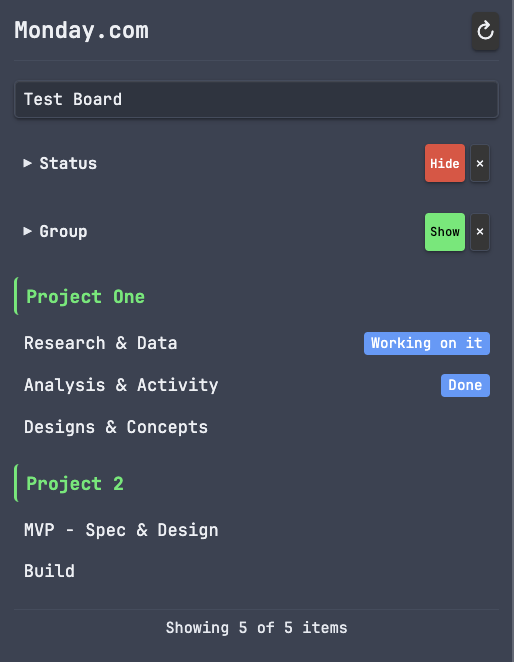
View your Monday.com boards and items directly within your notes and in a dedicated sidebar panel.
Features
- Embedded Dashboards - Insert
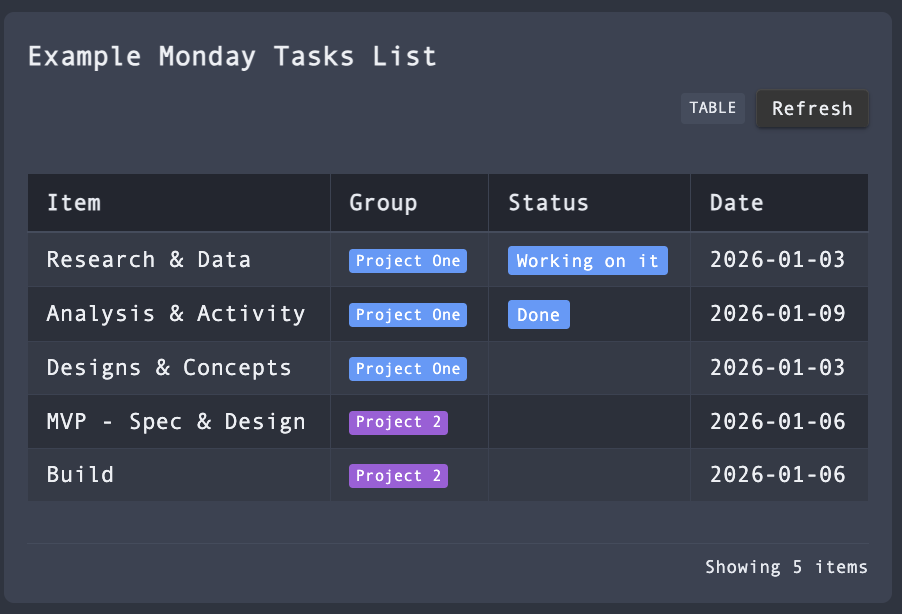
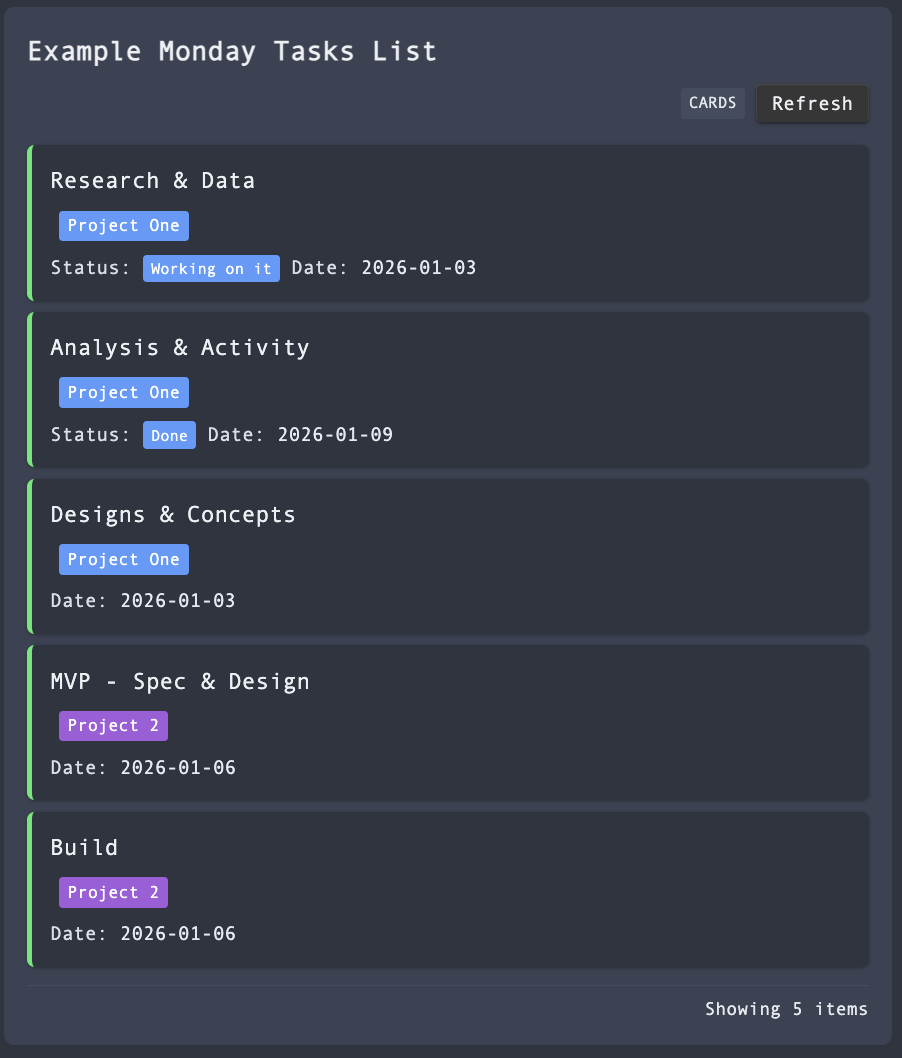
mondaycode blocks to display board items in your notes - Sidebar Panel - Browse all your boards and items in a dedicated view
- Team Summary Panel - View task counts per team member with status badges
- Click-to-Create Notes - Click any item to create a linked note with task metadata
- Duplicate Detection - Checks for existing notes before creating new ones
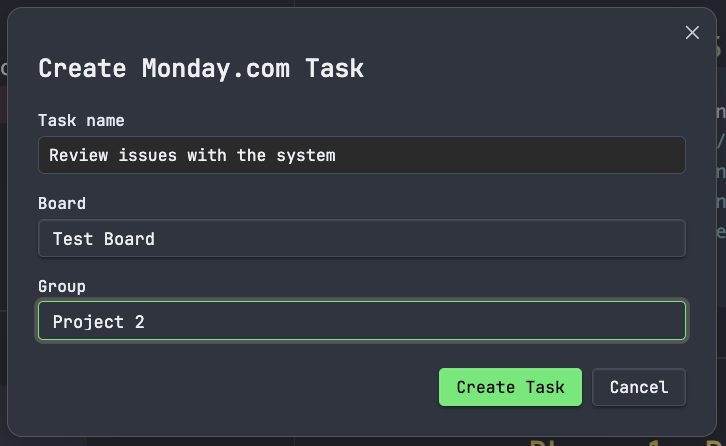
- Create Tasks - Create Monday.com items from selected text in your notes
- Change Status - Update item status via dropdown or context menu (including subtasks)
- Assign/Reassign - Assign or reassign people to tasks and subtasks
- Add Comments - Post comments to items directly from the sidebar
- Live Data - Fetch real-time data from Monday.com's API
- Customisable - Configure note folder, naming templates, and display options
Installation
Manual Installation
- Download the latest release from GitHub
- Extract to your vault's
.obsidian/plugins/monday-integration/folder - Enable the plugin in Obsidian Settings > Community Plugins
From Community Plugins (Coming Soon)
Search for "Monday.com Integration" in Settings > Community Plugins > Browse
Setup
-
Get your Monday.com API token:
- Go to Monday.com
- Click your profile picture > Developers
- Select "My Access Tokens"
- Copy your API token
-
Configure the plugin:
- Open Obsidian Settings > Monday.com Integration
- Paste your API token
- Click "Test" to verify the connection
- Click "Load boards" to fetch your boards
Usage
Embed a Dashboard
Add a code block to any note:
```monday
board: 1234567890
title: My Tasks
limit: 25
```
Options:
board- Board ID (required if no default set)title- Custom title (optional)limit- Maximum items to show (default: 25)columns- Comma-separated column IDs to display
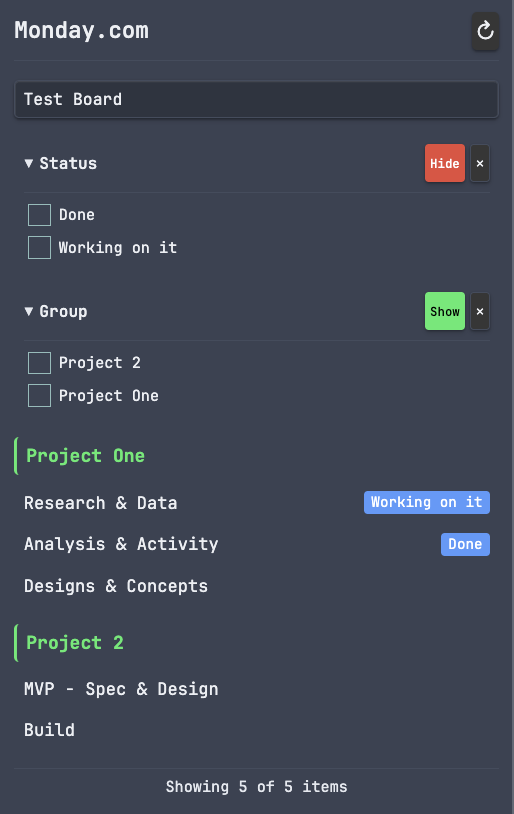
Sidebar Panel
Click the calendar-check icon in the left ribbon or use the command palette:
Monday.com Integration: Open sidebar
Team Summary Panel
View task counts per team member with colour-coded status badges:
- Orange - Working on it
- Green - Done
- Red - Overdue
Click the users icon in the left ribbon or use:
Monday.com Integration: Open team summary
Features:
- Click a team member to filter the main sidebar by that person
- Board selection syncs between both panels
- Split your sidebar horizontally to view both panels together
Create Notes from Items
Click any item in the sidebar to create a linked note with task metadata. The note includes:
---
title: "Task Name"
monday_id: "1234567890"
monday_board: "Project Board"
monday_board_id: "9876543210"
status: "Working on it"
group: "Sprint 1"
due_date: "2026-01-15"
assigned: "John Smith"
created: "2026-01-05"
tags:
  - monday
---
Duplicate Detection: If a note with the same name already exists, you'll be prompted to either open the existing note or create a new one with an incremented name.
Create Tasks
Create Monday.com tasks directly from selected text in your notes:
Context Menu Actions
Right-click on any task or subtask in the sidebar for additional options:
- Change Status - Update task status (works on both parent tasks and subtasks)
- Assign/Reassign - Assign people to the task or reassign to different team members
- Add Comment - Post a comment to the task
- Open in Monday.com - Open the task in your browser
Commands
- Insert board dashboard - Insert a code block at cursor
- Open sidebar - Open the Monday.com sidebar panel
- Open team summary - Open the team summary panel
- Refresh boards - Force refresh cached board data
- Create Monday.com task - Create a task from selected text
Configuration
Access settings via Settings → Monday.com Integration
| Setting | Description | Default |
|---|---|---|
| API Token | Your Monday.com API token | (required) |
| Default Board | Board to use when none specified | (none) |
| Note Folder | Folder where notes created from items are stored | Monday |
| Note Name Template | Template for naming created notes | {name} |
| Show Status Bar | Display sync status in the status bar | On |
| Show Status Dropdown | Show quick status dropdown on sidebar items | On |
| Auto-Refresh | How often to refresh data (minutes) | 5 |
Note Name Template Placeholders
| Placeholder | Description | Example |
|---|---|---|
{name} |
Item name | Fix login bug |
{board} |
Board name | Project Alpha |
{group} |
Group name | Sprint 1 |
{id} |
Monday.com item ID | 1234567890 |
Example templates:
{name}→ "Fix login bug.md"{board}/{name}→ "Project Alpha/Fix login bug.md"{group} - {name}→ "Sprint 1 - Fix login bug.md"
Finding Your Board ID
- Open your board in Monday.com
- Look at the URL:
https://yourworkspace.monday.com/boards/1234567890 - The number after
/boards/is your Board ID
Support
If this plugin helps you stay organised, consider supporting its development:

Security & Privacy
- Local storage only - Your API token is stored locally in your vault's plugin data folder (
data.json) - No encryption at rest - The token is stored in plain text (standard for Obsidian plugins)
- Direct API communication - Data is fetched directly from Monday.com's API
- No third-party servers - Your data is never sent anywhere except Monday.com
- Masked input - The token input field is masked in settings
- No logging - Your token is never logged or exposed
Recommendations:
- Use a Monday.com API token with minimal required permissions
- Do not sync your vault's
data.jsonfiles to public repositories - Consider adding
.obsidian/plugins/*/data.jsonto your.gitignore
Licence
MIT