
README file from
GithubMermaid ELK Renderer
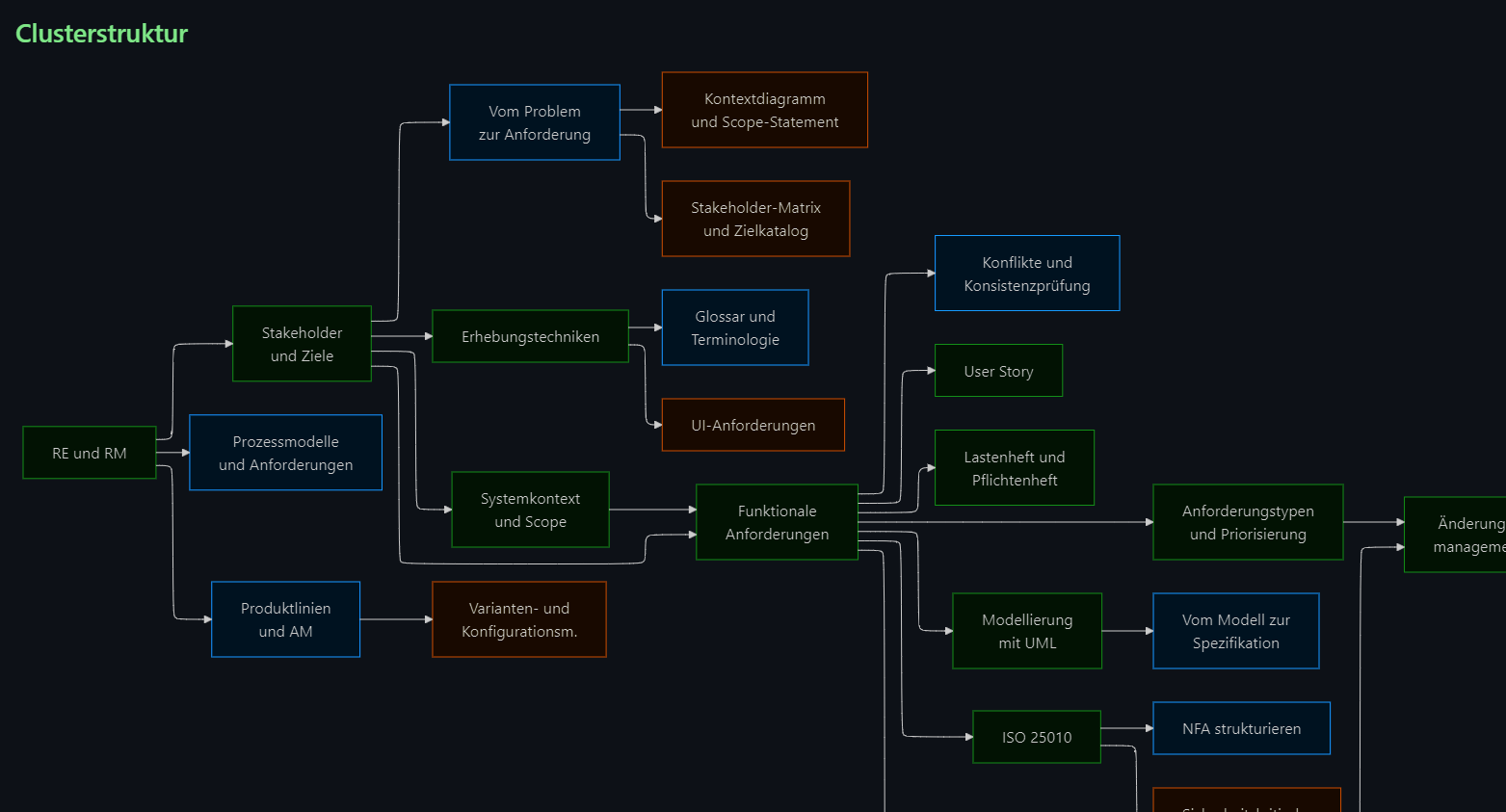
Re-enables the ELK (Eclipse Layout Kernel) layout engine for Mermaid diagrams in Obsidian.
What this plugin does
- Adds
%% elk %%marker support. Put the marker inside any Mermaid block and that diagram gets ELK layout. - Can optionally load Mermaid 11.17.0 from the plugin instead of Obsidian's older built-in Mermaid. This is the switch for newer diagram types like
xychart-beta,cynefin-beta, orrailroad-beta. - Preserves your existing frontmatter.
look: handDrawn,theme: neutral, and other config values stay intact.
[!tip] Start simple Add
%% elk %%to a diagram. That is usually all you need.[!question] Want more control? See docs/advanced-settings.md.
Quick start
Add %% elk %% inside any Mermaid block and that diagram gets ELK layout:
```mermaid
%% elk %%
flowchart LR
    A[Start] --> B[Analyze]
    B --> C[Done]
```
[!example]- Example renders Here is what ELK layout looks like compared to stock dagre:
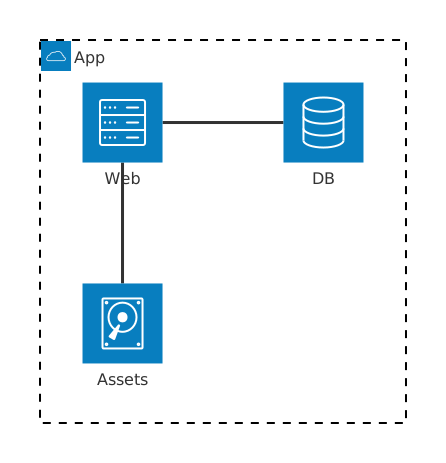
ELK also works on newer diagram types when you enable bundled Mermaid 11:
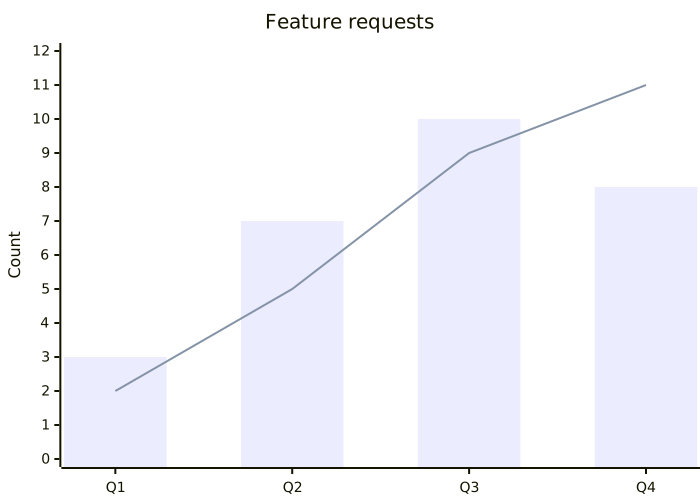
docs/mermaid-11-examples.md has a full showcase with prerendered images and copyable source snippets.

Installation
Community plugins
- Open Settings, Community plugins.
- Search for Mermaid ELK Renderer.
- Install and enable.
Manual
- Download
main.js,manifest.json, andstyles.cssfrom the latest GitHub release. - Create a folder named
mermaid-elk-rendererin your vault's plugin folder. - Copy the three files in.
- Enable the plugin.
Settings
Open Settings, Community plugins, Mermaid ELK Renderer.
| Setting | What it does |
|---|---|
| Debug logging | Logs plugin activity to the developer console. THIS DATA WILL NOT LEAVE YOUR DEVICE OR BE SENT OVER THE INTERNET |
| Use bundled Mermaid 11 | Load Mermaid 11.17.0 from the plugin. Turn this on when a diagram from the official Mermaid docs does not work in stock Obsidian. |
| Apply elk to all diagrams | Route every Mermaid diagram through ELK, marker or not. |
| Override existing layout | Replace an existing config.layout with elk. |
| Escape numbered labels | Prevent labels like 1. Step from triggering Markdown list rendering inside Mermaid. |
| Default Mermaid look / theme | Set global look and theme defaults for routed diagrams. |
[!warning] Restart after changing settings The plugin refreshes previews on change, but a full Obsidian restart is still the cleanest reset.
[!danger] Danger zone The regex overrides in advanced settings are for real edge cases. If your diagrams already work, leave them alone. If they do not, open an issue.
More docs
- Advanced settings
- Mermaid 11 example showcase
- Support and debug reports
- Development notes
- Contributing
- Official Mermaid docs
Try the examples in Obsidian
The examples/ folder contains ready-to-use Markdown files. Copy them into your vault, enable the plugin, and open them in Obsidian to see the diagrams render live.
examples/Mermaid-11.16-layout-comparison.md— dagre vs. elk side by sideexamples/Mermaid-11.16-charts.md— pie and XY chartexamples/Mermaid-11.16-cynefin-railroad.md— cynefin framework and railroad diagramsexamples/Mermaid-11.16-er-state-arch-gantt.md— ER, state, architecture, gantt, and tree view