
README file from
GithubMCP Connector for Obsidian



Your Obsidian vault, exposed to AI clients over the Model Context Protocol. The MCP server runs inside Obsidian, on loopback, with no binary to download and no cloud round-trip. Claude Desktop, Claude Code, Cursor, Cline, Continue, Windsurf and VS Code all connect to the same endpoint.
What's new · Quick start · Tools · Rendered search results · Adaptive tool loading · Per-client tokens · Prompts · Protocol · Clients · Troubleshooting · Security · For developers
How it works
Obsidian (Electron)                          your AI client
┌──────────────────────────────┐
│ MCP Connector plugin         │             Claude Code, Cursor, Cline,
│  ├─ MCP server (in-process)  │◄──HTTP──►   Continue, Windsurf, VS Code
│  ├─ 52 tools                 │  POST only
│  ├─ prompt renderer          │
│  └─ on-device embeddings     │◄──stdio─►   Claude Desktop
└──────────────────────────────┘  via .mcpb shim
   127.0.0.1:27200/mcp
Four things follow from that shape:
- Nothing leaves your machine. The server binds to loopback only. Vault reads and writes go through Obsidian's own
app.vaultandapp.metadataCacheAPIs, so Obsidian's permission model still applies. - No binary ships from this repo. The server is plugin code running in Obsidian's renderer, which removes the supply-chain surface of downloading and executing a prebuilt executable.
- Semantic search is on-device. Transformers.js runs the embedding model locally. No API key, no Smart Connections requirement.
- Every request carries its own credentials. The transport keeps no session state, which is what makes per-client tool surfaces possible.
What's new in 2.0.x
2.0 is the release where this connector stopped waiting for the next MCP revision and started serving it. The protocol work is the substance, and the visible half is that search results now arrive as a list you can read instead of a wall of JSON.
| Change | Why it matters |
|---|---|
MCP revision 2026-07-28 is served, alongside the old one (2.0.0) |
Two protocol eras on one endpoint, one port, one token, classified per request. A client that speaks the new revision finds it by probing server/discover; a client that does not never sees it. Nothing you have configured needs to change. See Protocol status. |
| Search results render as a ranked list (2.0.0) | search_vault_smart and search_vault_simple publish an MCP Apps view: one row per hit with the path, the excerpt, and for the semantic search a similarity score and the heading. The text result is byte-identical to before, so clients without the extension see exactly what they saw. |
| Prompt-list changes are announced for real (2.0.0) | On the new revision, adding, deleting or renaming a note under Prompts/ tells listening clients to re-read the list. On the old revision the connector now says it cannot, which is the truthful answer. This retraction is what makes the number 2.0. |
| Per-token request counters (2.0.0) | The transport settings show how many requests each token served and on which revision, so a client that stopped working is a row whose count stopped moving. |
| A tool promoted by one client is announced to the others (2.0.0) | Promotion counters are vault-wide, so one client crossing the threshold widens every adaptive client's list. On the new revision the others are now told instead of serving a stale list. #419 |
| Windows bridge: no more mangled accents (2.0.1) | scripts/obsidian_mcp_bridge.py forces its stdio streams to UTF-8, so æ ø å ü and non-Latin scripts survive in both directions. Root-caused, with the fix, by @smollern. |
| Boolean arguments accept real booleans (2.0.0) | Six fields across five tools rejected a genuine JSON true, including delete_vault_directory.recursive. #444 |
search_vault_smart works under auto again (2.0.0) |
With Smart Connections installed it returned an empty result for every query, silently. #430 |
| Change | Why it matters |
|---|---|
| Per-client bearer tokens (1.0.0) | The vault holds up to 10 tokens, one per client. Claude Code can keep all 52 tools while claude.ai sees only the 13-tool Core set, from one vault and one server. |
| Per-token tool policy (1.0.0) | Profile, promoted tools and an optional hard allowlist all live on the token, not on the vault. |
| Rotation no longer restarts the transport (1.0.0) | Adding, renaming, regenerating or revoking a token takes effect on the next request. The port cannot drift and in-flight requests finish. |
.mcpb bundles are per token (1.0.0) |
Each bundle carries a token id and resolves that token's secret from the vault at connect time. Revoking the token fails the bundle closed instead of silently granting another client's access. |
| Note embeds in prompts (1.0.0) | ![[note]] in a prompt body is inlined before the prompt reaches the model, so no tool call per note. |
| Built-in-Node fix (1.0.1) | The Claude Desktop extension now works with Use Built-in Node.js for MCP left on. See #412. |
| Whole-request deadline in the shim (1.0.1) | A failing request answers inside 45 s with the reason instead of being cancelled at 60 s with nothing logged. |
| MCP SDK v2, error codes out of the reserved range (0.28.2, 1.0.1) | See Protocol status. |
Full history: CHANGELOG.md.
Quick start
- Install the plugin. Community store: Settings → Community plugins → Browse → MCP Connector. Or via BRAT with
istefox/obsidian-mcp-connector. - Open Settings → MCP Connector → Access control. A fresh vault already has one token, labelled Default.
- Wire your client from that token's row. Either .mcpb (Claude Desktop, drag and drop) or Copy config (everything else). Details in Connecting a client.
Ask the agent to call get_server_info to confirm the round trip. Requirements: Obsidian 1.7.2+, and Node.js only for the legacy mcp-remote path.
What it can do
52 tools: 49 vault tools plus 3 always-on meta-tools. All active by default.
| Family | Tools | Notes |
|---|---|---|
| Files | get_vault_file, get_vault_files, get_vault_file_partial, create_vault_file, create_vault_binary_file, append_to_vault_file, patch_vault_file, delete_vault_file, rename_vault_file, list_vault_files, create_vault_directory, delete_vault_directory |
get_vault_files reads up to 20 files per call. Text output is capped (default 100 KB) and truncation points at get_vault_file_partial. Renames go through fileManager.renameFile, so links survive. get_vault_file also returns an obsidian:// URI, see Linking out to Obsidian. |
| Active file | get_active_file, update_active_file, append_to_active_file, patch_active_file, delete_active_file, show_file_in_obsidian |
What the user is looking at right now. get_active_file also returns an obsidian:// URI, see Linking out to Obsidian. |
| Search | search_vault_smart, search_vault_simple, search_vault, execute_dataview_query |
Semantic, plain-text with context windows, DQL or JsonLogic. Hits carry a 0-indexed line. search_vault_smart and search_vault_simple also carry a file-level obsidian:// URI per row, see Linking out to Obsidian. |
| Structure | get_vault_overview, get_note_outline, list_tags, get_files_by_tag, get_recent_files, get_outgoing_links, get_backlinks, list_bookmarks |
get_vault_overview replaces the 3 to 5 calls a session spends getting oriented. |
| Frontmatter | get_note_property, set_note_property, delete_note_property, list_property_values |
Atomic, through processFrontMatter. |
| Maintenance | find_broken_links, find_orphaned_notes, search_and_replace, rename_heading |
search_and_replace defaults to dry_run. rename_heading rewrites every reference pointing at it. |
| Periodic notes | get_or_create_daily_note, get_or_create_periodic_note, append_to_periodic_note |
Daily through yearly. Works with core Daily Notes and with Periodic Notes. get_or_create_daily_note also returns an obsidian:// URI, see Linking out to Obsidian. |
| Canvas | get_canvas, add_canvas_node, connect_canvas_nodes |
Writes preserve every existing field, so canvases round-trip with clean diffs. |
| Execution | execute_template, list_obsidian_commands, execute_obsidian_command |
Templater templates as tool calls. Commands are opt-in, see Command execution. |
| Other | fetch, get_server_info |
fetch returns Markdown via Turndown, paginated. |
| Meta | tool_catalog, activate_tool, activate_tools |
Always reachable, see below. |
Every tool declares MCP annotations, such as readOnlyHint, destructiveHint, idempotentHint and openWorldHint, so a client can skip confirmation on reads and gate it on writes. List and scan tools take a limit (default 200, clamped to 1000) and report truncated with the real total.
On outputSchema, deliberately absent. Almost no tool here declares one, and that is a decision rather than an omission. Once a tool declares an output schema, SDK clients reject every response from it that lacks structuredContent. Several of these tools return genuinely different shapes depending on what they find, so declaring a schema for them broke get_vault_file for five releases (0.27.2 through 0.27.6) before the rule was written down. A tool whose result shape is polymorphic gets no schema.
Semantic search providers. Native MiniLM-L6-v2 (~25 MB, default), Gemma 300M (768d, best for non-Latin vaults), Multilingual-E5-Base (768d), or Smart Connections if you already use it. Providers swap live while the previous one keeps serving. The index is sharded into 16 segments by path, so editing one note rewrites one segment. While a build is running, search_vault_smart returns a structured index_building error with filesIndexed, filesTotal and an estimated retryAfterSeconds.
Linking out to Obsidian
get_vault_file, get_active_file, get_or_create_daily_note, search_vault_simple and
search_vault_smart return an obsidian://open URI alongside their result, so a note found
through MCP can be linked from outside Obsidian — Mail, Slack, Things, Jira, anywhere a URI
scheme link works. A raw-text result carries it as a trailing URI: obsidian://... line after
the content; a JSON-shaped result carries it as a sibling uri key. The two search tools add a
file-level uri to every row.
get_vault_file, get_active_file and get_or_create_daily_note also take an optional
heading argument: when it names a heading in the note, the URI navigates straight to it
(file=Note.md%23Heading, the heading percent-encoded inside the file parameter's value, per
Obsidian's own URI grammar — never a bare # fragment after the query string). A heading that
does not match returns a heading_not_found error naming the heading and the path, instead of
falling back to a plain file URI. Use get_note_outline to discover a note's headings before
targeting one. The two search tools do not support heading — a semantic search result's
heading field can be null or ambiguous by construction, so their URI is always file-level.
Rendered search results (MCP Apps)
Both search tools publish a small HTML view alongside their text result, using the
MCP Apps ui:// resource extension. In a client that supports
it, a search comes back as a ranked list you can read: one row per hit, carrying the note's path,
the matching excerpt, and, for the semantic search, a similarity score and the heading the passage
sits under. A zero-match query renders an explicit empty state naming the vault it searched.
Four things about how this is built, because they are the parts that usually go wrong:
- The text result did not change, byte for byte. A client that knows nothing about MCP Apps sees
exactly what it saw before, with no stray output and nothing to configure. The row data rides in
the result's own
_meta, on the success branch only; when a tool errors, that key is absent and the view falls back to the text. - The
resourcescapability serves the view and nothing else. No vault content is reachable throughresources/*. Listing notes there would need a permission model designed from scratch, since the per-token allowlist and the kill switch are tool-level concepts, so it is deliberately out of scope. Decisions in ADR-0018. - Clicking a row asks the client to open the note in Obsidian, and the client decides. Claude
Desktop currently declines to follow an
obsidian://link out of a tool result. When that happens the row reveals the note's vault-relative path instead, so the information is never lost. This is host policy and not something this plugin can change from its side. - The line number is shown, never used as a jump target.
obsidian://openhas no line parameter, and under Smart Connections the semantic provider resolves no line at all.
Adaptive tool loading
Every advertised tool costs context tokens on every session: the client downloads each tool's full JSON schema before the model says a word. All 52 active is roughly 10K tokens per session. Adaptive loading cuts that without putting any tool out of reach.
Profiles
Set per token in Settings → MCP Connector → Tool Loading.
| Profile | Advertised | Use when |
|---|---|---|
| All (default) | 49 vault tools + 3 meta-tools | You want maximum capability and do not care about the schema cost. |
| Core | 13 core tools + 3 meta-tools + whatever you promoted | You want the smallest, most predictable surface. |
| Adaptive | The same, and it promotes tools you use often on its own | You want the surface to converge on how you actually work. |
Core is: get_server_info, get_active_file, update_active_file, append_to_active_file, get_vault_file, list_vault_files, create_vault_file, search_vault, search_vault_simple, list_tags, get_note_property, set_note_property, get_or_create_daily_note.
Promotions are honoured in both Core and Adaptive, so a tool you pinned stays pinned whatever the profile. Automatic promotion by call frequency is the one thing Core does not do.
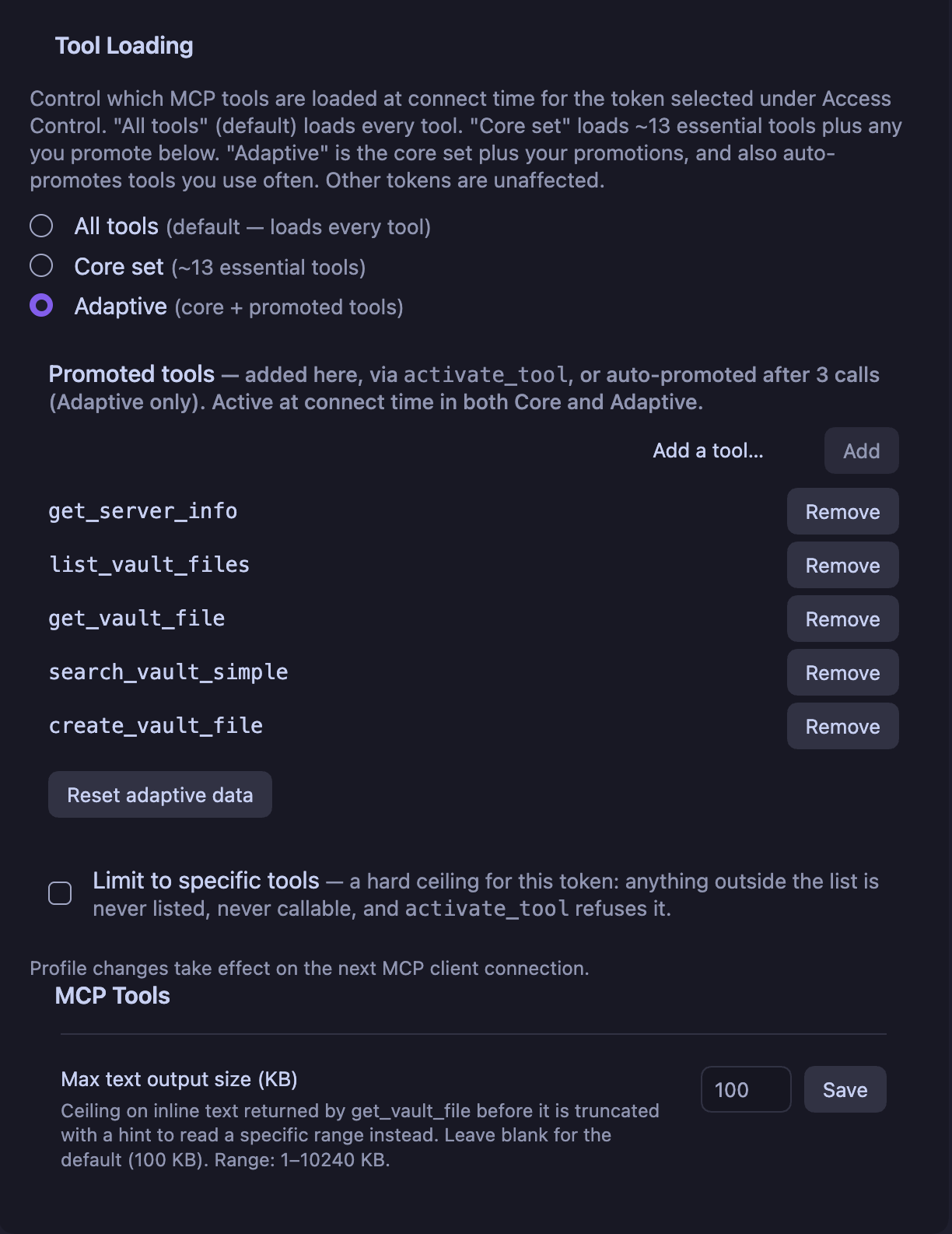
Tool Loading, per token. The promoted list is editable by hand, activate_tool writes into it, and frequency promotion fills it in over time. Reset adaptive data clears counters and promotions without touching the profile.
The three meta-tools
tool_catalog(read-only, always active): the full inventory with each tool's status (active,inactive,promoted), call count and description. The model always knows what exists, whatever the profile.activate_tool: promotes one inactive tool by name, usable immediately, no reconnect.persist: truewrites it to that token's promoted list. Obsidian shows a notice each time, so a surface never widens silently.activate_tools: promotes several at once and refreshes the client's tool list only once.
In Adaptive mode the plugin counts calls per tool. At 3 calls a non-core tool is promoted and stays. Counters are vault-wide by design, because how often a tool is used describes the vault, not the client that happened to call it. The Tool Loading panel lists promoted tools, removes any of them, and resets counters without touching your profile.
Two independent off switches
A tool can be dark for two unrelated reasons, and the difference is deliberate:
userDisabled— you switched it off under Tools available. It is invisible to every token and no client can discover it or talk its way past it.- adaptive-inactive — the profile has not promoted it yet. Calling it returns a recoverable error naming the activation path, never "Unknown tool", so the model can fix its own problem in one step.
Does this violate the tools/list stability rule?
MCP revision 2026-07-28 says the advertised set must not vary per-connection or as a side effect of other requests on the connection, while it may vary by the authorization presented. Adaptive loading satisfies it, and the reasoning is written down in ADR-0015: registry state is process-global and token-scoped, never connection-scoped, so two clients presenting the same token get the same list, and a promotion is a vault state change (like a settings edit), not a property of one connection. notifications/tools/list_changed is what the clause points at for exactly this case.
Per-client tokens
The vault holds a list of tokens, not one. The token on the request identifies the client, which is the only client identity a stateless transport carries. Each row in Access control shows the label, the profile in force, how many tools that token reaches, and per-row controls: show and copy the secret, copy a client config, export a .mcpb, regenerate, revoke. Up to 10 per vault.
There is deliberately no vault-wide export. A credential always leaves the plugin naming the client it belongs to.
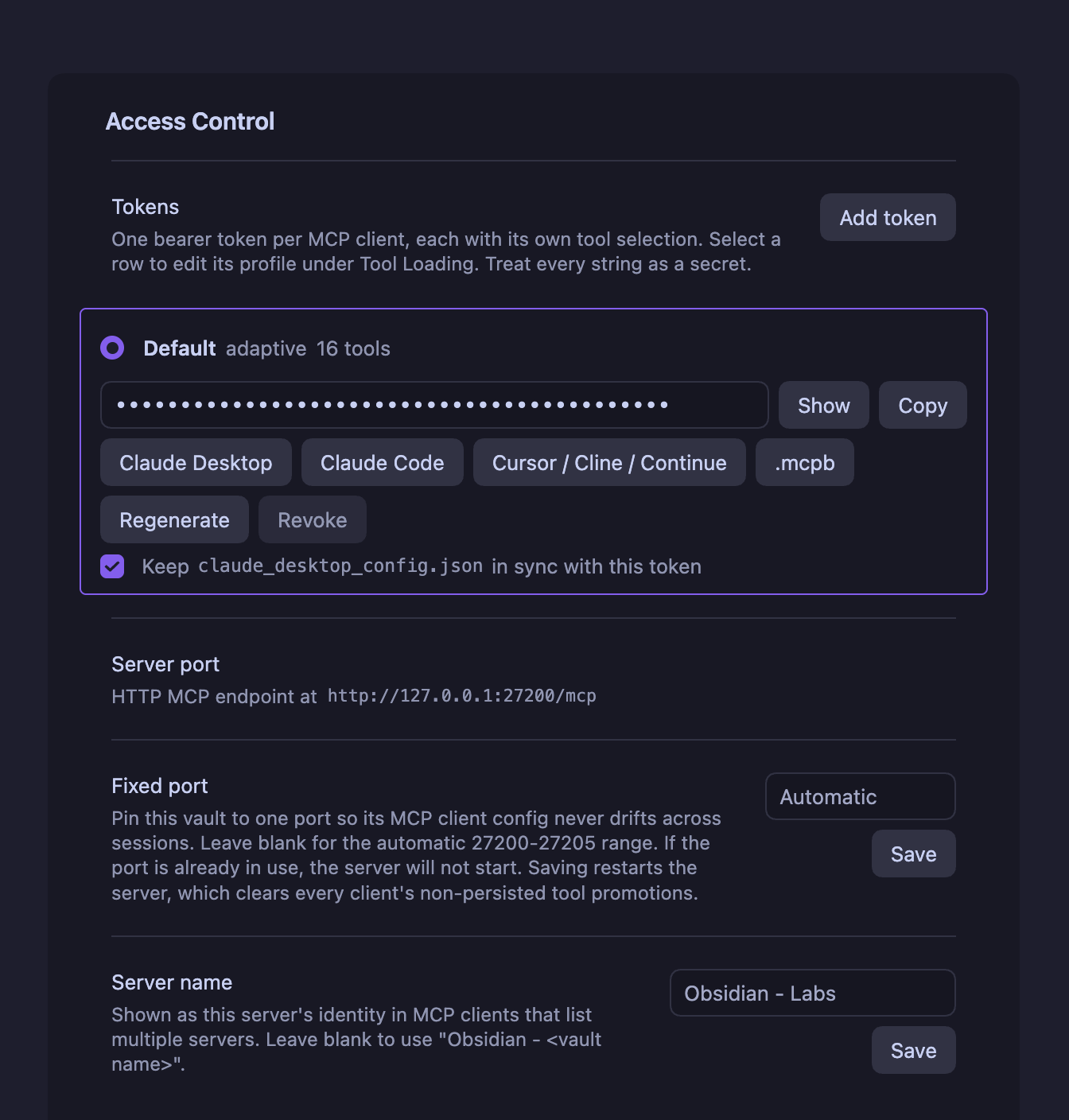
One row per client. The label, profile and tool count are on the row; the four buttons under the secret each produce a config for one client family, all authenticating as this token. Below the list: the live endpoint, Fixed port (blank means the automatic 27200-27205 range, and saving a fixed port restarts the server, which clears non-persisted promotions), and Server name, which is how this vault identifies itself in a client that lists several servers.
| Action | Effect |
|---|---|
| Add token | New row, own profile, own promoted list, own allowlist. Labels are cosmetic and may repeat. |
| Regenerate | Replaces the secret, keeps id, label and policy. Configured clients get 401 until updated. Installed .mcpb bundles resolve by id and pick it up on their own. |
| Revoke | Deletes the token. That client's configs, bundles and bridge configs stop working; every other token is untouched. |
Both actions are unrecoverable. The string is stored nowhere else and nothing in the plugin can print it again.
Limit to specific tools (off by default) turns a token's checklist into a hard ceiling: a tool outside it is never advertised, cannot be called, and activation refuses it by name instead of dead-ending. An empty list is legal and means the three meta-tools only. The profile itself is deliberately not a ceiling, since Core exists so activate_tool can widen it.
Upgrading from 0.28.x needs nothing: your existing token becomes row one, labelled Default, byte-for-byte the same string, carrying your current profile and promoted list.
Prompts
Author MCP prompts as plain markdown in a Prompts/ folder at the vault root. No extra plugin needed; the renderer runs in-process. Clients surface them as slash commands or attachments.
---
tags:
  - mcp-tools-prompt
description: Summarize my recent daily notes on a given topic
---

Summarize my notes from the past **<% tp.mcpTools.prompt("days", "How many days back") %>** days
about **<% tp.mcpTools.prompt("topic", "The subject") %>**.

Here is the brief they should be read against:

![[Projects/Q3 brief]]

Give me the three recurring themes and one action item.
- The
tp.mcpTools.prompt(...)line declares a parameter and is stripped from the output. Inject the value with{{days}},{{topic}}, as many times as you like. - An inline
#mcp-tools-prompthashtag works instead of frontmatter. Both spellings of the frontmatter tag are accepted. - Embeds are inlined after parameters are filled, so
![[{{note}}]]lets the client pick the note.![[note|alias]],![[note#Heading]]and![[note#^blockid]]all work. Depth 1, at most 32 KB across at most 20 embeds per render. An embed that cannot resolve keeps its token and gains a comment saying why, so nothing disappears quietly. - Other Templater expressions pass through verbatim; the server does not evaluate them.
Full contract: docs/features/prompt-system.md.
Command execution
Off by default. When enabled, the agent can run Obsidian commands from the command palette, and only those you authorize.
list_obsidian_commandsis read-only discovery and always safe.execute_obsidian_commandis gated. On the allowlist it runs. Off the allowlist, Obsidian shows a modal with Deny / Allow once / Allow always and the HTTP call waits up to 30 s for your answer. Master toggle off means every call is denied with no modal.- Deny by default, no wildcards, no auto-population, per vault.
- A command whose id or name looks destructive (
delete,purge,reset,wipe, and similar) gets a red warning and Allow always is disabled. A nudge, not a gate. - Hard limit 100 calls/minute server-side, plus a configurable soft warning at 30/minute.
- The last 50 decisions are kept in a ring buffer under Recent invocations, exportable as RFC 4180 CSV (
timestamp,commandId,decision,reason).
Protocol status
The connector serves two MCP revisions from one endpoint. 2026-07-28, the revision that moves
MCP to a stateless request/response core, and the 2025-11-25-and-earlier line that every shipping
client still negotiates. Same port, same URL, same bearer token. Each request is classified on its
own, from one read of its body, so adopting the new revision took nothing away from the old one and
no configured client, generated bundle or bridge config needed touching. Decisions in
ADR-0016.
One thing to know if you are implementing against this: the new revision is not reachable through
initialize. A client finds it by probing server/discover, and falls back to the handshake on
its own if that method is absent. The SDK's LATEST_PROTOCOL_VERSION is the handshake offer and by
construction can never name the 2026 revision, so it tells you nothing about whether a server serves
it.
2026-07-28 direction |
Status here |
|---|---|
Stateless core, no protocol-level sessions, no Mcp-Session-Id |
Never had them. Every request carries its own credentials, which is what makes per-token tool surfaces possible in the first place. |
GET/DELETE on the MCP endpoint answer 405 |
By design. There is no server-initiated stream on the legacy era at all. |
subscriptions/listen replaces the GET stream |
Served. A client that opens one is acknowledged, gets a subscription id, and receives the notification types it opted into. |
notifications/tools/list_changed |
Delivered two ways: on the caller's own POST response, and fanned out to every open listen stream that asked for it, so a promotion triggered by one client reaches the others. |
notifications/prompts/list_changed |
Honoured on the new revision, declared unavailable on the old one, where a POST-only transport structurally cannot deliver it. See ADR-0017. |
resources/* capability |
Declared, and it serves ui:// application resources only. No vault content is reachable through it, deliberately: the per-token allowlist and the kill switch are tool-level concepts and none of them reaches a resource surface. |
Removed methods answer 404 / -32601 on the new era |
Confirmed by the conformance suite for initialize, ping, logging/setLevel, resources/subscribe and resources/unsubscribe. A claim-less client carries no envelope, classifies legacy, and keeps being served. |
-32000–-32019 is a legacy range new code should avoid |
The .mcpb shim and the Windows bridge report local failures as -33000, below the reserved range entirely. |
| Per-request authorization may scope the tool set | Exactly what per-client tokens do. |
| Tool-set stability clause | Analysed and satisfied, see ADR-0015. |
Measured, not asserted. The server-stateless suite from the official conformance harness runs
against a headless build of this connector and reports 26 of 28. It went from 7 of 27 over the
course of this work. The two that stay red need a fixture tool shipped in every user's vault purely
so a test can mutate the tool list, and this project will not ship one; they are named in a
four-entry baseline that is maintained by hand and never regenerated from a failing run, so a check
that starts failing gets investigated rather than absorbed. The job runs nightly rather than per PR,
because it clones and builds the suite from source at a pinned ref.
What is still open. Retiring the legacy era is a decision with a measured trigger rather than a plan: the legacy request counter has to sit at zero for two minor releases or 60 days. It is nowhere near. Until then both eras are served, and the counters in the transport settings are how you watch that number.
Connecting a client
Every client is wired from its own row in Access control. Whichever button you use, the snippet or bundle authenticates as that row's token and no other.
Claude Desktop
Claude Desktop speaks stdio, so it needs a bridge. The .mcpb extension is the supported path and needs no Node install of your own.
- Click .mcpb on the token's row.
- Drag the file onto Claude Desktop.
- It installs with no prompts and appears under Settings → Extensions.
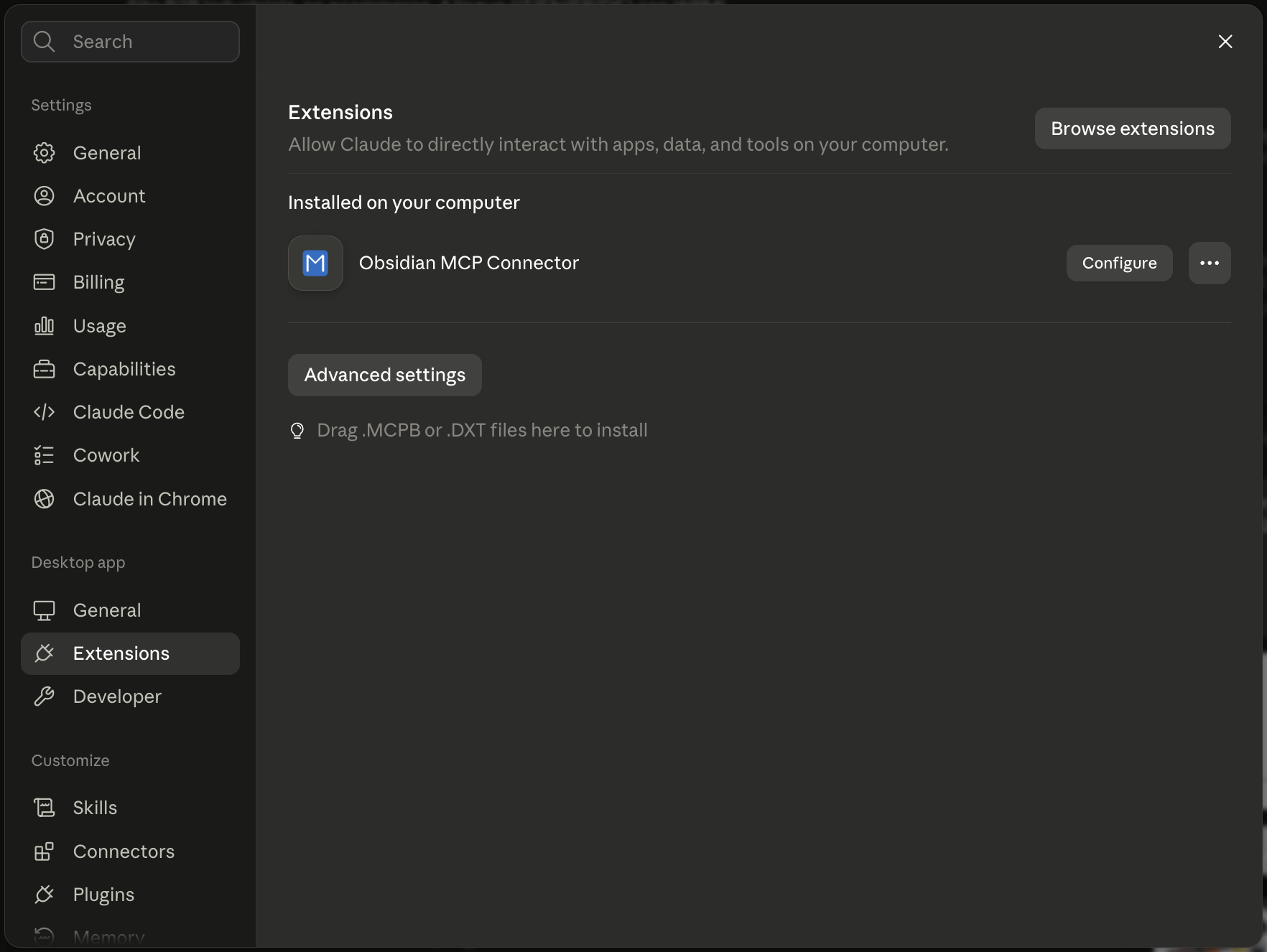
Installed. Claude Desktop's own Extensions pane takes the .mcpb by drag and drop, with no config file to edit and no Node install of your own.
The bundle resolves that token's secret and the live port from the vault at connect time, so regenerating the secret or changing the port needs no re-export. Revoking the token fails it closed with an error asking for a fresh export, which is the point. A bundle exported before 1.0.0 predates the token id and follows whichever token is currently first, so re-export once after upgrading.
The releases page carries no .mcpb, and that is deliberate. Every bundle has your vault's path, your config folder's name and one token's id written inside it, which is what lets it connect with nothing to fill in and fail closed when you revoke that token. A build made on a CI runner knows none of those, so the only place a correct bundle can come from is the button above. Releases up to and including 2.0.1 do have one attached; it takes a different route, asks you to paste a token and a port by hand, and depends on npx and a network fetch. Use the export instead.
Needs Node.js on the PATH that Obsidian inherits. The plugin detects it and offers a one-click Homebrew install on macOS.
{
  "mcpServers": {
    "obsidian-mcp-connector": {
      "command": "npx",
      "args": ["-y", "mcp-remote", "http://127.0.0.1:27200/mcp",
               "--header", "Authorization: Bearer YOUR_TOKEN"]
    }
  }
}
Paste into claude_desktop_config.json (Settings → Developer → Edit Config) and restart the app fully, Cmd+Q on macOS. Or tick Keep claude_desktop_config.json in sync with this token on the row: at most one token owns the file, a .backup is written before each rewrite, and revoking the owner removes the entry rather than pointing it at someone else.
mcp-remote hangs for 60 s on connect on Windows (geelen/mcp-remote#296), against unrelated MCP servers too. Use the bundled scripts/obsidian_mcp_bridge.py, standard library only:
Update the bridge if you are on a copy older than 2.0.1. Before that release it read and wrote its stdio streams using whatever encoding your Windows locale preferred, usually not UTF-8, so any file name, folder name or note content containing a character outside plain ASCII was corrupted in both directions: a note at Personer/Person - Søren Møller-Nielsen.md was looked up as Personer/Person - Søren Møller-Nielsen.md and reported missing. The bridge now forces both streams to UTF-8 before reading anything. If you set PYTHONUTF8=1 or PYTHONIOENCODING=utf-8 in your client config to work around it, you can keep or drop it; the bridge no longer depends on either.
{
  "mcpServers": {
    "obsidian": {
      "command": "python",
      "args": ["C:\\Users\\you\\obsidian_mcp_bridge.py", "http://127.0.0.1:27200/mcp"],
      "env": { "OBSIDIAN_BEARER_TOKEN": "paste-your-token-here" }
    }
  }
}
Full setup: docs/windows-post-only-bridge.md.
Claude Code
Native HTTP transport. Copy config for Claude Code, then paste into ~/.claude.json (project) or ~/.claude/settings.json (global), or use claude mcp add with the same fields.
{
  "mcpServers": {
    "obsidian-mcp-connector": {
      "type": "http",
      "url": "http://127.0.0.1:27200/mcp",
      "headers": { "Authorization": "Bearer YOUR_TOKEN" }
    }
  }
}
Cursor, Cline, Continue, Windsurf, VS Code
Copy config for streamable-http clients produces the generic payload these accept. Check each client's docs for the file location and wrapping keys.
Codex
Codex connects through one shared local Node.js broker at 127.0.0.1:27206.
The broker reads the current vault port and selected token from the plugin's data.json for every request.
Port changes and token regeneration do not require a Codex config change or another broker process.
- On a token row, tick Enable Codex connection for this vault.
- Click Install Codex config… to preview and approve a one-time edit, or click Copy Codex config and paste the snippet yourself.
- Keep this vault open, then restart Codex after the initial config change.
The installer uses $CODEX_HOME/config.toml when CODEX_HOME is set.
Otherwise, it uses ~/.codex/config.toml only when the ~/.codex directory exists.
It shows the exact path and whether it will add or replace [mcp_servers.obsidian_<vault>] before asking for confirmation.
Replacing an entry also removes its old nested transport settings while preserving per-tool approval settings.
The installer creates a timestamped backup, writes atomically, and reads back the expected bytes
It checks for changes after preview and backup, but cannot lock out unrelated editors
It refuses unsupported tables or additional entry settings rather than deleting them, and never rolls back over an externally replaced file
It permits unrelated multiline strings but refuses ambiguous entries and target entries that it cannot replace conservatively.
Use the copy action when Codex uses a project config or a custom home that Obsidian cannot locate.
The broker credential remains in config.toml and the plugin's data.json.
The vault token remains only in data.json and is added when the broker forwards a request to the vault.
Both services bind to localhost.
Disabling the connection removes the vault's live broker registration but leaves the one-time Codex entry unchanged.
The broker exits after no vault has an open control connection for 10 seconds.
Codex discovery supports desktop Windows, macOS, and Linux installations where Obsidian can execute a system Node.js installation.
If Node.js is unavailable, the optional connection remains disabled and the rest of the plugin continues to run.
Bun is not required at runtime.
See ADR-0021 for the detached-process lifecycle and accepted local port-owner risk.
The connection status distinguishes connected, retrying, stopped and identity-conflict states Routes are held in broker memory and the executable is stored outside the system temporary directory After updating an older broker, update the other open vaults and close their old connections before retrying
If a vault location changes, choose This vault was moved to keep its connection identity or Reset connection identity for a copy An identity reset requires a new client entry, but does not change copied vault tokens Use Reset vault token secrets separately to rotate those credentials while preserving tool permissions, then update direct clients and exported configurations Legacy settings bind to their current location on first upgraded use, so a pre-upgrade copy opened alone cannot be identified automatically
Verifying
Your client should list the tools your token's profile allows, plus any prompts tagged #mcp-tools-prompt. For request-level inspection without a model in the loop:
npx -y @modelcontextprotocol/inspector
# point it at http://127.0.0.1:27200/mcp with your bearer token
Troubleshooting
| Symptom | Cause and fix |
|---|---|
401 on every call |
The token matches no row, usually after a regenerate or revoke. Copy the current string from that row, or add a new token if the row is gone. |
ECONNREFUSED 127.0.0.1:<port> |
Claude Desktop reads its config only at launch. Quit fully (Cmd+Q) and reopen. Check the port matches the one the plugin logs, and that only one vault has the plugin enabled. |
Claude Desktop: Failed to connect, command not found |
Only affects the mcp-remote path. Settings → Claude Desktop integration reports whether node and npx are on the PATH Obsidian inherits, and installs Node for you on macOS. |
| 60 s hang on Windows, then "Could not attach" | mcp-remote bug. Switch to the POST-only bridge. |
| 60 s hang on macOS with Use Built-in Node.js for MCP on | Fixed in v1.0.1. Update, re-export the .mcpb, reinstall once; the setting can stay on. On 1.0.0 and earlier, turn the setting off and restart fully. (#412) |
.mcpb disconnected most of the time |
Fixed in v0.26.0, which stopped baking the port and token into the manifest. Update and re-export once. |
First search_vault_smart is slow |
Expected: ~25 MB model download, cached afterwards. A content-length warning in DevTools is harmless. |
On the built-in-Node path Claude Desktop does not write the connector's own stderr to mcp-server-Obsidian MCP Connector.log, so the startup banner and per-request lines are missing there even when everything works. To collect them, run the extension's server/index.js directly, or turn the setting off for the test. General logs: Settings → Open Logs, or Obsidian's console (Cmd+Opt+I / Ctrl+Shift+I).
Security
- Loopback only. The bind address is hardcoded to
127.0.0.1, on the first free port in 27200-27205 unless you pin one. Bearer auth is required on every request, and a miss is a bare 401 that reveals nothing about which tokens exist. - No binary. Nothing prebuilt is downloaded or executed.
- Tokens are local. Generated per install, stored in the vault's
data.json, revealed only on demand in settings, up to 10 per vault. - The Codex broker trusts the local port owner. A process that binds
127.0.0.1:27206and returns the expected health response can impersonate the broker. A per-launch registration secret would not authenticate the broker to Codex, so ADR-0021 records this as an accepted local-process risk instead of claiming partial hardening solves it. - Vault access is Obsidian's. Every read and write goes through
app.vault, under Obsidian's own permission model. Concurrent writes go throughVault.process()plus a process-wide write mutex, so two MCP writes to one file cannot lose an update. - Command execution is opt-in and per vault.
- Folders can be hidden from every tool at once. Settings → MCP Connector → Hidden folders removes a folder from reads, writes, listings, the link graph, tag counts and prompts, vault-wide, and makes it behave exactly like a folder that does not exist — never a distinguishable "access denied". It is a guardrail against a client wandering somewhere it shouldn't, not encryption: see SECURITY.md for what it does and does not cover.
Report vulnerabilities through SECURITY.md, never in a public issue.
For developers
Bun monorepo, feature-based. Full contract in docs/project-architecture.md.
packages/
├── obsidian-plugin/   # plugin: MCP server, tools, transport, settings UI (Svelte)
│   ├── src/features/  # each feature owns services/, components/, colocated *.test.ts
│   └── scripts/       # connectorShim.js (the .mcpb shim), generators, bench
├── shared/            # ArkType schemas and types shared with the shim
└── test-site/         # SvelteKit harness, dev only, never shipped
bun install
bun run check         # tsc --noEmit across packages (does NOT type-check .svelte)
bun test              # 1700+ unit tests, colocated
bun run format:check  # CI enforces this; the other gates pass without it
bun run build         # production bundle
bun run release       # build + zip (no .mcpb — that is a per-token export from the plugin)
Full gate before calling anything done: bun run check && bun test && bun run format:check.
Design invariants
These are the ones worth knowing before you change anything:
- The transport is stateless and POST-only.
GET /mcpreturns 405 on purpose. No server-initiated stream exists, soinitializestate is never available to a later request. notifications/tools/list_changedrides the caller's own POST response with that call'srelatedRequestId. Activation calls switch their response to SSE for it. There is no fan-out and no broadcast path.- The registry is global truth; the token supplies a resolved
ToolScope. Credentials live in themcpTransportslice, policy intoolLoading.profiles[tokenId], joined by id. The registry never dereferences a token id. A missing policy entry resolves to today's behaviour rather than locking a client out. - Precedence:
userDisabled> per-token allowlist > profile + promoted > always-active meta-tools. - Settings are sliced, and every write goes through
SettingsStore.updateSliceunder a process-wide mutex.data.jsonis shared by every feature, so an unserialized read-modify-write clobbers a neighbour. Returning the input unchanged means NO_CHANGE and skips the write. - A polymorphic tool must not declare an
outputSchema. SDK clients reject every response lackingstructuredContentonce one is declared. This costget_vault_filefive releases. - The
.mcpbshim is a separate process against an already-distributed bundle. Itsdata.jsonread contract stays backward-compatible, and it fails closed on an unknown token id. Falling back to a default credential would turn a revocation into a grant.
Adding a tool
- Write
src/features/mcp-tools/tools/myTool.tsexporting a schema and a handler, plusmyTool.test.tsbeside it. - Register it in
src/features/mcp-tools/index.tswithregistry.register(myToolSchema, handler). - Declare annotations in
toolAnnotations.ts. Read-only tools that lie about it cost users a confirmation prompt they should not see. - Decide whether it belongs in
CORE_SET(src/features/adaptive-tool-loading/constants.ts). Most tools do not.
Working on the shim
packages/obsidian-plugin/scripts/connectorShim.js is the real source. src/features/mcp-client-config/assets/connectorShimSource.ts is generated from it:
bun packages/obsidian-plugin/scripts/gen-shim-source.ts
Editing the shim without regenerating ships the old one, silently. The shim is zero-dependency CommonJS and must start under both loaders: node server/index.js and the host import() that Claude Desktop uses with built-in Node. That is ADR-0013, and getting it wrong was #412.
Where decisions live
docs/architecture/ holds the ADRs and is authoritative. The load-bearing ones: 0013 the pure-Node .mcpb shim, 0014 per-client tool profiles, 0015 the tools/list invariant, 0010 split registry disable states, 0009 structured output. Per-issue specs are in docs/specs/.
Svelte components sit outside tsc --noEmit, so UI changes need a real vault to verify. Community-plugin review lints src/** only and forbids eslint-disable on obsidianmd/* rules, which is why non-plugin code lives outside src/.
Contributing
Read CONTRIBUTING.md first. Fork, branch from main, keep PRs scoped, run the full gate, open the PR. Conventional Commits.
Support
Open an issue for bugs and feature requests. Changelog: CHANGELOG.md and Releases.
Also by istefox: istefox-dt-mcp, an MCP server for DEVONthink 4 on macOS. Preview-then-apply with audit log and selective undo, optional local RAG, .mcpb bundle. Local-only, MIT.
License
MIT. For background on the protocol itself, see the MCP introduction.