
README file from
GithubMarkwhen Obsidian Plugin
Instructions
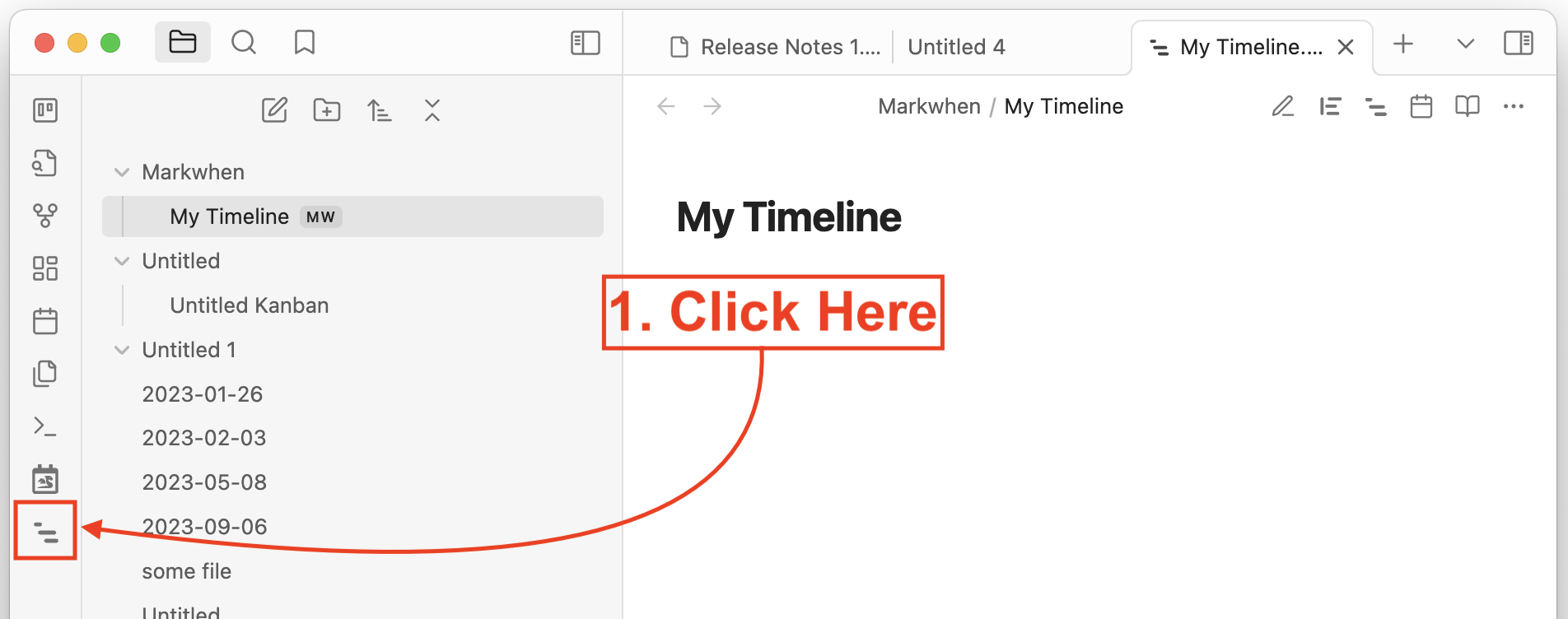
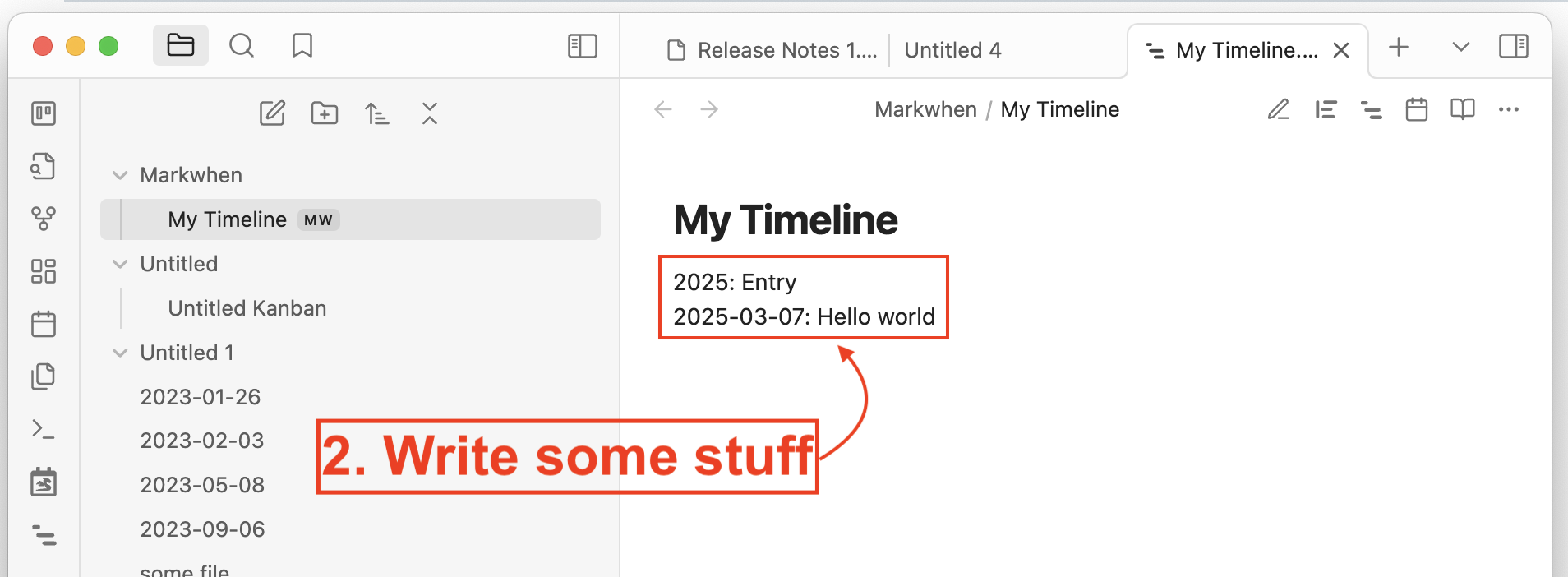
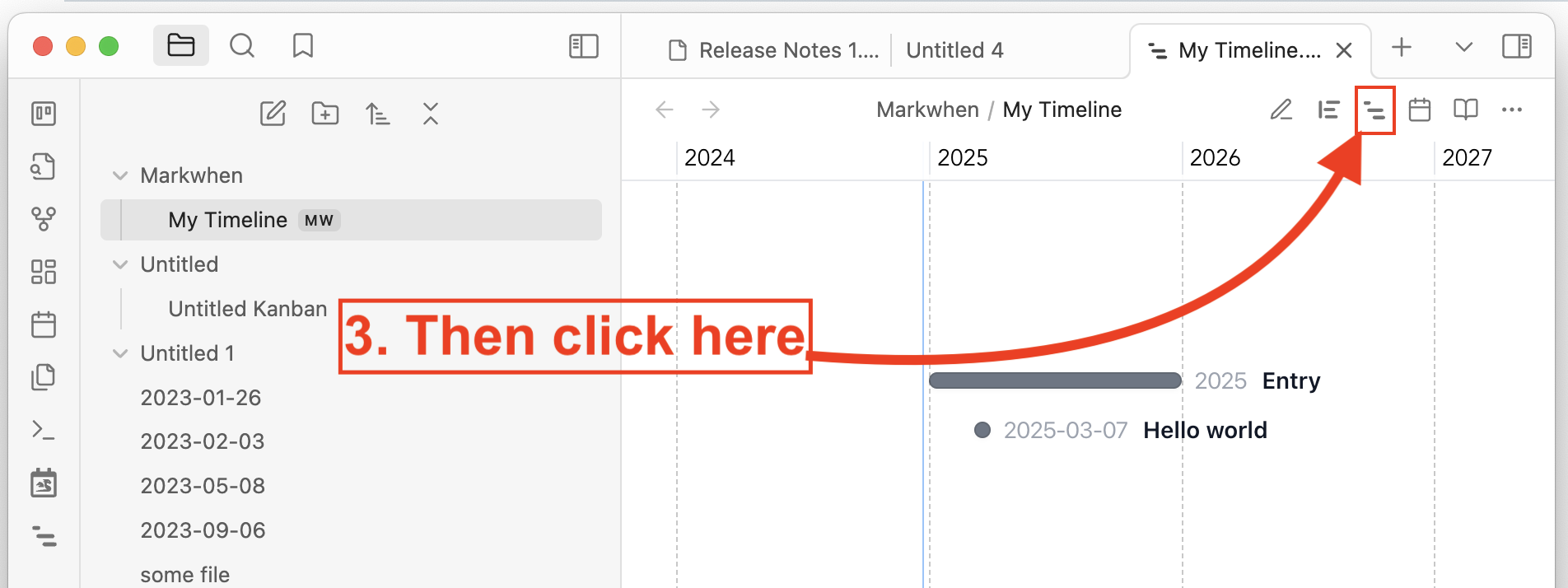

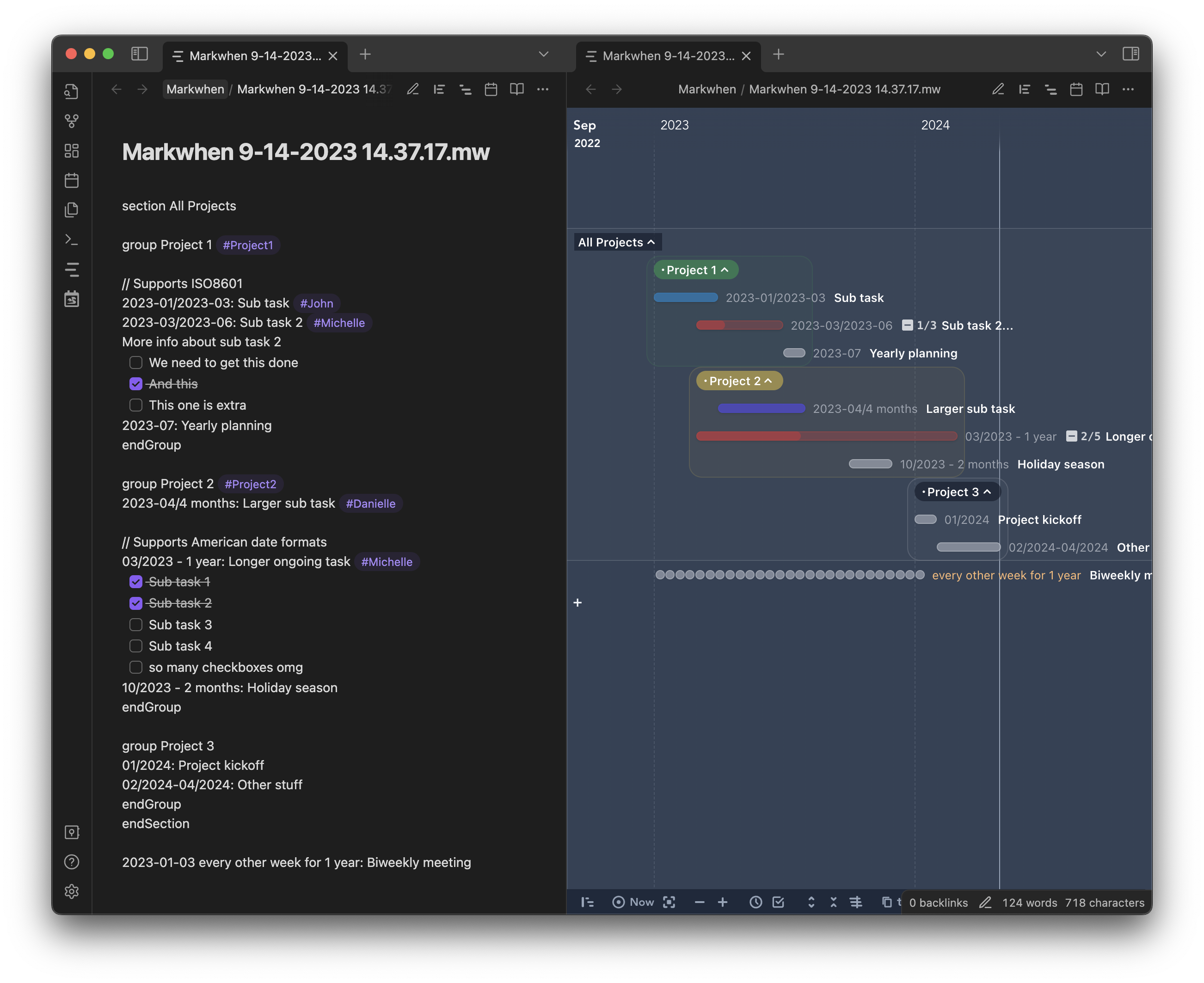
This plugin integrates Markwhen into Obsidian.md. You can use markwhen syntax to create timelines.
[!Note]
Latest release: 0.0.4
Document version: 0.0.4
Installation
[!Note]
Make sure that you are not in the Restricted Mode.
Install from official plugin distribution
- In Obsidian, open Settings.
- Under Community plugins, click Browse.
- Search for "Markwhen" and then select it.
- Select Install, then enable it.
You can also find and install Markwhen plugin here: https://obsidian.md/plugins?search=Markwhen
Install via BRAT
Register https://github.com/mark-when/obsidian-plugin in BRAT to receive upcoming releases automatically before we got reviewed from Obsidian team!
Install the plugin manually
- Go to the repo's latest release page, and download
main.js,manifest.jsonandstyles.css(or the zip file). - Copy these files to your local path
[your vault]/.obsidian/plugins/markwhen/. - Relaunch Obsidian, or refresh the plugin list, you will see this plugin.
- In the plugin list, enable
Markwhenand enjoy!
Development
Ensure you first have Obsidian installed, and set up a development vault.
You can download and enable the Hot-Reload plugin in the dev vault to experience a smooth debugging workflow. Every time main.js, manifest.json or styles.css updates, it will trigger an auto-reload.
Linux / MacOS developers
If the path to your vault is something other than ~/Documents/Obsidian Vault, update copyAssets.sh to point to your vault's location.
git clone [email protected]:mark-when/obsidian-plugin.git
cd obsidian-plugin
npm i
npm run vite
Windows developers
Since there's no watch command out-of-the-box, you can place the repo right in the dev vault config directory (i.e. [your vault]/.obsidian/plugins/markwhen/), and set the outDir to ./ in vite.config.ts (vite complains about this).
cd your-dev-vault/.obsidian/plugins
git clone [email protected]:mark-when/obsidian-plugin.git markwhen
cd markwhen
npm i
npm run vite
[!Note] The plugin id in the manifest is
markwhen, indicating users will find their plugin under the.obsidian/plugins/markwhendirectory if they install this plugin from official Obsidian distribution.