
README file from
GithubMarkdown Password
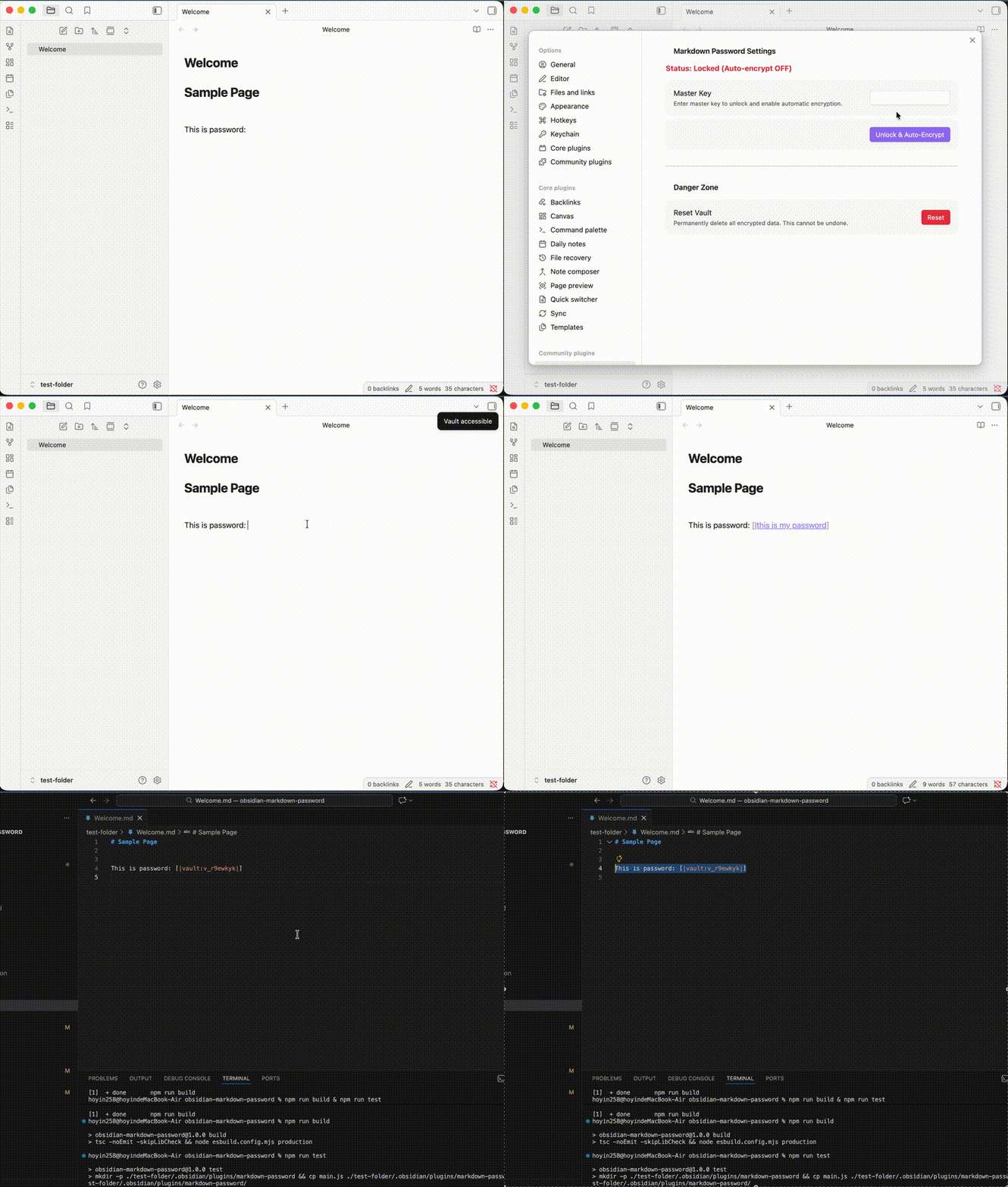
Markdown Password is a professional-grade Obsidian plugin that introduces a standardized, secure way to embed encrypted secrets directly into your Markdown files. It advocates for the universal format [|vault:id|], ensuring your sensitive data remains private even when your notes are processed by cloud services or AI.
🎯 Design Philosophy
This plugin is designed with three core objectives:
- Markdown-Native Secrets: Establish
[|vault:id|]as a standard for secrets. Only the ID is stored in the.mdfile, keeping your content clean and sync-safe. - Privacy from AI & Cloud: Since the actual secrets are decoupled from the Markdown text, they are invisible to AI models (LLMs), sync providers (iCloud/Dropbox), and search indexers.
- Auditability & Visibility: While secrets are hidden from the file, they remain accessible within Obsidian for the user. Any modification to the secrets can be tracked via logs, providing a clear audit trail for sensitive operations.
🌟 Key Features
- Zero-Persistence Model: Your Master Key and decrypted Vault Key live only in RAM. They are never written to disk.
- Auto-Encryption: Simply type
[|your-secret|]and the plugin automatically converts it to a secure[|vault:id|]placeholder. - Seamless Integration: Works in both Editor (Live Preview) and Reading modes, revealing the real secret only when authorized.
- Decoupled Storage: Secrets are stored in a local
vault.json, isolated from your primary vault content.
🚀 How to Use
1. Initial Setup
When you first use the plugin, you will be prompted to set a Master Key.
[!CAUTION] Warning: There is no "Password Recovery" feature. If you lose your Master Key, your secrets cannot be decrypted.
2. Create/Encrypt a Secret
In the editor, simply type your secret inside the password brackets: [|my-secret-password|].
If your status is Unlocked (Auto-encrypt ON), the plugin will automatically:
- Encrypt the text using AES-256-GCM.
- Store the encrypted data in
vault.json. - Replace your text with a secure placeholder:
[|vault:v_abc123|].
[!IMPORTANT] If the vault is Locked, typing
[|secret|]will remain as plain text and will not be protected.
3. Unlock/Lock Secrets
- Unlock & Auto-Encrypt: Use Command Palette (
Cmd + P) ->Markdown Password: Unlock & Auto-Encrypt. Enter your Master Key to reveal all secrets and enable automatic encryption for new input. - Lock & Disable Encryption: Use Command Palette (
Cmd + P) ->Markdown Password: Lock & Disable Encryption. This clears the keys from memory and stops the auto-encryption process.
🛡️ Security Specs & Privacy
Cryptography
- Key Derivation: PBKDF2 with 100,000 iterations and SHA-256 salt.
- Encryption: AES-256-GCM (Authenticated Encryption).
- Zero-Storage: The Master Key is never stored on disk.
Data Storage
- Vault File: All encrypted payloads are stored in
.obsidian/plugins/markdown-password/vault.json. - Sync Recommendation: For maximum security, we recommend excluding
vault.jsonfrom your sync provider (e.g., adding it to.gitignoreor unchecking it in Obsidian Sync).
⚙️ Installation
Community Plugins (Coming Soon)
Search for Markdown Password in the Obsidian Community Plugins browser and click Install.
Manual Installation
- Download
main.js,manifest.jsonfrom the latest release. - Create a folder named
markdown-passwordin your vault's plugin directory:<vault>/.obsidian/plugins/. - Move the downloaded files into that folder.
- Reload Obsidian and enable the plugin in Settings.
🛠️ Local Development
- Clone the repository.
- Install dependencies:
npm install. - Build the plugin:
npm run build. - Run unit tests:
npm run unit-test.
📄 License
This project is licensed under the MIT License.
Created with ❤️ by [hoyin258]