
README file from
GithubMap Of Content for Obsidian
With this plugin, you will always know exactly where you are in your vault and how all of your notes are connected to each other. It helps you organize your notes in a decentralized manner, where every note is connected to a central note through different other notes.
It will find the shortest path from the central note to the currently open note and display it. It will also display the notes that are hierarchically below the current note (it's descendants) and their descendants.
It there are different paths to any one note that have the same length, they will all count. That way a note can have several parents and show up in different contexts, just like thoughts in your brain and ideas in real life tend to do do.
Because it generates this information from the links in your notes, the structure stays flexible and can adapt to any changes you make to your links. It will automatically update when you switch between notes, so you don't have to do anything to keep it up to date. You can also trigger a manual update by clicking on the little sync icon in the top bar.
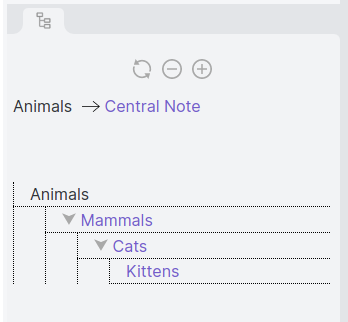
This Map of Content will be displayed in the plugin pane, right of the editor. You can choose which note should be at the center of your vault in the settings tab.
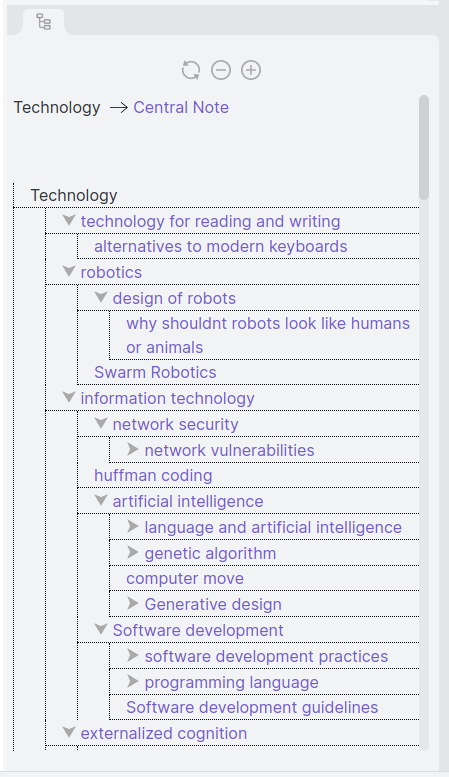
Here's another example of what the view can look like if you have a lot of notes:
You can download it by searching for "Map of Content" in the Obsidian community plugin store.