
README file from
Github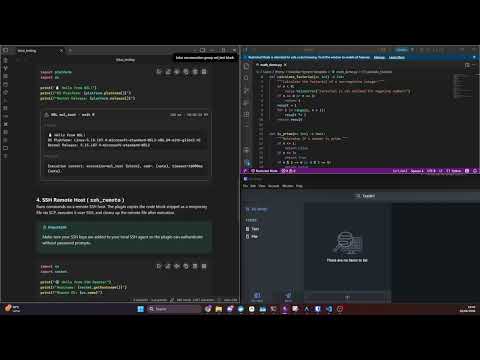
lotus
Obsidian plugin for executing ordinary fenced Markdown code blocks.
lotus is intended for research and exploratory notes where code, proofs, solver queries, and runtime output should stay readable in the document. It adds execution controls to normal fenced code blocks and renders transient output beneath the block. The source block is not rewritten into a plugin-specific format.
Model
lotus treats a fenced block as executable when the fence info string resolves to a supported language alias. The parser walks the active Markdown buffer, skips managed lotus output sections, normalises the fence language, and creates a stable block descriptor.
Each block receives an ID derived from these values:
- Vault-relative file path
- Supported block ordinal
- Normalised language
- Source content hash
That ID is used for output replacement and toolbar state. Rerunning a block updates the existing output panel instead of appending another panel.
Installation
Via Community Plugins
If Lotus is listed in the Community Plugins directory, install it from Settings > Community plugins > Browse.
Manual Installation
- Download
main.js,manifest.json, andstyles.cssfrom the latest release. - Create a folder named
lotusunder your vault's plugin directory:<vault>/.obsidian/plugins/lotus/. - Copy the downloaded files into that directory.
- Reload Obsidian and enable lotus in the Community Plugins list.
Security
Lotus executes code blocks locally on your machine without sandboxing or isolation by default.
[!CAUTION] Running code blocks in untrusted notes can execute malicious commands on your host machine. Lotus displays a consent modal before allowing local execution. For security isolation, consider setting up Execution Groups to run code inside Docker/Podman containers or remote SSH/QEMU environments.
Community Directory Disclosures
Lotus is desktop-only because it uses Node.js APIs and local processes for code execution, hashing, signing, logging, and toolchain integration.
Lotus does not include client-side telemetry, dynamic ads, static ads, or a self-updater. It does not send data to a remote service unless you configure a feature that requires one.
Optional features that can use the network:
- SSH and QEMU execution groups connect to the targets you configure.
- Docker and Podman execution groups may pull images if your local runtime is configured to do so.
- The HTTP logging sink posts structured execution events to the endpoint you configure.
Optional features that can access files or processes outside the vault:
- Native code execution runs local interpreters, compilers, and helper processes.
- Execution groups can run Docker, Podman, WSL, SSH, QEMU, or custom wrapper commands.
- OpenSSH signing can call
ssh-keygenand use configured key files orSSH_AUTH_SOCK. - Logging can write to vault-relative files, per-note files, or a local process sink that you configure.
Lotus is licensed under the MIT license. See LICENSE.
Quick Start
- Enable the plugin.
- In any Markdown file, create a standard fenced code block:
```python print("Hello from lotus!") ``` - Hover over the block and click the Run button on the floating toolbar to execute the block and view the output.
Supported Languages
Languages are grouped into vault-level packages. You can enable only the packs you need, and optionally disable individual languages inside them.
| Package | Languages | Typical Vault |
|---|---|---|
| Interpreted | Python, JavaScript, TypeScript, Shell, Ruby, Perl, Lua, PHP, Go, Haskell, OCaml | ops notes, scripting, research scratchpads |
| Obsidian Context | Obsidian JavaScript | vault and plugin integration snippets |
| Native Compiled | C, C++ | systems, exploit dev, native debugging |
| Managed Compiled | Rust, Java | application and service notes |
| Proofs | Lean, Coq, SMT LIB | formal methods, solver work |
| LLVM | LLVM IR | compiler and PL research |
| eBPF | eBPF C, bpftrace | kernel tracing, observability, verifier experiments |
| Custom languages | User-defined command-backed languages | toy languages, local DSLs, project-specific tools |
By default, every built-in package is enabled. Use Language Packages in settings to customize your active languages.
Managed Output
By default, lotus does not write output into the note. If Write output back to note is enabled, lotus writes managed regions under blocks:
<!-- lotus:output:start id=<stable-block-id> -->
```text
runner=Python
exit=0
duration=8ms
timestamp=2026-06-20T00:00:00.000Z

stdout:
hello
```
<!-- lotus:output:end -->
The parser skips these regions and generated output blocks are never executed.
Output Window Limits
Output panels can be capped to a visible line window while keeping the full output scrollable. Set Visible output lines in settings for a vault-wide default, or use the lotus-output-lines=20 attribute on a specific block. Use 0 to keep output unlimited.
Redirection to Files
Blocks can materialise output into vault files with lotus-output-file="path/to/file.txt". Relative paths resolve from the note folder, leading slash paths resolve from the vault root, and lotus creates missing parent folders. By default, the file receives stdout and is overwritten on each run.
Use lotus-output-file-mode=append, lotus-output-file-streams=metadata,stdout,stderr,warning, or lotus-output-file-format=json when a block needs a different artifact shape.
Standard Input (Stdin)
Blocks can receive standard input through the toolbar input control or through attributes. Click the stdin toolbar button to open a per-block input buffer. For reproducible notes, use lotus-stdin="line one\nline two" or lotus-stdin-file="inputs/payload.txt". The attribute lotus-input=true keeps the input field visible whenever the note renders.
Observability
Lotus can write execution, note mutation, reproducibility, and signature events to text logs, JSONL logs, per-note logs, a local process, or a remote HTTP endpoint. Structured event payloads support redaction rules before they leave the plugin.
Use lotus: Open Log Viewer to inspect the configured JSONL log inside Obsidian. See Observability, Logging, and Signing for sink configuration, redaction rules, live input behavior, and cryptographic note signatures.
Advanced Topics
For more specialized setups, refer to the guides in the docs/ directory:
- Custom Languages: Configure local interpreters, JSON request/response schema extractors, and C transpilation strategies.
- Execution Groups: Run code blocks inside Docker/Podman containers, WSL distros, remote SSH nodes, or local QEMU virtual machines.
- Partial Source Extraction: Run a specific symbol or line range from an external file, and generate function call harnesses.
- eBPF Execution: Compile BPF programs, inspect ELF objects, and load probes safely.
- Hashing & Reproducibility: Verify notes and code blocks against snapshots to guarantee document reproducibility.
- Observability, Logging, and Signing: Configure local/remote logs, redaction rules, log viewing, live input, and note signatures.
- Developer Guide: Runner API contracts, Obsidian context (
obsidian-js) integrations, and the smoke testing suite.
- Process Branch model PR expectations and release tagging checklist
Commands Reference
Lotus registers several commands in the Obsidian command palette (Ctrl/Cmd + P):
lotus: Run Current Code Block: Executes the block under the cursor.lotus: Run All Supported Code Blocks in Current Note: Executes all runnable blocks in the active file.lotus: Cancel Current Code Block: Stops the running block under the cursor.lotus: Cancel All Running Code Blocks: Stops all active block runs.lotus: Clear lotus Outputs in Current Note: Removes all rendered output panels and written output blocks in the active file.lotus: Open Log Viewer: Opens the structured JSONL log viewer.lotus: Save Reproducibility Snapshot: Saves the current block and note hashes to the note's frontmatter.lotus: Verify Reproducibility Snapshot: Compares the current note against the saved snapshot.lotus: Sign Current Note: Signs the active note's reproducibility payload.lotus: Verify Current Note Signature: Verifies the active note againstlotus-signature.lotus: Copy Current Note Signature: Copies the active note signature as JSON.lotus: Sign All Notes: Signs every Markdown note in the vault.lotus: Verify All Note Signatures: Verifies note signatures across the vault.
See docs/reproducibility.md for the complete list of hashing and verification commands.
See docs/observability.md for logging and signing configuration.
Development
Native Toolchains
To run languages natively on your host machine, their compilers or interpreters must be installed and available in Obsidian's PATH. See docs/development.md for details on toolchain configurations.
Build from Source
To build the plugin locally:
npm install --legacy-peer-deps
npm run build
Smoke Tests
To run the smoke suite locally:
npm run smoke -- --profile minimal
On Windows, use the Python launcher name available on the runner or workstation:
$env:LOTUS_SMOKE_PYTHON = "python"
npm run smoke -- --profile minimal
For the Windows systems profile, point the smoke harness at the host C/C++ compiler if it is not already on PATH:
$env:LOTUS_SMOKE_C = "gcc"
$env:LOTUS_SMOKE_CPP = "g++"
npm run smoke -- --profile systems