
README file from
GithubLexiNote
Learn English vocabulary in the notes you already write.
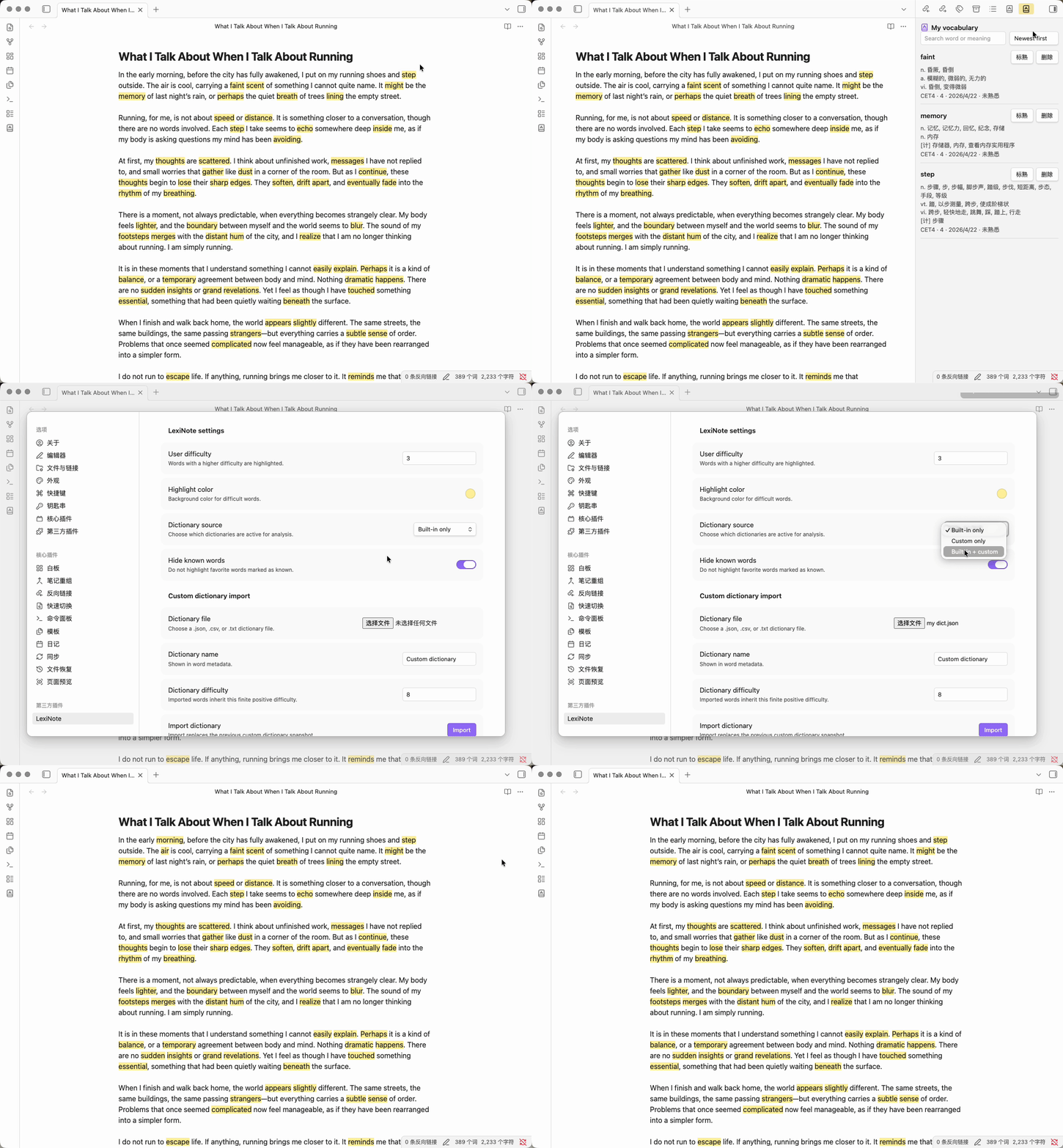
LexiNote is an Obsidian plugin that highlights difficult English words while you read or write, shows quick meanings on hover, and lets you save useful words into a lightweight vocabulary library. It is designed to stay close to your writing flow: no separate study app, no context switch, just small vocabulary moments inside your vault.
Why LexiNote
If you write journals, reading notes, essays, or blog drafts in English, unfamiliar words often appear right where your ideas are forming. LexiNote helps you notice those words, understand them quickly, and keep the useful ones for later review.
It works especially well for:
- English learners who use Obsidian as a reading or writing workspace.
- Writers who want vocabulary help without leaving the current note.
- Learners who want CET4 / CET6 style difficulty hints and custom dictionaries.
- Multilingual review workflows, such as English -> Chinese or English -> Japanese.
Features
- Real-time highlighting for difficult English words in Markdown notes.
- Hover cards with local meanings and dictionary metadata.
- A current-document word list that summarizes the difficult words in the active note.
- One-click saving to a personal Vocabulary Library.
- Vocabulary Library search, sorting, known-word markers, and deletion.
- Built-in CET4 / CET6 dictionaries derived from ECDICT.
- Custom dictionary import from
JSON,CSV, andTXTfiles. - Configurable user difficulty, highlight color, dictionary source, and known-word hiding.
- Markdown-aware analysis that skips inline code, fenced code blocks, URLs, and wikilinks.
Install From Obsidian Community Plugins
- Open Obsidian.
- Go to
Settings -> Community plugins. - Turn off
Restricted modeif Obsidian asks you to do so. - Click
Browseto open the Community plugins marketplace. - Search for
LexiNote. - Click
Install. - After installation, click
Enable.
After enabling LexiNote, a book icon appears in the left ribbon. Click it to open the current document word list. You can also run these commands from the command palette:
LexiNote: Reanalyze active documentLexiNote: Open current document word listLexiNote: Open vocabulary library
Quick Start
- Open an English note in Obsidian.
- Write or paste a few English paragraphs.
- LexiNote highlights words that are above your configured difficulty.
- Hover a highlighted word to see its meaning.
- Click the LexiNote ribbon icon to review all difficult words found in the current note.
- Save useful words to
My Vocabulary, then mark familiar words as known when you no longer need them highlighted.
You can adjust LexiNote in Settings -> Community plugins -> LexiNote.
Custom Dictionary Import
LexiNote can import custom dictionaries from JSON, CSV, and TXT files. Imported entries are stored locally in your Obsidian plugin data. The import UI asks for a dictionary name and difficulty, and every imported word inherits those values.
Custom dictionaries are language-flexible. LexiNote only needs the source word to be English, while meaning can be Chinese, Japanese, Korean, French, or any other target language you want to review. For example, the same English word can be imported as English -> Chinese or English -> Japanese by changing only the meaning text.
JSON
Use an array of objects with word and optional meaning fields:
[
  {
    "word": "meticulous",
    "meaning": "非常细致的;一丝不苟的"
  },
  {
    "word": "resilient",
    "meaning": "回復力のある;しなやかな"
  }
]
CSV
Use a header row with word,meaning:
word,meaning
nuance,细微差别
cohesive,まとまりのある;結束した
elaborate,详细说明;精心制作的
TXT
Use one English word per line:
meticulous
resilient
scrutiny
TXT imports do not include local meanings, so hover cards and lists show 暂无本地释义.
Development
Requirements
- Node.js 18 or newer
- npm
- Obsidian Desktop
- A local Obsidian vault for testing
Commands
Install dependencies:
npm install
Run unit tests:
npm test
Run type checking:
npm run typecheck
Build the plugin:
npm run build
Development build:
npm run dev
Install Into A Local Vault
Replace /path/to/TestVault with your local Obsidian vault path:
mkdir -p "/path/to/TestVault/.obsidian/plugins/lexinote"
cp manifest.json main.js styles.css "/path/to/TestVault/.obsidian/plugins/lexinote/"
The plugin directory should contain:
/path/to/TestVault/.obsidian/plugins/lexinote/
  manifest.json
  main.js
  styles.css
Enable In Obsidian
- Open the test vault in Obsidian.
- Go to
Settings -> Community plugins. - Turn off
Restricted modeif needed. - Refresh the installed plugins list.
- Enable
LexiNote.
After enabling, the left ribbon should show the LexiNote book icon.
Local Acceptance Path
Use this quick note to verify the happy route:
Today I encountered a peculiar problem.

This robust tool provides a comprehensive workflow.

`peculiar should not be highlighted inside inline code`

```text
robust should not be highlighted inside fenced code
```

Visit https://example.com/peculiar and check [[robust link target]].
Expected behavior:
peculiar,robust, andcomprehensiveare highlighted in normal prose.- Inline code, fenced code, URLs, and wikilinks are excluded.
- Hovering a highlighted word shows its meaning.
- The LexiNote ribbon icon opens the current document word list.
- The current document word list has a
My Vocabularybutton for opening Vocabulary Library.
For the full manual acceptance checklist, see docs/4_LOCAL_TESTING.md.
Test Fixtures
Sample files for local custom dictionary import testing are available in:
tests/fixtures/imports/custom-academic.json
tests/fixtures/imports/custom-writing.csv
tests/fixtures/imports/custom-txt-words.txt
TXT imports do not include local meanings, so they are useful for validating the no-local-meaning display.
Release
Example: release version 0.1.5 to GitHub.
gh release create 0.1.5 main.js manifest.json styles.css -t "0.1.5"
License
MIT