
README file from
GithubLeetCode for Obsidian
Browse, solve, and note LeetCode problems inside your Obsidian vault. Every solved problem becomes a first-class note — tagged, linked, and discoverable — so practice builds a knowledge graph instead of scattered code files.
Features
- Browse the LeetCode problem list with search + difficulty/status filters
- Open any problem as an Obsidian note with locked frontmatter and a
## Problemstatement rendered as Markdown - Write solutions in a native fenced code block — no custom editor, no separate editor pane
- Run your code against sample or custom test cases with
LeetCode: Run - Submit to LC's judge with
LeetCode: Submit; every verdict type (AC, WA, TLE, MLE, CE, RE) is surfaced - On Accepted, the plugin updates frontmatter and writes
[[Technique]]backlinks, turning your vault into a knowledge graph of solving techniques - Browse your past LC submissions with
LeetCode: View past submissions - Previously fetched problems stay readable offline
Install
From the Obsidian community plugin store (recommended, after v0.1.0 acceptance)
- Open Obsidian → Settings → Community plugins → Browse
- Search for
LeetCode - Install, then Enable
Manual install (from release assets, pre-acceptance)
- Download
manifest.json,main.js, andstyles.cssfrom the latest GitHub release - Copy them into
.obsidian/plugins/leetcode/inside your vault - Open Obsidian → Settings → Community plugins → enable
LeetCode
Usage walkthrough
-
Install and enable the plugin.
-
Log in: Settings → LeetCode →
Log in. An embedded window captures yourleetcode.comsession cookie after you sign in normally. If the embedded window does not work on your platform, paste yourLEETCODE_SESSIONcookie into the manual-cookie field instead. -
Open the problem browser via the ribbon icon or the
LeetCode: Open problem browsercommand.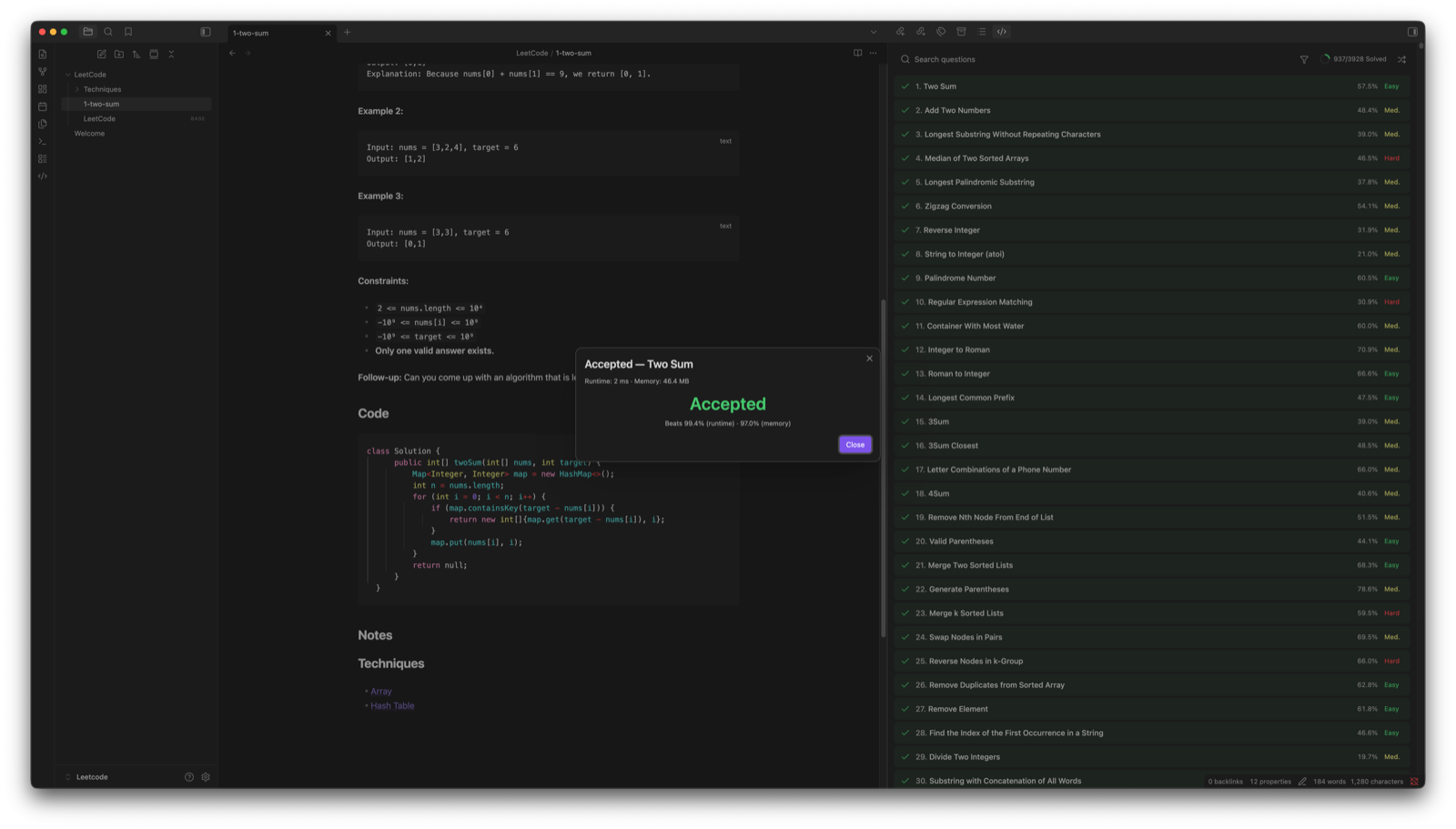
-
Click any problem. The plugin creates a note at
{Problems folder}/{id}-{slug}.mdwith the problem statement, frontmatter, and a fenced code block ready for your solution.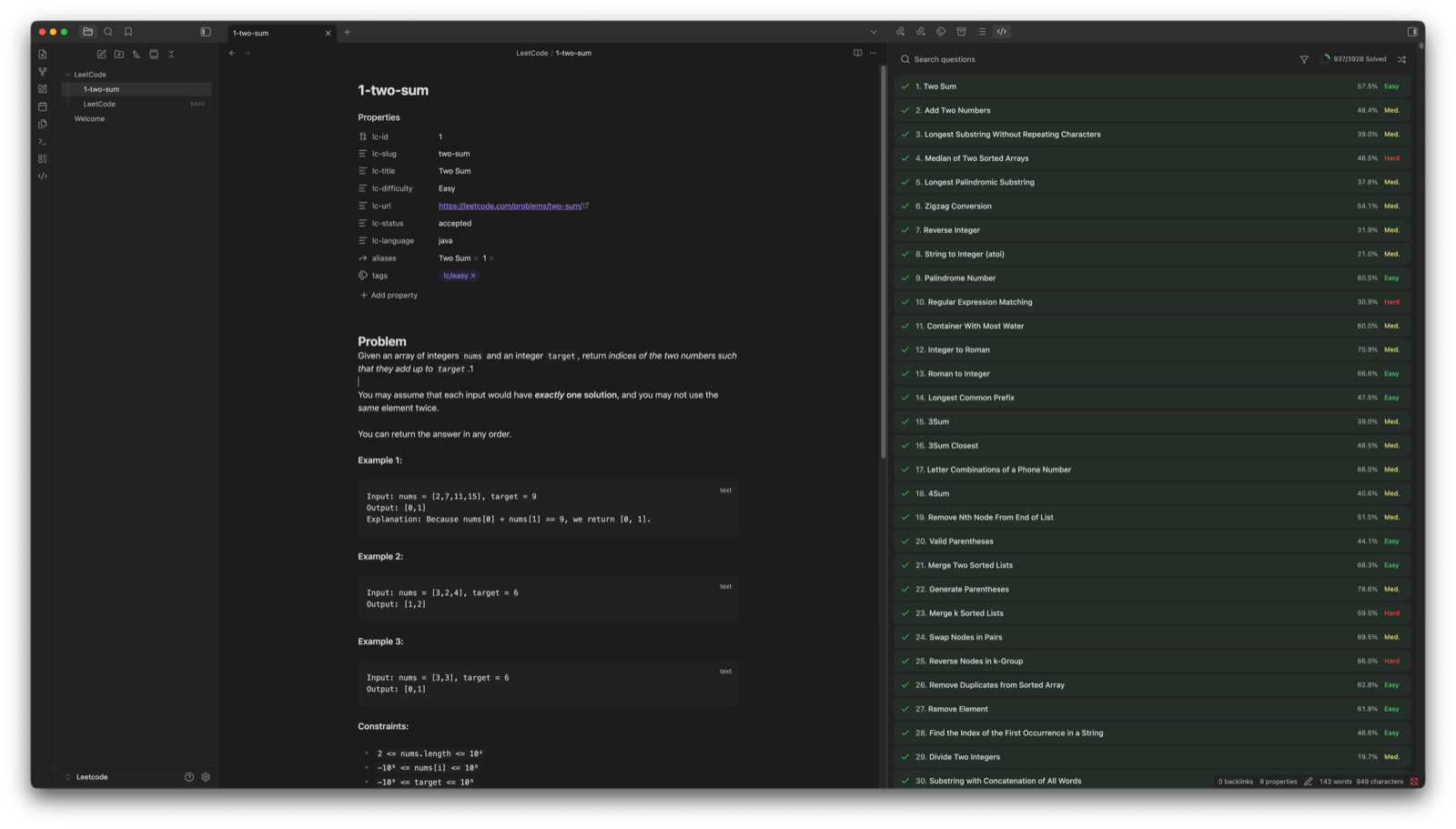
-
Write your solution in the
## Codefenced block.RunandSubmitbuttons appear inline directly below the code block in both Reading mode and Edit mode (Live Preview + Source). The command palette (LeetCode: Run,LeetCode: Submit) also works. -
When you are ready, click
Submit. The verdict modal shows the result, runtime, memory, and percentile: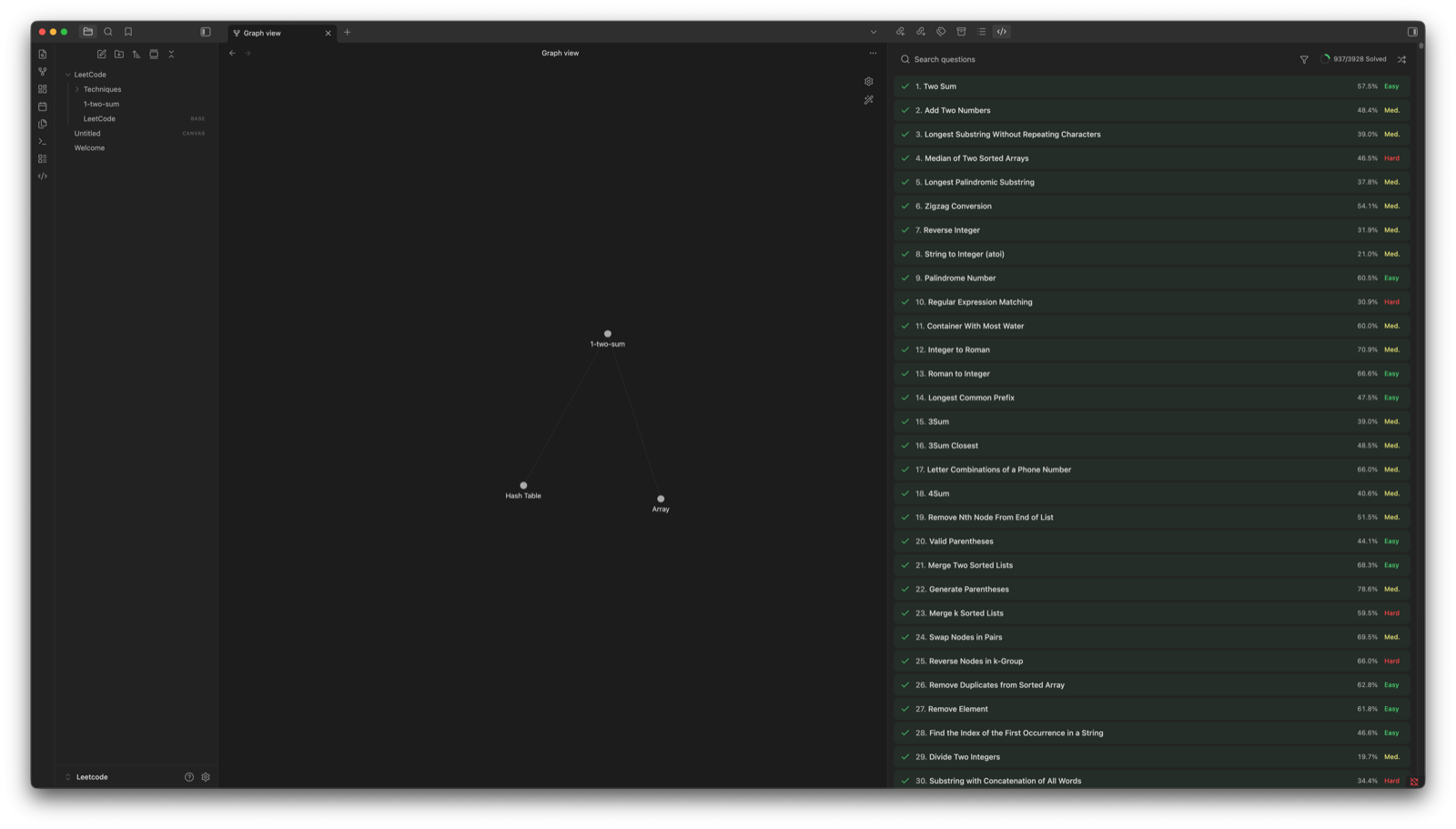
-
On Accepted, the plugin writes
[[Technique Name]]wikilinks under a## Techniquessection and creates stub technique notes. Open Obsidian's Graph view to see the knowledge graph forming: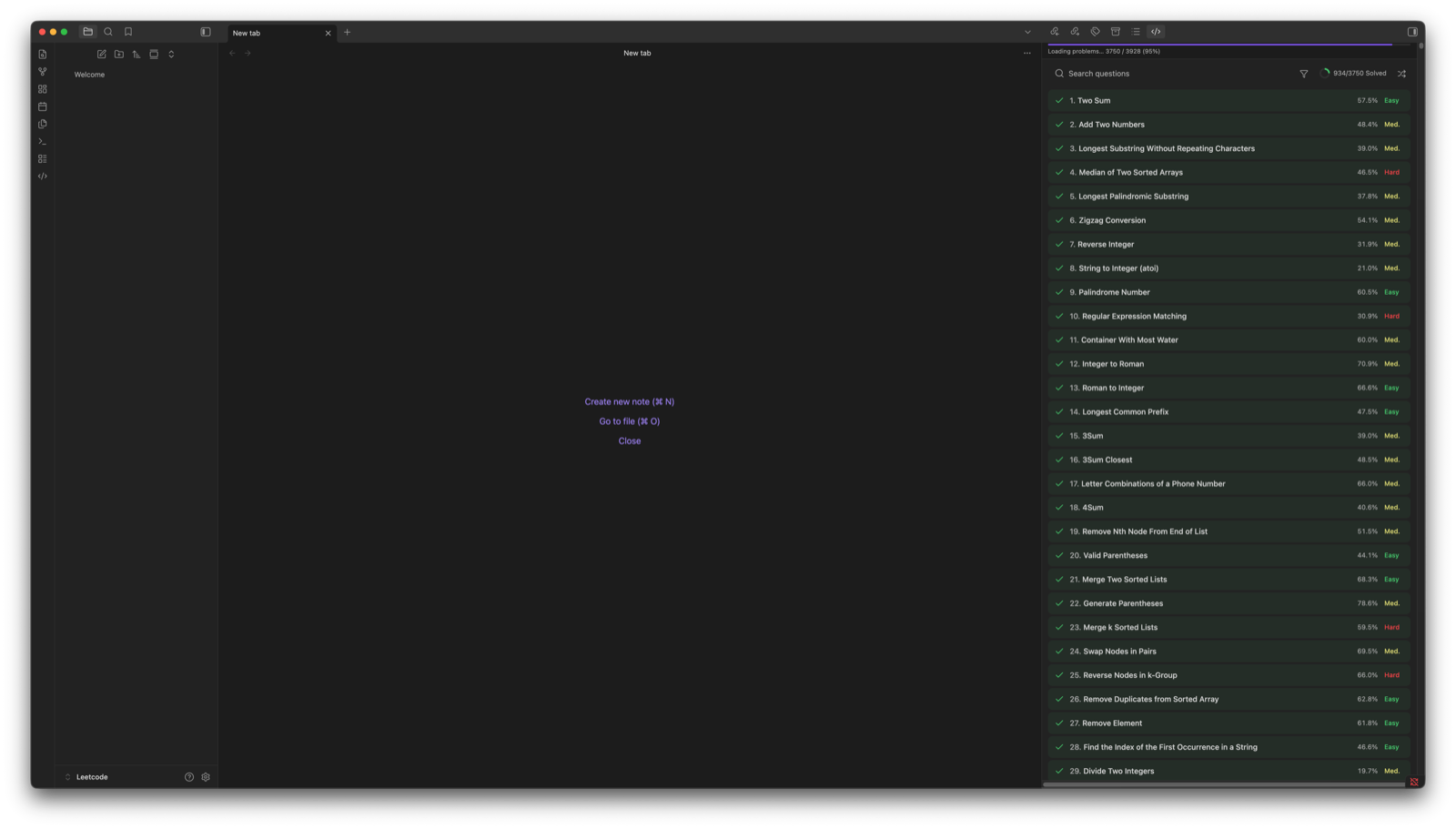
Network usage
This plugin communicates with leetcode.com to fetch problems and submit solutions. No other network endpoints are contacted.
Authentication is handled via an embedded Obsidian BrowserWindow that captures your LC session cookie after you sign in. The cookie is stored only in .obsidian/plugins/leetcode/data.json on your local machine, is never transmitted anywhere except leetcode.com, and is never logged.
Configuration
Open Settings → LeetCode. Three sections:
- Authentication — log in, log out, or paste a session cookie manually as a fallback.
- Notes — choose the vault folder for problem notes (default:
LeetCode) and the default language (default:python3). - Knowledge Graph — override the technique-notes folder (defaults to
{Problems folder}/Techniques) and toggle automatic technique backlinks on Accepted submissions.
Troubleshooting
LeetCode session expired. Log in again.— your session cookie is no longer valid. Click theLog inaction on the Notice, or open Settings → LeetCode →Log in.LeetCode is rate limiting us. Try again in a moment.— LC returned HTTP 429. The plugin auto-retries once after a short backoff; if you see this twice in a row, wait a few seconds and retry manually.Couldn't reach LeetCode. Check your connection.— your machine cannot reachleetcode.com(offline, DNS issue, firewall). Plugin does not auto-retry network failures.LeetCode is slow to respond. Try again.— LC did not answer within 10 seconds. Judge or network latency; retry manually.- Run/Submit buttons don't appear — verify the note has
lc-slugin its frontmatter (only LC-problem notes show the buttons). The buttons render in both Reading mode and Edit mode (Live Preview + Source). If they still don't appear after toggling the plugin off and on, check the developer console (Cmd-Option-I) for errors.
Section Locking
Problem notes (any note with an lc-slug frontmatter entry) make plugin-owned regions read-only in Edit Mode (Live Preview + Source). The lock is silent: typing or pasting into a locked region simply has no effect — there's no Notice or warning. If you find yourself typing and the keystroke isn't appearing, check the heading you're under.
Locked regions (read-only):
## Problem            ← heading + entire body
## Code               ← heading line only
```python             ← fence opener (including the language tag)
```                   ← fence closer
## Techniques         ← heading line only
## Notes              ← heading line only
Editable regions:
- The
## Codebody between the opening and closing fence — this is your active solving surface. - The
## Techniquesbody — you can add manual[[Wikilinks]]here; future AI-driven analysis will also write here. - The
## Notesbody — your own notes about the problem, fully under your control. ## Custom Tests(legacy section) — never locked; the plugin doesn't read or write it.
Why this exists: the plugin overwrites ## Problem on background refresh, the ## Code fence body on Past Submissions / Copy-to-Code, and ## Techniques + frontmatter on Accepted submissions. Locking the heading lines and structural anchors prevents your edits from accidentally landing in regions the plugin is about to overwrite.
Switching languages: the fence opener line (e.g. ```python) is locked, so you cannot rename the language by typing into the fence tag. Use the chevron dropdown next to the Run/Submit buttons — it rewrites the opener atomically (Cmd-Z reverts the change) and updates the lc-language frontmatter.
Cursor behavior: when the cursor lands inside a locked region (via click or arrow), it automatically snaps to the nearest editable position outside. You can still select across locked regions to copy text — only typing into a locked region is suppressed.
License
Released under the MIT License.
Contributing
Issues and pull requests welcome at github.com/LikeSundayLikeRain/obsidian-leetcode.
Development
git clone https://github.com/LikeSundayLikeRain/obsidian-leetcode
cd obsidian-leetcode
npm install
npm run dev   # esbuild watch mode → main.js
npm test      # vitest
For local testing, copy main.js, manifest.json, and styles.css into <your-vault>/.obsidian/plugins/leetcode/ and reload the plugin.