
README file from
GithubObsidian Japanese Popup Dictionary
A fast, offline popup dictionary for Japanese learners using Obsidian.
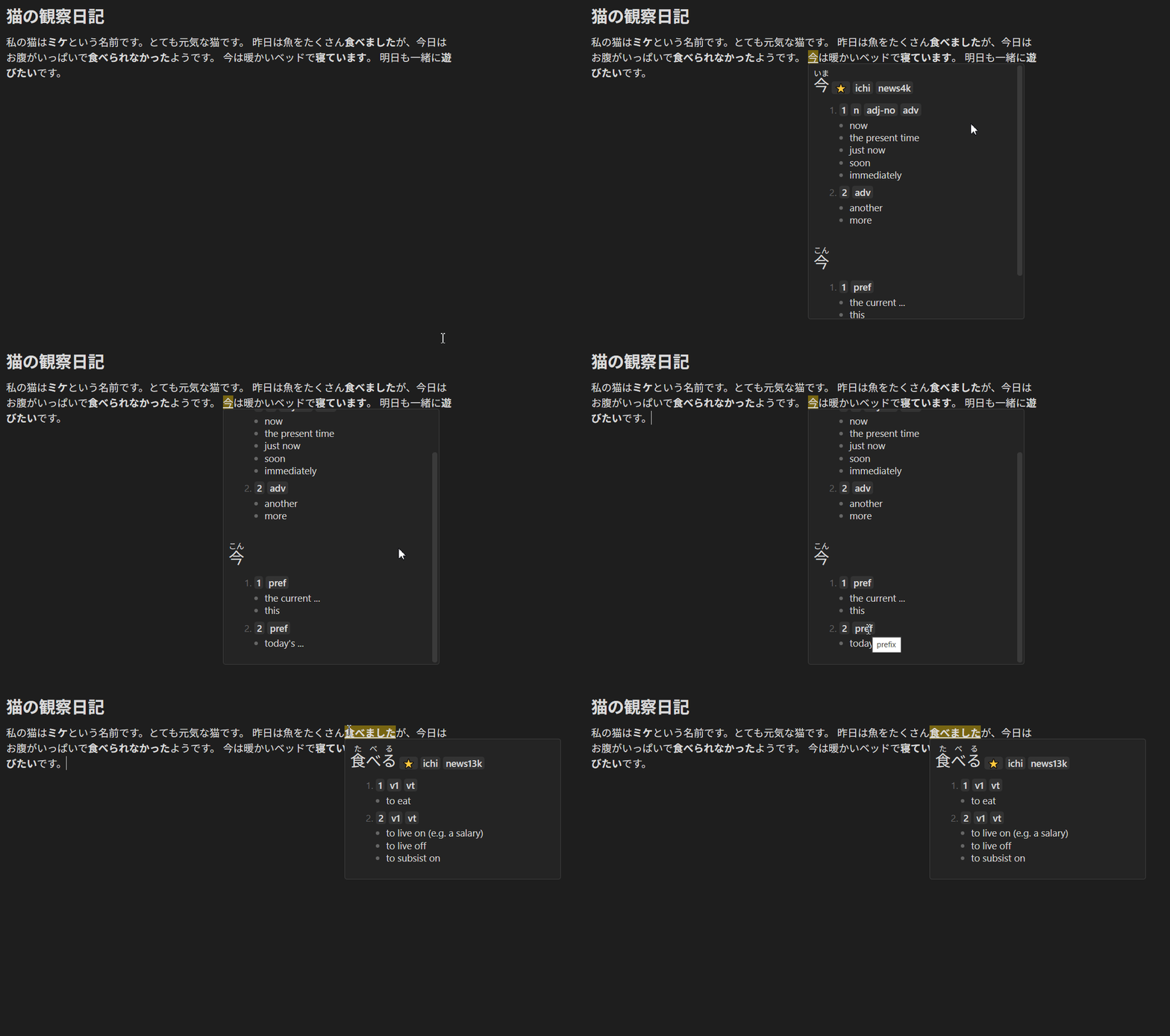
Features
- Instant Lookups: fast local lookups using IndexedDB.
- Yomitan/Yomichan Compatible: Supports Yomitan dictionary formats (JMdict, Jitendex, etc.).
- Deinflection Support: Automatically detects conjugated verbs and adjectives (e.g., handles 食べられなかった correctly).
[!WARNING] Desktop Only: This plugin relies on Node.js and Electron APIs to handle large dictionary imports. It will not work on Obsidian Mobile (iOS/Android).
Installation
From Community Plugins
- Open Obsidian Settings > Community Plugins.
- Click Browse and search for "Japanese Popup Dictionary".
- Click Install and then Enable.
Manual Installation
- Download the latest release from the Releases page.
- Extract the
main.js,manifest.json, andstyles.cssfiles. - Place them in your vault's plugin folder:
.obsidian/plugins/japanese-popup-dictionary/. - Reload Obsidian.
Setup: Importing a Dictionary
Before the plugin works, you must import a dictionary file. This plugin uses the Yomitan (formerly Yomichan) dictionary format.
-
Download a Dictionary:
- Visit this links and download one of the dictionaries.
- Recommended: JMDict or Jitendex.
- Ensure the file is a
.zipfile (do not unzip it).
-
Open Plugin Settings:
- Go to Settings > Japanese Popup Dictionary.
-
Import the File:
- Click the Folder Icon button to open the plugin's data folder on your computer.
- Copy/Paste your downloaded dictionary
.zipfile into this folder. Make sure that there is only one zip file! - Return to Obsidian and click the Import .zip button.
- Wait for the progress bar to complete.
-
Done! You can now delete the
.zipfile from the folder if you wish.
Usage
- Open a note containing Japanese text.
- Hold the Trigger Key (Default:
Shift). - Hover your mouse over a word.
- A popup will appear with the definition.
Settings
- Trigger Key: Select which key to hold to activate the scanner (
Shift,Ctrl,Alt, orNone).- Note: Setting this to "None" causes the dictionary to scan every time you move your mouse over Japanese text.
- Enable/Disable: Quickly toggle the plugin on or off without uninstalling.
Deleting Imported Dictionary
Imported dictionaries are stored in Obsidian's internal database (IndexedDB) and consume disk space. Use one of the following methods to remove a dictionary:
- Delete via Settings: Go to the plugin settings, click the Delete dictionary button, and wait for the deletion to complete.
- Delete Manually: If the button fails, you can manually clear the database:
- Open Developer Tools (
Ctrl+Shift+Ion Windows,Cmd⌘+Option+Ion Mac). - Navigate to the Application tab.
- Expand IndexedDB in the sidebar.
- Select yomitan-dict and click Delete database.
- Restart Obsidian.
- Open Developer Tools (
[!NOTE] If the keyboard shortcut doesn't open Developer Tools, go to Settings → Appearance → Window frame style and select Obsidian frame. Restart Obsidian, then click the Obsidian logo (top-left corner) and select View → Toggle Developer Tools.
Development
If you want to contribute or build from source:
- Clone the repository.
- Run
npm installto install dependencies. - Run
npm run devto start compilation in watch mode.
Support the Developer
If you find this plugin useful, please consider buying me a coffe.