README file from
Githuball code generated by AI.
Image Hover Preview
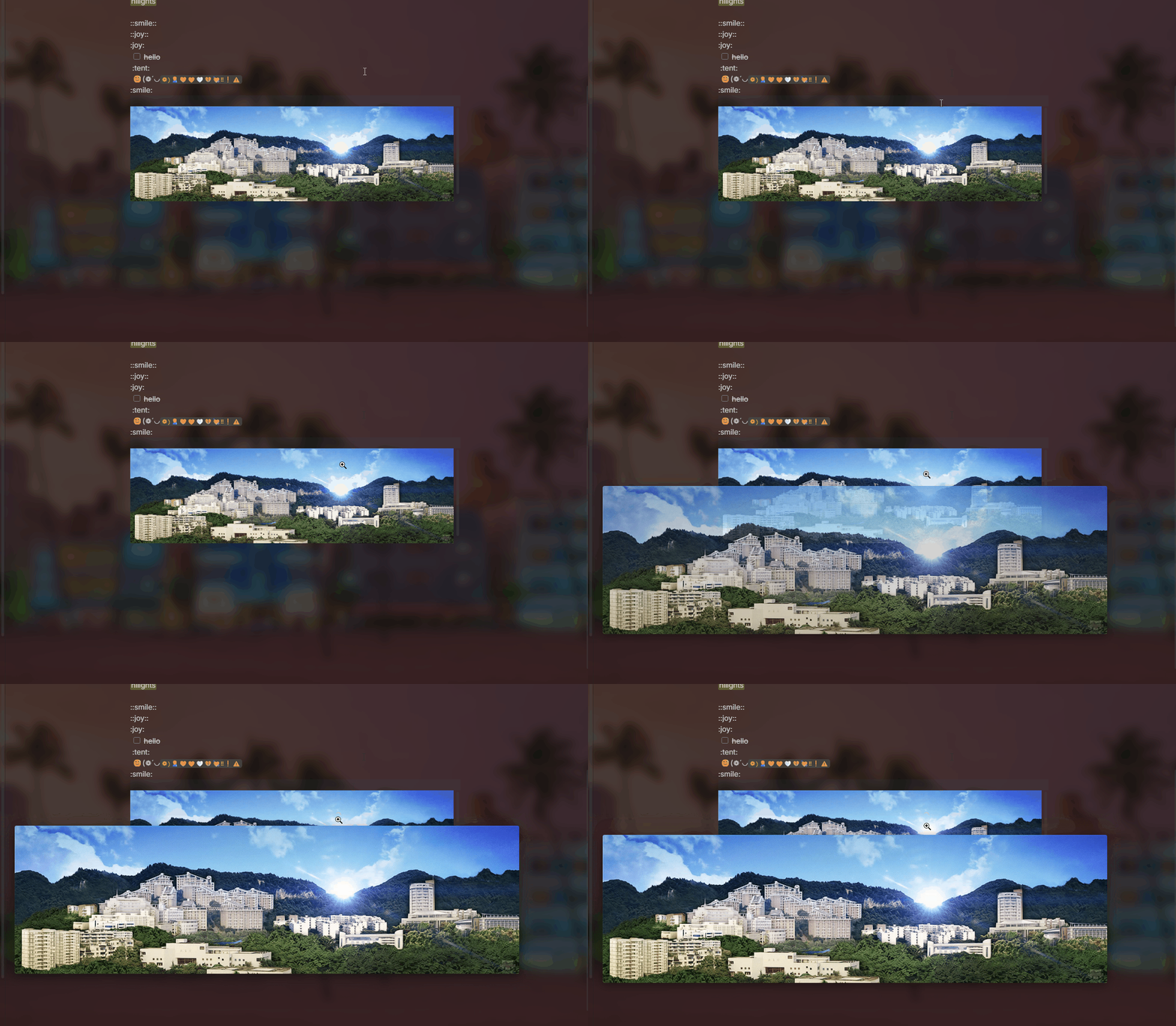
An Obsidian plugin that shows a floating preview of images when you hover over image links or Markdown image tags.


Features
- Instant preview — Hover over
![]()tags or image links to see a full-resolution preview - Smart positioning — Preview stays within the editor area, never overflows into sidebars
- Mouse tracking — Preview follows the cursor as you move around the image
- Scroll zoom — Hold a configurable key + scroll wheel to zoom in/out
- Hard zoom limit — Small images can only be enlarged until they fill the editor area, never beyond
- Zoom reset — Automatically resets to 1:1 when preview is closed and reopened
- Caption — Optionally show the file name or custom title at the bottom
- Hover delay — Configurable delay to prevent popups when the mouse just passes by
- Trigger key — Require a modifier key to activate preview
- Temporary suppression — Hold a key to temporarily disable preview (useful for screenshots or selecting text)
- Hover indicator — Visual feedback (outline / custom cursor) when hovering over a previewable element
- Loading spinner — Animated indicator while the image is being loaded
- Customizable style — Background color, border, border radius, box shadow, opacity
- Preload — Automatically scans previewable elements on page load for faster response
- Minimum size filter — Ignores small icons below a configurable size threshold
Installation
Manual
- Download
main.js,styles.css, andmanifest.jsonfrom the Releases page - Place them in your vault's plugin folder:
<vault>/.obsidian/plugins/image-hover-preview/ - Enable Image Hover Preview in Obsidian Settings → Community Plugins
Build from source
git clone https://github.com/your-repo/image-hover-preview.git
cd image-hover-preview
npm install
npm run build
Copy the output files (main.js, styles.css, manifest.json) to your .obsidian/plugins/image-hover-preview/.
Usage
Hover over any image link or Markdown image tag:
![[assets/example.png]]

Zoom
| Action | Default key | Description |
|---|---|---|
| Zoom in | Shift + scroll up | Scale up by 20% |
| Zoom out | Shift + scroll down | Scale down by 20% |
| Reset | Close & reopen preview | Back to 1:1 |
The zoom modifier key can be changed or disabled in settings.
Settings
| Setting | Default | Description |
|---|---|---|
| Enable plugin | On | Global toggle |
| Trigger key | None | Hold this key to activate preview |
| Suppress key | Ctrl | Hold this key to temporarily disable preview |
| Zoom key | Shift | Hold this key + scroll to zoom |
| Display delay | 300ms | Hover delay before showing preview |
| Opacity | 1.0 | Preview window opacity |
| Show caption | On | Display file name at the bottom |
| Hover effect | Outline | Visual feedback on hoverable elements |
| Background | #1e1e1e |
Preview window background color |
| Border | 2px solid #555 |
Preview window border |
| Border radius | 8px | Preview window corner radius |
| Box shadow | 0 8px 32px rgba(0,0,0,0.5) |
Preview window shadow |
| Min image size | 30px | Images smaller than this won't trigger preview |
| Preload | On | Scan previewable elements on page load |
Compatibility
- ✅ Obsidian v0.15.0+
- ❌ Desktop only (not supported on mobile)
- Supports internal attachments (
![[path/to/image.png]]) - Supports external links (
) - Supports inline Markdown images (
) - Supports wiki-style links (
![[image-name]])
How it works
The preview (PreviewOverlay) is a position: fixed overlay with these design choices:
pointer-events: none— the preview never intercepts mouse events, so the editor remains fully interactive- Editor boundary — each reposition calculates the available space inside the editor area (
getEditorBounds()) to avoid spilling into sidebars - Adaptive sizing — images smaller than the window display at natural size; images larger than the editor area are scaled down to fit
- Zoom clamp —
getMaxZoom()prevents zooming beyond the editor's dimensions, so the preview never overflows
demo
Sponsor