
README file from
GithubIconocolor
An all-in-one Obsidian plugin for customizing folder icons, icon colors, and folder colors in the file explorer with powerful color transformation and inheritance systems.
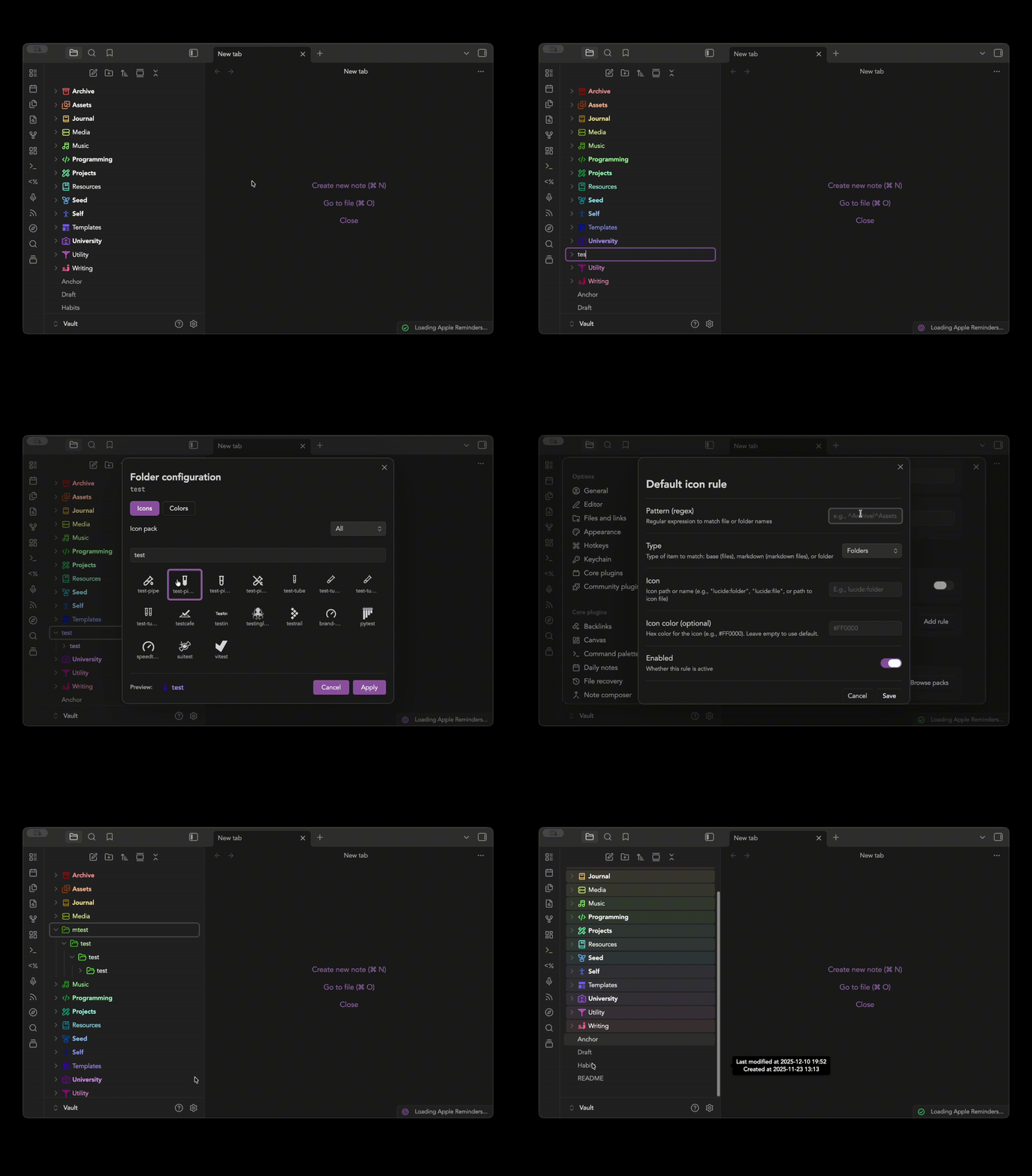
Features
- 🎨 Folder Icons: Add custom icons (SVG, PNG, or URLs) to any folder
- 🔍 Icon Search: Search and preview icons from Lucide (Obsidian's built-in icon library)
- 🌈 Color Palettes: Create and manage color palettes for automatic color assignment
- 🎯 Auto-Coloring: Automatically assign colors from palettes to root folders
- 🔄 Color Transformations: Derive icon, folder, and text colors from base colors using HSL or lightness adjustments
- 🌊 Child Color Inheritance: Child folders automatically inherit and transform colors from parent folders
- 📐 Gradient Mode: Smooth color interpolation between sibling folders
- 💾 Profiles: Save and switch between different color schemes and transformations
- 📋 Default Icon Rules: Automatically apply icons based on folder/file name patterns
- ⚙️ Easy Configuration: Right-click any folder to configure it, or use the settings panel
Usage
Setting Icons and Colors for a Folder
- Right-click on any folder in the file explorer
- Select "Set Icon and Colors"
- In the Icon/Color Modal:
- Search and browse built-in Lucide icons or added icon packs
- Icons are displayed with live previews as you search
- In the color picker:
- Set a base color (the foundation color for this folder)
- Optionally set explicit icon, folder background, or text colors (these override transformations)
- Choose whether child folders should inherit the base color
- Click Apply
Managing Configurations
- View all configured folders in Settings → Iconocolor
- Edit or remove configurations from the settings tab
- Right-click a configured folder and select "Remove Icon and Colors" to clear its configuration
Color Palettes and Auto-Coloring
- Go to Settings → Iconocolor → Color palettes
- Create or edit color palettes (collections of colors with consistent lightness)
- Enable Auto-color root folders to automatically assign palette colors to root folders
- Choose between Gradient (smooth color transitions) or Repeat (cycle through colors) mode
Profiles
Save and switch between different color schemes:
- Configure your desired settings (transformations, palettes, etc.)
- Go to Settings → Iconocolor → Profiles
- Click Create profile and give it a name
- Switch between profiles anytime to instantly apply different color schemes
Understanding Color Transformations
Iconocolor uses a powerful two-level color transformation system:
Base Color
Every folder has a base color - the fundamental color that serves as the foundation. This can be:
- Set explicitly for a folder
- Inherited from a parent folder (if enabled)
- Automatically assigned from a color palette (for root folders)
Base Transformations (Icon, Folder, Text Colors)
Base transformations determine how the icon color, folder background color, and text color are derived from the base color. These are global settings that apply to all folders.
Transformation Types:
- None: Use the base color directly
- Lightness adjustment: Make the color lighter or darker by a percentage (e.g., +20% lighter, -15% darker)
- HSL transformation: Adjust hue, saturation, and lightness independently
Example:
- Base color:
#3B82F6(blue) - Icon transformation:
None→ Icon is blue - Folder transformation:
Lightness -15%→ Folder background is darker blue - Text transformation:
Lightness +30%→ Text is lighter blue for contrast
Child Base Transformation (Inheritance)
Child base transformation controls how child folders get their base color from parent folders. This creates a hierarchical color system.
Transformation Types:
- None: Children don't inherit colors (each folder is independent)
- Lightness adjustment: Each child's base color is adjusted from its parent's base color (cumulative - each level gets progressively lighter/darker)
- HSL transformation: Each child's base color is transformed using HSL adjustments (cumulative)
Gradient Mode: When enabled, child folders interpolate between the parent's base color and the next sibling's base color before applying the transformation. This creates smooth color gradients across sibling folders.
Example with Lightness Adjustment:
Root folder: Base = #3B82F6 (blue)
  ├─ Child 1: Base = #5B9FF6 (10% lighter)
  │   ├─ Grandchild 1: Base = #7BBFF6 (10% lighter than child, 20% lighter than root)
  │   └─ Grandchild 2: Base = #9DDFF6 (10% lighter than child, 20% lighter than root)
  └─ Child 2: Base = #5B9FF6 (10% lighter)
Example with Gradient Mode:
Root folder: Base = #3B82F6 (blue)
  ├─ Child 1: Base = interpolated between blue and pink (step 1), then transformed
  ├─ Child 2: Base = interpolated between blue and pink (step 2), then transformed
  └─ Child 3: Base = interpolated between blue and pink (step 3), then transformed
Next sibling: Base = #EC4899 (pink)
The gradient automatically distributes across all children, creating smooth color transitions.
Data and Privacy
Iconocolor stores all of its data inside your vault's .obsidian config folder. It does not read or modify any of your notes.
- Settings (folder configs, palettes, profiles, default-icon rules) are stored in
.obsidian/plugins/iconocolor/data.json. - Icon packs that you choose to download are saved as SVG files under
.obsidian/icons/<pack-id>/. Only this directory is read or written by the plugin. - Network access is only used when you explicitly click "Download" on an icon pack in Settings → Iconocolor → Browse icon packs. The plugin uses Obsidian's
requestUrlto fetch the public ZIP from the upstream icon-pack repository (e.g. simple-icons, tabler-icons). No telemetry, analytics, or background requests are made.
Development
Setup
npm install
Development Mode
npm run dev
This will watch for changes and automatically rebuild the plugin.
Production Build
npm run build
License
MIT
Credits
Inspired by:
- Iconize - For icon functionality
- Color Folders and Files - For color functionality