
README file from
GithubHighlight Non-ASCII









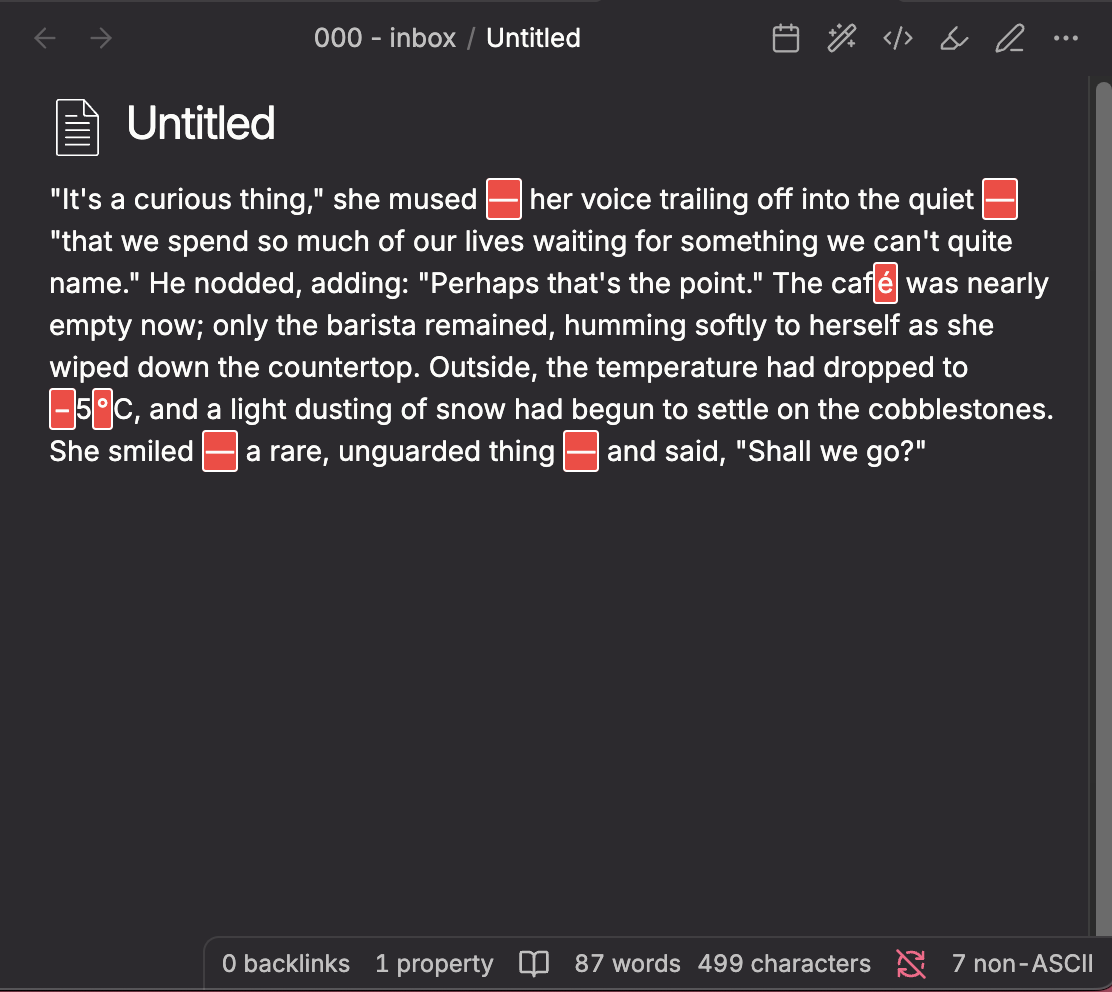
An Obsidian plugin that highlights any character outside the standard ASCII range (0x00-0x7F) in both Edit Mode (Live Preview) and Reading View.
Useful for catching invisible Unicode characters, accidental special characters, or non-standard punctuation in your notes.
Features
-
Highlights non-ASCII characters with a visible red background
-
Works in Edit Mode (Live Preview) with optional Reading View support
-
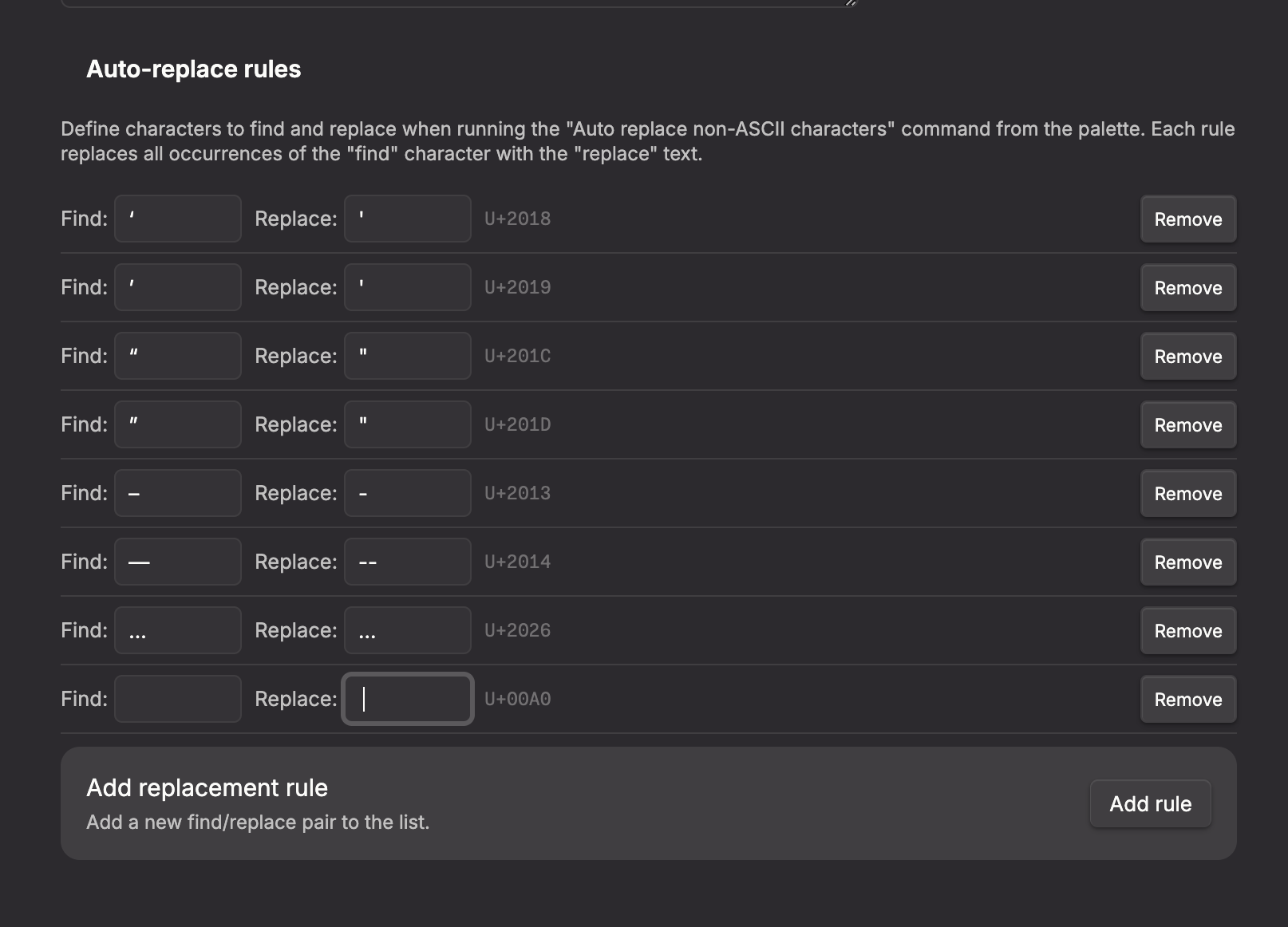
Auto-replace -- batch replace common non-ASCII characters with ASCII equivalents via the command palette
-
Configurable replacement rules with a find/replace list in settings
-
Configurable allowlist to exclude specific characters (accented letters, emojis, etc.)
-
Per-note control via frontmatter
-
Status bar counter -- shows the number of non-ASCII characters in the current note alongside Obsidian's word and character counts
-
Reading view toggle -- optionally enable highlighting in preview/reading mode (off by default)
-
Customizable highlight CSS
-
Toggle on/off from settings or the command palette
Usage
-
Install and enable the plugin.
-
Non-ASCII characters will be highlighted automatically.
-
Use Settings > Highlight Non-ASCII to configure:
- Enable highlighting -- toggle the feature on or off
- Highlight in reading view -- enable highlighting in preview/reading mode (off by default, since edit mode is usually sufficient)
- Allowed characters -- paste characters that should NOT be highlighted (e.g. accented letters, specific emojis)
- Custom CSS -- edit the highlight style directly
-
Use the command palette: Toggle non-ASCII highlighting to quickly enable/disable.

Auto-replace
The plugin includes a batch replacement feature for cleaning up common non-ASCII characters like curly quotes, em dashes, and non-breaking spaces.
How to use
- Open a note that contains non-ASCII characters
- Open the command palette (
Ctrl/Cmd + P) - Run Highlight Non-ASCII: Auto replace non-ASCII characters
- All matching characters in the note will be replaced according to your configured rules
Default replacement rules
The plugin comes with these defaults out of the box:
| Find | Replace | Description |
|---|---|---|
' (U+2018) |
' |
Left single curly quote |
' (U+2019) |
' |
Right single curly quote |
" (U+201C) |
" |
Left double curly quote |
" (U+201D) |
" |
Right double curly quote |
-- (U+2013) |
- |
En dash |
--- (U+2014) |
-- |
Em dash |
... (U+2026) |
... |
Horizontal ellipsis |
(U+00A0) |
|
Non-breaking space |
Customizing rules
You can add, edit, or remove replacement rules in Settings > Highlight Non-ASCII under the Auto-replace rules section. Each rule shows:
- Find -- the character to search for
- Replace -- the text to replace it with
- Unicode codepoint -- the U+ identifier for the find character
- Remove button to delete the rule
Click Add rule to create a new find/replace pair.
Disabling for specific notes
Add the following frontmatter to any note where you want to turn off highlighting:
---
highlight-non-ascii: false
---
If the property is missing or set to true, highlighting remains active (as long as the global toggle is enabled).
Installation
Obsidian Community Plugin
This plugin is available in the official Obsidian community plugin directory. Install it from Settings > Community plugins > Browse and search for "Highlight Non-ASCII" or "Highlight Non-ASCII by saltyfireball".
License
MIT -- see LICENSE for details.