
README file from
GithubHeading Autolink
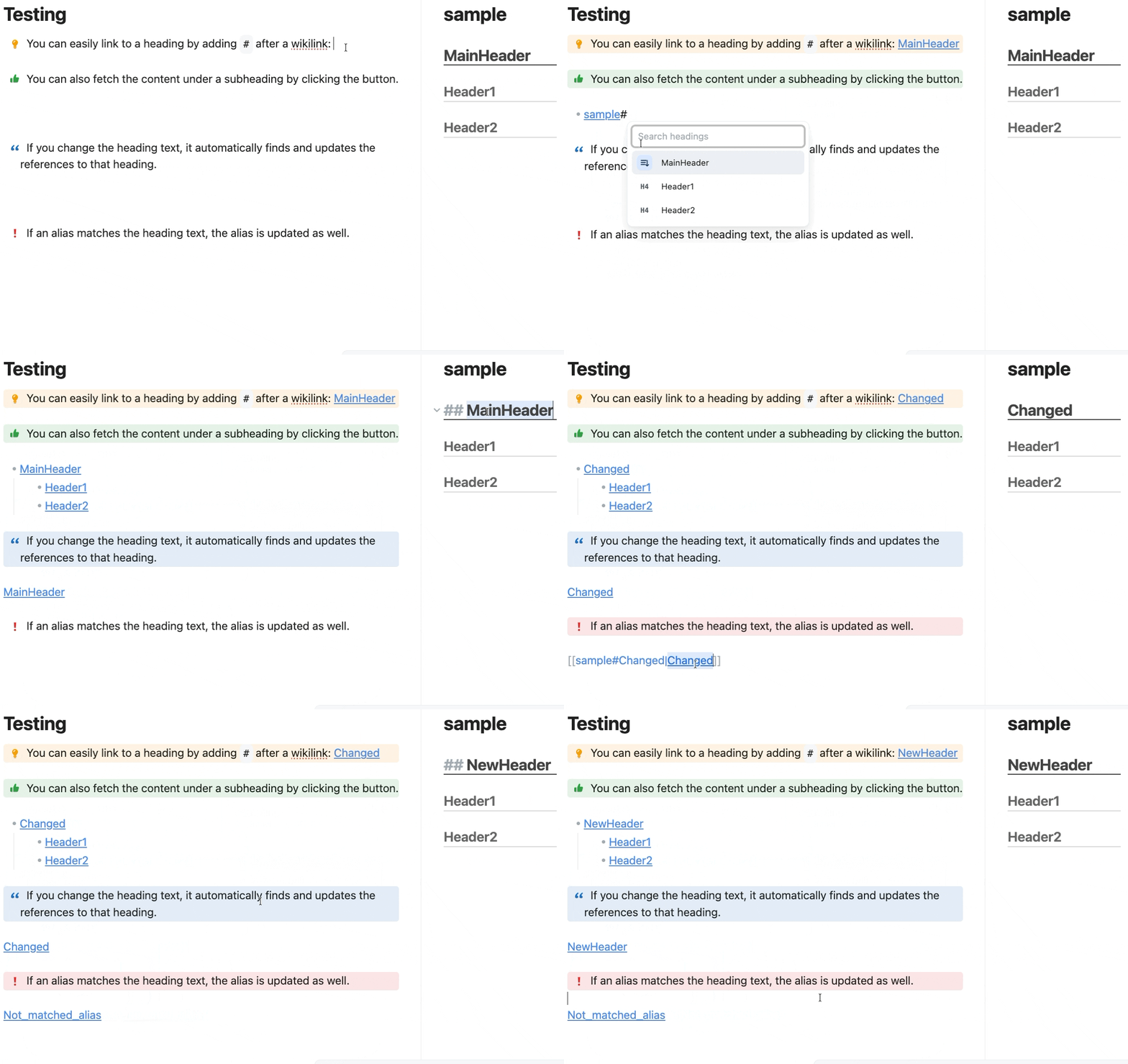
Heading Autolink helps maintain Markdown heading wikilinks. It can insert heading links with a picker, add missing heading aliases, update heading links after a heading rename, and insert content from a selected heading section.
Features
- Open a heading picker by typing
#after a simple file wikilink, such as[[note]]#. - Insert heading links in the form
[[note#Heading|Heading]]. - Insert a selected heading and its descendant headings from the picker.
- Preserve plain text, ordered list, unordered list, and
- {icon}list formatting where possible. - Add aliases to alias-free heading wikilinks after you leave the line.
- Update matching heading wikilinks across the vault after a single heading is renamed.
- Preserve custom aliases when the alias does not exactly match the old heading text.
- Ignore fenced code blocks, inline code, YAML frontmatter, and HTML comments by default.
Supported Wikilinks
Supported examples:
[[a#title1]]
[[a#title1|title1]]
[[folder/a#title1]]
[[a.md#title1]]
[[a#heading1#heading2]]
[[a#heading1#heading2|heading2]]
Unsupported examples:
![[a#title1]]
[[#local heading]]
[[a#^block]]
[title](a.md#title1)
[[a|alias]]#
Usage
Insert a heading link
Type # immediately after a simple file wikilink:
[[note]]#
If the target note resolves to a Markdown file with headings, the picker opens below the cursor. Press Enter or click a heading to insert one heading link. Use the recursive insert button to insert the selected heading and its descendants.
Add aliases
When auto alias is enabled, moving away from a line can change:
[[a#title1]]
to:
[[a#title1|title1]]
Hierarchical heading links use the final heading segment as the alias.
Update heading links after a heading rename
When heading rename updates are enabled, renaming title1 to newTitle1 in a.md can update matching links across Markdown files in the vault:
[[a#title1]]
[[a#title1|title1]]
to:
[[a#newTitle1]]
[[a#newTitle1|newTitle1]]
The plugin only treats the change as a rename when one heading changed and the heading count and levels stayed the same. If the old heading text was duplicated, simple links such as [[a#title1]] are not updated because the target is ambiguous.
File Access And Modifications
Heading Autolink reads Markdown files in the current vault to resolve links, find headings, and build heading snapshots. It does not read files outside the vault.
The plugin can modify Markdown files in the current vault in these cases:
- The active editor line is changed when auto alias is enabled and you move away from a line containing an alias-free heading wikilink.
- Markdown files across the vault are changed when heading rename updates are enabled and a single heading rename is detected.
- The active editor line is changed when you choose a heading or recursive insertion from the picker.
The plugin does not modify non-Markdown files.
Settings
- Enable heading rename updates: Update matching heading wikilinks across the vault after a single heading is renamed. This is off by default.
- Enable title picker: Show a heading picker when you type
#after a simple file wikilink. - Enable auto alias: Add missing display text to heading wikilinks after you move away from the line. This is off by default.
- Picker size: Choose
small,medium, orlarge. - Picker max visible items: Set how many picker results are visible before scrolling.
- Ignore links in code blocks: Skip wikilinks inside fenced code blocks, inline code, YAML frontmatter, and HTML comments. This is on by default.
Turn off Enable heading rename updates to prevent automatic vault-wide link replacement. Turn off Enable auto alias to prevent automatic alias insertion in the active editor.
Error Handling And Limits
- If a target file cannot be resolved to a Markdown file, the link is ignored.
- If a heading is missing, unsupported, or ambiguous, the link is ignored.
- If a link appears inside an ignored range, it is skipped when Ignore links in code blocks is enabled.
- If more than one heading changed at once, vault-wide heading link updates are skipped.
- A notice shows how many files and links were updated after a heading rename update.
Reverting Changes
Use Obsidian undo for active-editor changes made by the picker or auto alias. For vault-wide heading rename updates, use your normal backup or version history, such as Obsidian Sync version history, Git, Time Machine, or another vault backup. Review important notes before enabling vault-wide heading rename updates.
Mobile Support
isDesktopOnly is set to false because the plugin uses the Obsidian API and browser APIs, and does not import Node.js or Electron modules. The plugin can run on mobile, but the current picker and editing experience are not optimized for mobile use and may not be suitable for regular mobile workflows. Mobile usability may improve in a future update.
Privacy And Network Access
Heading Autolink does not use network access and does not access files outside the current vault.
Installation
From Community Plugins
After the plugin is accepted into the Obsidian Community Plugins directory:
- Open Settings in Obsidian.
- Go to Community plugins.
- Search for Heading Autolink.
- Install and enable the plugin.
Manual Installation
Download these files from the latest GitHub release:
main.jsmanifest.jsonstyles.css
Copy them into:
<Vault>/.obsidian/plugins/heading-autolink/
Reload Obsidian and enable Heading Autolink from Settings -> Community plugins.
Development
Install dependencies:
npm install
Start the development watcher:
npm run dev
Run lint and a production build:
npm run lint
npm run build
The production build type-checks the plugin and bundles src/main.ts into main.js. Release assets are the root main.js, manifest.json, and styles.css files.
License
This project is licensed under the GNU General Public License v3.0. See LICENSE.
Attribution
This plugin is built with the Obsidian plugin API, TypeScript, and esbuild. It does not include code copied from another community plugin.