
README file from
GithubGit File Sync
Selective, file-by-file sync between your vault and GitHub, GitLab, or Gitea.




Releases · 繁體中文 · 简体中文 · Changelog
Push, pull, diff, and resolve conflicts — file by file, not whole-vault. Unlike full-vault sync solutions, Git File Sync gives you granular control over exactly what leaves your device, so you can keep personal notes private while sharing project files through a real Git repository.
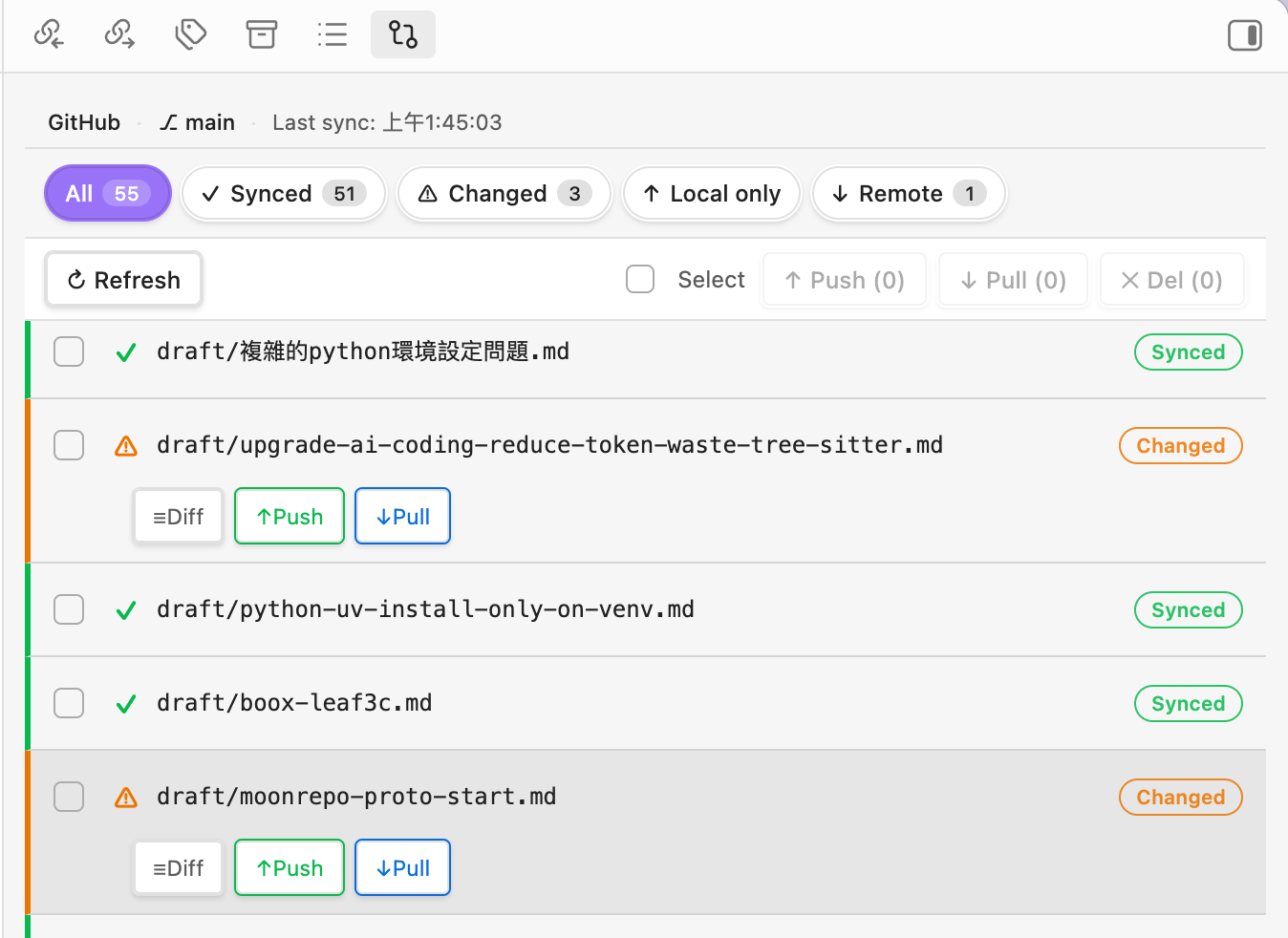 The Sync Status View gives a bird's-eye view of your vault, letting you selectively push, pull, or diff modified files.
What's inside
- File-by-file control — Sync individual notes or selected files from a folder, not your entire vault. No lock-in to a single sync provider for everything.
- Three Git providers — GitHub, GitLab (including self-hosted), and Gitea, all behind one consistent UI.
- Review before applying — Every push, pull, and remote deletion shows a plan of additions, changes, moves, and deletions before it writes anything.
- Real rename support — Renamed files and moved folders are committed as moves, without leaving duplicate files behind remotely.
- Visual diffing — A built-in diff viewer compares local and remote versions before anything is overwritten; on desktop it opens in a dedicated pane.
- Conflict resolution — When local and remote both changed, resolve manually with a dedicated conflict tool instead of guessing which version wins.
- Works on mobile — Full support for Obsidian Mobile with a touch-friendly sync dashboard; the inline diff remains available there.
- Three interface languages — English, Traditional Chinese, and Simplified Chinese. Follow Obsidian's display language or choose one in Settings.
Sync Status View
A single dashboard shows the state of every tracked file:
- Live status and startup refresh — tracked files update as you edit or rename them, and the view refreshes automatically after Obsidian starts (configurable in Settings).
- Status filtering and search — instantly narrow the list to modified, new, remote-only, moved, or matching paths.
- Tree view and folder selection — optionally browse files as a collapsible hierarchy, select folders with tri-state checkboxes, and choose whether synced files appear in All.
- Safe moves — renamed files appear as Moved; related folder moves collapse into one row and can be pushed or reverted together.
- Visual diffs — line-by-line comparison of local vs. remote before syncing; click a path to open the local note or its remote page when available.
- Remote-only detection — spot files that exist on GitHub/GitLab/Gitea but haven't been pulled into the vault yet.
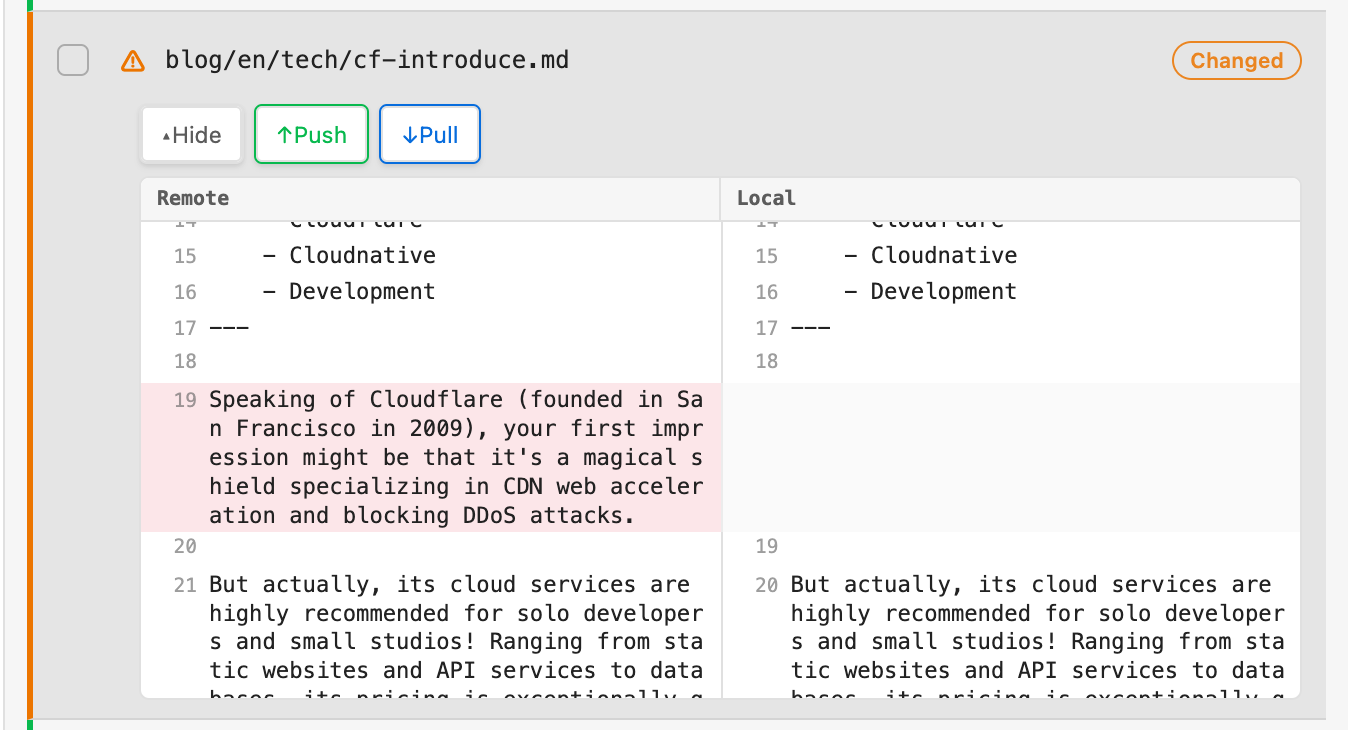 The built-in diff viewer compares local and remote changes before you push or pull.
Providers
| Provider | Hosting | Min. version |
|---|---|---|
| github.com · GitHub Enterprise | — | |
| gitlab.com · self-hosted | GitLab 13.0+ | |
| self-hosted | Gitea 1.12+ |
Gitea note: the plugin talks to the Gitea API v1 (
/api/v1) and resolves branch names to commit SHAs before fetching the file tree, which is what makes 1.12+ the floor.
Configuration
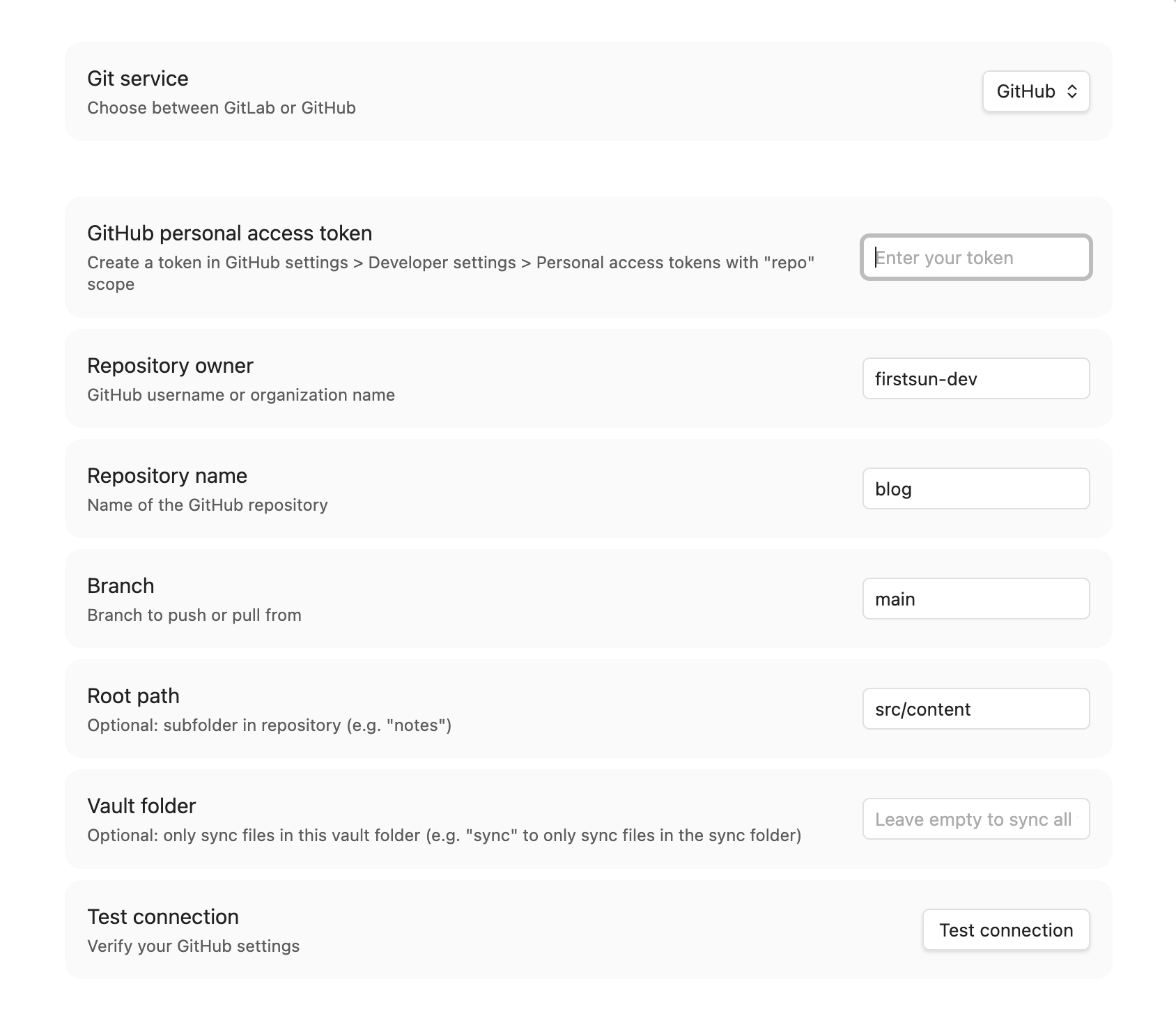 Pick a provider and supply its credentials in Settings > Git File Sync.
| Provider | Required info | Token scope | |
|---|---|---|---|
| GitHub | Personal access token, owner, repo name | Contents: Read and write (fine-grained); repo (classic) |
|
| GitLab | Personal access token, project ID, base URL | read_repository, write_repository |
|
| Gitea | Personal access token, base URL, owner, repo name | write:repository (1.19+); account-wide on older versions |
Security tip: scope every token as narrowly as possible — one repo, the minimum permissions, and a short expiration — and store it only in this plugin's settings. Never paste it into a note that gets synced. Rotate it immediately if it's ever exposed, and revoke tokens you're no longer using.
- GitHub token: create a fine-grained personal access token (Settings → Developer settings → Personal access tokens → Fine-grained tokens) rather than a classic one. Set Repository access to Only select repositories and pick just the repo you're syncing, set an Expiration (90 days or less), and grant only Contents: Read and write. If you must use a classic token, limit the
reposcope to that one use and set an expiration. - GitLab token: prefer a project access token (Project → Settings → Access tokens) over a personal one — it's scoped to a single project and can be revoked without affecting your account. The plugin only calls the repository tree/blobs/commits/branches endpoints, so grant just
read_repositoryandwrite_repository(notapi, which also grants issues, merge requests, CI, and account-wide access). Role Developer is the minimum that can push to a non-protected branch. Set an expiration date, and base URL defaults tohttps://gitlab.com; change it for self-hosted instances. - Gitea token: User settings → Applications → Access tokens. The plugin only touches repository content, branches, and git data, so on Gitea 1.19+ (which supports per-scope tokens) select just
write:repository— that implies read access too — instead of "Select all". Older Gitea versions (down to the 1.12 minimum) don't support scoped tokens, so the token is account-wide by default; in that case, use a dedicated bot/service account with access to only the target repo rather than your personal account's token. Set an expiration if your instance offers one, and point the base URL at your instance (e.g.https://gitea.example.com).
All three providers let you revoke a token instantly from its settings page — do that first if a token may have leaked, then issue a new one.
Other settings: language (system default, English, Traditional Chinese, or Simplified Chinese); auto-refresh Sync Status on startup; branch to sync against (default main); root path prefix inside the repo; vault folder to scope which notes are tracked; and symbolic link handling (real — recreate the link, GitHub only; follow — sync the target's content; skip). See Symbolic link handling for details.
Daily workflow
Pushing:
- One note — the cloud icon in the ribbon, or the command
Push current file to GitLab/GitHub/Gitea. - Several notes — open the Sync Status View, filter to Modified, select files, click Push selected.
- From the file tree — right-click any file and choose
Push to GitLab/GitHub/Gitea. - Review the proposed changes in the plan, then choose Apply. Renames and folder moves are included as real moves.
Pulling:
- Open the Sync Status View and click Refresh status.
- Files with remote updates show as Modified or Remote only.
- Select them and click Pull selected.
- Review the plan and choose Apply. Pulling overwrites local changes — if both sides changed, the conflict tool opens instead.
Resolving a conflict:
- The Conflict Resolution window opens automatically.
- Left pane is your Local version, right pane is Remote.
- Choose Keep Local (overwrite remote on next push) or Keep Remote (accept remote, overwrite local).
On mobile: swipe from the left to open the ribbon and the Sync Status View, pull before you start editing, push when you're done.
Installation
From Community Plugins (recommended)
- Open Settings > Community plugins and turn off restricted mode.
- Click Browse, search for Git File Sync, click Install, then Enable.
Manual
- Download
main.js,manifest.json, andstyles.cssfrom the latest release. - Create
<vault>/.obsidian/plugins/git-file-sync/. - Copy the three files into that folder.
- Reload Obsidian and enable the plugin under Settings > Community plugins.
Quick start
- Configure a provider in Settings > Git File Sync (see Configuration).
- Open the Sync Status View — the list icon in the ribbon, or run
Open sync status viewfrom the Command Palette. - The view refreshes automatically after startup; click Refresh status whenever you want to check again.
- Use the status tabs, path search, or optional tree view to find files; select files or folders and choose Push selected or Pull selected.
- Review the sync plan, then choose Apply.
Commands:
| Command | What it does |
|---|---|
| Open sync status view | Open the sync dashboard |
| Push current file to GitLab/GitHub/Gitea | Push the active note |
| Pull current file to GitLab/GitHub/Gitea | Pull the active note |
| Push all files | Review and push every tracked, changed file |
| Pull all files | Review and pull every tracked, changed file |
Privacy and security
- Local storage — personal access tokens are stored locally in the plugin's data folder inside your vault, and are only ever sent to the Git provider you configured.
- No telemetry — the plugin collects no usage data or analytics.
Requirements
- Obsidian 1.13.0 or later
- Desktop and mobile supported
Development
git clone https://github.com/firstsun-dev/git-files-sync.git
npm install

npm run dev    # watch build
npm run build  # type-check + production build
npm run test   # vitest suite
npm run lint   # eslint
License
MIT
Created by ClaudiaFang