
README file from
GithubObsidian Git File Explorer Colors
Obsidian plugin for AI second-brain users that colors the File Explorer by Git status, helping you spot markdown changes instantly without turning Obsidian into a full IDE.
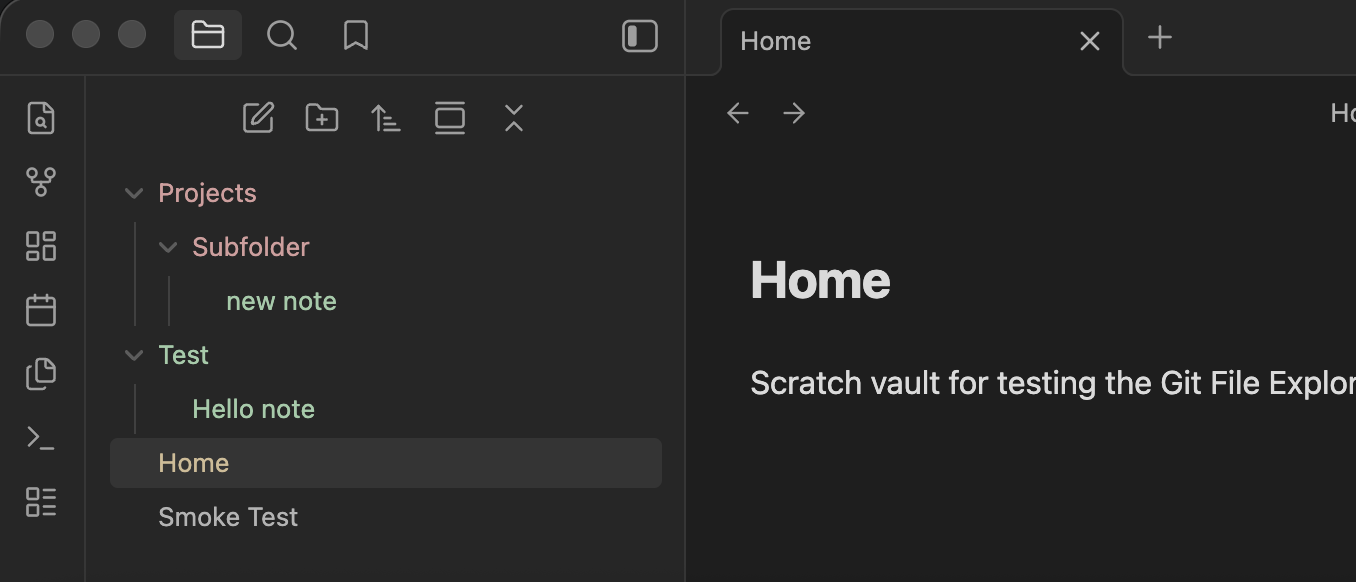
Git File Explorer Colors is a desktop-only, read-only Obsidian plugin for vaults that live inside a single Git repository. It colors file rows directly from Git status and rolls changed descendants up to folders using deleted > modified > new priority.
What It Does
- Colors new or untracked files in green
- Colors modified files in muted orange
- Colors deleted paths as a folder signal in muted red
- Rolls descendant changes up to parent folders
- Refreshes on vault create, modify, rename, and delete events
- Includes a fallback polling refresh for external Git changes
- Adds a manual
Refresh colorscommand for recovery
Requirements
- Obsidian desktop
gitinstalled and available on your system path- A vault that is itself a Git repository, or a vault contained inside one single Git repository
- Local filesystem access through Obsidian's desktop app
This plugin does not stage, commit, or modify Git state. It only reads status and colors the File Explorer.
Status Mapping
new: untracked files and newly added filesmodified: tracked files with content or metadata changesdeleted: deleted files, primarily shown through parent-folder rollups when the file row is no longer visible
Folder priority is deleted > modified > new.
Installation
Community Plugins
Once the plugin is approved in the Obsidian Community Plugins directory:
- Open
Settings -> Community plugins - If
Restricted modeis still enabled for this vault, turn it off - Browse for
Git File Explorer Colors - Install and enable it
Manual Install
Until it is published, or if you want to install a specific build:
- Download
manifest.json,main.js, andstyles.cssfrom a GitHub release - Create this folder in your vault:
.obsidian/plugins/git-file-explorer-colors/ - Copy the three files into that folder
- Reload Obsidian and enable
Git File Explorer Colors
Usage
The plugin reads Git status from the current vault root, normalizes it to new, modified, and deleted, and applies those states to the File Explorer.
- Files are colored from their direct Git status
- Folders are colored from descendant changes
- Deleted files typically show up as red parent folders, because the deleted file row itself no longer exists in the tree
- External Git changes are picked up by the fallback timer or the
Refresh colorscommand
Troubleshooting
If the plugin installs but no colors appear:
- Run
Refresh colorsfrom the command palette and read the notice text. - Confirm the vault is inside a Git repository.
- Confirm
git --versionworks in your system terminal. - Fully quit and reopen Obsidian after installing Git.
On macOS:
- If the notice says the Xcode license must be accepted, run
sudo xcodebuild -license acceptin Terminal. - If the notice says Command Line Tools are missing, run
xcode-select --install.
On Windows:
- Confirm
git --versionworks in Command Prompt or PowerShell, not only in Git Bash. - If you just installed Git, fully quit and reopen Obsidian so it can pick up the updated
PATH.
On Linux:
- Confirm Git is installed and
git --versionworks in your terminal. - If Obsidian was installed through a sandboxed package such as Flatpak, access to the host
gitexecutable may require extra setup.
Settings
Color file rowsColor folder rowsNew colorModified colorDeleted colorRefresh interval
The default palette is intentionally muted so the explorer stays readable during normal note-taking.
Limitations
- Desktop only
- Single-repo scope for v1
- Read-only Git integration
- No staging or committing UI
- No diff viewer
- No mobile support
- No multi-repo support inside one vault
Development
npm install
npm run dev
Useful scripts:
npm run buildbuilds a production releasenpm run checkruns the TypeScript checknpm run testruns status-model unit testsnpm run validaterunscheck,test, andbuildnpm run sync:scratchcopies the built plugin into the local scratch vault intmp/scratch-vault
Release
For a Community Plugin release:
- Bump
manifest.json,package.json, andversions.jsonas needed - Run
npm run validate - Create a GitHub release whose tag exactly matches
manifest.jsonversion - Upload
manifest.json,main.js, andstyles.cssas release assets - Submit the plugin to
obsidianmd/obsidian-releases
The release should upload manifest.json, main.js, and styles.css as GitHub release assets for Obsidian Community Plugin submission.