
README file from
GithubGCal Sidebar
An interactive Google Calendar sidebar for Obsidian. Multiple accounts, bi-directional sync, drag to move, accept/reject invites.
Desktop only.
Features
- Multiple Google accounts in one view
- Day / 3-day / Week view with density toggle
- Drag to move events
- Create events by clicking or dragging an empty slot
- Edit events (title, time, recurrence, guests, location, description)
- Accept, decline, or mark tentative on invites
- Recurring event support (this event / this and following / all events)
- Mini month navigation
- Calendar show/hide toggles per account
- Keyboard shortcuts for common actions
Requirements
- Obsidian desktop (Windows, macOS, Linux)
- A Google account
- A Google Cloud project with the Calendar API enabled (free, takes ~5 minutes to set up)
How to Setup
Google Cloud Setup
You need your own GCP credentials. This keeps your tokens local to your machine and off any third-party server.
1. Create a GCP project
- Go to console.cloud.google.com
- Click the project selector at the top → New Project
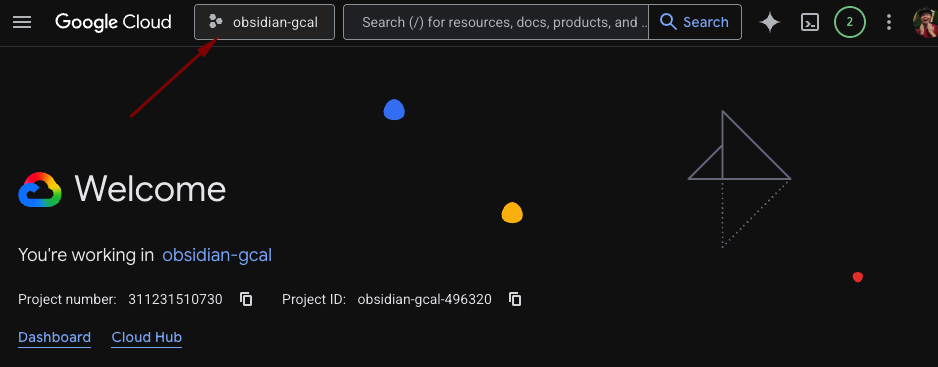
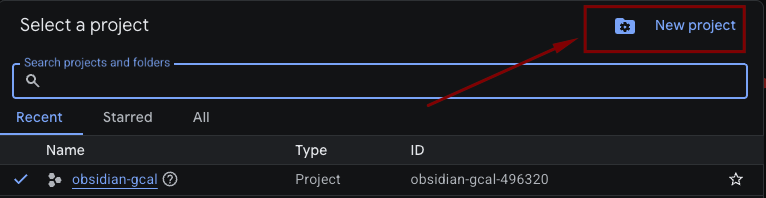
- Name it anything (e.g.
obsidian-gcal-sidebar) → Create- No organisation is needed
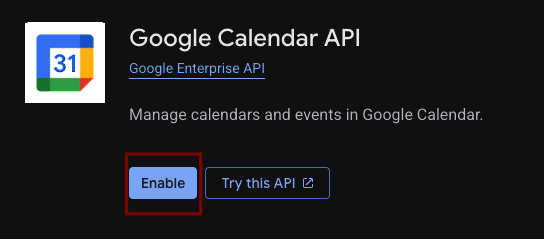
2. Enable the Google Calendar API
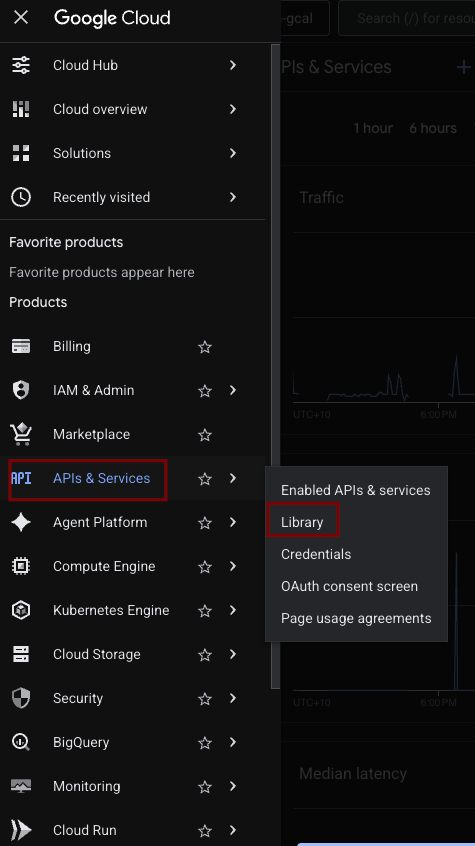
- In the left sidebar: APIs & Services → Library
- Search for Google Calendar API
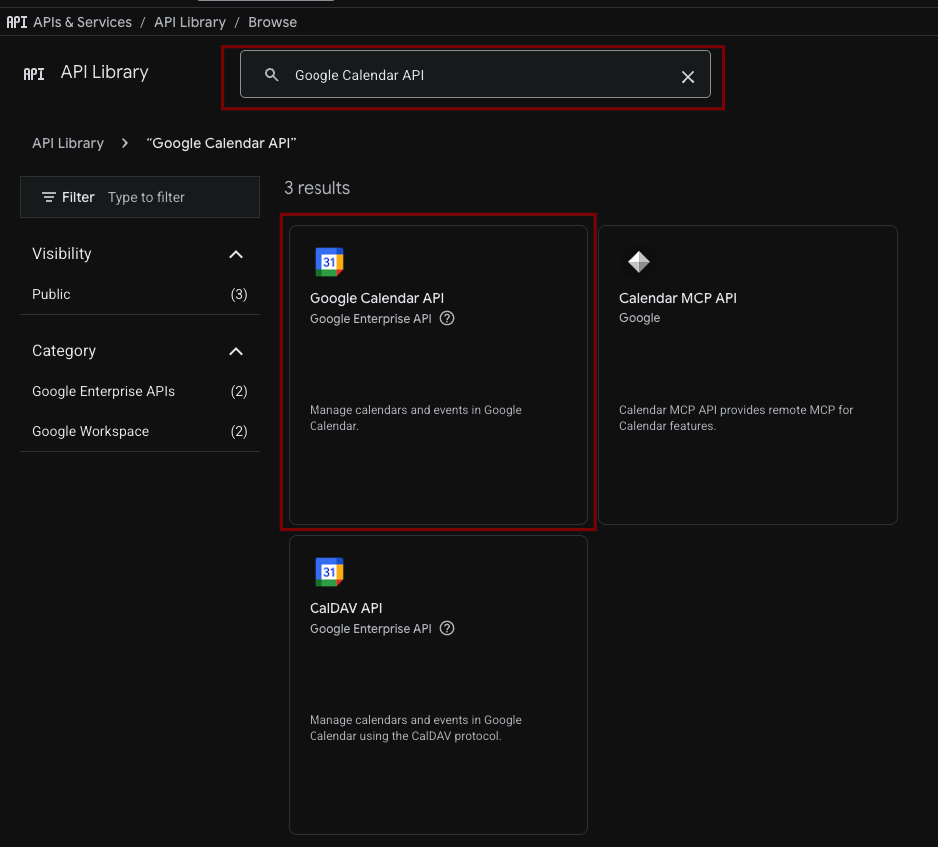
- Click it → Enable
3. Create OAuth credentials
- APIs & Services → Credentials → Create Credentials → OAuth client ID
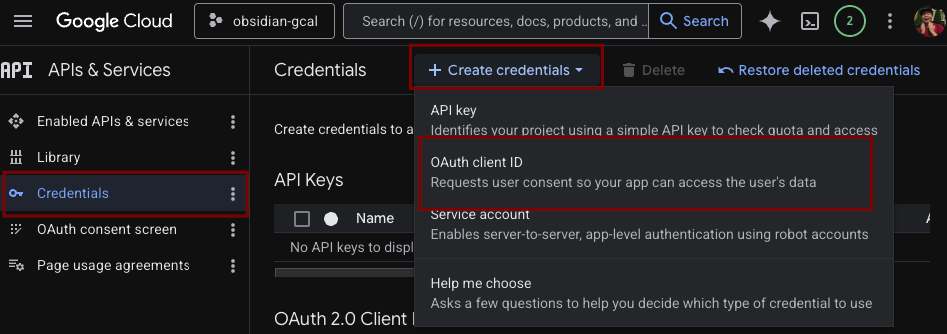
- If prompted to configure the consent screen first:
- User type: External
- Fill in App name (anything, e.g.
obsidian-gcal-sidebar), your email for both support and developer contact fields - Skip scopes, skip test users
- Save and continue back to credentials
- Application type: Desktop app
- Name it anything (e.g.
obsidian-gcal-sidebar) → Create - Copy the Client ID and Client Secret — you'll need both
4. Publish the consent screen
- Go to APIs & Services → OAuth consent screen → Audience
- click Publish App
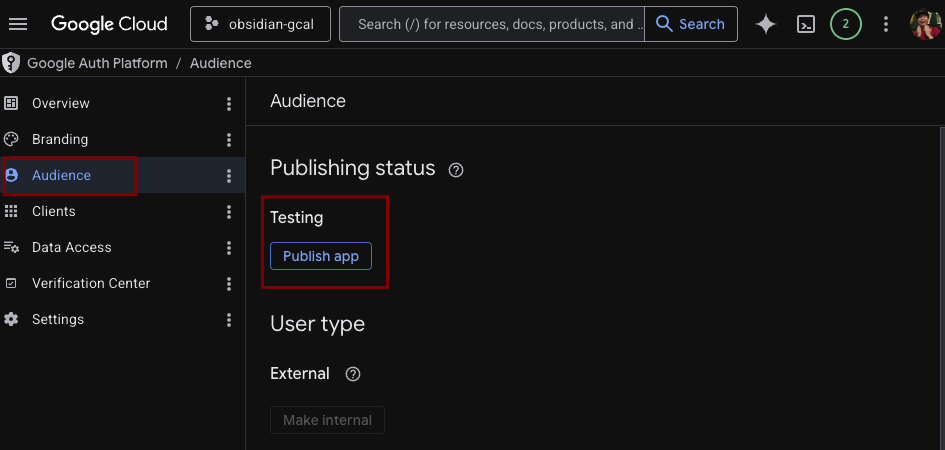
- Confirm
Installation in Obsidian
From the Obsidian community plugin store
- Settings → Community plugins → Browse
- Search for GCal Sidebar
- Install → Enable
Manual install
- Download
main.js,manifest.json, andstyles.cssfrom the latest release - Create a folder at
<your vault>/.obsidian/plugins/gcal-sidebar/ - Drop the three files in
- Settings → Community plugins → enable GCal Sidebar
Plugin Setup
- Open Settings → GCal Sidebar
- Paste your Client ID and Client Secret from the Google Cloud Setup before
- Click Add Account
- Your browser will open a Google sign-in page
The "This app isn't verified" screen
You will see a Google warning. This is expected — the app is running under your own GCP project, which hasn't gone through Google's verification process.
Click Advanced → Go to [app name] (unsafe) to continue. Your credentials stay on your device and are never sent or saved anywhere other than Google's own servers.
- Sign in and grant calendar access
- The browser will show a confirmation — you can close it
- The sidebar will open and load your calendars
Adding more accounts
Repeat steps 3–7 for each additional Google account. All accounts appear in the same calendar view.
Usage
Opening the sidebar
Click the calendar icon in the left ribbon, or use the command palette: GCal Sidebar: Open Google Calendar.
Keyboard shortcuts
Defaults — all remappable in Settings → Hotkeys. They are all set to none as a default, please feel free to set them up as you prefer
| Action | Default |
|---|---|
| Open calendar | none (set one in Hotkeys) |
| Day view | none |
| 3-day view | none |
| Week view | none |
| Jump to today | none |
| Refresh | none |
| Previous | none |
| Next | none |
Creating events
Click an empty time slot to create a new event. Click and drag to set the duration. Fill in the details and save.
Editing events
Click any event to open it. Edit title, time, guests, location, description, or recurrence.
Moving events
Drag an event to a new time. Changes sync immediately.
Accepting / declining invites
Click an event → use the Yes / Maybe / No buttons at the top of the modal.
Showing / hiding calendars
Click the grid icon in the header to open the calendar list. Toggle any calendar on or off. Use the ↗ button next to an account to open it in Google Calendar.
Data & Privacy
- Tokens are stored locally in your vault's
data.jsonfile - Nothing is sent to any third-party server
- All API calls go directly from your machine to Google
Troubleshooting
Events not loading Try the refresh button (↻) in the header. If that doesn't work, check that your Client ID and Secret are correct in settings.
"This app isn't verified" keeps showing This is normal for self-hosted GCP projects. Just click Advanced -> Continue to proceed
Port already in use The plugin tries ports 42813–42817 for the OAuth callback. If all five are blocked, the auth flow will fail. Free up one of those ports and try again.
Calendar stopped syncing Your access token may have expired and failed to refresh. Remove and re-add the account in settings.
License
MIT