
README file from
Githubobsidian-focus-zen-mode
Focus Zen Mode is an Obsidian plugin for focused Markdown writing. It hides distracting workspace UI, centers the active editor line, and provides a compact theme switcher for light, dark, and green writing modes.
Features
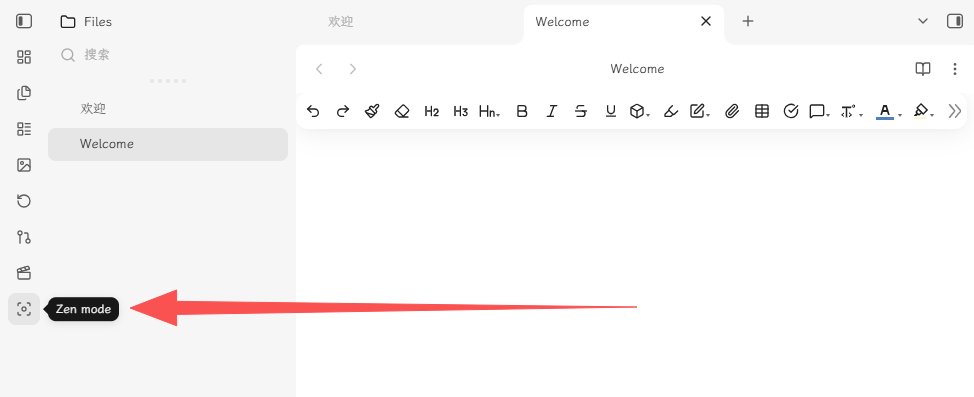
- Enter Zen Mode via the ribbon icon.
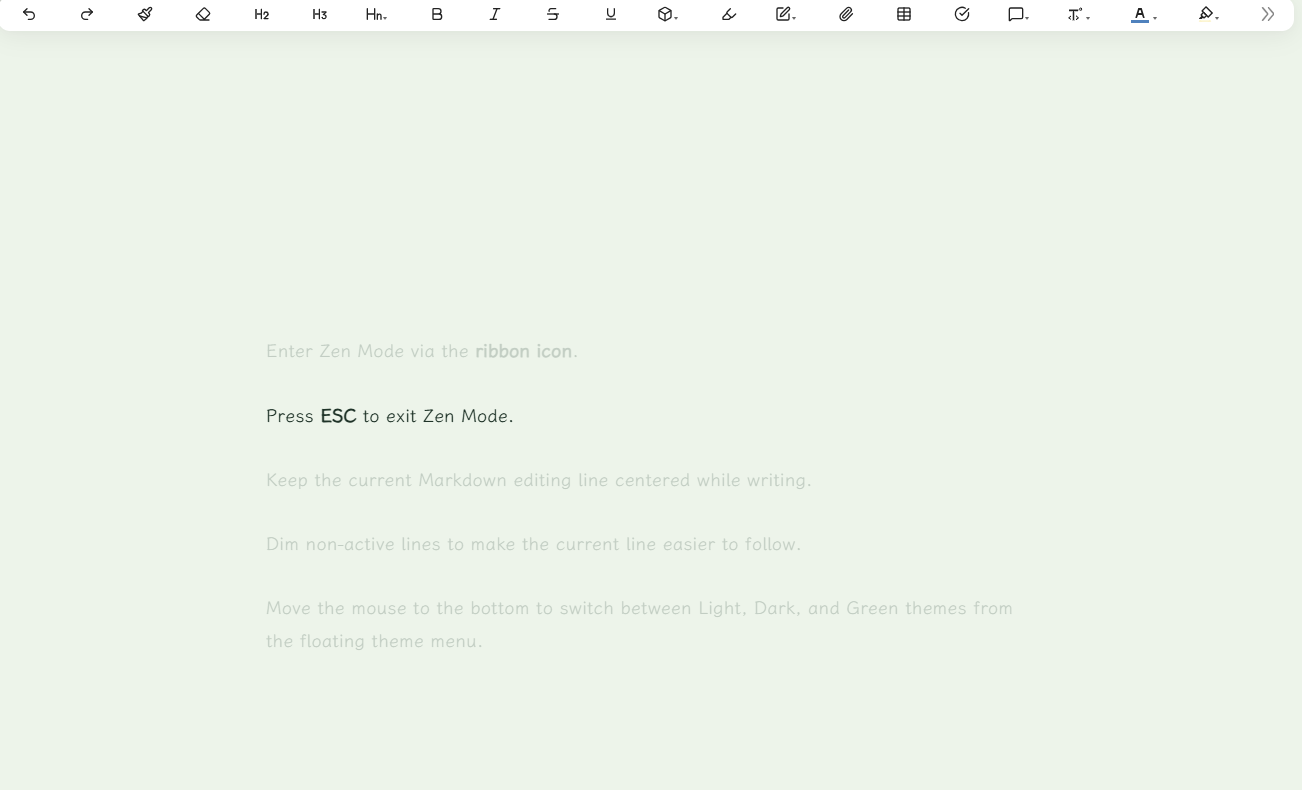
- Press ESC to exit Zen Mode.
- Keep the current Markdown editing line centered while writing.
- Dim non-active lines to make the current line easier to follow.
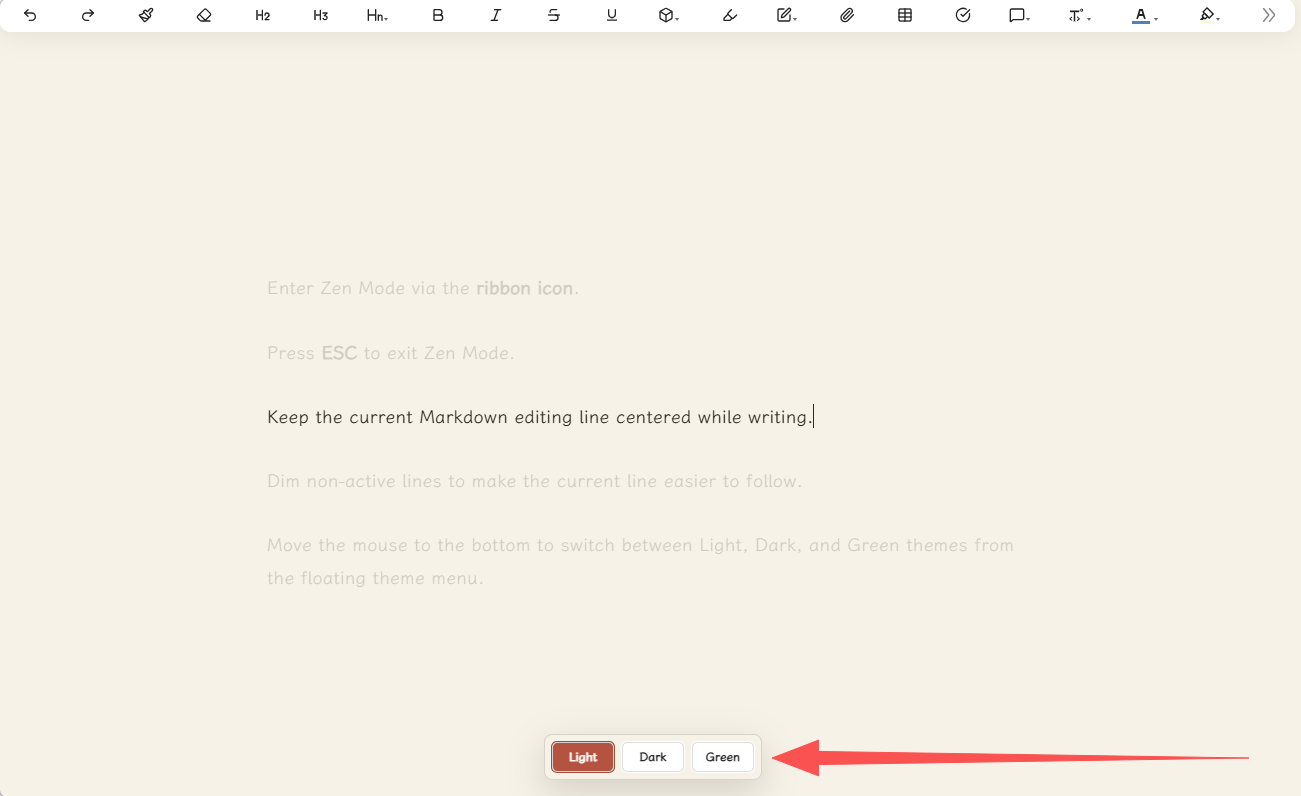
- In Zen Mode, move the mouse to the bottom to switch between Light, Dark, and Green themes from the floating theme menu.
Installation
Method 1: Community Plugins (Recommended)
Once listed on the community store, you can install it directly:
- Go to Settings > Community plugins > Browse.
- Search for Focus Zen Mode.
- Click Install, then Enable.
Method 2: Manual Installation
-
Create this folder inside your vault:
.obsidian/plugins/focus-zen-mode/ -
Copy these files into that folder:
main.js styles.css manifest.json -
Restart Obsidian.
-
Open Settings > Community plugins and enable Focus Zen Mode.
Usage
Open a Markdown note in editing mode, click the ribbon focus icon. Move the mouse to the bottom of the screen to switch themes.
License
MIT License. See LICENSE for details.
obsidian-focus-zen-mode(中文)
禅意模式是一款专注于 Markdown 写作的 Obsidian 插件。它会隐藏干扰性的工作区界面,将当前编辑行居中显示,并提供一个简洁的主题切换器,支持浅色、深色和绿色三种写作模式。
功能特性
- 通过 侧边栏图标 进入禅意模式。
- 按 ESC 键退出禅意模式。
- 写作时保持当前 Markdown 编辑行居中显示。
- 淡化非活动行,让当前行更易聚焦。
- 禅意模式下,鼠标移动到底部,通过浮动主题菜单在浅色、深色和绿色主题之间切换。
安装方法
方式一:社区插件市场(推荐)
上架后可直接安装:
- 打开 设置 > 第三方插件 > 浏览。
- 搜索 Focus Zen Mode。
- 点击 安装,然后点击 启用。
方式二:手动安装
-
在你的 Obsidian 仓库中创建以下文件夹:
.obsidian/plugins/focus-zen-mode/ -
将以下文件复制到该文件夹中:
main.js styles.css manifest.json -
重启 Obsidian。
-
打开 设置 > 第三方插件,启用 Focus Zen Mode。
使用方法
在编辑模式下打开一个 Markdown 笔记,点击侧边栏中的专注图标。将鼠标移动到屏幕底部切换主题。
许可证
MIT 许可证。详情请参阅 LICENSE。