
README file from
GithubEngram Vault Sync
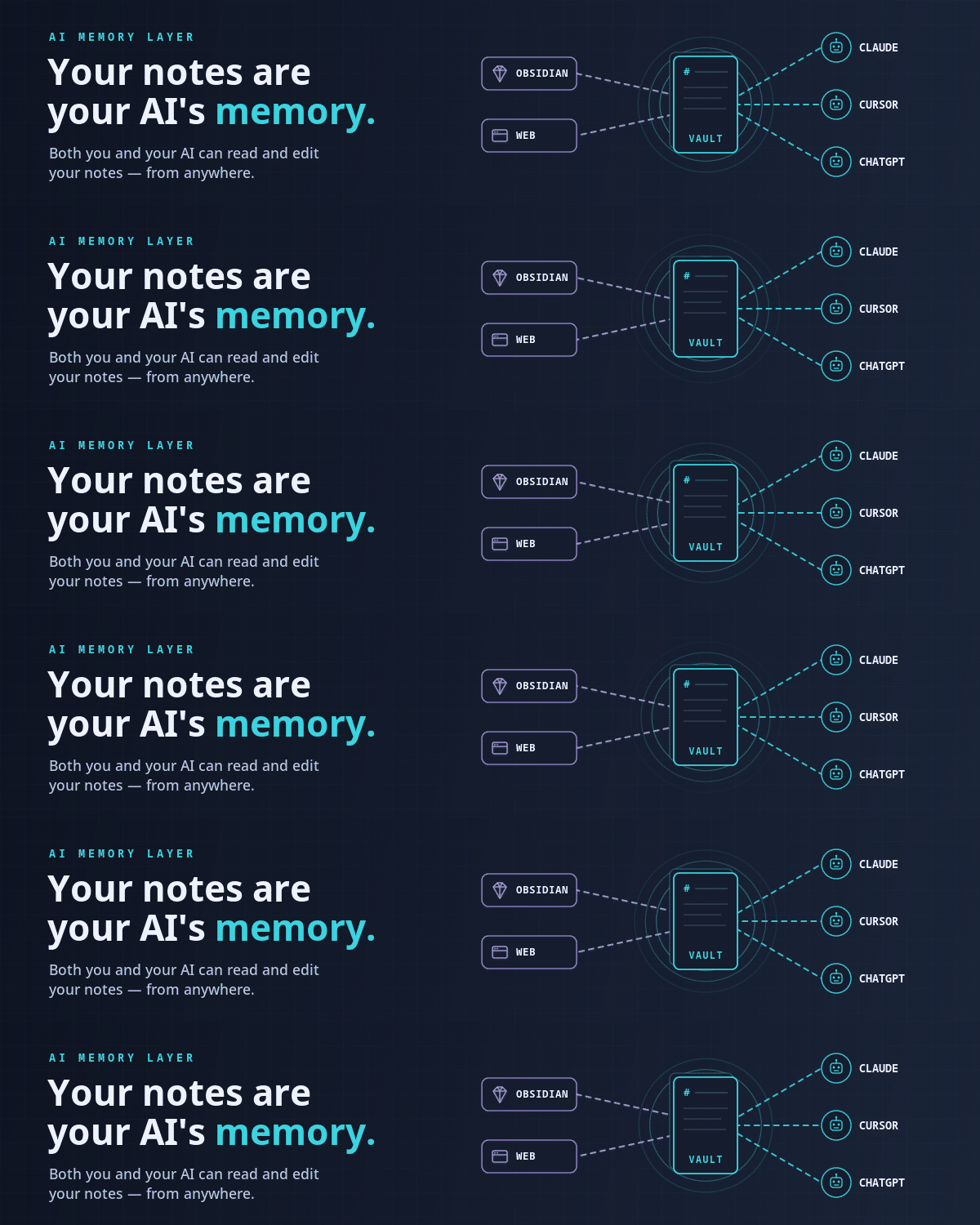
Sync your vault everywhere, and let any AI read and write it. Your notes become memory your AI can search, cite, and build on.
Start free at engram.page → · No credit card, ready in minutes.
Setup · Connect your AI · API · User guide · Self-host · Discord
English · 简体中文 · 繁體中文 · 日本語 · 한국어 · Deutsch · Français · Español · Português · Русский · Italiano
What you get
- Your AI works inside your vault. Connect Claude, Cursor, or ChatGPT over MCP. It reads your notes for context and writes new ones back:
- Your notes, on every device. Write on your laptop, it's on your phone, and changes your AI makes show up too.
- Find anything, by meaning or exact words. Hit the search icon and pick a mode: Semantic turns "our policy on refunds" into "Customer support playbook," even when the note never says "policy"; Keyword matches exact terms locally (works offline, no quota); Hybrid blends both.
- Your vault is programmable. A full REST + WebSocket API wraps every note: automate, integrate, or build apps on your own knowledge.
You      Pull together what we know about the Henderson account.

Claude   🔎  searched your vault ·  found 4 notes
         They're mid-renewal, flagged onboarding gaps in Q2,
         and asked about the analytics add-on.

You      Make a note focusing on the renewal risks.

Claude   📝  created "Henderson: renewal risks"  ✓
         Linked it to the four source notes.
Nothing is ever silently overwritten. Offline edits sync when you reconnect. Your notes go only to Engram, never a third party, no tracking.
Setup
1. Get an Engram account. Hosted at engram.page (free tier, nothing to install), or self-host the source-available backend so your notes never leave your hardware.
2. Connect. Open Settings → Engram Vault Sync. On the Connection tab, hosted: choose Engram Cloud and click Sign in; self-hosted: choose Self-hosted and add your server URL and key. Either way the plugin walks you through the first sync; nothing is sent until you confirm.
After that, syncing just happens as you work.
Prefer to watch? The setup walkthrough covers both steps end to end.
Connect your AI
Engram speaks MCP (Model Context Protocol): the open standard Claude, Cursor, ChatGPT, and other apps use to reach external tools. Plug in once and your AI can search your notes, write new ones, and update existing ones, straight from your own vault.
Point your client at the Engram MCP server (https://mcp.engram.page on the hosted service); step-by-step guides for each app are in the integration docs.
Privacy
- Network use & accounts. The plugin talks only to your Engram server, nothing else, no middlemen. You connect with your Engram account via OAuth sign-in, which works on every plan. API keys are also supported, but on Engram Cloud they require the Pro plan; self-hosted servers have no such limit.
- No telemetry. Optional remote logging (off by default) sends error/lifecycle events only to your server.
- Hosted privacy. See engram.page/privacy. Paid tiers raise storage/search limits; self-hosting is free.
More
- Connect your AI: MCP setup for Claude, Cursor, ChatGPT, Windsurf, and more.
- API reference: build on the REST + WebSocket API.
- User guide: AI assistants, conflicts, the Sync Center, troubleshooting.
- Developer guide: build from source, architecture, releases.
- Something wrong? Open an issue.
- Join the community. Chat with users and devs on Discord.
- Like it? Support development via GitHub Sponsors or Ko-fi. Optional and appreciated.
License
MIT. Portions are derived from third-party MIT-licensed work; see THIRD-PARTY-NOTICES.md.
中文: Obsidian 笔记同步 + AI 记忆。多设备同步、语义搜索、关键词搜索、知识库、MCP、Claude / Cursor / ChatGPT 读写笔记、可自托管、开放 API。 完整中文说明 · 繁體中文
日本語: Obsidian ノート同期 + AI メモリ。全デバイス同期、セマンティック検索、キーワード検索、知識ベース、MCP、Claude / Cursor / ChatGPT がノートを読み書き、セルフホスト可能、オープン API。 日本語の説明
한국어: Obsidian 노트 동기화 + AI 기억. 모든 기기 동기화, 의미 검색, 키워드 검색, 지식 베이스, MCP, Claude / Cursor / ChatGPT가 노트를 읽고 쓰기, 직접 호스팅 가능, 공개 API. 한국어 설명
Русский: синхронизация заметок Obsidian + память для ИИ. Синхронизация на всех устройствах, смысловой поиск, поиск по ключевым словам, база знаний, MCP, Claude / Cursor / ChatGPT читают и пишут заметки, своё размещение, открытый API. Описание на русском