
README file from
GithubDrift
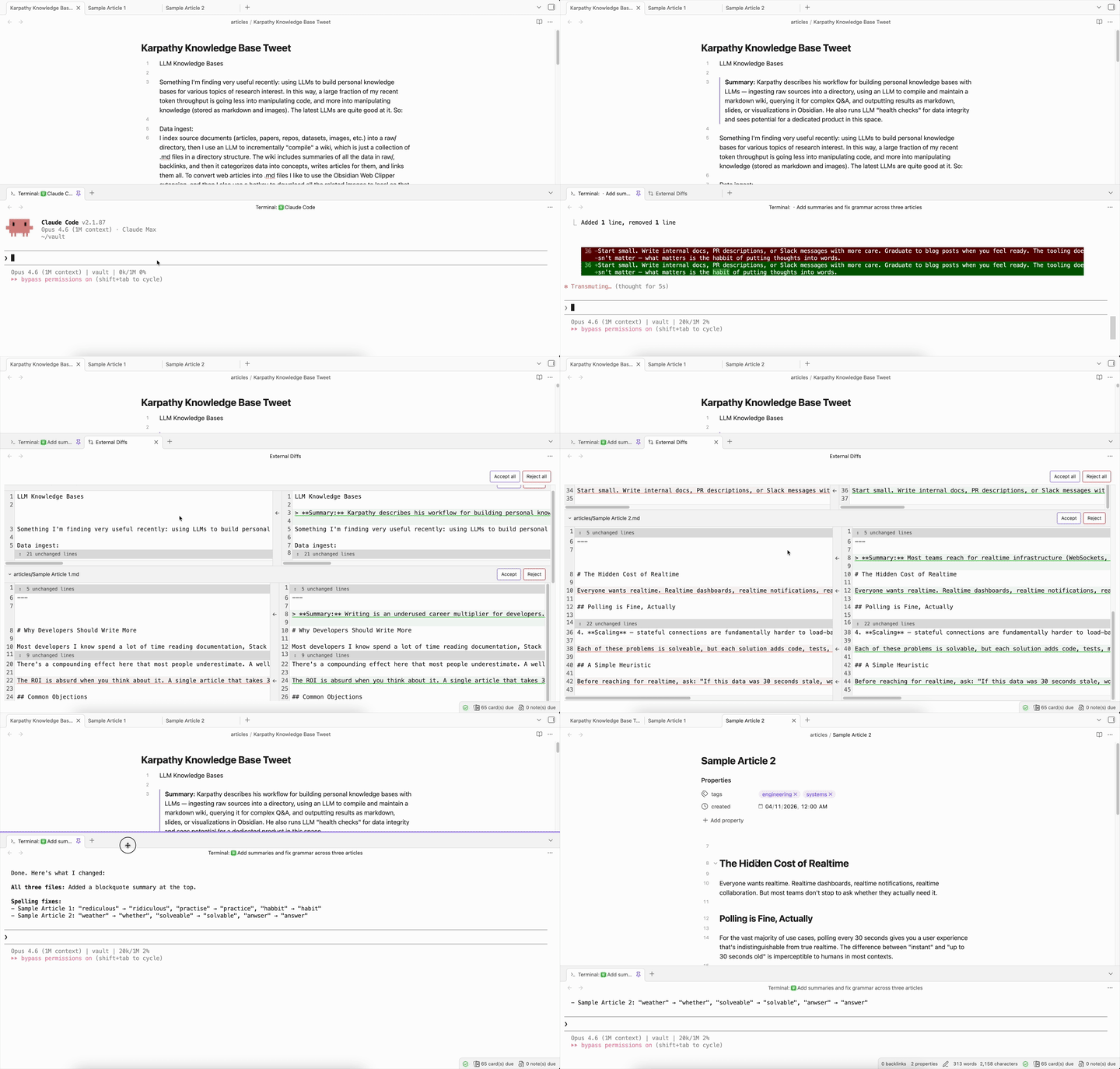
A VS Code-style side-by-side diff viewer that lives inside Obsidian. Automatically detects external file changes (including AI coding agents) and shows you a before/after view with per-chunk accept/reject, accept all/reject all, and collapsible unchanged regions.
Features
- Instant detection — No polling or delays. Uses CodeMirror 6 transaction monitoring to detect external changes the moment they happen.
- Per-chunk accept/reject — Cherry-pick individual changes, not just all-or-nothing. Revert buttons on each diff chunk let you keep what you want and undo what you don't.
- Accept all / Reject all — Bulk actions when you have multiple files with pending diffs.
- Persistence — Pending diffs survive Obsidian restarts. Stale diffs (file deleted or reverted) are automatically discarded on reload.
- Edit protection — Editing a file with pending diffs shows a warning modal, preventing accidental data loss.
- Tool-agnostic — Works with any tool that modifies vault files: AI coding agents, sync services, scripts, other plugins.
Installation
Install Drift from the Obsidian community plugin directory.
Manual install
- Download
main.js,manifest.json, andstyles.cssfrom the latest release - Create a folder
VaultFolder/.obsidian/plugins/drift/ - Copy the downloaded files into that folder
- Restart Obsidian and enable the plugin in Settings → Community plugins
Usage
Once enabled, the plugin runs automatically. When an external tool modifies a markdown file in your vault:
- A Drift tab opens in the background showing the side-by-side diff
- Use Accept All to keep the new content, or Reject All to revert to the original
- Use the revert button on individual chunks to selectively undo specific changes
- Use the Open diff viewer command to reopen the tab if you close it
Commands
| Command | Description |
|---|---|
| Open diff viewer | Open or focus the diff viewer tab |
| Toggle external change detection | Enable/disable external change detection |