
README file from
GithubDocument Exporter
Export single notes, entire folders, or hand-picked files into PDF, Word, EPUB, Markdown bundles, and HTML documents. Supports batch export with directory structure preservation.
Features
- Batch export — export an entire folder or selected files at once, preserving directory structure
- Embed expansion — note embeds (
![[Note]],![[Note#Heading]]) are inlined into exports, with cycle detection and a depth limit - PDF — generates a print-ready
.pdfwith native Obsidian rendering - Word document — generates a
.docxdocument for editing and sharing - EPUB e-book — generates a self-contained
.epubwith embedded images and a navigable table of contents (desktop and mobile) - Markdown bundle — batch export creates one
.mdfile per source note plus a sharedassets/directory, with attachments copied and links rewritten - HTML document — batch export creates one standalone
.htmlper source note, with table of contents, native rendering, and linked assets - Progress bar with cancel — visual progress indicator for every export, with a cancel button that preserves already-exported files
Usage
Multiple ways to start an export:
| Entry point | How |
|---|---|
| Sidebar icon | Click the export icon in the left sidebar |
| Right-click a file | File explorer → right-click a Markdown file → "Export this file" |
| Right-click a folder | File explorer → right-click a folder → "Export this folder" |
| Right-click in editor | Right-click inside a note → "Export current file" |
| Command palette | Cmd/Ctrl+P → "Export documents" |
Export dialog
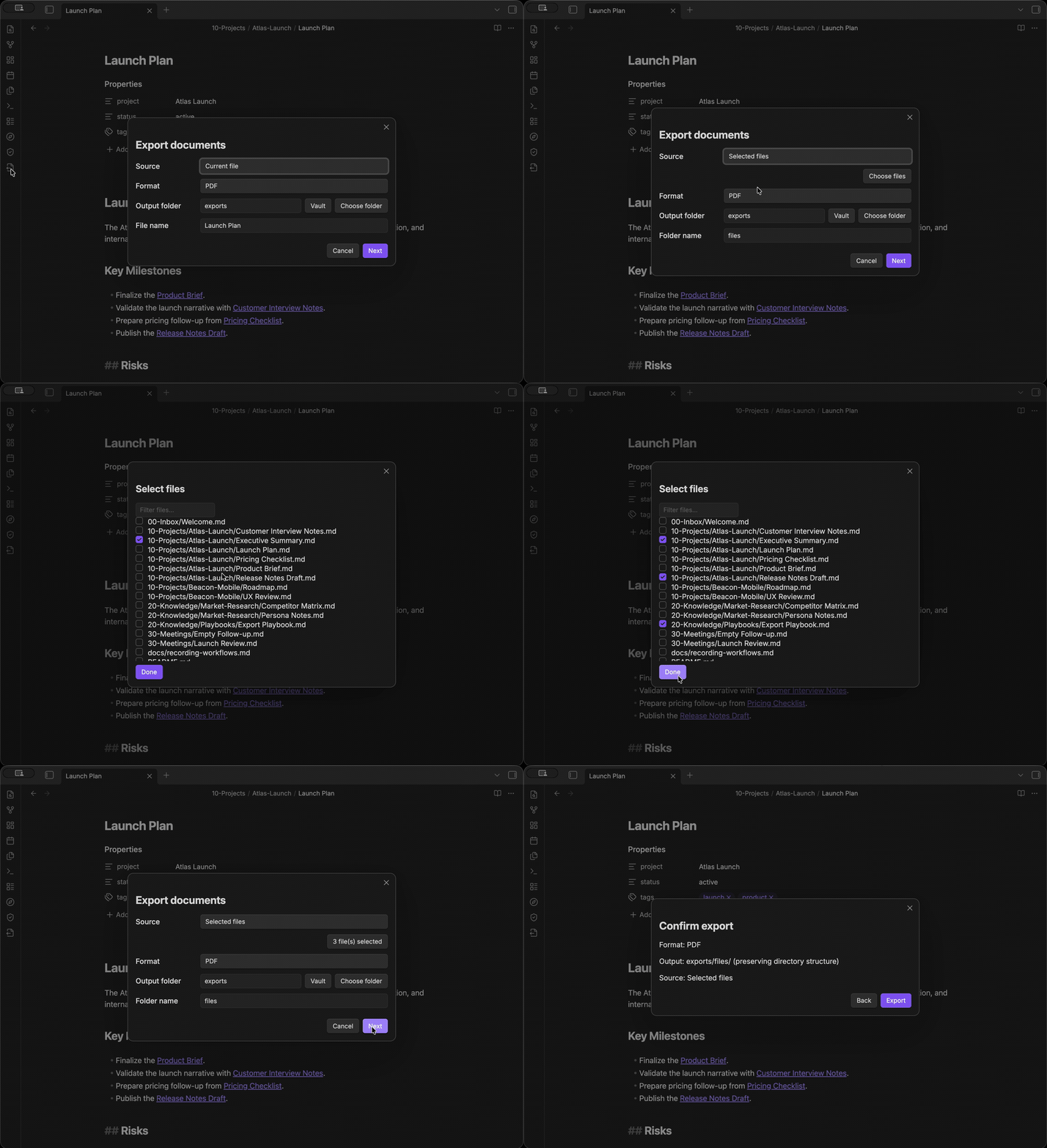
- Choose source — current file, folder, or selected files
- Choose format — PDF, Word document, EPUB e-book, Markdown bundle, or HTML document. PDF is not offered on mobile.
- Set output folder — type a path, click Vault to pick from vault folders, or Choose folder to select a system folder (desktop only)
- Set file name (single file) or folder name (batch export) — defaults to the source file or folder name
- Click Next → review the summary → click Export
A progress bar appears during export showing the current step or file. Click Cancel to stop; already-exported files are kept.
Examples
Export the current note as PDF
- Open a note → right-click → Export current file
- Format: PDF → click Export
- Result:
exports/<filename>.pdf
Export a folder as Markdown bundle
- Right-click a folder → Export this folder
- Format: Markdown bundle → click Export
- Result:
exports/<foldername>/<filename>.md+assets/(if images exist)
Export selected files as HTML
- Start an export from sidebar icon or command palette
- Source: Selected files → pick files → Format: HTML document
- Click Export
- Result: a standalone
.htmlper file with linked assets
Settings
Open Settings → Document Exporter. All settings are indexed and searchable from Obsidian's settings search (Obsidian 1.13+).
| Setting | Description | Default |
|---|---|---|
| Default export format | Format pre-selected when opening the dialog | |
| Output folder | Where exported files are saved | exports |
| Expand note embeds | Inline ![[Note]] embeds into exported documents |
On |
| Include source path comments | Add HTML comments showing each section's origin | Off |
| Copy attachments | Copy referenced images and files into the export | On |
| Overwrite existing exports | Replace existing export files when enabled. When disabled and the destination already exists, the export uses a new timestamped folder for its documents, attachments and report. "Destination" means the selected root for a single note and the batch leaf for folder/selected-file exports — including an existing empty destination. No source folder or previous export is moved or changed; only the new export's destination changes. | Off |
Format capabilities
Native rendering (Obsidian's own engine) is used for desktop PDF and in-app HTML; DOCX and EPUB use format-specific basic conversion. Exact visual parity with Obsidian is not promised.
| Format | Rendering path | Local images | Non-image attachments | Links | Platforms | Documented limitations |
|---|---|---|---|---|---|---|
| Obsidian native print | Copied to assets/ |
Copied to assets/ |
Rewritten relative | Desktop only | Requires the desktop app | |
| Word (.docx) | Format-specific converter | Embedded in the document | Copied to assets/ |
Internal headings, external URLs | Desktop, mobile | Basic conversion; no exact visual parity |
| EPUB | Format-specific converter | Packaged inside the .epub |
Not packaged | Cross-note links omitted | Desktop, mobile | Images only |
| Markdown bundle | Markdown passthrough | Copied to assets/ |
Copied to assets/ |
Rewritten relative | Desktop, mobile | — |
| HTML | Native in-app renderer (basic converter as fallback) | Copied to assets/ |
Copied to assets/ |
Rewritten relative | Desktop, mobile | — |
Limitations
- Block-reference embeds (
![[Note#^block]]) are not expanded - EPUB embeds images only; other attachments and links between notes are omitted
- Dataview queries are not executed during export
- Canvas files are not supported
- PDF export requires the desktop app and is not offered on mobile
Privacy
All processing happens locally. The only network activity is fetching remote resources referenced by the note itself during export rendering (for example http(s) images); exported documents keep those references, so a browser or reader opening them may load the same resources. No telemetry is collected and no document content is sent to any external service.
Installation
Search "Document Exporter" in Settings → Community plugins → Browse and click Install.
Manual installation
Copy main.js, manifest.json, and styles.css into your vault's .obsidian/plugins/document-exporter/ directory.
Development
npm install
npm run dev      # watch mode
npm run build    # production build
npm test         # run tests
License
MIT