
README file from
GithubDocFlow
Render IT project artifacts with type-aware views inside Obsidian.
DocFlow automatically detects the type of your IT documents — ERD, API specifications, WBS, architecture diagrams, requirements, manuals, and meeting notes — and renders them with purpose-built views, all within your Obsidian vault.
Supports English and Korean UI and templates out of the box.
Screenshots
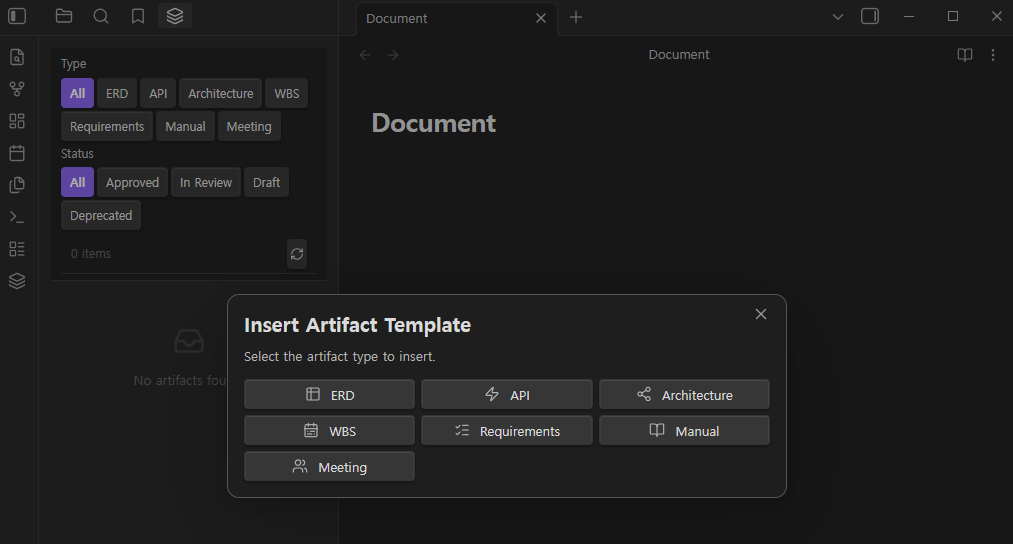
Artifact Explorer (left) with type/status filters, and the Insert Artifact Template modal
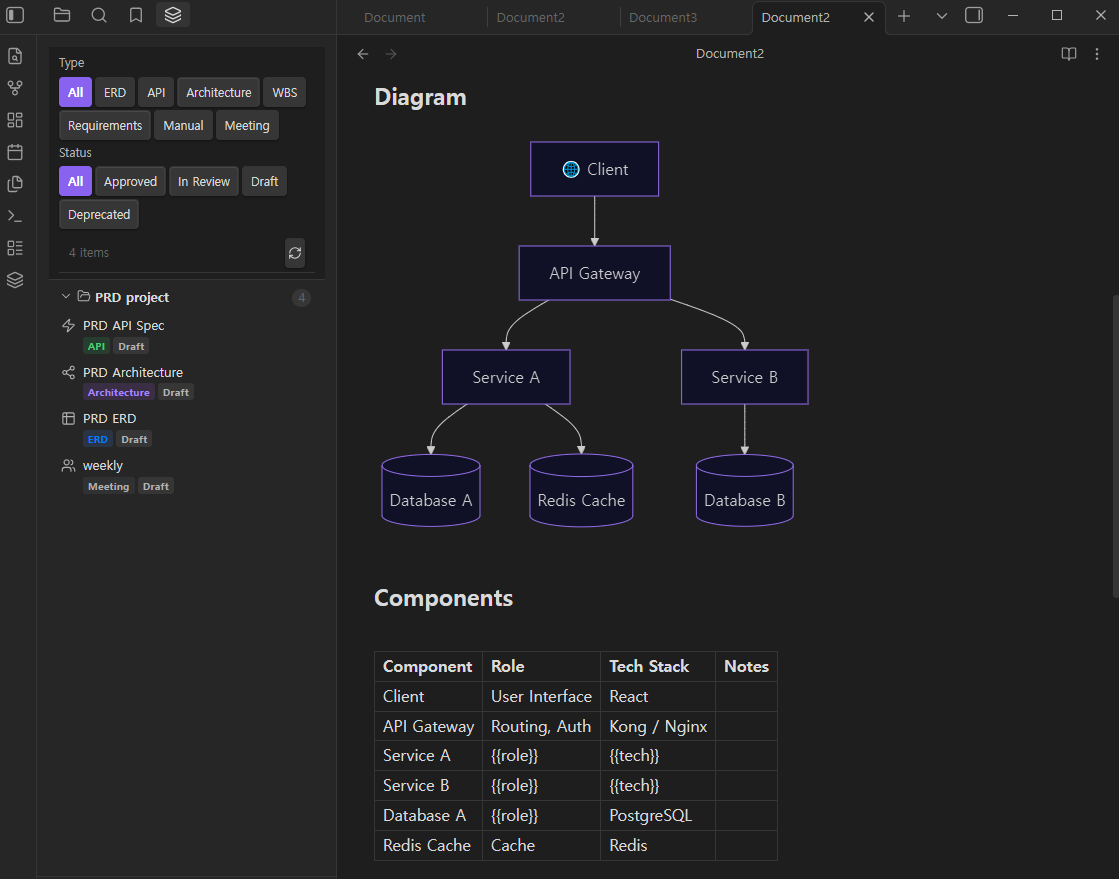
Architecture diagram rendered from a Mermaid flowchart block, with the Artifact Explorer showing project artifacts grouped by project
Features
ERD Renderer
Renders erDiagram Mermaid blocks as interactive entity-relationship diagrams.
- Diagram view with pinch-to-zoom and drag pan
- Table view — structured column list with PK / FK / UK badges
- Export to SVG or PNG with one click
- Auto-syncs with Obsidian's light / dark theme
API Spec Renderer (Swagger UI)
Renders OpenAPI 3.x and Swagger 2.x specs written in yaml or json code blocks.
- Full Swagger UI embedded in the reading view
- Version badge (OAS 3 / OAS 2)
- Try it out mode — toggle in settings (off by default)
Artifact Explorer (Left Sidebar)
Lists all IT artifact files in your vault in one panel.
- Filter by type (ERD, API, Architecture, WBS, Requirements, Manual, Meeting)
- Filter by status (Approved, In Review, Draft, Deprecated)
- Grouped by
projectfrontmatter field - Click any item to open the file
Metadata Panel (Right Sidebar)
Shows frontmatter metadata for the currently open artifact file.
- Status badge with color coding (green / orange / gray / red)
- Version, author, last modified date
- Tag list
- Related document links — click to open
Template Inserter
Insert a pre-filled artifact template from the command palette.
- Command:
DocFlow: Insert Artifact Template - Supports all 7 artifact types
- Prompts for title, project, author — leaves content placeholders for you to fill in
- Templates are provided in English and Korean
Language Support
All UI labels, status badges, filter buttons, and artifact templates are fully localized.
- Auto — follows your system/browser locale
- English — always use English UI and templates
- 한국어 — always use Korean UI and templates
Change the language in Settings → DocFlow → Language. Command names update after re-enabling the plugin.
Supported Artifact Types
| Type | Frontmatter type |
Rendered As |
|---|---|---|
| ERD | erd |
Interactive ERD diagram + table |
| API Spec | api |
Swagger UI |
| Architecture | architecture |
Mermaid flowchart (passthrough) |
| WBS | wbs |
Mermaid Gantt chart (passthrough) |
| Requirements | requirements |
Structured markdown |
| Manual | manual |
Structured markdown |
| Meeting Notes | meeting |
Structured markdown |
Installation
From Community Plugins (Recommended)
- Open Obsidian Settings → Community Plugins → Browse
- Search for DocFlow
- Click Install, then Enable
Manual Installation
- Download
main.js,manifest.json,styles.cssfrom the latest release - Copy all three files to
<your-vault>/.obsidian/plugins/docflow/ - Reload Obsidian and enable the plugin under Settings → Community Plugins
Usage
Rendering an ERD
Create a markdown file with the following frontmatter and a mermaid code block:
---
title: User Management ERD
type: erd
project: my-app
version: 1.0.0
status: approved
author: Your Name
tags: [database]
related: []
---

```mermaid
erDiagram
  USER {
    int id PK
    string email UK
    string name
    datetime created_at
  }
  ORDER {
    int id PK
    int user_id FK
    string status
  }
  USER ||--o{ ORDER : "places"
```
Switch between the Diagram and Table views using the tab buttons above the diagram. Export to PNG or SVG with the download button.
Rendering an API Spec
---
title: Auth API
type: api
project: my-app
version: 1.0.0
status: draft
author: Your Name
---

```yaml
openapi: 3.0.0
info:
  title: Auth API
  version: 1.0.0
paths:
  /login:
    post:
      summary: Login
      responses:
        '200':
          description: Success
```
Inserting a Template
- Open or create a new empty note
- Open the command palette (
Ctrl+P/Cmd+P) - Run DocFlow: Insert Artifact Template
- Select an artifact type
- Fill in the title, project, and author fields
- Click Insert Template
The template language matches the current language setting (English or Korean).
Auto-detection
If a file has no type in its frontmatter, DocFlow can detect the type automatically:
| Signal | Detected Type |
|---|---|
erDiagram keyword in a mermaid block |
erd |
gantt keyword in a mermaid block |
wbs |
flowchart / graph keyword in a mermaid block |
architecture |
File path contains /api/ and ends in .yaml / .json |
api |
File path contains /meeting |
meeting |
Auto-detection can be disabled in Settings if you prefer to set types explicitly.
Frontmatter Fields
| Field | Type | Required | Default | Description |
|---|---|---|---|---|
type |
string | Yes | — | Artifact type (erd, api, architecture, wbs, requirements, manual, meeting) |
title |
string | No | File name | Display title |
project |
string | No | — | Project name (used for grouping in the Explorer) |
version |
string | No | 1.0.0 |
Semantic version |
status |
string | No | draft |
draft | review | approved | deprecated |
author |
string | No | — | Author name |
tags |
list | No | [] |
Tag list |
related |
list | No | [] |
Related files as wiki links, e.g. [[auth-api]] |
Settings
| Setting | Default | Description |
|---|---|---|
| Language | Auto | UI language and template language. Auto follows your system locale · English · 한국어 |
| Auto Type Detection | ON | Detect artifact type from file content and path when type is not set in frontmatter |
| Swagger Try it out | OFF | Enable live HTTP requests in the API renderer |
| Diagram Theme | Auto | Auto follows Obsidian's theme · Light · Dark |
| Auto-open Metadata Panel | ON | Automatically open the metadata panel when entering Reading View for an artifact file |
| Scan Paths | (all) | Comma-separated folder paths to scan. Leave empty to scan the entire vault |
Requirements
- Obsidian 1.4.0 or later
- Works on desktop and mobile