
README file from
GithubDeepgram Meeting STT
An Obsidian plugin that turns meeting recordings into Markdown notes — speech-to-text via Deepgram with per-speaker timestamps, plus an optional AI summary step via Google Gemini that drops a structured digest next to the transcript.
🇰🇷 한국어 가이드: README-ko.md
What you get
- Audio → transcript: drop an audio file, right-click, pick a title — get back a Markdown note with per-speaker
[HH:MM:SS]timestamps. - Audio → transcript → AI summary (optional): in the same right-click, also produce a structured summary note (action items, decisions, key quotes — whatever the template says) backlinked to the transcript.
- File-based summary templates under
ObsiDeep/Templates/. Each.mddeclares its own prompt and output skeleton with{{placeholders}}; you edit them like any other note. Favorites surface as flat menu items; the rest sit in anAI 요약 ▸submenu. Three starters are seeded on first run (Meeting,Interview,Lecture). - Workspace stays clean:
ObsiDeep/(Audio · STT · Templates · AI-Summaries) is auto-created at the vault root, and.gitignorerules are added so recordings and your API keys never enter vault git sync. - Bilingual UI — Korean / English / auto-follow Obsidian locale.
- Zero Retention by default for Deepgram; AI summary is fully optional and gated on having a Gemini key set.
- Mobile compatible — works on Obsidian for iOS / Android.
The plugin keeps working as a pure STT tool. If you don't set a Gemini key, no AI menus appear and nothing leaves your machine except the audio you choose to transcribe.
Install
- Settings → Community plugins → Browse
- Search for "Deepgram Meeting STT"
- Install + Enable
Setup
On first enable, a one-time consent modal explains what's sent to Deepgram and auto-creates an ObsiDeep/ workspace at the vault root — including Templates/ (seeded with three starter summary templates) and AI-Summaries/. It also writes .gitignore rules so recordings and your API keys stay out of vault git sync.
1. Deepgram API key (required for STT)
-
Sign up at Deepgram Console — free tier includes a $200 credit (~770 hours of
nova-3).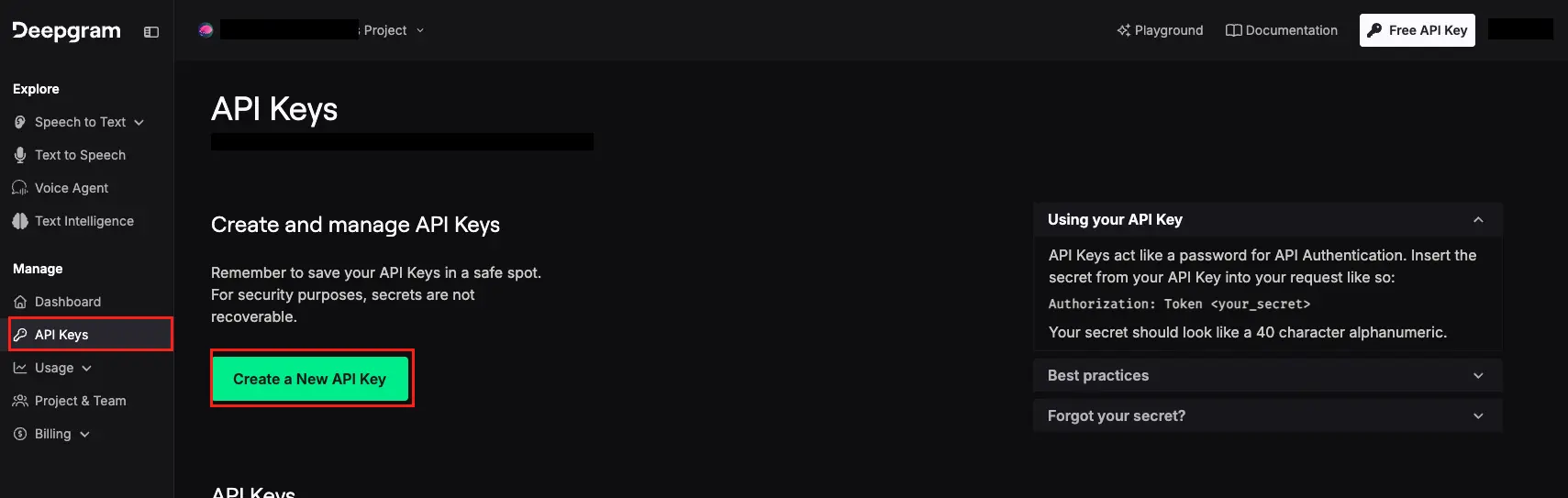
-
API Keys → Create New API Key (any name,
Memberpermission is enough).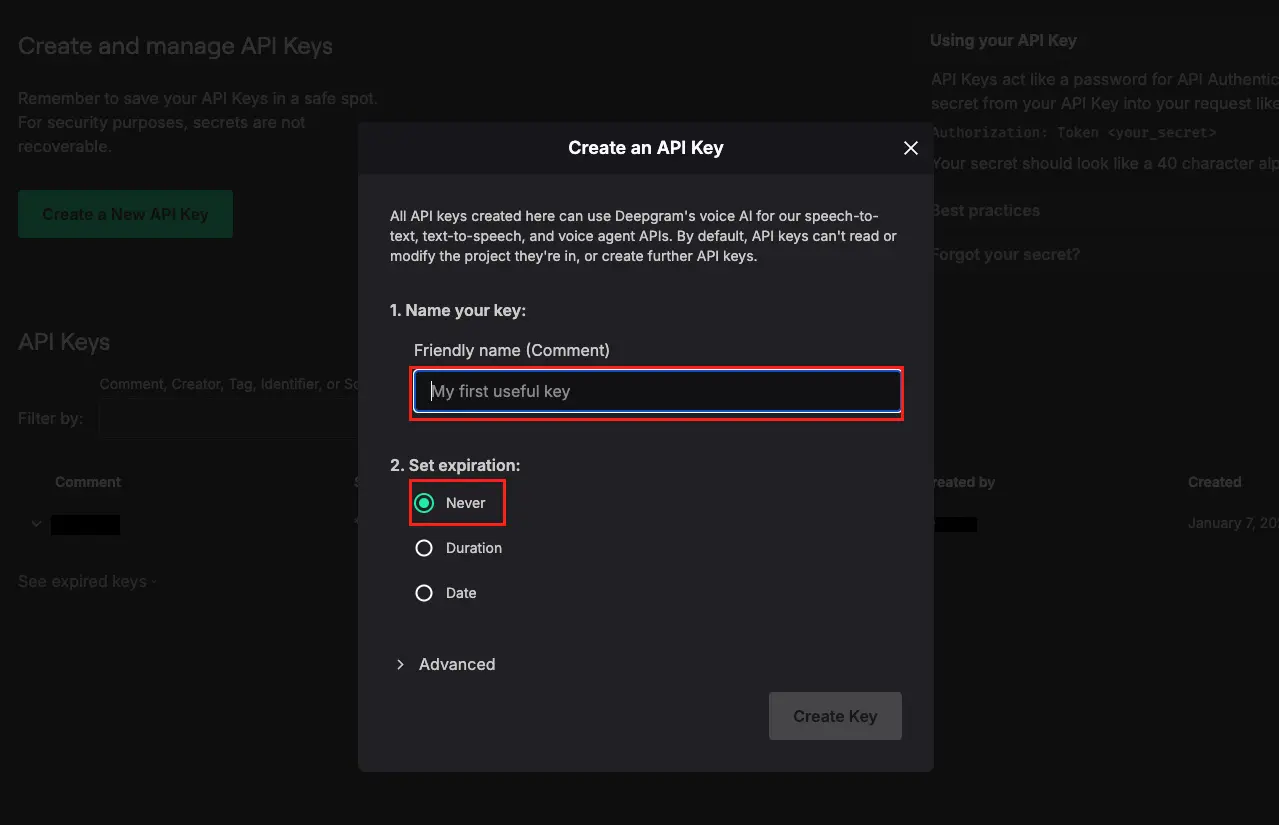
-
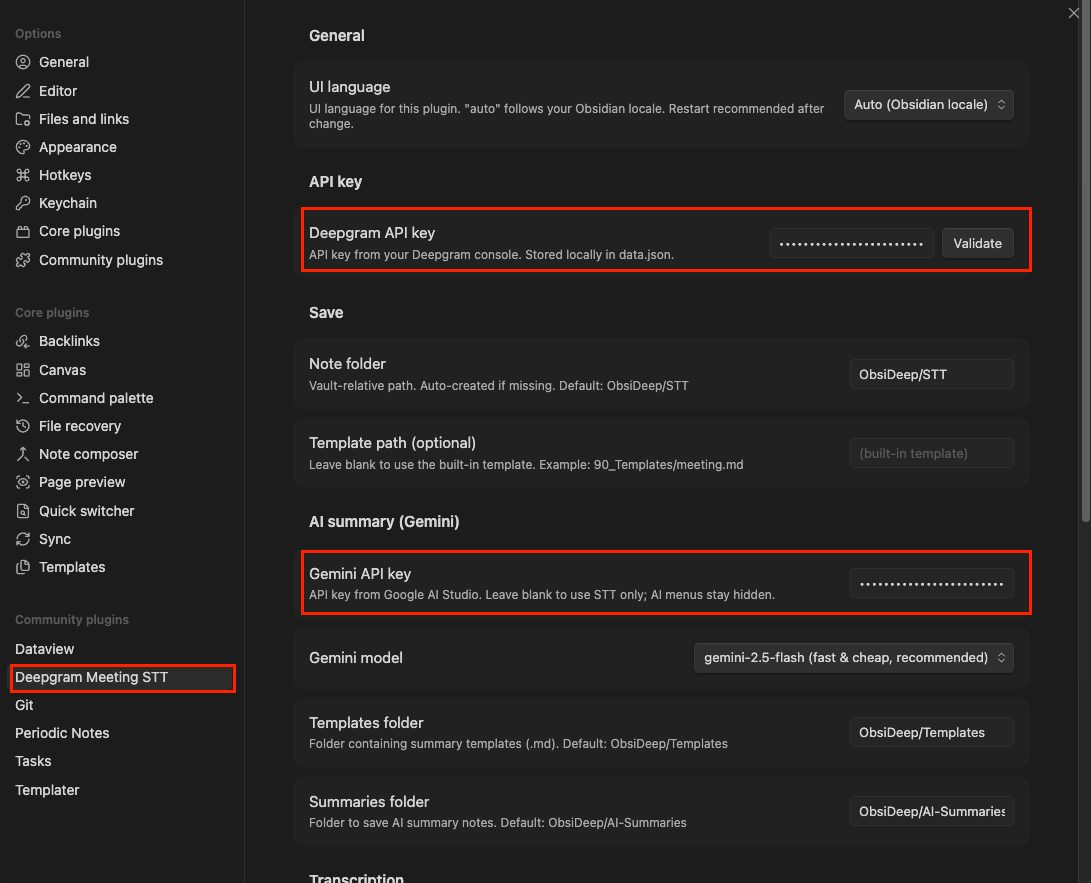
Paste into Settings → Deepgram Meeting STT → "Deepgram API key" → click Validate.
2. Gemini API key (optional — only for AI summary)
Leave this blank if you only want STT. To enable AI summary:
- Open Google AI Studio → API keys and create one.
- Paste into Settings → Deepgram Meeting STT → "Gemini API key".
- Pick a model —
gemini-2.5-flash(default, fast & cheap) orgemini-2.5-pro(higher quality).
The AI menus stay hidden until a key is set.
Usage
Transcribe only
- Place an audio file (
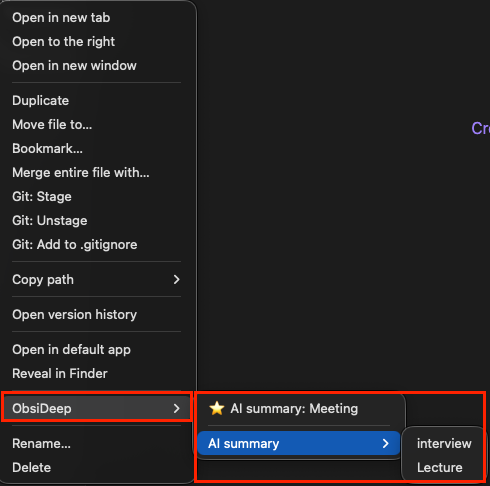
mp3,m4a,mp4,wav,flac,ogg,opus,webm,aac) intoObsiDeep/Audio/. - Right-click the file →
ObsiDeep ▸ STT만 추출(Transcribe only). - Enter a title → Enter.
- After ~1–2 minutes the transcribed note appears in
ObsiDeep/STT/and opens automatically.
The same flow is available from the command palette (Cmd+P / Ctrl+P) → "Transcribe audio → meeting note".
If you copied the file via Finder/Explorer and it doesn't appear in the sidebar right away, run
Cmd+P→ "Reload app without saving" first.
Transcribe + summarize in one go (AI summary set up)
- Right-click an audio file →
ObsiDeep ▸ ⭐ STT + 요약: Meeting(favorite templates surface flat; others live underAI 요약 ▸). - Enter a title.
- After STT finishes, the transcript is fed to Gemini with the template's prompt.
- Two notes appear: the transcript in
ObsiDeep/STT/, the summary inObsiDeep/AI-Summaries/{title} (요약).mdwith asource: "[[...]]"backlink to the transcript.
If STT fails, nothing else runs. If only the summary step fails, the transcript is preserved and you get a notice.
Re-summarize an existing note
Right-click any markdown note → ObsiDeep ▸ AI 요약: <template> — same flow, but the note's body is the input transcript. Useful for trying a different template, or summarizing notes that weren't produced by this plugin.
Output examples
Transcript (ObsiDeep/STT/...):
---
date: 2026-05-13
type: meeting
tags: [meeting, stt]
duration: 28m 41s
language: ko
source: [[ObsiDeep/Audio/standup.m4a]]
speakers: ["Speaker 1", "Speaker 2"]
---

# Stand-up 2026-05-13

**Speaker 1** [00:00:01 - 00:00:08]
Good morning, let's start with the status updates.

**Speaker 2** [00:00:09 - 00:00:14]
Sure, I'll go first.
Summary (ObsiDeep/AI-Summaries/..., using the Meeting template):
---
source: "[[ObsiDeep/STT/Stand-up 2026-05-13]]"
template: "Meeting"
date: 2026-05-13
language: Korean
type: ai-summary
---
# Stand-up 2026-05-13

> Source: [[ObsiDeep/STT/Stand-up 2026-05-13]] · 2026-05-13 · 28:41

## Summary
- Status updates from each team
- ...

## Decisions
- ...

## Action Items
- [ ] @Speaker1 — follow up with ...
Customize a template
Edit any .md in ObsiDeep/Templates/:
---
name: "Meeting"
favorite: true        # show flat in the right-click menu
prompt: |
  Summarize the transcript as meeting minutes.
  - decisions: clear, one bullet per decision.
  - action_items: use checkbox markdown; include owner name when present.
placeholders:
  summary: "3-5 bullet overview of the discussion"
  decisions: "Bullet list of decisions made"
  action_items: "Checkbox list of action items (with owner if mentioned)"
---
# {{title}}

> Source: {{source}} · {{date}} · {{duration}}

## Summary
{{summary}}

## Decisions
{{decisions}}

## Action Items
{{action_items}}
The placeholders you declare here become the JSON schema Gemini is forced to fill — no free-form text drift. Add as many as you want.
To scaffold a new template with every system placeholder documented, run the command palette → "새 요약 템플릿 만들기 (Create new summary template)".
Rename speakers
Speakers are labelled Speaker 1, Speaker 2 by default. To replace with real names:
-
Open the meeting note.
-
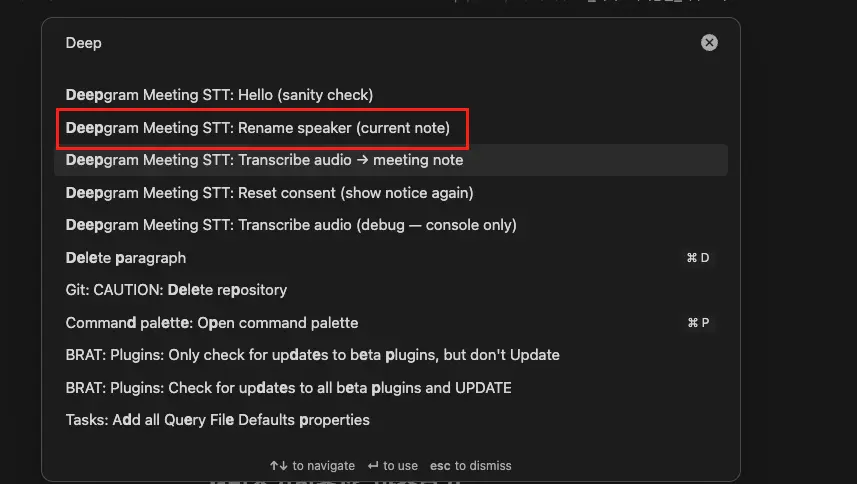
Command palette → "Rename speaker (current note)".
-
Pick the speaker from the dropdown (auto-detected from the note's frontmatter).
-
Type the real name → click Replace.
Every occurrence in both the body and the speakers frontmatter array is rewritten.
Settings
| Setting | Description | Default |
|---|---|---|
| UI language | Plugin UI (Korean / English / auto-follow Obsidian) | auto |
| Deepgram API key | Required for STT. Stored locally in data.json |
(none) |
| Note folder | Vault-relative STT output path | ObsiDeep/STT |
| Template path | Optional custom STT note template | (built-in template) |
| Audio language | Primary recording language | ko |
| Deepgram model | nova-3 (latest) / nova-2 (stable) |
nova-3 |
| Speaker diarization | Produce per-speaker transcripts | true |
| Zero Retention | Ask Deepgram to discard data after processing | true |
| Gemini API key | Optional. Enables the AI summary menus | (none) |
| Gemini model | gemini-2.5-flash (fast/cheap) / gemini-2.5-pro (higher quality) |
gemini-2.5-flash |
| Templates folder | Where summary templates live | ObsiDeep/Templates |
| Summaries folder | Where AI summary notes are written | ObsiDeep/AI-Summaries |
See FEATURES.md for the full placeholder reference, AI summary deep-dive, accuracy guide (audio quality, speaker count, recording-room checklist), and mobile usage notes.
Security & Privacy
- Audio is sent to Deepgram over HTTPS for processing. Transcript text is sent to Gemini only if you trigger an AI summary.
- Your API keys are stored locally as plain JSON in
.obsidian/plugins/deepgram-meeting-stt/data.json(Obsidian plugin standard). The plugin auto-adds this path to your vault's.gitignore. - The
ObsiDeep/folder is also auto-added to.gitignoreso recordings, transcripts, and summaries never enter vault git sync. - Deepgram complies with GDPR / SOC 2 Type II / HIPAA (with BAA) / CCPA. See Deepgram Trust Center and Privacy Policy.
- Zero Retention is on by default for Deepgram. Guaranteed immediate effect on Growth or higher Deepgram plans; free / Pay-as-you-go tier may still retain data per standard policy (~30 days).
- Gemini API usage is governed by Google's Gemini API Terms and Privacy Policy. Free-tier requests may be used to improve Google's models — use the paid tier if that's a concern.
- Please obtain consent from meeting participants before recording and transmitting audio to a third-party API.
Cost
Approximate cost with nova-3:
| Length | Deepgram | Gemini (2.5-flash, summary) | Total |
|---|---|---|---|
| 30 min | $0.13 | ~$0.005 | ~$0.14 |
| 1 hour | $0.26 | ~$0.01 | ~$0.27 |
| 2 hours | $0.52 | ~$0.02 | ~$0.54 |
The free $200 Deepgram credit + Gemini's free tier cover many hours of typical use. See Deepgram Pricing and Gemini API Pricing for current rates.
License
MIT © 2026 Moonjuun