
README file from
GithubCornell Notes Pro
A Cornell-style note layout for Obsidian, built on standard Obsidian callouts — no custom syntax or file format. You tag a note with the cornell-note cssclass and write ordinary > [!cue], > [!summary], and > [!title] callouts; the plugin arranges those native callouts into the Cornell layout: a title across the top, cue callouts in a left margin column beside the notes, and a full-width summary band running across the bottom. It positions the callouts in both Reading view and Live Preview (titles and cues stay inline-editable in Live Preview, no source-mode switching needed), and you can stack several Cornell pages in one file.
Screenshots
| Reading view | Live Preview | Review mode |
|---|---|---|
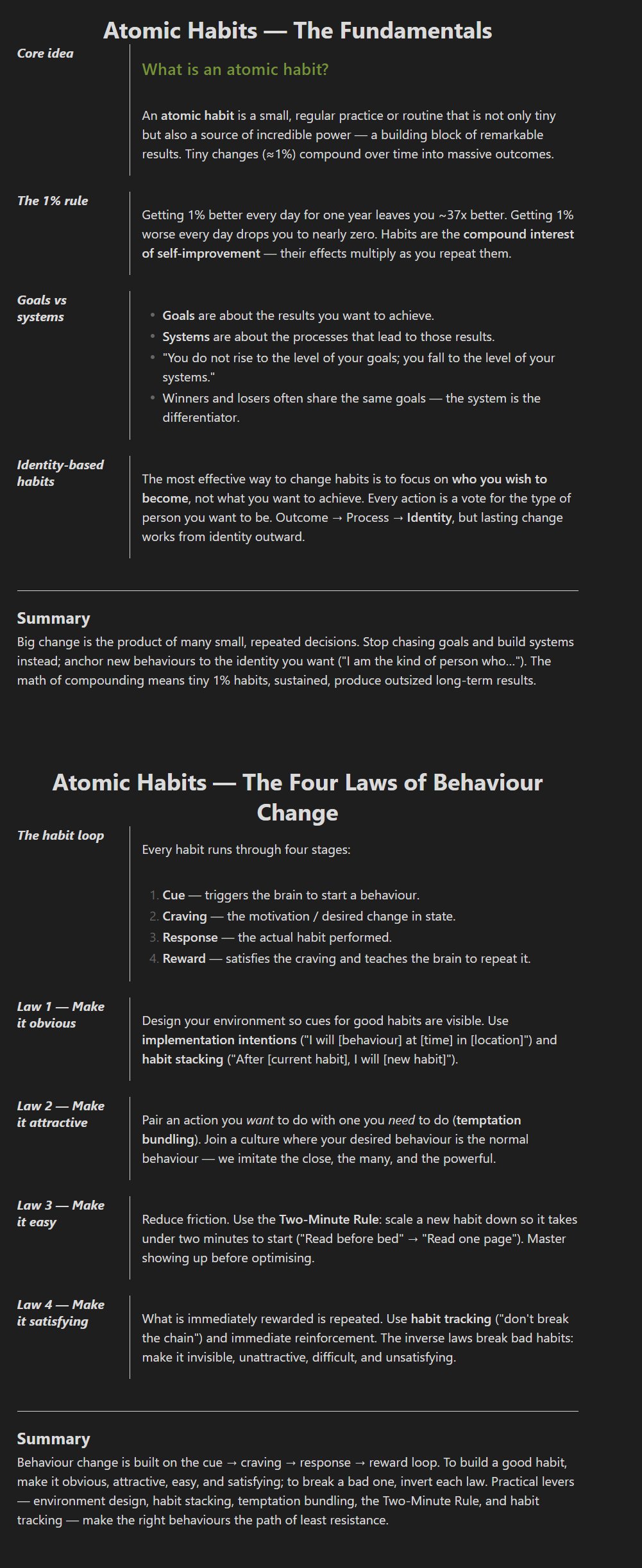 |
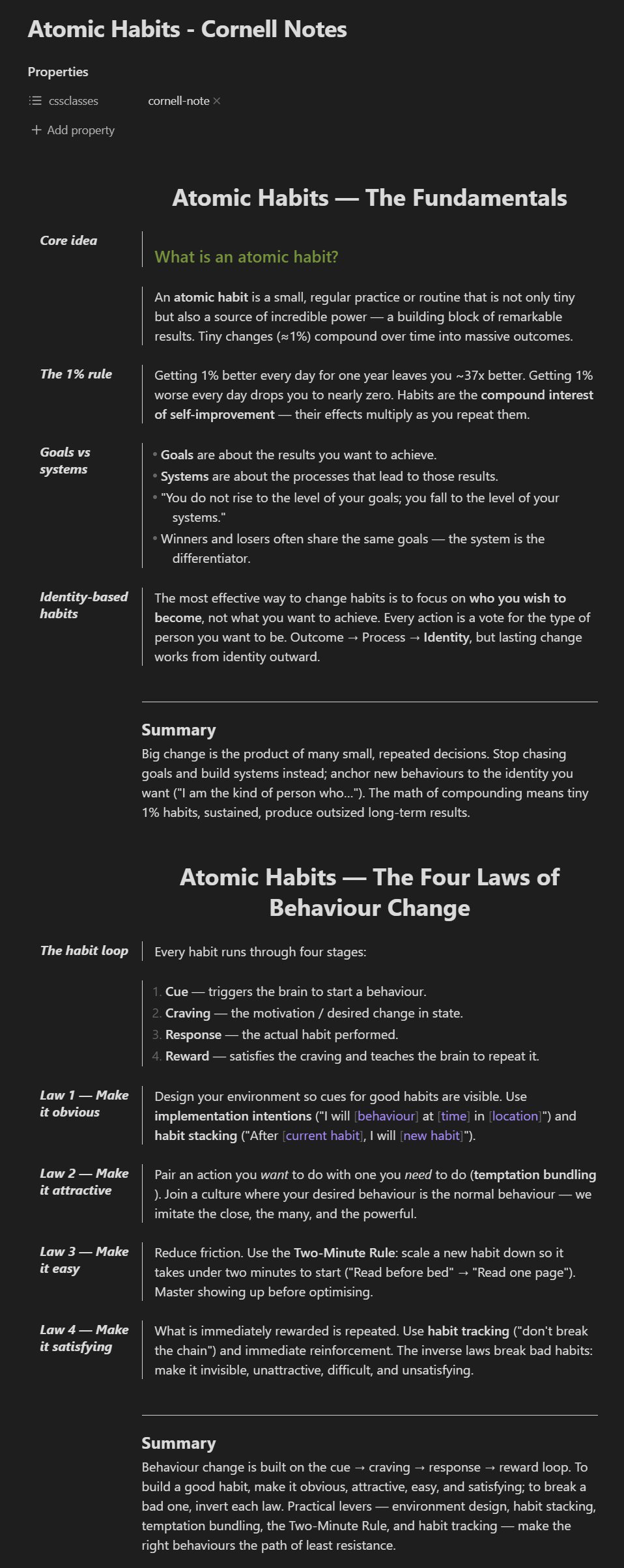 |
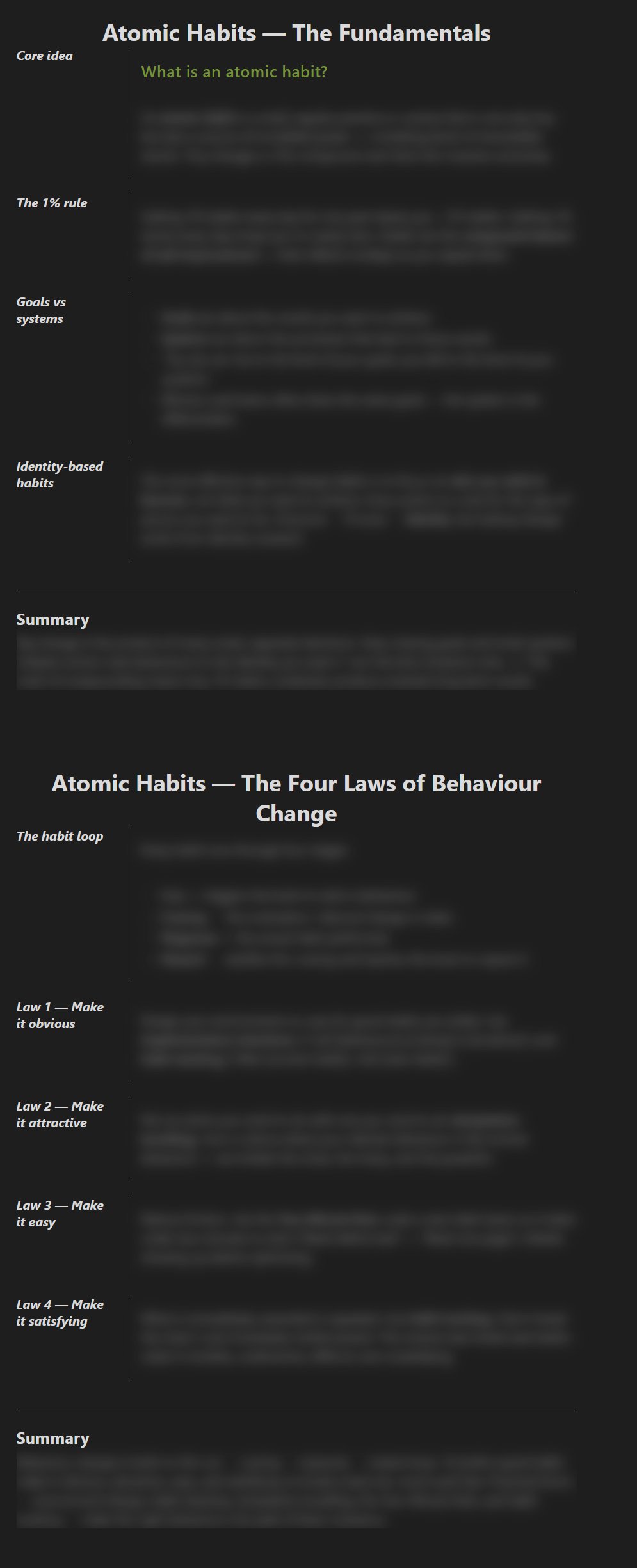 |
Usage
Quickest path: use the command palette (Ctrl/Cmd-P → "Create new Cornell note") or click the columns ribbon icon in the left sidebar. The plugin creates a new note in the current folder, pre-filled with the right frontmatter and a starter cue/summary skeleton.
To convert an existing note manually, add cornell-note to its cssclasses frontmatter:
---
cssclasses:
  - cornell-note
---
(The legacy cssclass: cornell-note form is also accepted.)
Write cues as callouts before the heading or block they describe:
> [!cue] Note's Layout
## Note's Layout

The Cornell method offers a specific layout for each page of notes.
[!important] Leave a blank line between a cue and a paragraph beneath it. Markdown "lazy continuation" folds a paragraph that sits directly under a
> [!cue]line into the cue callout — the notes then render inside the narrow cue column (and overlap in Live Preview) instead of the notes column. A heading or list right below a cue is fine (those break out on their own); a bare paragraph needs the blank line:> [!cue] Topic Notes for this cue go here.The plugin flags a cue that has swallowed its notes this way with a red warning border and a tooltip reminding you to add the blank line.
Write the summary the same way at the bottom. It renders as a full-width band across both the cue and notes columns, like a classic Cornell sheet:
> [!summary]
> The Cornell system encourages active engagement and structured review.
Use a standard --- horizontal rule to separate sections within a single page. (A --- does not start a new page — see below.)
Titles and multiple pages
Give a page a title with a > [!title] callout. It renders full-width and centered across the top:
> [!title] Photosynthesis
File-name fallback: if a page has no > [!title] (or the title is left empty), Obsidian's built-in inline title — the file name — is used as the title automatically, so every Cornell note always has a heading with zero effort. Type a > [!title] at the very top to override it; the file name's inline title is then hidden in favor of your title.
Multiple pages in one file: each > [!title] begins a new Cornell page — its own title, cues/notes, and summary — continuing until the next > [!title]. Consecutive pages are separated by a large whitespace gap (a page-break feel, no drawn line). Content written before the first > [!title] stays under the file-name title.
> [!title] Page One
> [!cue] Cue
Notes for page one.

> [!summary]
> Summary of page one.

> [!title] Page Two
> [!cue] Cue
Notes for page two.

> [!summary]
> Summary of page two.
Anything you write under a cue — paragraphs, lists, tables, embedded images, code blocks, headings (#..######), and even other callouts (note, tip, warning, …) — sits in the notes column and shares one continuous divider line, so the whole block reads as belonging to that cue. A heading sits in the notes column beside its cue (the divider runs through it), matching where the body goes. Only the --- rule and the summary span the full page width. (A heading written before any cue has no notes column to join, so it stays full-width.)
Faster callouts
You can always type > [!cue], > [!summary], or > [!title] by hand. To speed it up, set a Cue / Summary / Title shortcut in the settings (see below): type that word on its own line inside a Cornell note and it auto-expands into the matching callout (> [!cue] , > [!summary] , or > [!title] ) with the cursor placed right after, ready for the text. Leave a shortcut blank to disable it.
The three trigger words must be distinct — if you set the same word for two shortcuts, the settings show an error and won't accept the duplicate, so there's never any ambiguity about which callout a word expands into.
Review mode
Review mode turns a Cornell note into an active-recall study sheet. Run the "Toggle review mode" command: cue titles (and the page title) stay visible as prompts, while each cue's notes region and the summary are blurred. Read a cue, try to recall its notes, then click the cue to reveal them (click again to re-hide). Reveals accumulate, so you can open several at once; click the summary to reveal/hide it on its own.
- Review mode is global (it affects every open Cornell note) and works in Reading view only — switch to Reading view to use it.
- Clicking a cue reveals all the body notes in its region together. Headings stay visible (they read as prompts alongside the cue) even though they sit in the notes column, as do the page title, the cue callouts themselves, the summary title, horizontal rules, and any content before the first cue.
- Run "Reset review reveals (re-blur all)" to re-hide everything and start the recall over without leaving review mode. Toggling review mode off also clears all reveals.
Settings
Settings → Community Plugins → Cornell Notes:
| Setting | Default | Notes |
|---|---|---|
| Cue column width | 120 (px) |
Width of the left margin column. |
| Divider line color | lightgrey |
Any CSS color value (named, hex, rgb). |
| Divider line thickness | 1 (px) |
Set to 0 to hide the divider. |
| Cue shortcut | `` (empty) | A trigger word that auto-expands into > [!cue] when typed on its own line. Empty disables it. |
| Summary shortcut | `` (empty) | A trigger word that auto-expands into > [!summary] . Empty disables it. |
| Title shortcut | `` (empty) | A trigger word that auto-expands into > [!title] . Empty disables it. |
| Highlight cue on hover (review mode) | off |
When on, hovering a cue (or the summary) in review mode draws an accent box around it. The pointer cursor shows either way. |
The three shortcut trigger words must differ from one another; the settings reject a duplicate with an error. Changes apply live — no plugin reload required.
Commands
| Command | What it does |
|---|---|
| Create new Cornell note | Creates a pre-filled Cornell note in the current folder. |
| Toggle review mode | Turns the active-recall study mode on/off for all Cornell notes (Reading view). |
| Reset review reveals (re-blur all) | Re-hides every revealed region without leaving review mode. |
Architecture
classifier.ts— pure module, the single source of truth for placement.classifyBlocksturns a note's source into an ordered list of slots (title,cue,summary,body,full,gap), each with a block range, per-line ranges, a 0-basedpagenumber (a> [!title]increments the page), and acueGroupordinal (each cue's notes region inherits the cue's ordinal, for review mode).slotForLineRangemaps a source line range (fromgetSectionInfo) to its slot for Reading view;leadsWithTitlereports whether the file opens with a non-empty title (drives the file-name fallback);reviewBlurInfodecides, per slot, whether it blurs in review mode and which reveal-group key it carries. No Obsidian or DOM dependencies.livePreview.ts— CodeMirrorViewPluginthat maps slots to line decorations on title / cue / summary / body / gap source lines, plusresolveExpansion(pure) backing the cue/summary/title auto-expand shortcuts.reviewMode.ts—ReviewModeController: owns the global, ephemeral review-mode on/off state, toggles thecornell-reviewclass on Reading-view sizers, handles cue/summary clicks to reveal/hide a group, tracks revealed groups per file (so reveals survive re-renders), and resets reveals. DOM glue verified manually in Obsidian.main.ts— plugin entry. Registers the editor extension, the Reading-view post-processor (which stampsdata-cornell-slot, the review markersdata-cornell-cue-group/data-cornell-review-blur, and re-applies persisted reveals; togglescornell-leading-titleon the sizer), the settings tab, the review-mode commands + click listener, and listens for metadata changes.settings.ts— settings interface + tab UI, including the three callout shortcuts and the purefindDuplicateTriggervalidator that keeps their trigger words distinct.styles.css— visual layout. Reading view places blocks by theirdata-cornell-slotattribute; the title is centered full-width and a--cornell-page-gapof whitespace separates stacked pages. Review mode blursdata-cornell-review-blurwrappers under acornell-reviewsizer until they'redata-cornell-revealed. CSS variables (--cue-width,--cue-line-color,--cue-line-thickness) are written to:rootby the plugin so settings updates re-flow the page without restyling.tests/—node:testfixtures over the pure classifier; run withnpm test.
Build
npm install
npm run build
Produces main.js. The plugin folder is symlinked into the vault's .obsidian/plugins/cornell-notes.
License
Licensed under the GNU General Public License v3.0.