
README file from
GithubCopy Selected Name
演示视频 / Demo Video
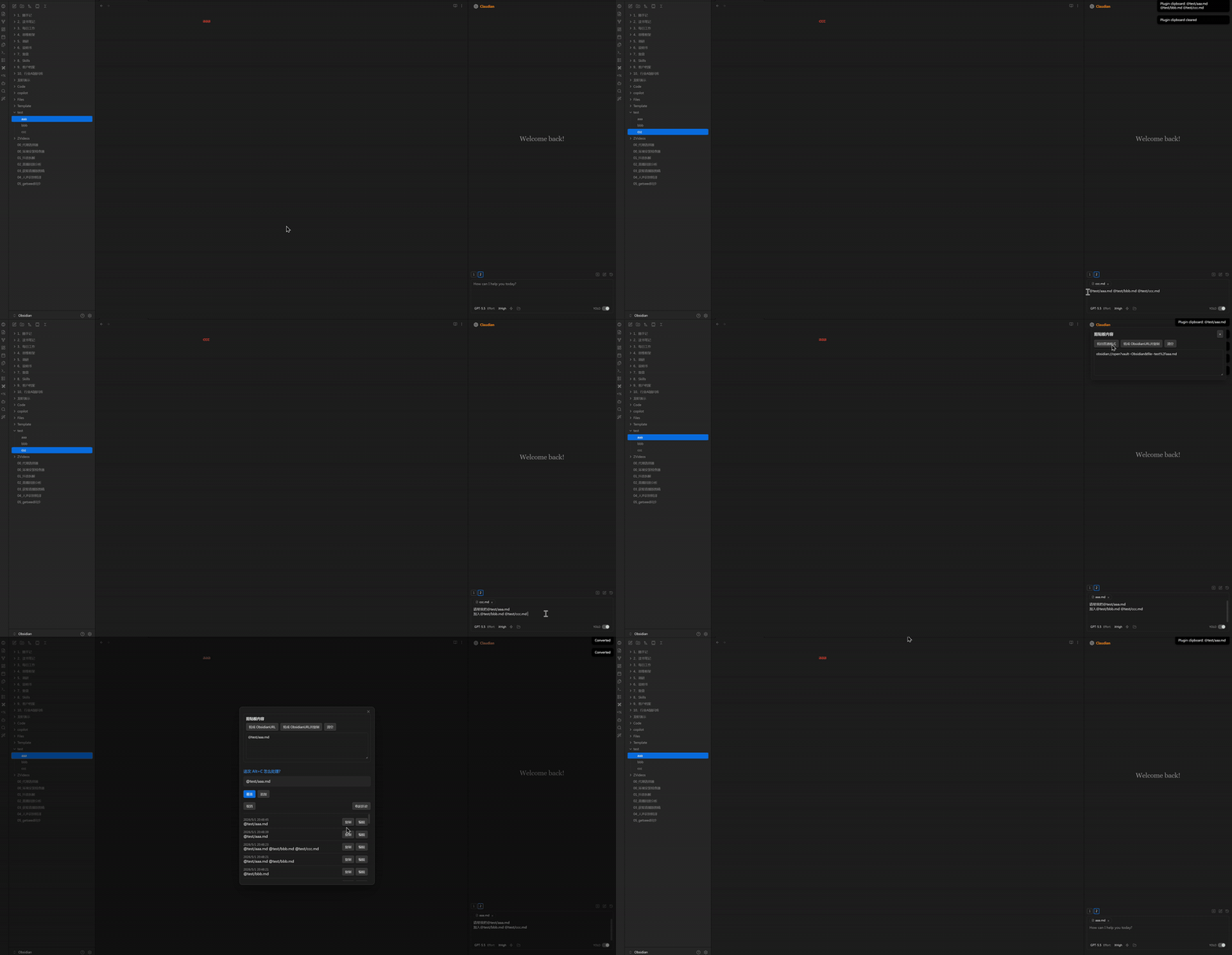
点击这里观看高清 MP4 演示视频。 / Click here to watch the full MP4 demo.
Copy Selected Name 是一个 Obsidian 桌面端插件,用于在文件列表中选中文件或文件夹后,通过 Alt+C(macOS 为 Option+C)快速生成适合 AI 对话和笔记上下文引用的文件名格式,例如:
@01_抖音拆解.md
它特别适合这些场景:
- 在 Obsidian 里使用 Claudian、Claude、Codex 或其他 AI 对话插件时,快速把当前文件作为上下文引用插入输入框。
- 同时选择多个笔记文件,把它们整理成一串可直接粘贴给 AI 的文件名引用。
- 在做短视频拆解、选题策划、项目复盘、客户资料整理时,快速收集多个相关文件名。
- 需要在普通
@文件名.md格式和obsidian://open?...Obsidian URL 格式之间来回转换。
插件使用自己的内部剪贴板,不会默认覆盖系统剪贴板。只有点击“转成 ObsidianURL并复制”时,才会把内容写入系统剪贴板。
联系方式
微信:abc7752abc
备注:问题反馈、建议、合作
界面预览
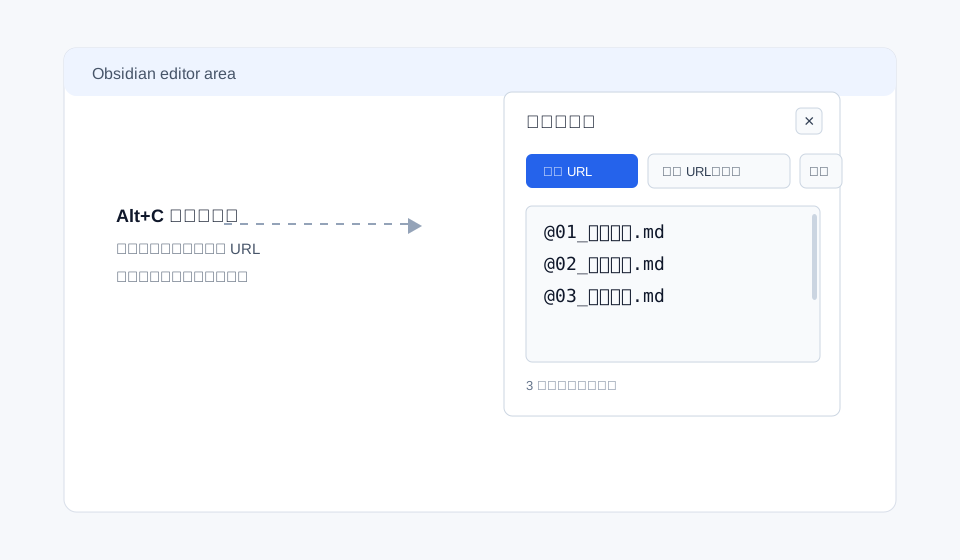
剪贴板内容面板
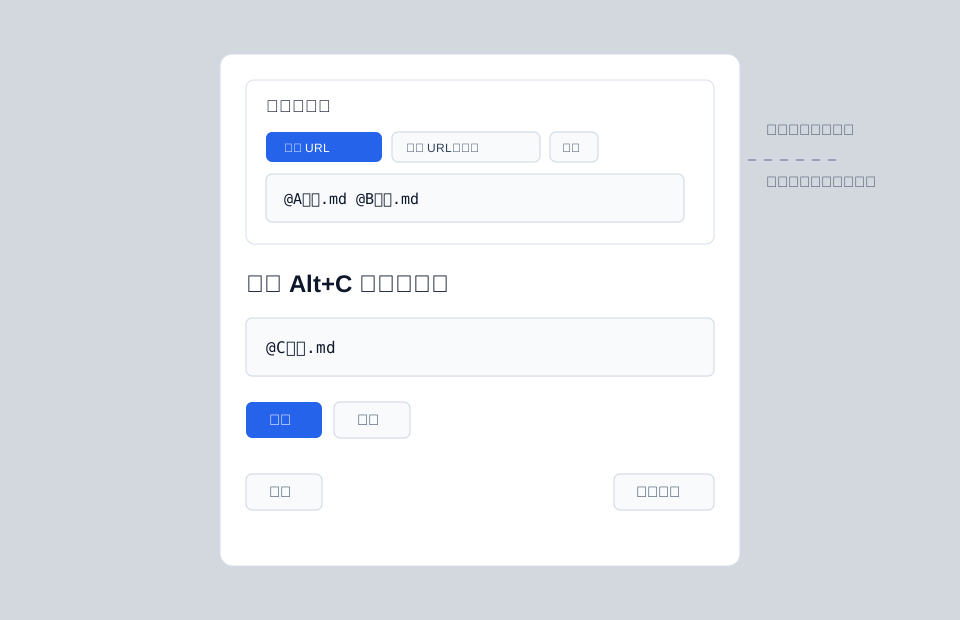
覆盖 / 追加弹窗
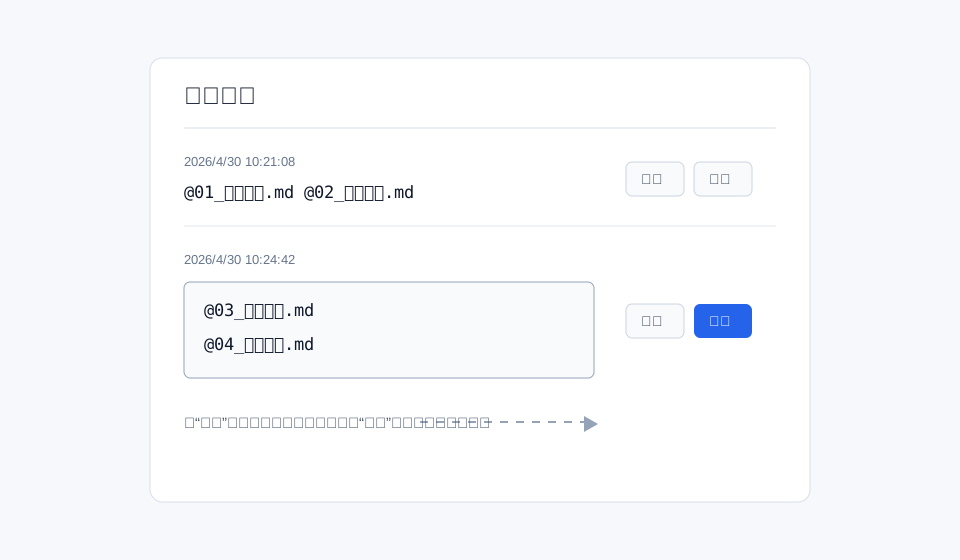
历史记录编辑
安装方法
方法一:下载 ZIP 手动安装
- 打开本仓库页面。
- 点击
Code -> Download ZIP。 - 解压 ZIP 文件。
- 将解压后的插件文件夹重命名为:
copy-selected-name
- 把这个文件夹放到你的 Obsidian 库插件目录:
<你的 Obsidian 库>/.obsidian/plugins/copy-selected-name
以 Windows 为例:
D:\Obsidian\.obsidian\plugins\copy-selected-name
- 确认文件夹里至少包含这些文件:
main.js
manifest.json
styles.css
- 打开 Obsidian,进入
设置 -> 第三方插件 / Community plugins。 - 如果第三方插件还没有开启,先关闭安全模式。
- 找到并启用
Copy Selected Name。
方法二:使用 Git 安装
进入你的 Obsidian 插件目录:
cd "<你的 Obsidian 库>/.obsidian/plugins"
克隆仓库,并把本地文件夹命名为插件 ID:
git clone https://github.com/mikeddy/obsidian-copy-selected-name.git copy-selected-name
然后回到 Obsidian,启用 Copy Selected Name。
使用方法
单个文件
- 在 Obsidian 左侧文件列表里选中文件,例如
01_抖音拆解.md。 - 按
Alt+C(macOS 为Option+C)。 - 插件内部剪贴板会得到:
@01_抖音拆解.md
格式规则:
- 前面自动加
@ - 保留
.md - 末尾保留一个空格
- 多个文件时一行一个文件,每一行末尾仍保留一个空格
多个文件
选中多个文件后按 Alt+C(macOS 为 Option+C),会一次性复制所有选中文件名:
@A文件.md
@B文件.md
@C文件.md
单按、双按、三连按
- 单按
Alt+C(macOS 为Option+C):覆盖插件内部剪贴板。 - 1 秒内双按
Alt+C(macOS 为Option+C):进入追加逻辑,把新文件名追加到原内容后面。 - 1 秒内三连按
Alt+C(macOS 为Option+C):打开“覆盖 / 追加 / 取消”弹窗。
例如:
- 在 A 文件上双按
Alt+C(macOS 为Option+C)。 - 切换到 B 文件。
- 在 B 文件上双按
Alt+C(macOS 为Option+C)。 - 最终插件剪贴板会是:
@A文件.md
@B文件.md
自定义快捷键和频率
在 Obsidian 中进入 设置 -> 第三方插件 -> Copy Selected Name,可以修改:
- 操作快捷键:点击“录制快捷键”,按下你想使用的任意组合键。
- Windows 快捷键:单独配置 Windows/Linux 下使用的快捷键。
- Mac 快捷键:单独配置 macOS 下使用的快捷键。
- 连按判断间隔:设置多少毫秒内算作双击或三击。
- 单击动作:可选智能覆盖、覆盖、追加、弹窗或不执行。
- 双击动作:可选覆盖、追加、弹窗或不执行。
- 三击动作:可选覆盖、追加、弹窗或不执行。
插件命令也会出现在 Obsidian 的 设置 -> 快捷键 中。你可以在那里绑定原生命令快捷键;单击、双击、三击的动作仍以插件设置页为准。
Claudian 输入框联动
如果 Claudian 插件界面已经打开,并且光标正处在 Claudian 输入框中:
- 按
Alt+C(macOS 为Option+C)会把文件名引用直接插入光标所在位置。 - 同时更新插件内部剪贴板和右上角剪贴板面板。
如果光标不在 Claudian 输入框中:
- 插件只更新自己的内部剪贴板。
右上角剪贴板面板
每次按 Alt+C(macOS 为 Option+C),右上角都会弹出剪贴板面板。
它支持:
- 查看当前插件剪贴板内容
- 直接编辑剪贴板内容
- 清空剪贴板
- 转成 Obsidian URL
- 再次点击后转回普通
@文件名.md格式 - 生成 Obsidian URL 并复制到系统剪贴板
面板默认 3 秒后自动消失。鼠标悬停或正在编辑时不会消失,移开后重新开始 3 秒倒计时。
粘贴后自动清空
在 Obsidian 普通文本编辑区域按 Ctrl+V:
- 如果插件内部剪贴板有内容,会粘贴插件剪贴板内容。
- 第一次粘贴完成后,插件剪贴板会自动清空。
在插件自己的剪贴板面板中按 Ctrl+V:
- 不会触发自动清空。
- 你可以正常把外部文本粘进面板里编辑。
历史记录
打开“覆盖 / 追加 / 取消”弹窗后,可以进入历史记录。
历史记录支持:
- 查看之前复制过的内容
- 把某条历史重新放回插件剪贴板
- 编辑历史记录
- 保存修改后的历史记录
English
Copy Selected Name is an Obsidian desktop plugin for quickly turning selected files or folders into AI-friendly mention text with Alt+C on Windows/Linux or Option+C on macOS, such as:
@01_Example.md
It is designed for Obsidian-based AI workflows where you often need to reference notes, collect multiple files as context, insert file mentions into Claudian, or convert selected notes into Obsidian URLs.
Contact
WeChat: abc7752abc
For feedback, suggestions, and collaboration.
Installation
Option 1: Download ZIP
- Open this repository.
- Click
Code -> Download ZIP. - Unzip the downloaded file.
- Rename the extracted folder to:
copy-selected-name
- Move it to your vault plugin folder:
<your vault>/.obsidian/plugins/copy-selected-name
- Make sure the folder contains at least:
main.js
manifest.json
styles.css
- Open Obsidian and go to
Settings -> Community plugins. - Enable community plugins if needed.
- Enable
Copy Selected Name.
Option 2: Install with Git
cd "<your vault>/.obsidian/plugins"
git clone https://github.com/mikeddy/obsidian-copy-selected-name.git copy-selected-name
Then enable Copy Selected Name in Obsidian.
Features
- Single
Alt+C/Option+C: overwrite the plugin clipboard with selected file or folder mentions. - Double
Alt+C/Option+Cwithin 1 second: append new mentions to the current plugin clipboard. - Triple
Alt+C/Option+Cwithin 1 second: open the overwrite / append / cancel modal. - Multi-selection support: copy several selected files or folders at once, one mention per line.
- Custom shortcut recording from the plugin settings tab.
- Configurable single / double / triple press actions.
- Claudian support: insert mentions directly into the focused Claudian input textarea.
- Editable plugin clipboard panel: view, edit, clear, and reuse clipboard text.
- Obsidian URL conversion: toggle mention text into Obsidian URLs and back.
- Copy Obsidian URLs to the system clipboard without changing the plugin clipboard editor.
- Paste-once behavior: pasting outside the plugin clipboard panel clears the plugin clipboard after insertion.
- Editable history: copy, edit, and save previous copy records.
The plugin clipboard is separate from the system clipboard. The system clipboard is only written by the 转成 ObsidianURL并复制 button.
Settings
Open Settings -> Community plugins -> Copy Selected Name to customize:
- Windows shortcut: configure the shortcut used on Windows/Linux.
- Mac shortcut: configure the shortcut used on macOS.
- Press interval: define how quickly repeated presses become double or triple presses.
- Single press action: smart overwrite, overwrite, append, modal, or no action.
- Double press action: overwrite, append, modal, or no action.
- Triple press action: overwrite, append, modal, or no action.
The plugin command also appears in Obsidian's native Settings -> Hotkeys list. Native hotkey bindings trigger the same command, while press-frequency behavior follows the plugin settings tab.
Development
This plugin is plain CommonJS JavaScript and does not require a build step.
npm run check
npm run check runs:
node --check main.js