
README file from
GithubComments with Notification
An Obsidian plugin for leaving structured comments in shared vaults, with per-user notifications.
Demo
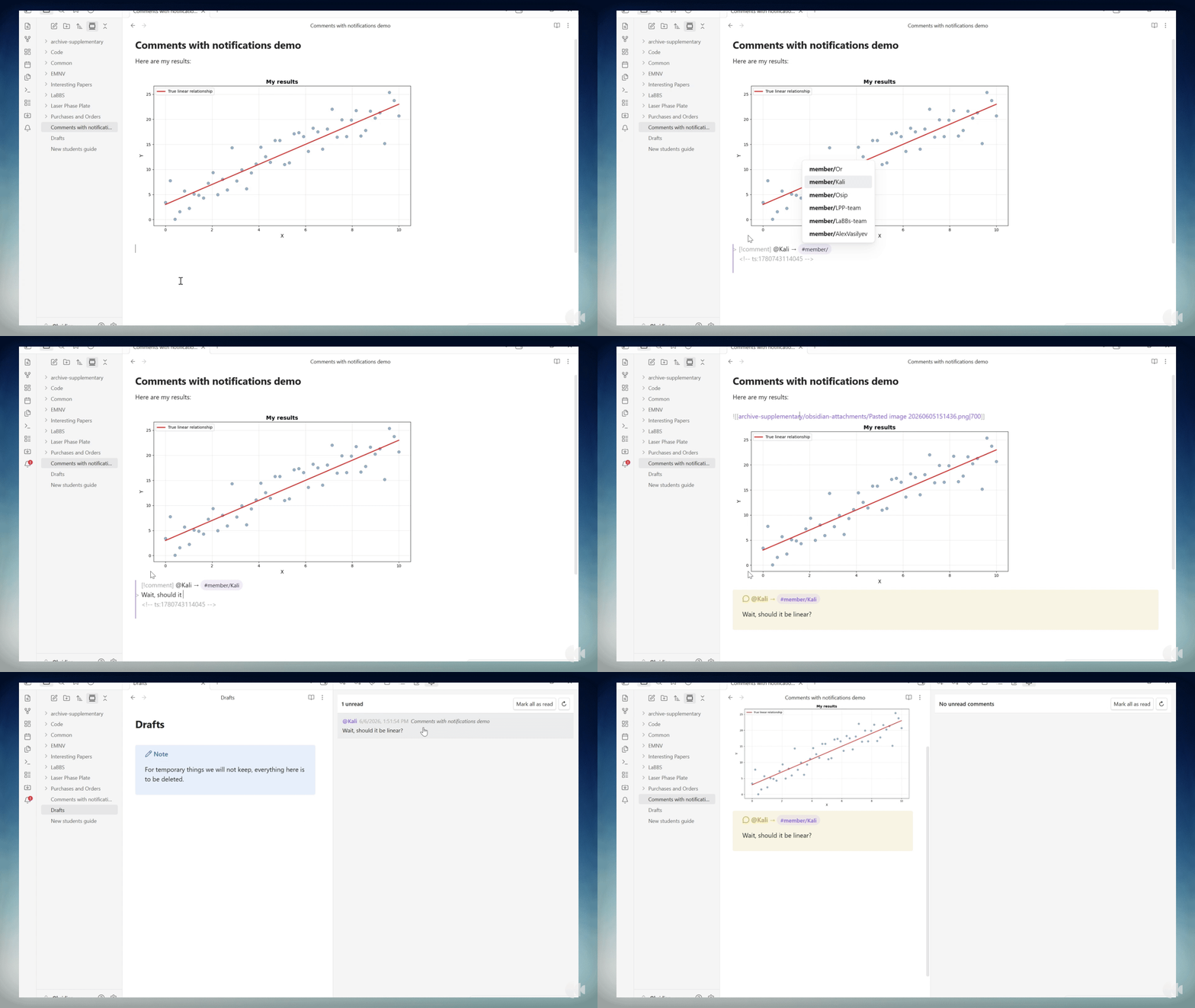
Features
- Insert a
[!comment]callout with a single command or right-click menu entry - Tag one or more team members using
#member/usernamesyntax — multiple tags are supported - Ribbon bell icon shows a red badge when there are unread comments addressed to you
- Sidebar panel lists all unread comments sorted by date, with a preview and a click-to-navigate link
- Works across machines sharing a vault via Dropbox or similar sync — changes are picked up automatically
- Per-machine username: each computer is identified independently, so the same vault can be used by different people on different machines
Comment format
Comments are stored as Obsidian callouts:
> [!comment] @creator → #member/name1 #member/name2
> <!-- ts:1717123456789 -->
> Comment text here.
The timestamp is stored as an invisible HTML comment so it does not appear in the rendered note.
Usage
Inserting a comment
- Place your cursor in a note
- Run Insert Comment from the Command Palette, or right-click and choose Insert Comment
- The plugin inserts the callout template and opens the tag autocomplete — type the recipient's username to complete the
#member/tag
Viewing notifications
Click the bell icon in the ribbon to open the notification panel. The panel shows all unread comments addressed to you (or to any tags you follow), sorted newest first.
Click any comment in the panel to jump to the corresponding line in the source file.
Marking as read
Click Mark as read in the panel header, or run Mark All Comments as Read from the Command Palette. The ribbon badge clears automatically.
Settings
Open Settings → Community Plugins → Comments with Notification.
| Setting | Description |
|---|---|
| Your username | The name others will tag with #member/yourname to notify you on this machine |
| Additional tags to follow | Comma-separated list of extra tags to monitor (e.g. physics-team, lab-members) |
Note: This plugin is desktop-only because it uses
os.hostname()to identify the current machine.