
README file from
GithubCoach
An Obsidian plugin that acts as a friendly fitness coach inside your vault: build workout routines, log sets, track body data, log meals, and watch your progress over time — all stored as plain markdown.
Screenshots
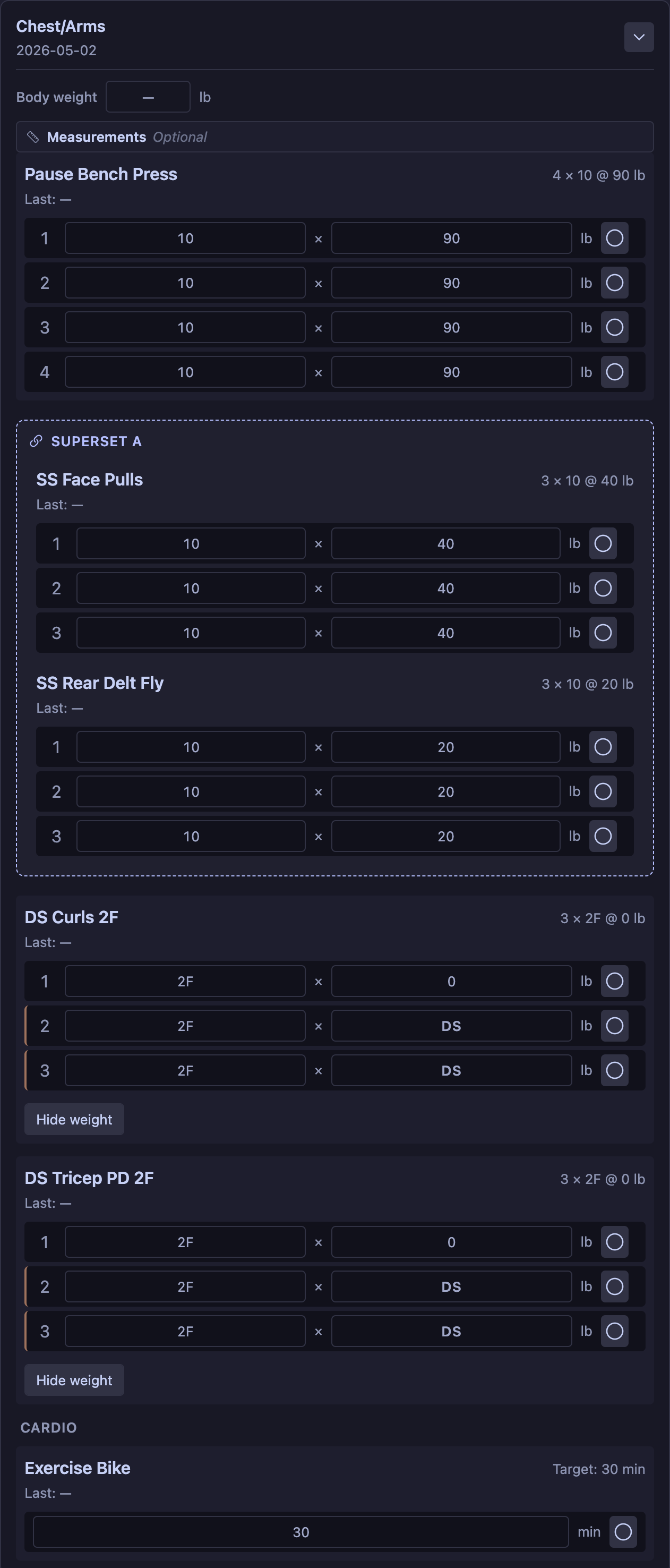
Workout block with sets, break timer, and last-session reference:
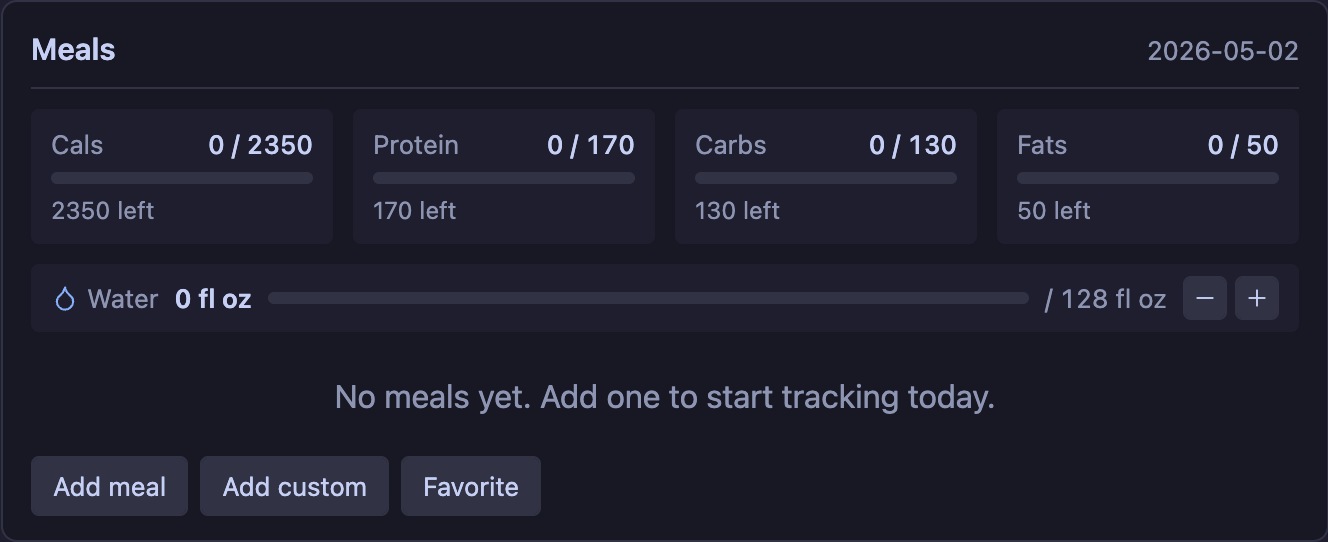
Meal log with macro goals, recipe picker, and water bar:
Features
- Workout templates with exercises, target sets, reps, and weight, defined in plugin settings.
- Bodyweight-aware exercises: push-ups, pull-ups, dips, plank, etc. are auto-detected from the library and rendered with a reps-only row (no weight column). An "Add weight" toggle is one click away for weighted variants like vest push-ups.
- Supersets / circuits: tag two or more exercises with the same
grouplabel and they're rendered as a paired block. The break timer uses a shorter transition pause between paired exercises and the full default duration when you complete a round of all of them. - Drop sets and to-failure sets: per-exercise toggles in the template editor. Drop sets show a
DSplaceholder for the weight on rows 2..N and are excluded from weight / volume PRs. To-failure sets show2Fas the reps placeholder, hide the rep target, and are excluded from every PR type. - Personal records (PRs) in analytics: the analytics view has a Personal records section with recent PRs (last 30 days) plus all-time bests grouped by exercise (heaviest weight, best estimated 1RM, most reps, session volume, cardio duration / distance).
- Workout duration auto-tracking: the first set you log timestamps
startedAt, and every subsequent set bumpsendedAt. The header shows the live elapsed time, and the analytics view rolls duration into average / longest session and a recent-sessions sparkline. - Body measurements (waist, chest, hips, biceps, thighs, neck): collapse-by-default panel in the workout block header. Each one charts independently in the analytics view with a 30-day delta and mini-sparkline.
- Body weight logging: each workout block has an optional "Body weight" input — including rest-day cards when no workout is scheduled. The analytics view tracks your weight over time with a 90-day chart, a 7-day moving average overlay, and 30/90-day deltas. Add an optional height, age, gender, and activity level under settings to also see your BMI and a starting-point recommendation for daily calories and macros based on your current and goal weight.
- Fitness goal & focus: pick a goal (general fitness, lose weight, get lean, build muscle, or improve endurance) and the analytics view shows a tailored training prescription (rep ranges, intensity), a cardio prescription with a target heart-rate zone in bpm, and goal-tuned calorie and macro recommendations.
- Cardio tracking alongside strength: simple minutes-only logs by default for stationary bike, treadmill walk, elliptical, etc., or opt-in to distance, pace, and finish-time fields per entry to log "5 km in 28:00 → 5:36/km" for a run. The analytics view sums total distance, surfaces your farthest session with auto-computed pace, and lists pace and finish times in recent sessions.
- Meal log with nutrition goals: a separate
mealscode block (works on rest days too) tracks daily intake against your calorie / protein / carbs / fats goals. Pull recipes from configured folders, or add freeform one-off entries ("Pad thai @ restaurant ~900 cal, 30P") via the Add custom button when you don't want to write a full recipe note. - Optional fiber tracking: opt-in 5th macro via Settings → Coach → Nutrition → Track fiber. When enabled, fiber appears in daily goals, the meal log progress bars, recipe frontmatter parsing (American or British spelling), and analytics / weekly reviews. Off by default to keep the UI uncluttered. Pairs nicely with Pantry for diabetic meal planning.
- Built-in water tracker: a hydration bar embedded right in the meal log. The water bar always has a goal (uses a sensible default — about 2.5 L — until you customize one), shows current intake on the left, the goal on the right, and quick-add buttons (
+250 ml,+500 ml,+750 mlor+8 oz/+16 oz/+24 oz) below. Spans the full row when you're not tracking fiber, or sits next to the fiber macro when you are. A standalonewatercode block is also available via theInsert water logcommand for non-meal days. Units follow your selected weight unit (ml with kg, fl oz with lb). - Weekly review note generator: an
Insert weekly reviewcommand builds a markdown summary of the past 7 days — sessions logged vs scheduled, adherence %, total volume, cardio minutes, average session length, recent PRs, average daily macros, water average, and body weight delta — for end-of-week reflection. - Pre-populated exercise library (~35 common lifts plus cardio) with the option to add or edit your own.
- Insert workouts into notes as a self-contained
workoutcode block via the command palette. - Interactive rendering: each block becomes a rich UI with editable sets, "log set" buttons, and a "Last time" reference for each exercise.
- Break timer with adjustable duration (30 s – 5 min) and a separate superset transition length (10 – 120 s). Survives backgrounding because it's based on absolute timestamps; if you switch apps and come back, the time is still correct.
- Analytics view with per-exercise stats (session count, volume / weekly minutes, estimated 1RM, a 12-week sparkline, recent-sessions list), plus body weight trend, body measurements, nutrition averages, hydration trend, personal records, workout durations, and a workout adherence calendar with a Month / Year toggle: month view shows the current month at full size; year view shows all 12 months of the current year as compact mini-calendars.
- Hearth view — a compact today-only glance of calorie / macro / water progress toward your goals. Opens via Open hearth (view type
coach-hearth) so it can sit on a Hearth dashboard as a plugin-view card. Glance-only; offers Create daily note when today's note is missing. - No network calls, no telemetry, no cloud services. All your data lives in your vault.
How it works
When you run Insert workout, the plugin inserts a fenced code block like this:
```workout
template: Push Day
date: 2026-04-23
bodyweight: 78.5
exercises:
  - name: Bench Press
    target:
      sets: 3
      reps: 5
      weight: 60
    log: []
  - name: Overhead Press
    target:
      sets: 3
      reps: 8
      weight: 35
    log: []
cardio:
  - name: Treadmill
    target:
      minutes: 20
    log: null
```
In reading mode and live preview, this renders as an interactive workout card. As you log sets, the YAML in the block is updated in place, so the file remains the source of truth — fully readable and portable even if the plugin is disabled.
The analytics view scans every workout block in your vault, so any past workout (even one you wrote by hand) becomes part of your history.
Supersets
Inside the template editor each exercise row has a link icon (next to the drop-set / failure toggles). Click it to group the exercise with the row directly above it — the first link auto-assigns a label (A, B, C…) and the badge SS A shows in the name. Click again on either row to unlink. Use the up / down chevrons to reorder rows so grouped exercises end up adjacent (the renderer breaks a superset the moment it sees a non-matching row in between).
When the workout block is rendered, grouped exercises appear inside a single Superset A card. The first set you log starts the timer with the superset transition rest (default 30 s, configurable 10 – 120 s); once you've logged a set on every exercise in the group, the next set kicks off the full default rest. This matches how circuits and supersets are usually trained.
Under the hood, the link button just sets the group field on each TemplateExercise (and the matching BlockExercise when a workout is built from the template). You can also edit YAML by hand if you prefer:
exercises:
  - name: Bench Press
    target: { sets: 3, reps: 8, weight: 60 }
    log: []
    group: A
  - name: Bent Over Row
    target: { sets: 3, reps: 8, weight: 50 }
    log: []
    group: A
Drop sets
Toggle Drop set on an exercise in the template editor (small downward arrow icon next to the trash button) and the renderer treats set 1 as the heavy working set. Sets 2..N keep the normal weight input but show DS as the placeholder — leave it blank to just track reps, or type the reduced weight you actually dropped to. Drops are excluded from weight / e1RM / volume PRs and aggregates (so a long drop ladder can't out-PR a real working set), but reps still flow into rep PRs since they're still meaningful.
exercises:
  - name: Lateral Raise
    target: { sets: 4, reps: 10, weight: 12 }
    dropSet: true
    log:
      - { reps: 10, weight: 12 }   # set 1 — heavy working set
      - { reps: 8,  weight: 8 }    # drop with logged weight
      - { reps: 7,  weight: 0 }    # drop, weight not tracked
      - { reps: 6,  weight: 0 }
To-failure exercises
Toggle To failure (flame icon) and every set is treated as "go until you can't". The rep target is hidden in the template editor (failure has no minimum) and every reps input shows 2F as the placeholder — it's literal shorthand for to failure, not a number. Logged reps are saved normally so you can still see the trend over time, but failure entries are excluded from every PR type (weight, e1RM, reps, and volume PRs) because the rep count is undefined by design.
exercises:
  - name: Push-up
    target: { sets: 3, reps: 0, weight: 0 }
    tracksWeight: false
    toFailure: true
    log:
      - { reps: 22, weight: 0 }
      - { reps: 18, weight: 0 }
      - { reps: 14, weight: 0 }
Timed holds
Toggle Timed (timer icon) on a template exercise when you want sets measured in seconds instead of reps — planks, L-sits, hollow body holds, and similar isometrics. Off by default: push-ups, pull-ups, and other set-based bodyweight work stay exactly as they are. Turning timed on clears drop-set / to-failure for that exercise. In YAML, target.reps and each log reps value are seconds:
exercises:
  - name: Plank
    timed: true
    tracksWeight: false
    target: { sets: 3, reps: 60, weight: 0 }
    log:
      - { reps: 55, weight: 0 }
      - { reps: 50, weight: 0 }
      - { reps: 45, weight: 0 }
Analytics treats timed sessions as hold time (best hold PR, weekly hold totals) rather than rep volume.
Workout duration auto-tracking
You don't need to start a stopwatch — when you log your first set, the block records startedAt (ISO timestamp). Every subsequent logged set bumps endedAt. The header shows the running elapsed time (e.g. 45 min) and the analytics view rolls every workout into average / longest session stats. Unlogging a set re-derives both timestamps from whatever's still logged.
startedAt: "2026-04-23T17:30:12Z"
endedAt: "2026-04-23T18:18:47Z"
exercises:
  - name: Bench Press
    log:
      - { reps: 5, weight: 60, loggedAt: "2026-04-23T17:30:12Z" }
      - { reps: 5, weight: 62.5, loggedAt: "2026-04-23T17:34:50Z" }
Body measurements
The workout block header has a collapsible Measurements panel for waist, chest, hips, biceps, thighs, and neck. Units follow your weight unit (cm with kg, in with lb). Each measurement is independent, so you can log just waist on one day and chest on another. Each one charts in the analytics view with a 30-day delta and mini-sparkline.
measurements:
  waist: 82
  chest: 102
  biceps: 36
Cardio: distance, pace, finish time
Cardio entries support optional distance, distanceUnit, and finishTime fields for race-style training. The plugin auto-computes pace from minutes and distance.
cardio:
  - name: Run
    target: { minutes: 30, distance: 5, distanceUnit: km }
    log:
      minutes: 28
      distance: 5
      distanceUnit: km
      finishTime: "28:00"
The cardio analytics summary picks the most-frequent distance unit (km vs mi) and shows total distance, your farthest single session, and pace.
Minutes-only cardio (default for new entries). Most casual cardio — stationary bike, treadmill walk, elliptical — is just minutes, so new cardio entries default to minutes only: the renderer hides the distance, unit, and finish-time inputs and the row collapses to a single "Minutes" field plus a log button. To track distance for a specific entry, open the template editor and click the small +/− toggle next to that cardio row.
cardio:
  - name: Stationary bike
    target: { minutes: 30 }
    log: { minutes: 30 }
    trackDistance: false
trackDistance: false is the only state that's serialized; an absent flag is treated as "show distance" so existing logs render exactly as before.
Meal log
Run Insert meal log to drop a meals block into any note (no workout required):
```meals
date: 2026-04-23
entries:
  - recipe: Recipes/Oatmeal Bowl.md
    servings: 1
  - recipe: Recipes/Chicken Stir Fry.md
    servings: 1.5
  - name: Pad thai @ restaurant
    nutrition:
      calories: 900
      protein: 30
      carbs: 110
      fats: 28
      fiber: 4
    servings: 1
water: 1500
```
Each recipe note in your configured recipe folders should have nutrition in its frontmatter, per serving:
---
calories: 450
protein: 28
carbs: 45
fats: 12
fiber: 6   # optional 5th macro; American or British spelling (`fibre` works too)
---
You can configure one or more Recipes folders in settings (one path per line). Subfolders are included automatically — for example, listing Cooking will pick up Cooking/Dinner, Cooking/Breakfast, Cooking/Drinks, and so on. The block renders progress bars for calories, protein, carbs, and fats based on your daily goals. Pick recipes via fuzzy search; tweak servings per entry to scale.
Freeform / one-off meal entries
Sometimes you eat something you don't want to write a recipe note for: a restaurant meal, a packaged snack, a one-off creation. Use the Add custom button next to Add meal to enter a name and the macros directly. The entry is stored inline (no recipe: link), shows up with an italic name and a dashed-tinted background, and an edit pencil reopens the modal. Same fields as a recipe (calories, protein, carbs, fats, fiber), but they live with the meal.
Favorites
For things you eat or drink most days (a daily protein shake, your usual breakfast, a brand-name snack), save them as favorites so you can insert them with one click instead of re-entering numbers every day.
- Click the ★ button on any meal entry to save it as a favorite. You'll be prompted for a display name and default servings; nutrition is captured from the entry. Recipe-linked favorites stay linked, so the nutrition stays in sync with the recipe note.
- Click the Favorite button (next to Add meal / Add custom) to open a fuzzy picker of your saved favorites, then pick one to add it to today's log.
- Manage your favorites under Settings → Coach → Meal favorites — rename, change default servings, or delete. The list is collapsed by default to keep the settings page short.
Favorites are stored in plugin data (not in your notes), so the same set is available on every day's meals block across the vault.
Optional fiber tracking
Fiber is opt-in. Toggle Settings → Coach → Nutrition → Track fiber and a 5th green fiber bar appears in the meal log alongside the other macros, plus a fiber input under daily goals, a fiber line in the recommended-targets summary, and a fiber average in the analytics view and weekly review. Recipe and freeform entries can already include fiber: regardless of the toggle — the value is parsed and stored, just not displayed when the toggle is off. This pairs nicely with Pantry's diabetic-friendly recipe annotations.
Embedded water tracker
Each meals block also embeds a hydration bar. The bar always has a goal — if you haven't set one in Settings → Coach → Hydration, it falls back to a sensible default (~2.5 L / ~85 fl oz). The layout is a single thin row: the current intake sits to the left of the bar, the goal sits to the right, and a pair of − / + buttons hugs the right edge. Each tap on + or − adjusts the amount by your Step amount (default 250 ml or 8 fl oz; configurable in Settings → Coach → Hydration → Step amount). On narrow viewports the bar takes the full first line and the controls drop to a second line aligned right.
Layout-wise, the water cell sits next to the Fiber macro card (spanning 3 of 4 columns) when fiber tracking is on, and spans the full row when it's off. Intake is persisted as the water: field of the meals block (in your selected unit — ml or fl oz).
Water log (standalone)
Prefer to log water on a workout-only day or a note without meals? Run Insert water log to drop a standalone water block. It uses the same UI as the embedded version.
```water
date: 2026-04-23
amount: 1500
target: 2500
```
- Units follow your weight unit: ml with kg, fl oz with lb.
- The
target:field is optional — leave it out and the block uses your global setting (or the unit-appropriate default if that's blank too). - Set a global daily target in Settings → Coach → Hydration, with a Calculate from body weight helper that suggests ~33 ml/kg (or ~0.5 fl oz/lb) based on your effective weight (logged → settings fallback).
- The same section has a Step amount field that controls how much each
+/−tap adds or subtracts (default 250 ml or 8 fl oz). Bump it to 500 ml if you usually drink half-liter bottles, or to 16 fl oz for 1-pint glasses. - The analytics view's Hydration section combines water from both standalone
waterblocks and embedded meal-block water, averages the last 7 / 30 days, counts days at-goal, and draws a 30-day trend chart with the goal as a dashed overlay.
Personal records
The plugin derives PRs from your logged history across these categories:
- Heaviest set — single set with the most weight on the bar (records the rep count too).
- Best estimated 1RM — Epley formula,
weight × (1 + reps/30). - Most reps — best single-set rep count.
- Top session volume — single workout's total reps × weight for that exercise.
- Longest cardio — cardio entry with the most minutes.
- Farthest cardio — cardio entry with the largest distance value.
When a logged set sets a new PR in weight, e1rm, or reps, it shows up in the analytics view's Personal records section (recent PRs for the last 30 days at the top, all-time bests grouped by exercise below). Per-set celebration badges were removed from the workout card to keep logging compact — records live in analytics instead.
PRs are computed against your existing history — so backfilling old workouts won't invent new records for sets that aren't actually new bests.
Weekly review
Run Insert weekly review to drop a markdown summary of the past 7 days at your cursor. It pulls from every data source the plugin tracks:
## Weekly review (2026-04-17 – 2026-04-23)

### Workouts
- Sessions logged: **4** of 4 scheduled
- Adherence: **100%**
- Total volume: **18,420 kg**
- Cardio: **75 min** (2 sessions)
- Avg session length: **52 min**
- Exercises trained: bench press, bent over row, deadlift, ohp, squat...

### Personal records this week
- Bench Press: heaviest set — 90 × 5 reps (2026-04-21)

### Nutrition
- Days logged: **6 / 7**
- Avg calories: **2,180** (goal 2,200)
- Avg protein: **165 g** (goal 150 g)
- ...

### Hydration
- Days logged: **5 / 7**
- Avg per day: **2.3 L**

### Body weight
- Latest: **77.8 kg** on 2026-04-22
- Change vs week start: **−0.4 kg**
Drop the snippet into a weekly note template, your daily journal, or a shared family fitness log — it's just markdown, so anything that displays markdown can read it.
Recipe type icons
Each meal row shows a small icon to the left of the recipe name so you can scan a day at a glance:
- 🍴 Meal —
utensilsicon (default) - 🍪 Snack —
cookieicon - 🥤 Drink —
cup-sodaicon
The plugin determines the type in this order, falling through to the next when nothing matches:
- Frontmatter on the recipe note. The first non-empty value of
type,mealType, orcategorywins (case-insensitive). Recognized values:drink,drinks,beverage,beverages,smoothie,smoothies,shake,shakes→ drinksnack,snacks,appetizer,appetizers,dessert,desserts→ snackmeal,mains,dish,breakfast,lunch,dinner,entree, etc. → meal
- Folder name: any segment of the recipe's path that matches one of the tokens above (e.g. a recipe at
Cooking/Drinks/Iced Coffee.mdis detected as a drink). - Default: meal.
Example recipe with explicit override:
---
calories: 120
protein: 2
carbs: 28
fats: 0
type: drink
---
Pairs with Pantry
This plugin is designed to share recipe notes with Pantry (recipes and grocery lists). One recipe note can power both plugins at the same time:
- Pantry reads its own selection flag (
groceryList: trueby default) and the ingredients section to build a consolidated weekly shopping list, with category grouping, multipliers, and check-off persistence. - Coach reads the same recipe's nutrition frontmatter and lets you log servings of it in a daily
mealsblock, rolling them up into your calorie / protein / carb / fat goals and the analytics view.
One frontmatter, both plugins
The two plugins use slightly different conventions, but Coach accepts both so a single recipe note works for both:
| Field | Pantry | Coach |
|---|---|---|
calories |
total for the recipe as written | per serving (or total if servings is set — see below) |
protein |
total | per serving |
carbs |
total | per serving (also accepts carb) |
fat / fats |
reads fat (singular) |
reads either fats or fat |
servings |
optional, only used for "per serving" display | if present, treats nutrition as recipe totals and divides |
multiplier |
scales displayed quantities and grocery list | ignored |
type: recipe |
opens the rich recipe view | ignored |
image |
hero image in recipe view | ignored |
So a recipe written in the Pantry style — totals plus a servings field — will Just Work in Coach's meal log, and one serving on your meal log will use one fourth (etc.) of the totals.
Recommended frontmatter for both
---
type: recipe
groceryList: true
image: "[[pasta-photo.jpg]]"
servings: 4
calories: 1800
protein: 88
carbs: 220
fat: 60
---

## Ingredients
- 1 lb spaghetti
- 2 cups crushed tomatoes
- 3 cloves garlic
- 2 tbsp olive oil
With this single note:
- Pantry shows it in your weekly list (consolidated with other recipes), opens it in the recipe view, scales it with
multiplier. - Coach sees
servings: 4andcalories: 1800, so logging "1 serving" of this recipe in amealsblock adds 450 cal / 22P / 55C / 15F to your daily totals.
Workflow
A typical week looks like:
- Tag a few recipes for the week with
groceryList: true→ Pantry generates the shopping list. - Run a Templater daily note that injects the day's workout block (see Templater integration above) and an empty meals block.
- As you eat throughout the day, "Add meal" the recipes you actually cooked. Coach's analytics view will surface 30-day calorie averages and a goal-aware sparkline for your nutrition.
Both plugins are fully offline, both keep their data in your vault as plain text, and neither depends on the other — but they read and write the same frontmatter conventions so adopting both is friction-free.
Sample recipes
Not sure what a recipe note should look like? The repo includes a starter pack of 12 ready-to-use recipes in examples/recipes/, organized into folders that exercise every detection path:
examples/recipes/
├── Breakfast/   Oatmeal with Berries.md, Greek Yogurt Parfait.md
├── Lunch/       Chicken Caesar Wrap.md, Tuna Salad Bowl.md
├── Dinner/      Pasta with Tomato Sauce.md, Sheet Pan Salmon and Vegetables.md, Beef Stir Fry.md
├── Snacks/      Apple with Peanut Butter.md, Trail Mix.md
└── Drinks/      Protein Shake.md, Iced Coffee with Milk.md, Electrolyte Water.md
Use them to:
- See it work end-to-end. Drop them in, point Recipe folders at the parent folder, and you can immediately log meals, see icons, and watch the analytics view fill in.
- Templatize your own. Each note uses the recommended shared frontmatter from Pairs with Pantry — copy a recipe whose shape matches what you're writing and edit from there.
- Stock the cookbook. Keep them in your vault as actually-cookable recipes; macros are reasonable starting values you can tune.
To install: copy any or all of those folders into your vault under whatever parent folder you like (e.g. Cooking/), then open Settings → Coach → Recipe folders and add that parent. See examples/recipes/README.md for the full breakdown of what each recipe demonstrates.
Templater integration
If you keep a Templater-powered daily note, the plugin exposes a small API so your template can inject the right workout automatically based on the day of the week — plus matching helpers that emit a fresh meals block and water block stamped with the note's date.
1. Map weekdays to templates
Open Settings → Coach → Weekly schedule and pick a template for each day (leave days blank for rest days). Rest days still get a workout card that reminds you it's a rest day and prompts for body weight.
2. Call the API from your daily note template
Prefer get*ForDate(...) with the daily note's date so backfilled or ahead-of-time notes match the note — not the wall clock. If your daily note title is YYYY-MM-DD (Obsidian's default), pass tp.file.title:
<%*
const coach = app.plugins.plugins["coach"]?.api;
const noteDate = tp.file.title; // YYYY-MM-DD
tR += coach?.getWorkoutForDate(noteDate) ?? "";
tR += coach?.getMealLogForDate(noteDate) ?? "";
%>
Workout helpers
api.getWorkoutForDate(date)— returns a full```workout ... ```block for the scheduled template on that day, withdate:set accordingly. On rest days (no template mapped) it returns a rest-day card that still accepts body weight. Accepts aDate, aYYYY-MM-DDstring, or any string that contains aYYYY-MM-DD(title or path).api.getWorkoutForToday()— same asgetWorkoutForDate()with no argument (wall-clock today). PrefergetWorkoutForDate(tp.file.title)in daily-note templates.api.getTemplateNameForDate(date?)— returns just the scheduled template name (ornull) if you want to branch on it in your template.api.getTemplateForDate(date?)— returns the full template object ({ id, name, exercises, cardio }) if you want to introspect it before deciding what to render.
Meals & water helpers (always return a block)
api.getMealLogForDate(date)— returns a fresh```meals ... ```block stamped with the given date andentries: [].api.getMealLogForToday()— wall-clock today; prefer the date-aware form in daily notes.api.getWaterBlockForDate(date)/api.getWaterBlockForToday()— fresh```water ... ```blocks. The daily target is intentionally omitted so the bar keeps following your settings; addtarget:manually inside the block if you want to override for that one day.
The meals renderer already embeds the water tracker, so you usually only need
getMealLogForDate(noteDate)in a daily note. UsegetWaterBlockForDateif you want a standalone hydration strip somewhere else in the page (e.g. on a dashboard).
Example: full daily-note template
# <% tp.date.now("dddd, MMMM D", 0, tp.file.title, "YYYY-MM-DD") %>

<%*
const coach = app.plugins.plugins["coach"]?.api;
const noteDate = tp.file.title;
const name = coach?.getTemplateNameForDate(noteDate);
%>
## <% name ? `Workout — ${name}` : "Rest day" %>

<%* tR += coach?.getWorkoutForDate(noteDate) ?? "" %>

## Meals

<%* tR += coach?.getMealLogForDate(noteDate) ?? "" %>
Behavior notes
- Local time zone: weekday resolution uses
Date#getDay(), so the schedule is keyed to your local time zone (not UTC). When you pass aYYYY-MM-DDstring (or a path/title containing one), the API parses it as a local date so you don't get off-by-one bugs across midnight. - Renamed or deleted templates self-heal: on plugin load, any weekday whose mapped template no longer exists is reset to "None". You won't get a stale mapping silently producing an empty block forever.
- No reload required after editing the schedule: the API reads settings live, so changes you make in the settings tab take effect immediately for the next Templater run.
- Plugin must be enabled: the
app.plugins.plugins["coach"]lookup returnsundefinedif the plugin is disabled — the optional chaining (?.) in the snippets above keeps your template from throwing in that case.
Body data and recommendations
The plugin can use a few opt-in inputs about you to enrich the analytics view with BMI and a recommended set of daily calories and macros. Everything stays in your vault — nothing is sent anywhere — and every recommendation comes with an "estimates only, not medical advice" disclaimer.
Inputs (Settings → Body data)
- Height — units follow your selected weight unit (cm with kg, in with lb).
- Age — used in the BMR formula.
- Gender — the underlying BMR formula has only male and female variants, so the dropdown also offers Non-binary and Prefer not to say, both of which use the average of those two as a neutral fallback. Pick whichever you're most comfortable with.
- Activity level — sedentary → very active. Used to scale BMR into TDEE (total daily energy expenditure).
- Current weight — optional fallback used for BMI and nutrition recommendations when you haven't logged a body weight in a workout yet. Logged weights from workout blocks always take precedence, so once you start logging this value is ignored. The analytics view shows a small "Using your latest logged weight…" / "Using your settings weight…" hint so you can always tell which value is feeding the math.
All five are optional. BMI only needs height + either a logged body weight or a settings weight. Recommended calories/macros need height + age + a weight (logged or settings) and benefit from activity level + goal weight.
What you get in the analytics view
Inside the Body weight section:
- BMI: 24.6 (Normal) — once height is set. Categories follow the standard cutoffs (Underweight < 18.5, Normal < 25, Overweight < 30, Obese ≥ 30). BMI is a population-level estimate and doesn't account for muscle mass, so weightlifters in particular should treat it as a rough guideline, not a target.
The recommended-calories panel now lives in its own Goal & focus section above body weight, since the recommendation depends on both your body data and your fitness goal. The math, in short:
- Calorie target = TDEE + the goal-specific delta (see the fitness goal table). The "general" goal still infers the delta from current vs goal weight (TDEE − 500 to lose, TDEE + 300 to gain, TDEE for maintenance), with a 1200-cal floor.
- Protein: per-goal grams per kg of body weight (1.4–2.0 depending on goal).
- Fat: 25–30% of calories depending on goal.
- Carbs: the remainder.
Apply recommendations to your daily nutrition goals
In Settings → Nutrition, the Daily goals section has a Calculate from body data button. Click it to preview the suggested numbers based on your effective weight (latest logged weight if you have one, otherwise the settings weight) and selected fitness goal, then Apply to daily goals to overwrite the four input fields in one click. The preview also tells you which weight source it used. You can always tweak them by hand afterwards.
Fitness goal
Set Settings → Fitness goal → Goal to one of:
| Goal | Calorie delta vs TDEE | Protein | Training | Cardio |
|---|---|---|---|---|
| General fitness | inferred from current vs goal weight | 1.6 g/kg | 8–12 reps, balanced | 150 min/wk Zone 2–3 (60–80% max HR) |
| Lose weight | −500 / day | 1.8 g/kg | 8–12 reps, moderate-heavy | Zone 2 (60–70% max HR) + optional HIIT |
| Get lean (recomp) | −300 / day | 2.0 g/kg | 6–12 reps, stay heavy | 2–3× weekly Zone 2 (60–70% max HR) |
| Build muscle | +300 / day | 1.8 g/kg | 5–10 reps, progressive overload | 1–2 short sessions Zone 1–2 (50–70% max HR) |
| Improve endurance | maintenance | 1.4 g/kg | 12–20+ reps, lighter | Zone 2 base + 1 weekly Zone 4 (80–90%) interval |
In the analytics view, the Goal & focus section appears between the adherence calendar and your body weight stats. It shows:
- A short prose summary of what the goal means in practice.
- A Training focus card with rep ranges and intensity guidance.
- A Cardio focus card with the prescribed heart-rate zone. If you've entered your age in body data, this is rendered as a target bpm range computed from
220 − age(e.g. age 30 → max ~190 bpm → Zone 2 ~114–133 bpm). Without age, it shows just the percentage range. - The Recommended daily nutrition panel is now goal-aware: changing your goal updates calories, protein, carbs, and fats here (and in the settings calculator).
Heart rate zones use the simple 220 − age formula, which is a population estimate. If you've had a real max-HR test, treat the bpm numbers as a starting point and adjust from there.
Adherence calendar
The same weekly schedule that powers the Templater integration also feeds an adherence section at the top of the analytics view. A Month / Year toggle in the section header switches between two views of the same data:
- Month (default) — a full-size calendar of the current month. Best for week-by-week awareness.
- Year — a compact grid of all 12 months in the current year, each rendered as a small mini-calendar with a single tiny cell per day. Best for spotting longer-term streaks and gaps at a glance. Future months are still shown so the grid stays anchored — their days just render as empty pending cells.
Each day is rendered in one of four states (same color scheme in both views):
| Color | State | Meaning |
|---|---|---|
| Green | Completed | At least one workout block on that date has a logged set (or cardio entry). |
| Red | Missed | The day is in the past, that weekday has a template mapped, but no workout was logged. |
| Grey | Rest day | That weekday is mapped to "None" in your weekly schedule. |
| Dashed outline | Pending / future | Today (if scheduled but not yet logged), or any day in the future. |
Today's cell gets an extra colored outline so it's easy to find. Cells from before your earliest logged workout aren't marked as missed — there's nothing to be missed yet — they just render faintly so the grid stays aligned.
Above the calendar, three stats summarize the visible window (this month in Month view, year-to-date in Year view):
- Completed (this month / YTD) —
X / Ywhere Y is the number of scheduled days in that window. - Adherence — completed ÷ scheduled, as a percentage.
- Current streak — consecutive scheduled days you've completed, ending today (or yesterday if today's workout isn't logged yet). Rest days don't break the streak. The streak ignores the toggle and always reaches as far back as it can.
If you haven't configured a weekly schedule yet, the section degrades gracefully: it just shows a green dot on every day you logged a workout (no missed/rest distinction) plus a hint to set up the schedule.
Commands
- Insert workout — pick a template (or "Custom") and insert a workout block at the cursor.
- Insert exercise — append a single exercise to the workout block your cursor is in, or insert a new block if you aren't in one.
- Insert meal log — insert an empty
mealsblock dated today (includes the embedded water tracker). - Insert water log — insert a standalone
waterblock dated today, pre-filled with your daily target (if set). Use this on workout-only days or notes without meals. - Insert weekly review — insert a markdown summary of the past 7 days of fitness data.
- Open workout analytics — open the analytics side view.
- Open hearth — open the today-only macros + water glance (compact; works as a Hearth dashboard plugin-view card via view type
coach-hearth). - Start between-set timer — start the floating timer with the configured default duration.
- Cancel between-set timer — stop the floating timer.
Settings
- Weight unit (kg / lb).
- Goal body weight — optional target weight in your selected unit. When set, the body weight analytics section adds a Goal stat, a To goal delta (
X kg to lose/to gain/Reached), and a dashed target line on the 90-day trend chart. Leave blank to disable. - Body data (height, age, gender, activity level, current weight) — optional, all of it. Powers BMI display in analytics and the Calculate from body data button on the daily nutrition goals. The current weight field is a fallback for users who haven't logged a body weight in a workout block yet; logged weights always take precedence. Stored in your vault only. Not medical advice. See Body data and recommendations.
- Fitness goal — pick what you're working toward (general fitness, lose weight, get lean, build muscle, improve endurance). Drives the calorie delta and protein-per-kg target in the recommended nutrition, plus the training and cardio focus shown in the analytics view. See Fitness goal.
- Break timer duration (30 – 300 seconds).
- Superset transition time (10 – 120 seconds) — pause between exercises in the same superset group. The full default duration applies after the last exercise in a round.
- Auto-start after logging a set — starts the break timer when you mark a set complete.
- Play sound when the break ends (uses the Web Audio API; respects browser autoplay rules).
- Recipes folders — one or more folders scanned for recipes with nutrition frontmatter (one per line). Subfolders are included automatically, so listing
CookingcoversCooking/Dinner,Cooking/Breakfast, etc. - Track fiber — opt-in toggle that adds fiber as a 5th macro in the meal log, daily goals, recommended targets, recipe parsing, analytics, and weekly review. Off by default.
- Daily nutrition goals — calories, protein, carbs, fats (and fiber when Track fiber is on). The Calculate from body data button under this section will preview a recommendation based on your body data and let you apply it in one click. Fiber recommendation uses the standard 14 g per 1000 kcal heuristic.
- Hydration — daily water target and
+/−step amount (in ml or fl oz, follows your weight unit). Used by both the embedded water tracker in the meal log and the standalone water log block. Leave either field blank for sensible defaults (~2.5 L target, 250 ml / 8 fl oz step). The Calculate from body weight button suggests a target of ~33 ml/kg or ~0.5 fl oz/lb based on your effective weight. - Exercise library — add, edit, or remove exercises.
- Workout templates — create reusable routines with target sets, reps, and weights per exercise.
- Weekly schedule — map each weekday to one of your templates (or leave blank for rest days) so the Templater API can inject the right workout automatically.
Development
npm install
npm run dev      # watch + rebuild main.js
npm run build    # type-check and produce a production main.js
npm run lint     # run eslint
To test locally, this folder lives at <Vault>/.obsidian/plugins/coach/. After building, reload Obsidian and enable Coach under Settings → Community plugins.
Release
Attach main.js, manifest.json, and styles.css as individual assets to a GitHub release whose tag exactly matches the version in manifest.json (no leading v).
Support
