
README file from
GithubCloudWeave
Cloud-storage files woven into Obsidian Canvas.
Browse and insert cloud storage files into Canvas — AI understands both cloud files and local notes together.
Key Features
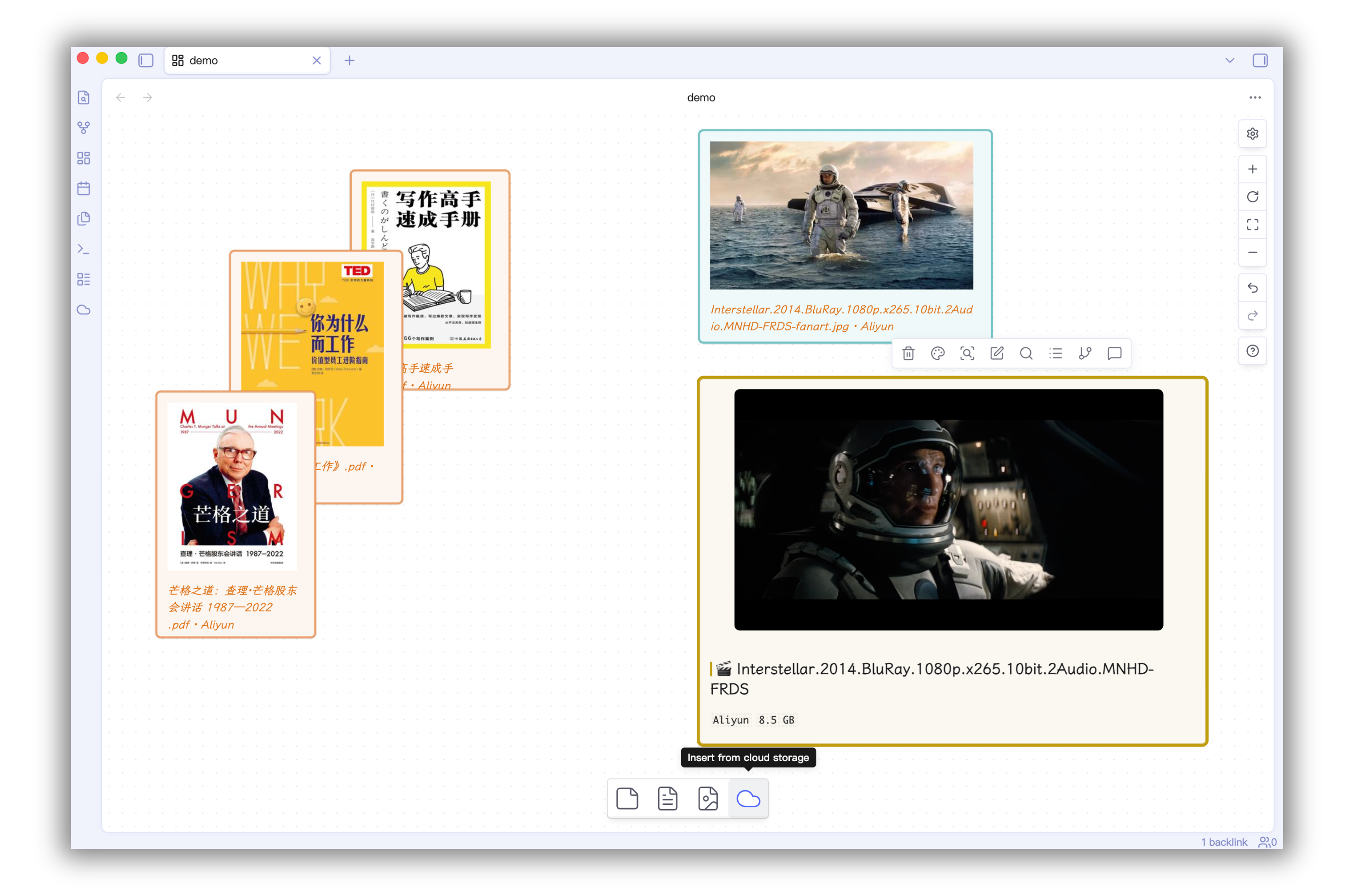
☁️ Cloud File Integration
Browse and insert files from Aliyun, Baidu, Quark, and OneDrive directly into Canvas — without leaving Obsidian.
- Insert: Bottom toolbar button or canvas background context menu
- Track: Each node records cloud source and path, always traceable
- Read: AI can read cloud file content (PDF, text, code, etc.) on demand via
read_cloud_filetool
🤖 AI-Powered Analysis
Select Canvas nodes (local notes + cloud files) and ask AI to analyze them together.
- Presets: Summarize, Explain, Find Relations
- Custom Q&A: Ask anything about selected nodes
- Context-aware: AI understands node layout, connections, and colors
- Supports: OpenAI / Gemini / Claude / Ollama
🕒 Video/Audio Timestamp
Mark timestamps in notes and jump to corresponding Canvas nodes.
- Shortcut
Cmd+Shift+Space - Click to navigate to the Canvas node at the exact second
Prerequisites
- Sync Vault plugin (cloud storage engine)
- Enable AI → MCP Server in Sync Vault settings
- Obsidian v1.5+ (Canvas feature)
Installation
- Copy
main.js,manifest.json,styles.cssto.obsidian/plugins/cloudweave/ - Enable CloudWeave in Obsidian Settings → Community Plugins
- Open a Canvas file → Right-click → Insert from cloud storage
Development
# Install dependencies
pnpm install

# Dev build (watch)
pnpm run dev

# Production build
pnpm run build

# Deploy to vault
pnpm run deploy
Roadmap
- [P0] Cloud file insertion + AI Q&A ✅
- [P1] Audio transcription — Transcribe cloud audio/video via AI
- [P2] Web search — AI can search the web as context
- [P3] Advanced AI workflow — Custom prompts, multi-turn, tool composition
Architecture
Obsidian
├── CloudWeave Plugin
│   ├── Cloud node (cloud-link + JSON meta)
│   ├── Timestamp system
│   └── AI Q&A panel
└── Sync Vault Plugin
    └── MCP Server (Aliyun / Baidu / Quark / OneDrive)
License
MIT