Clear Unused Images Plus

by puhhh
5
4
3
2
1
Score: 35/100

Description

This plugin has not been manually reviewed by Obsidian staff. Fork of oz-clear-unused-images for clearing unused images from vaults.

Reviews

No reviews yet.

Stats

stars
321
downloads
0
forks
7
days
NaN
days
NaN
days
0
total PRs
0
open PRs
0
closed PRs
0
merged PRs
0
total issues
0
open issues
0
closed issues
0
commits

Latest Version

Invalid date

Changelog

README file from

Github

Clear Unused Images Plus

License: MIT Version Obsidian TypeScript Tests

Clear Unused Images Plus is an Obsidian plugin for finding and deleting images that are no longer referenced in your vault. It scans markdown notes, supported frontmatter references, canvas files, and attachment links, then compares those references against image files in the vault.

This project is a maintained fork of oz-clear-unused-images. The current fork is maintained by Aleksei B. The original plugin author is Ozan.

See CHANGELOG.md for release history.

Screenshots

Deleted image destination

Cleanup interval

Cleanup logs

Features

  • Finds unused images in Obsidian vaults
  • Supports markdown links, wikilinks, canvas-linked files, and supported frontmatter image references
  • Deletes files through Obsidian Trash, System Trash, or Permanent Delete
  • Optional review and log modal for cleanup results
  • Optional cleanup once after vault load
  • Optional recurring cleanup every configured number of minutes
  • Optional empty-folder cleanup after deleted images leave folders empty
  • Excluded folder paths with optional subfolder matching
  • Separate commands for unused images, broader unused attachments, and empty folders

Installation

  1. Open Obsidian Settings.
  2. Go to Community plugins.
  3. Install Clear Unused Images Plus.
  4. Activate the plugin from Community Plugins.
  5. Configure the delete destination before running cleanup.

Usage

Select the destination for deleted images under the Clear Unused Images Plus Settings tab:

Deleted image destination

  • Move to Obsidian Trash moves files to .trash inside the Obsidian vault.
  • Move to System Trash moves files to the operating system trash.
  • Permanently Delete destroys files permanently and cannot be undone.

The plugin provides three cleanup commands:

  • Clear unused images checks only image files. It is limited to jpg, jpeg, png, gif, svg, bmp, and webp.
  • Clear unused attachments checks all non-note attachments in the vault, not just images. This can include PDFs, audio, video, archives, and other non-markdown files.
  • Clear unused folders removes empty folders recursively, starting with the deepest folders first. It uses the selected delete destination and keeps folders under excluded folder paths.

Use Clear unused images for routine image cleanup. Use Clear unused attachments more carefully because it has a wider scope and can delete any attachment the plugin cannot find referenced in notes, canvas files, or supported frontmatter references. Use Clear unused folders after file cleanup if you want to remove empty folder structure left behind, or enable Clear empty folders after image cleanup to do that automatically.

You can run cleanup from the ribbon icon or from the Command Palette with Ctrl/Cmd + P.

Ribbon icon settings

Command palette

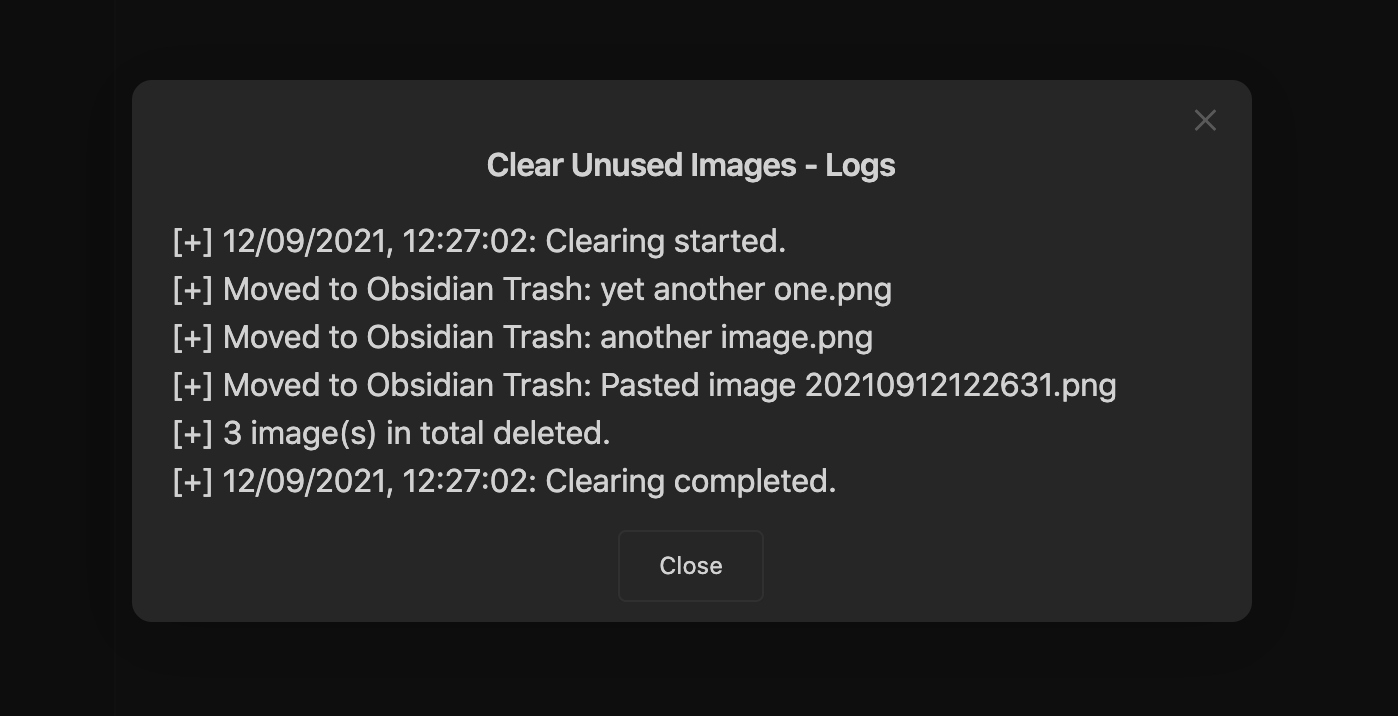
If Delete Logs is enabled, the plugin shows a modal with information about deleted files:

Cleanup logs

If all images are still used, the plugin reports that nothing was deleted:

Nothing deleted

Automatic Cleanup

Enable Clean Images On Vault Load to run image cleanup once after the vault layout is ready:

Clean images on vault load

  • The startup cleanup only runs the image cleanup flow, not Clear unused attachments.
  • If you enable the setting while Obsidian is already open, the change takes effect on the next vault load.
  • If Permanently Delete is selected, the confirmation dialog still appears before deletion starts.

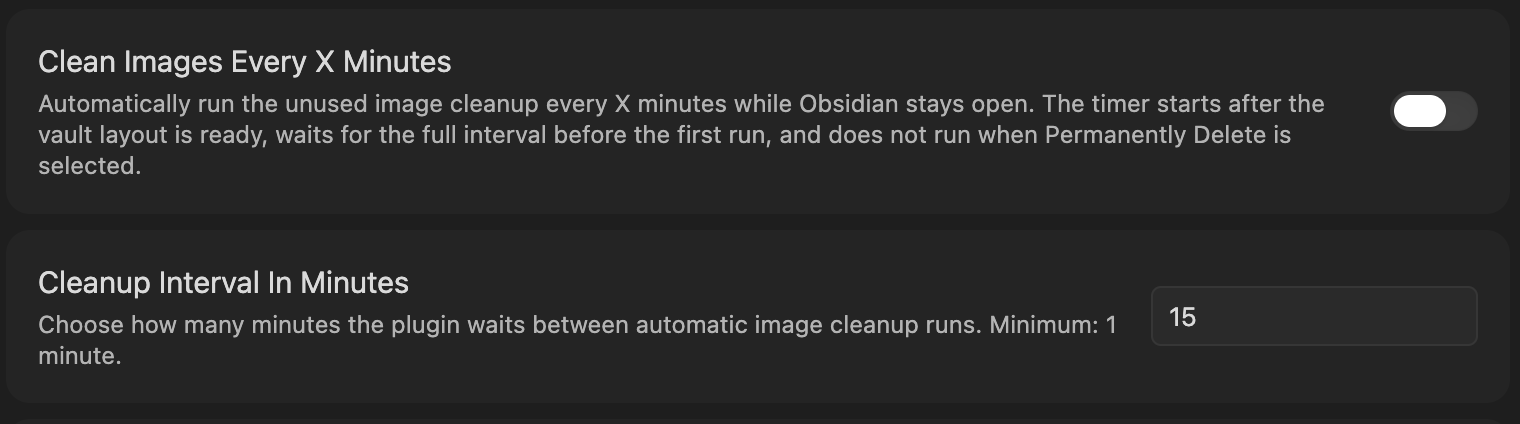
Enable Clean Images Every X Minutes to run recurring image cleanup while Obsidian stays open:

Cleanup interval

  • The first periodic cleanup waits the full configured interval.
  • If both automatic modes are enabled, the vault-load cleanup runs once and periodic cleanup starts later on its normal interval.
  • Periodic cleanup is disabled while Permanently Delete is selected.
  • Changing the toggle, interval, or delete destination updates the scheduler for the current session.

Enable Clear empty folders after image cleanup to remove folders that become empty after unused image cleanup deletes images:

Clear empty folders

  • This setting applies to Clear unused images, Clean Images On Vault Load, and Clean Images Every X Minutes.
  • It does not change Clear unused attachments.
  • It only removes folders that directly contained images deleted by that cleanup run.
  • If Permanently Delete is selected, folder deletion asks for a separate confirmation after image deletion confirmation.

Excluded Folders

Use excluded folders to prevent cleanup from deleting files under specific vault paths. Separate multiple folders with commas and provide full paths inside the vault.

Excluded folders

You can also exclude every subfolder under those paths:

Exclude subfolders

Development

npm install
npm run dev
npm test
npm run build
  • npm run dev builds in watch mode.
  • npm test runs the Vitest suite.
  • npm run build creates the production main.js bundle.
  • After npm run build, refresh the installed vault copy before manual testing:
cp main.js .obsidian/plugins/clear-unused-images-plus/main.js
cp styles.css .obsidian/plugins/clear-unused-images-plus/styles.css
  • To verify the installed copy is current, compare the files directly:
git diff --no-index -- main.js .obsidian/plugins/clear-unused-images-plus/main.js
git diff --no-index -- styles.css .obsidian/plugins/clear-unused-images-plus/styles.css

No output means the local Obsidian plugin copy is in sync.

Release

GitHub Releases are published by GitHub Actions when a version tag is pushed.

  1. Update package.json, package-lock.json, manifest.json, versions.json, and CHANGELOG.md.
  2. Run npm run lint, npm test, and npm run build.
  3. Copy main.js and styles.css into .obsidian/plugins/clear-unused-images-plus/ for manual Obsidian verification.
  4. Commit the release changes, open a pull request into main, and merge it.
  5. Create and push a version tag from main:
git tag X.Y.Z
git push origin main
git push origin X.Y.Z

The release workflow verifies that the tag version matches package.json, manifest.json, and versions.json, rebuilds main.js, creates GitHub artifact attestations, and uploads manifest.json, main.js, and styles.css as release assets. Obsidian requires the GitHub release tag to match manifest.json exactly, so use 1.0.0, not v1.0.0.

Project Structure

  • src/main.ts - Obsidian plugin entry point
  • src/util.ts - vault scanning and cleanup orchestration
  • src/linkDetector.ts - markdown and wikilink reference detection
  • src/referenceUtils.ts - pure reference and path helpers
  • src/folderCleanup.ts - empty-folder cleanup behavior
  • tests/ - regression coverage for cleanup, references, settings, and scheduling
  • docs/assets/ - screenshot assets used in this README
  • styles.css - plugin styles
  • main.js - built plugin bundle

Testing

Tests use vitest, with jsdom available through per-file @vitest-environment jsdom comments when DOM coverage is needed. The most important coverage is around markdown links, wikilinks, frontmatter references, canvas parsing, excluded folders, delete failure handling, and startup or periodic cleanup scheduling. Run npm run lint and npm test before publishing changes.

When fixing safety bugs, add a focused regression first, verify it fails, then fix the implementation. For deletion or exclusion bugs, cover both helper behavior and cleanup-flow results.

Notes

  • The plugin targets Obsidian vault cleanup and does not require a separate backend.
  • main.js is generated; do not edit it by hand.
  • The local development copy in .obsidian/plugins/clear-unused-images-plus/ is for testing only and is not part of the Git repository.
  • Manual Obsidian checks should include markdown links, wikilinks, frontmatter image references, canvas-linked files, excluded folders, Obsidian Trash, System Trash, and Permanent Delete.